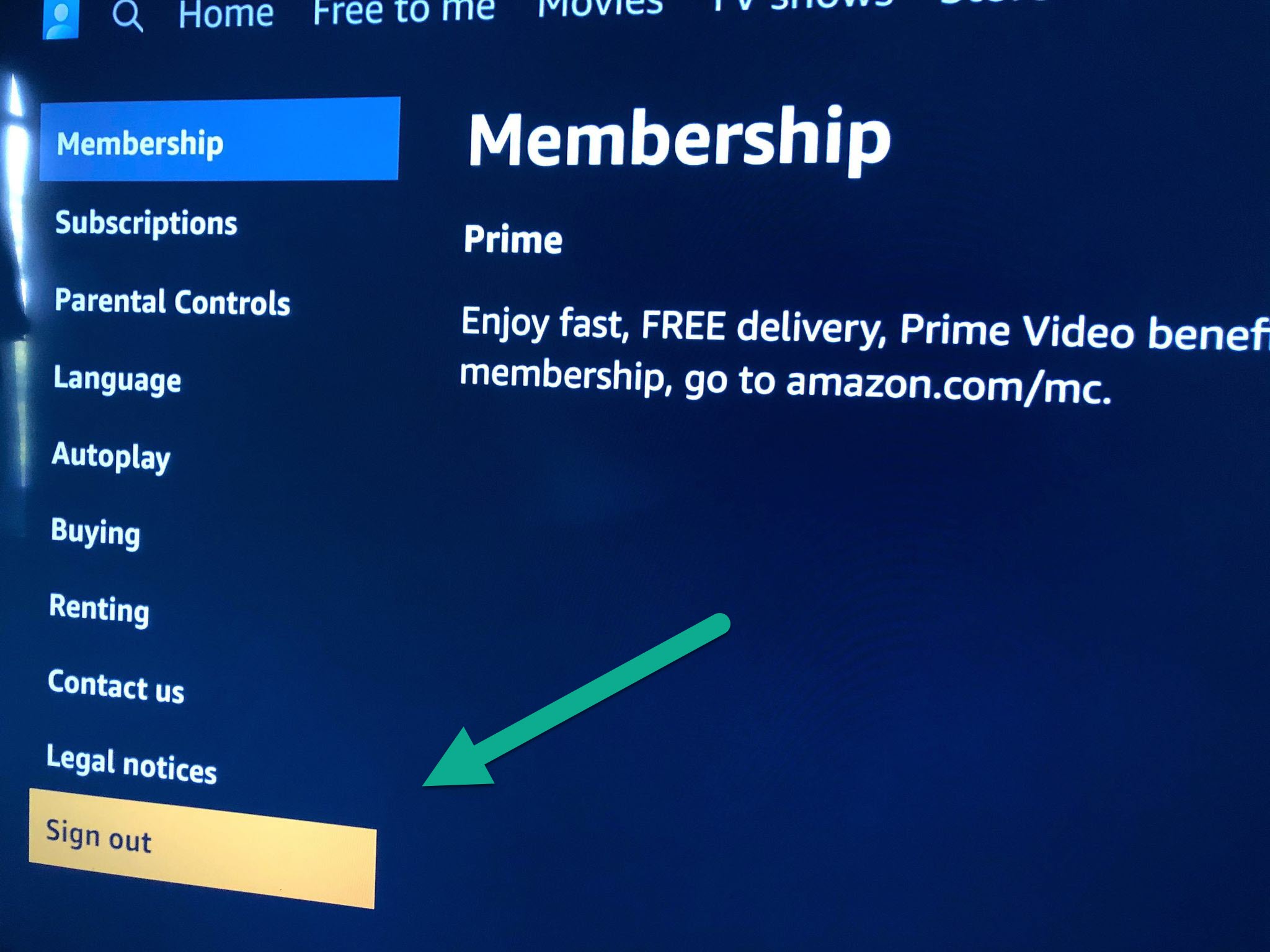
To sign out of Prime Video on a smart TV, open the app, go to the settings or profile menu, and select the Sign Out option. If your TV app doesn't offer a sign-out button, you can deregister the device remotely through your Amazon account in a web browser.
How to sign out of Prime Video on a smart TV directly
The quickest way to sign out of Prime Video on a smart TV is to use the sign-out option built into the app itself. This method works on most smart TV brands and models, including Samsung, LG, Sony, and Vizio, and it takes just a few clicks with your remote.
- Launch the Prime Video app on your smart TV.
- Navigate to the main menu by pressing the back or home button on your remote until you see the top navigation bar.
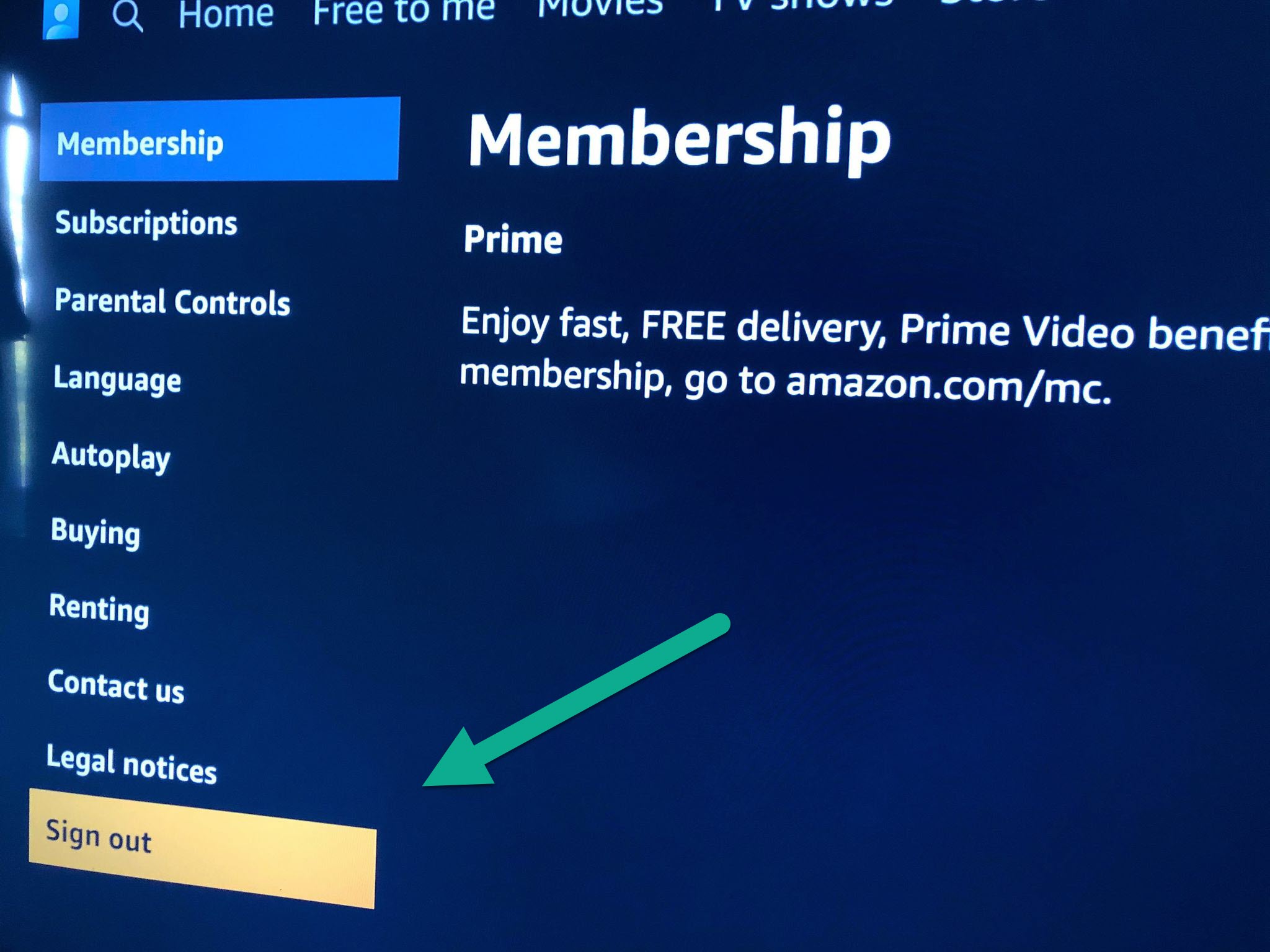
- Select the option labeled Sign Out or Log Out. On some TVs, you may first need to open your profile or account section to find it.
- Confirm the sign-out when prompted by the on-screen message.
After confirming, the app returns to the sign-in screen. This is the cleanest method because it clears the account from the TV's memory immediately, which is especially useful when you're handing the remote to someone else or using a rental property. The exact wording and placement of the sign-out button can vary slightly by TV brand, but it is almost always under Settings or your profile icon.
What to do when there is no sign-out option on your TV
Some smart TV models, particularly older ones or certain budget brands, do not include a visible sign-out button inside the Prime Video app. If you can't find one, you can still sign out remotely by deregistering the TV from your Amazon account using a web browser. This is a verified and reliable fallback method that works on any TV that runs the Prime Video app.
- On a computer, phone, or tablet, open a web browser and go to the Amazon website.
- Sign in with the same Amazon account that is currently active on your smart TV.
- Navigate to the Your Devices or Manage Your Devices page under Account & Lists.
- Find your smart TV in the list of registered devices. It may be listed by brand name or model.
- Select the device and choose the option to Deregister or Unregister.
- Confirm the action if prompted.
Once you deregister the TV, the Prime Video app on that device is automatically signed out. This method is particularly handy when you no longer have access to the TV's remote, when the app is stuck or frozen, or when you're troubleshooting a device that was signed in by someone else. It also covers the broader need for signing out of streaming apps on a smart TV, since the same deregistration process applies to other Amazon-based services on the device. After deregistering, the TV will require you to sign in again the next time you open Prime Video.
How to confirm you are signed out
Verifying the sign-out takes less than a minute and ensures no one else can access your account on that TV. Simply reopen the Prime Video app on your smart TV. If the sign-out was successful, the app will display a sign-in screen asking for your email and password, or a prompt to register the device. If you still see your profile or the home screen with your watch history, the sign-out did not complete, and you should repeat the direct method or the remote deregistration process.
Checking this step is especially important if you used the remote deregistration method, because some TV apps cache the account data briefly. Reopening the app forces it to check the account status and show the login page if the deregistration went through. Once you see the sign-in prompt, your account is protected, and the TV is ready for a different user to sign in.
\nRelated reading: How To Remove Netflix Account From Smart TV and How To Sign Out Of Amazon Prime On Roku.