To log out of amazon prime video on smart TV, open the Prime Video app and navigate to the settings menu to find the sign-out option. This process signs out your entire Amazon account from the TV, which is crucial for protecting your privacy if you share the device, sell it, or want to switch accounts.
How to log out of Amazon Prime Video on your smart TV
Logging out of the Prime Video app on a Smart TV signs out the entire Amazon account associated with it, not just an individual profile. This is essential when signing out of streaming apps on a smart TV before gifting, selling, or lending the device to someone else, as it prevents unauthorized access to your personal information and purchase history.
Step 1: Open the Prime Video app and go to settings
- Turn on your Smart TV and open the Prime Video app from your home screen or app list.
- Press the left arrow button on your remote to open the left-hand menu.
- Select the "Settings" option from this menu.
Step 2: Find and select 'Sign out' or 'Deregister'
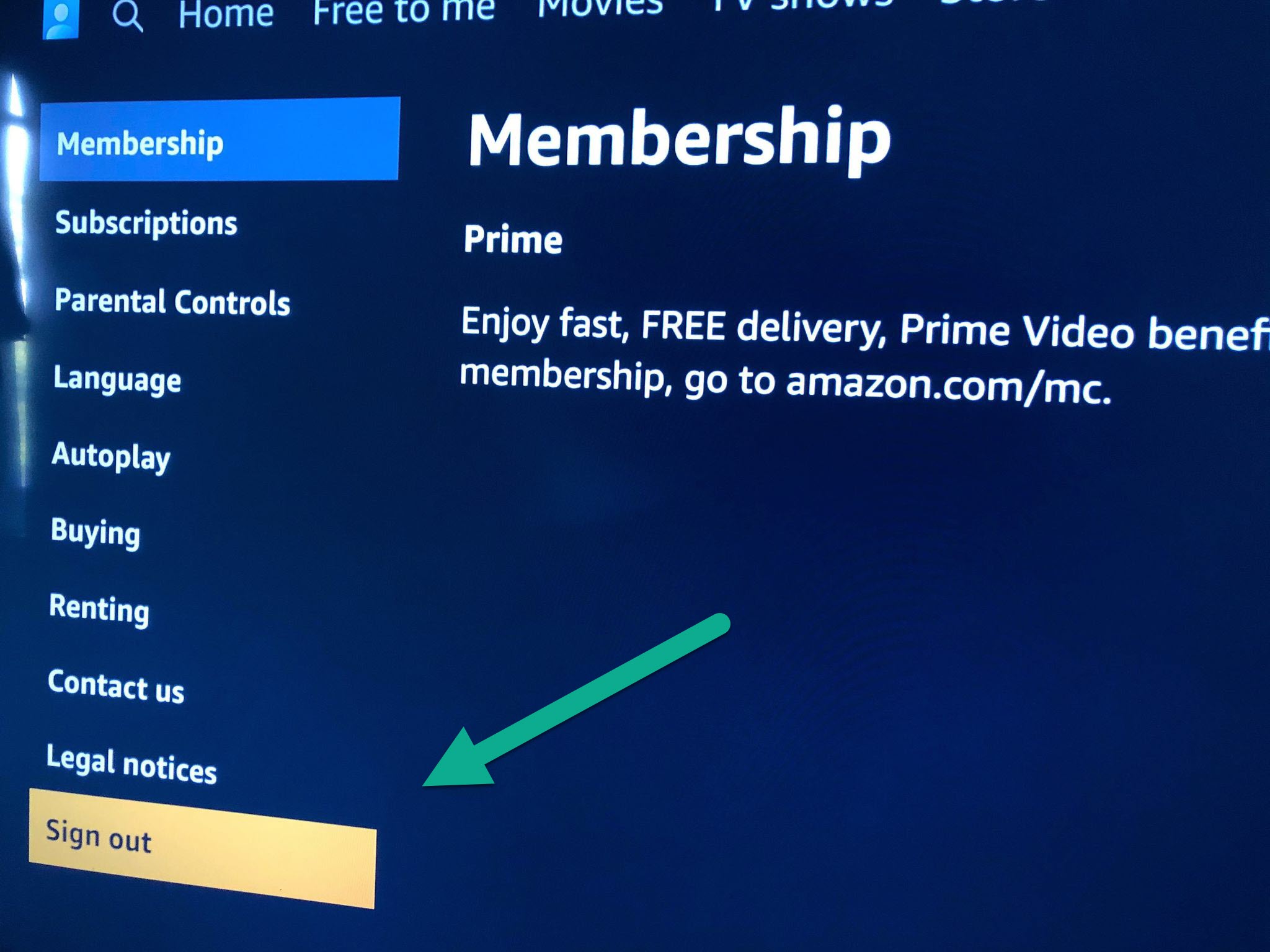
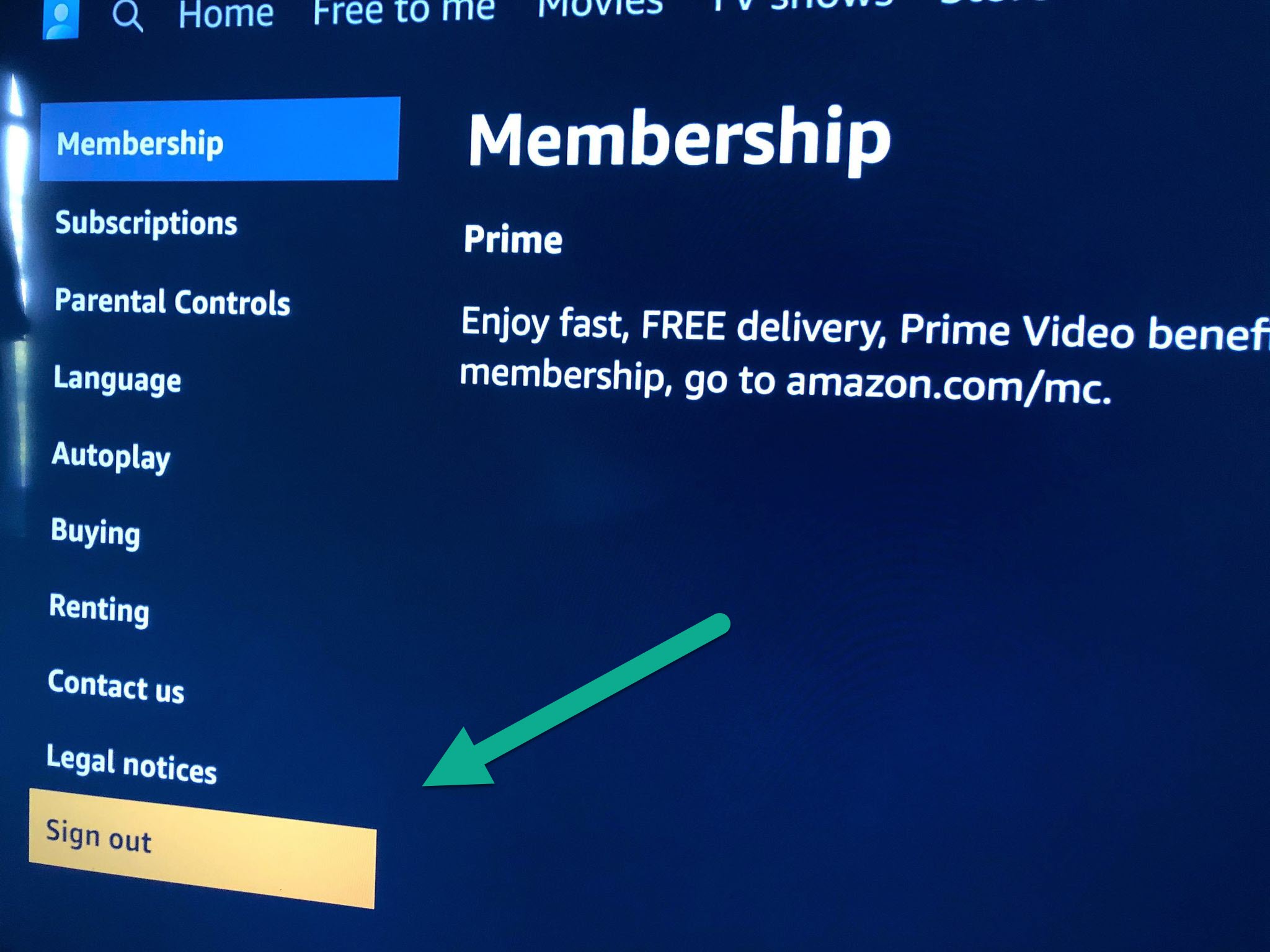
- Within the Settings menu, scroll down until you locate the option labeled "Sign out" or "Deregister."
- Highlight this option using your remote's arrow keys and press the OK or Enter button to select it.
Step 3: Confirm you want to sign out
- A pop-up prompt will appear asking you to confirm the action.
- Select "Yes" or "Confirm" to complete the sign-out process on the TV.
- The TV will return to the Prime Video sign-in screen, confirming the account is no longer active on that device.
How to sign out remotely using the Amazon website
If you cannot access the TV directly, you can log out remotely using the Amazon website. Go to Amazon.com and log in to your account. Hover over "Accounts & Lists" (or click your profile icon) and select "Devices" from the dropdown menu. Under the "Amazon apps installed on devices" section, click on "Prime Video." Locate the specific Smart TV you wish to log out of and click "Deregister" next to its name. Confirm the deregistration when prompted to remove access to your account from that TV. If you are managing multiple streaming services, you can similarly log out of Netflix on Vizio TV through its own device settings, or sign out of Netflix on my Samsung smart TV if that matches your model.
How to sign out using the Prime Video mobile app
You can also log out remotely using the Amazon Prime Video mobile app. Open the app and tap your profile icon (usually at the bottom). Tap the Settings gear icon, typically in the upper-right corner of your profile screen. Select "Registered devices" from the Settings menu. Tap "Sign out" next to the name of the TV you want to log out of and confirm the action when prompted.
Verify you have logged out successfully
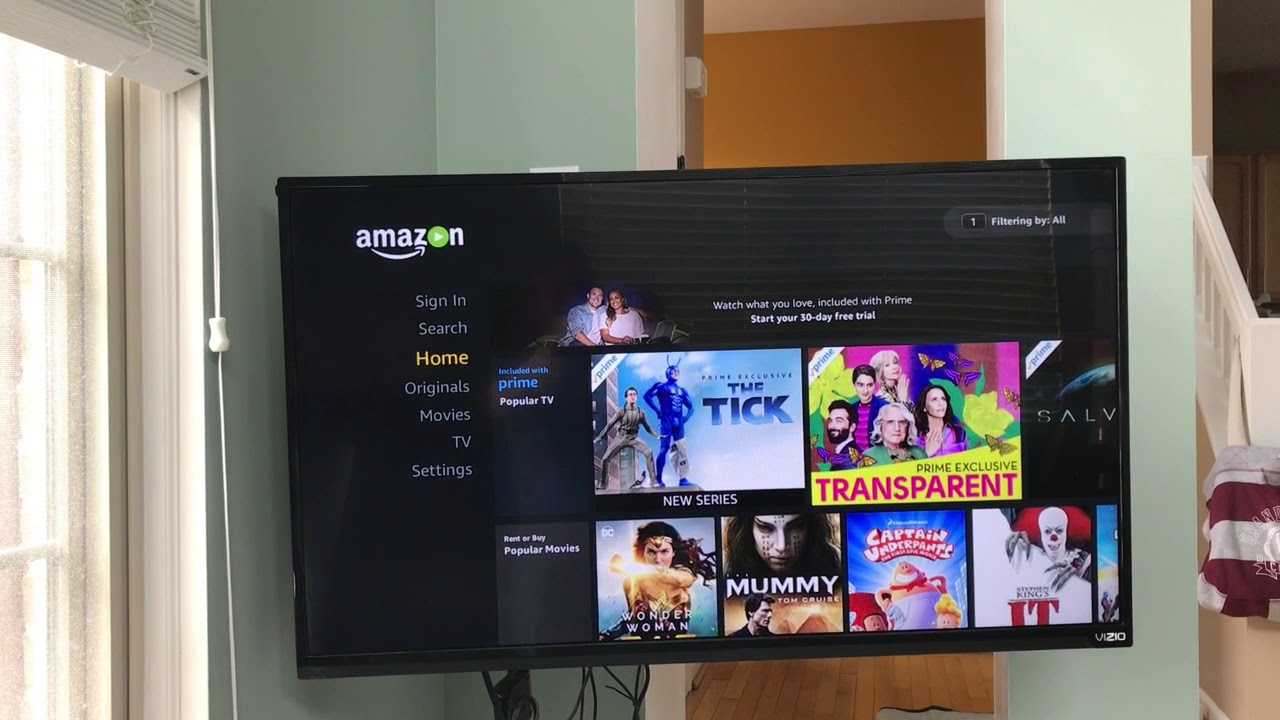
After completing any of these methods, check that the Prime Video app now shows a sign-in screen instead of your profiles. If you see a "Sign In" or "Log In" option when you open the app, the account is no longer accessible on that device. Deregistering a device removes access to your Amazon Prime Video account from that specific Smart TV, ensuring your personal information and preferences remain secure.