To add Acorn TV to LG Smart TV, you have two verified options: install the app directly from the LG Content Store, or subscribe through Amazon Prime Video as an add-on channel. Before doing anything, check the LG Content Store for Acorn TV, if it appears there, use the direct method; if not, the Prime Video route is your reliable fallback.
Two Ways to Add Acorn TV to an LG Smart TV
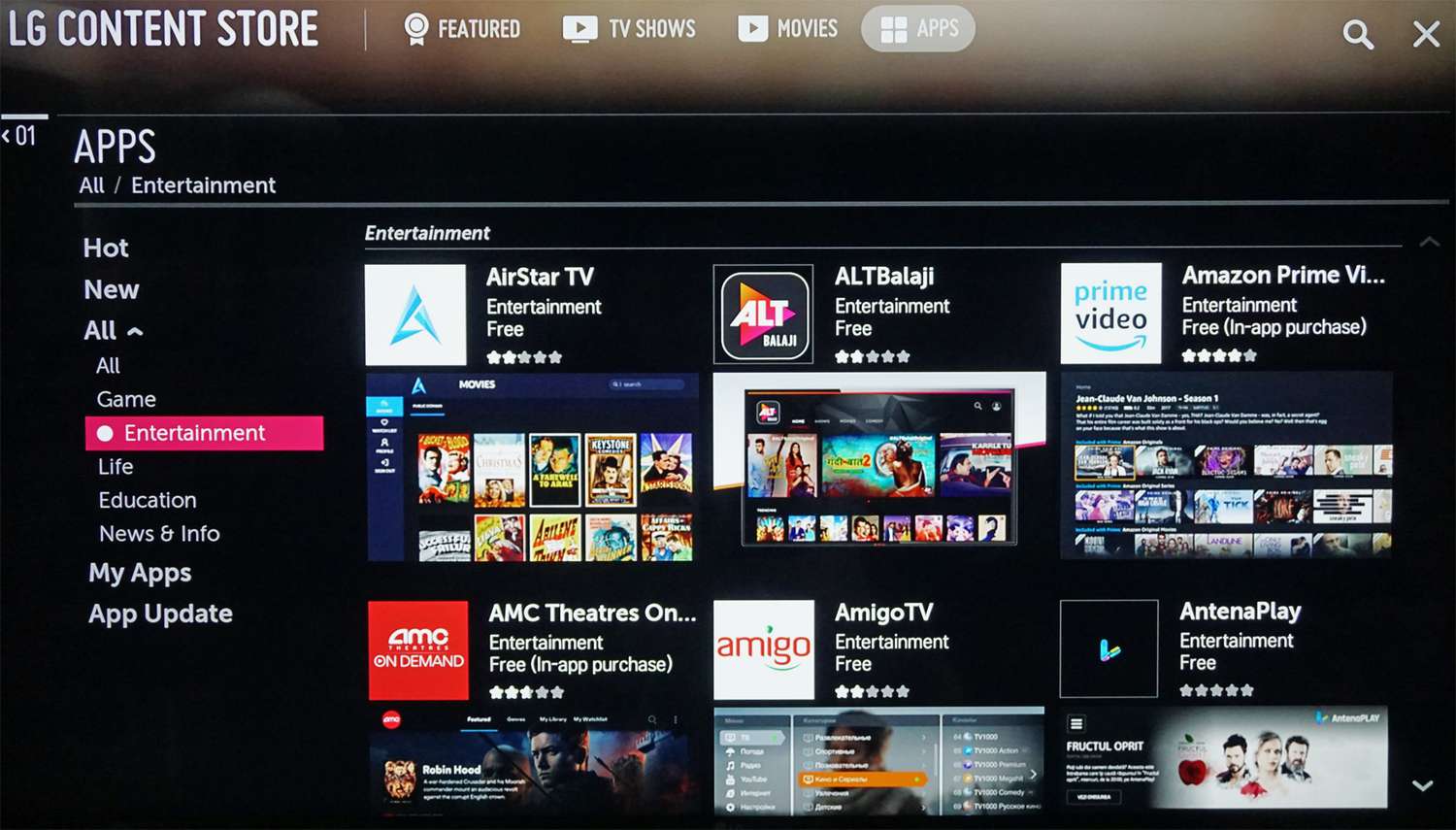
The fastest path is the native app, which puts Acorn TV on your home screen like any other channel. The alternative, accessing it through Prime Video, works on every LG Smart TV that supports Prime Video, even if the standalone app is unavailable, and you can similarly add pbs passport to LG smart TV through Prime Video if the app is missing. Start by pressing the Home button on your remote and opening the LG Content Store to see which method applies to your specific TV model.
Install the Acorn TV App from the LG Content Store
This is the ideal scenario for most users because the app runs directly on your TV, giving you one-click access to British and international shows without needing another subscription. Here is how to do it:
- Turn on your LG Smart TV and ensure it is connected to the internet.
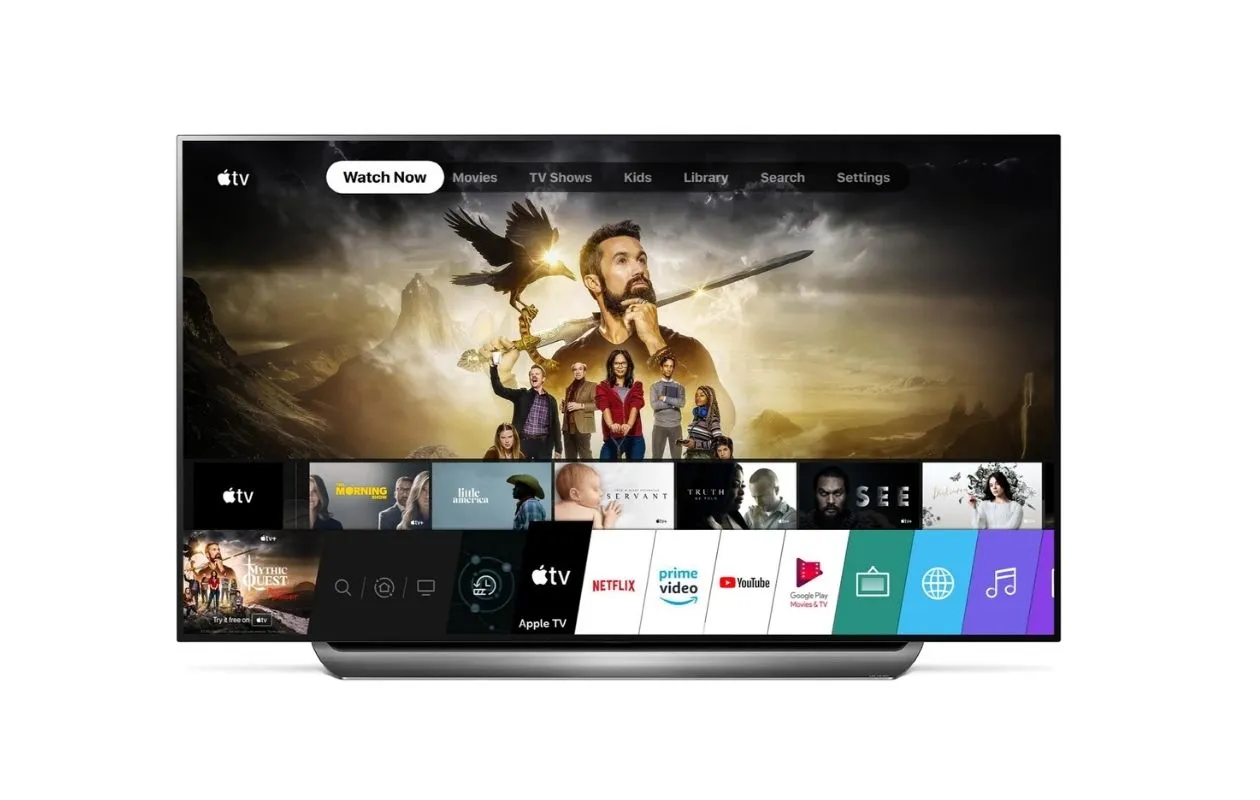
- Press the Home button on your remote to open the launcher.
- Select the LG Content Store icon (usually a shopping bag or store label).
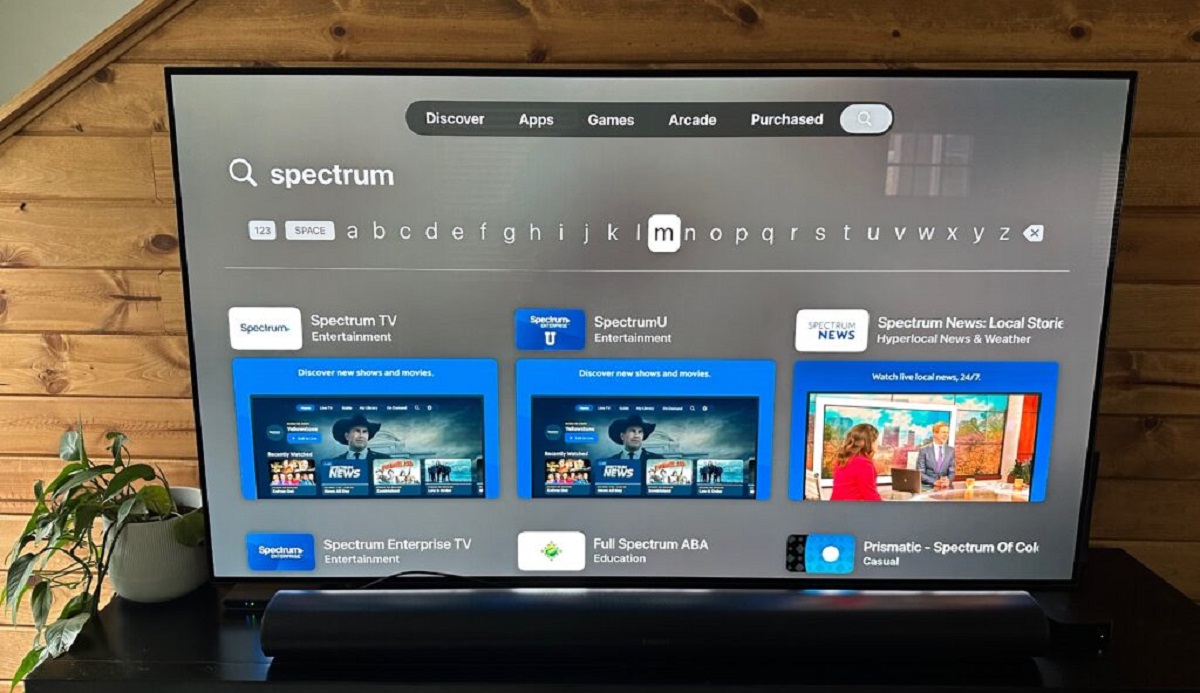
- Use the search bar at the top of the store screen and type “Acorn TV” using the on-screen keyboard.
- When the Acorn TV app appears in the search results, select it to open its description page.
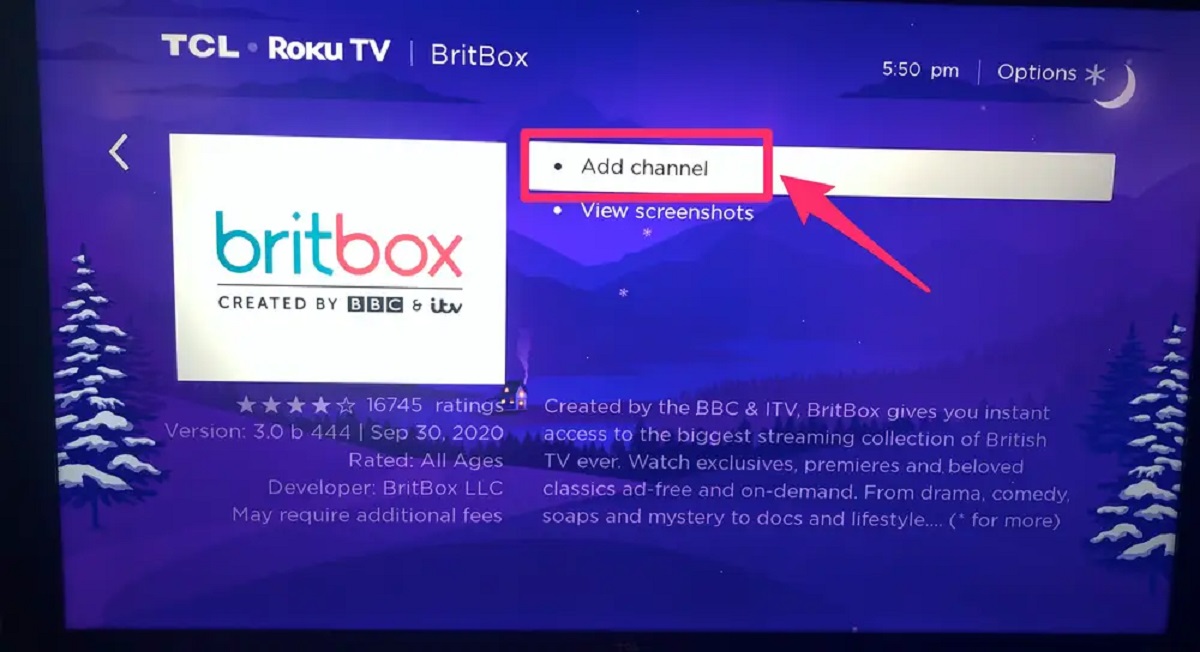
- Choose the “Install” or “Download” button and wait for the process to finish, the app will appear on your home screen or in your installed apps list.
- Launch Acorn TV by highlighting its icon and pressing OK on your remote.
If you see the app in the Content Store, this method is all you need. The installation takes only a minute or two, and once it is done, you can move straight to signing in.
Access Acorn TV Through Amazon Prime Video
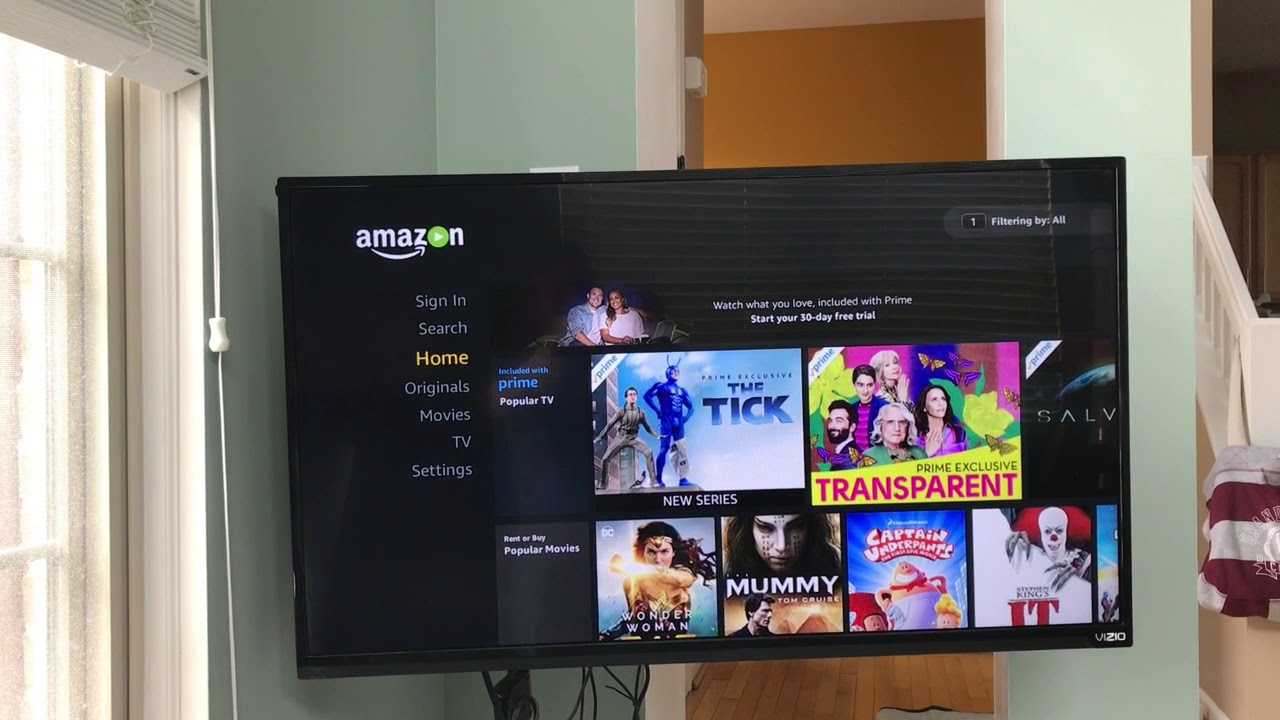
If the direct app is missing from your Content Store, which can happen on older LG models or in certain regions, you can still watch Acorn TV through Prime Video. This method uses your existing Amazon account and adds Acorn TV as a channel, so you manage billing and viewing in one place.
- Open the Amazon Prime Video app on your LG Smart TV. If you do not have it, install it from the LG Content Store first.
- Sign in to your Amazon account if prompted.
- Scroll through the available channels until you find Acorn TV.
- You will be asked to confirm your payment method from your Amazon account.
- Once subscribed, Acorn TV appears as a tile inside the Prime Video app. Select it to start watching.
This route requires an active Amazon Prime Video subscription, but it is a solid workaround if the native app is not supported on your TV. You still get the full Acorn TV library, including all dramas, mysteries, and documentaries.
Sign In and Start Watching
Whether you launched the standalone app or opened Acorn TV through Prime Video, the sign-in process is straightforward. If you already have an Acorn TV account, select “Sign In” and enter your email and password using the on-screen keyboard. If you are new, choose “Create Account” and follow the prompts to set up your subscription, you will need to provide an email address, create a password, and agree to the terms.
After signing in, you can browse the full catalog by genre, including drama, mystery, comedy, and documentaries. Use the search function to find specific titles, and add shows to your watchlist to pick up where you left off on any device linked to your account. The interface also lets you adjust streaming quality and subtitle settings from the app’s menu.
Once you are signed in, you are ready to stream. The library updates regularly, so check the “New Releases” section often, and use the watchlist feature to keep track of series you want to finish. That is all you need to do, your LG Smart TV is now set up for Acorn TV.
\nRelated reading: How To Add Youtube TV To LG Smart TV and How To Add Apple TV App To LG Smart TV.