You can display a clock on an LG Smart TV primarily through the screen saver feature, which shows the time after a period of inactivity, rather than as a persistent overlay during active viewing. This design choice, especially on OLED models, helps prevent image retention or burn-in, so while you cannot keep a clock visible while watching content, several reliable methods exist for checking the time when you need it.
Can you display a clock on an LG Smart TV screen?
LG Smart TVs do not support a persistent clock overlay during active viewing to prevent burn-in, but several alternative methods exist for checking the time. The built-in screen saver is the most common way to see a clock, and it activates automatically when the TV is idle. For quick checks, you can use the remote's Info button or voice commands. Newer models also offer Always Ready mode, which displays a clock when the TV is not in active use, and understanding the difference between a smart TV and a Google TV can help you identify which platform your model uses for these features.
Method 1: Use the screen saver clock
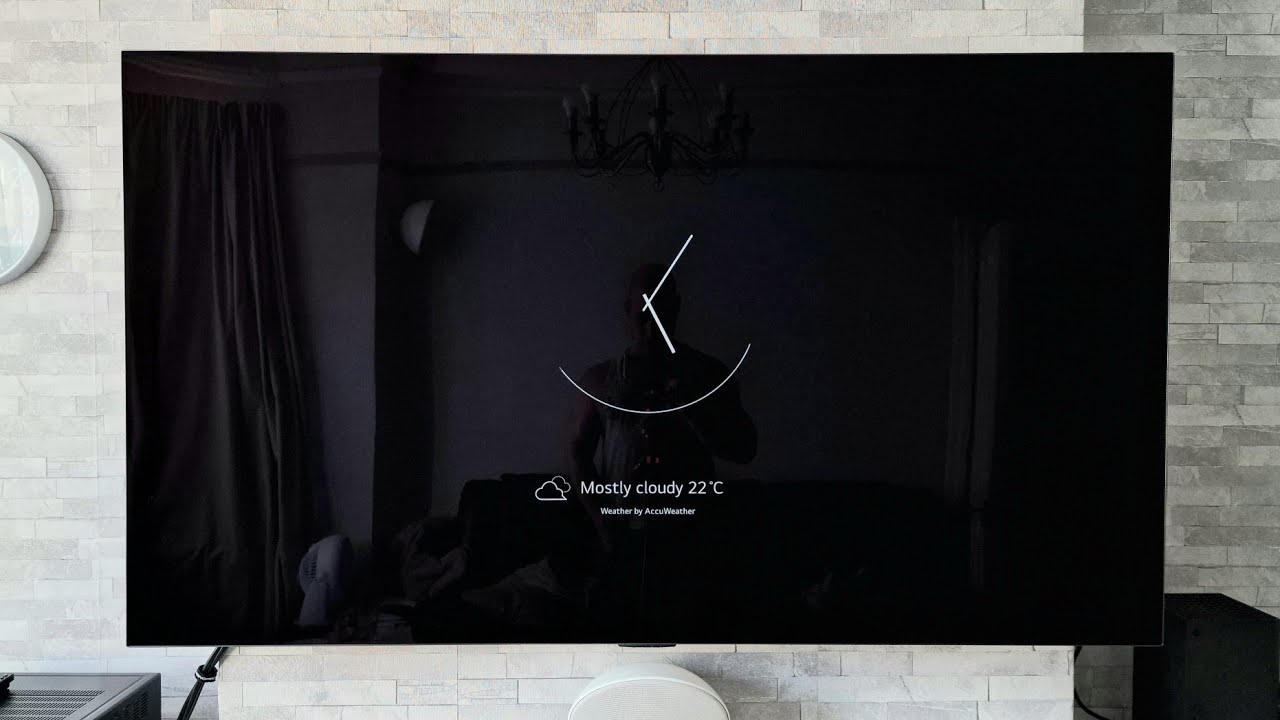
The primary method to display a clock on an LG Smart TV is through the built-in screen saver feature, which activates after a period of inactivity. To enable it, hold the Settings button on your remote for a few seconds, then navigate to General → System → Location, and enter your location in the Weather Location Settings. Once the location is set, when the TV goes into screen saver mode, it will display the current time, date, and weather information. This is a convenient way to see the time without interrupting your viewing, as the screen saver appears automatically when you pause content or leave the TV idle.
Method 2: Set up the TV's internal clock
To set up the TV's internal clock, press the Home button on your LG remote, then navigate to Settings → All Settings → General → Time & Timer. You can choose to set the time automatically (if connected to the internet or using the TV's tuner) or manually adjust the time, date, and time zone. Note that the Auto Clock feature should primarily be used when the TV's tuner is active, as it relies on local digital broadcasts for time information. Manual time setting disables the Time Zone and Daylight Saving Mode options. Setting the clock correctly ensures that all time-dependent features, including the screen saver and program guides, show accurate information.
Method 3: Check time with the Info button
For a quick, temporary time check, press the Info button on your LG remote; a small overlay showing the current time, channel, and program information will appear briefly. This is the fastest way to see the time while watching content, as the overlay disappears automatically after a few seconds. It does not require any setup and works on most LG Smart TV models, making it ideal for a glance without navigating menus.
Method 4: Ask your Magic Remote
If your LG Smart TV supports voice control (e.g., via Magic Remote), you can ask "What time is it?" to hear the current time announced. This method is hands-free and useful when you cannot easily see the screen or locate the remote. Voice control is integrated into many LG TVs with webOS, and the audio response provides the time without any visual overlay, which is helpful for those who prefer auditory cues or have difficulty reading small text on screen.
Method 5: Enable Always Ready mode (webOS 22 and later)
Newer LG Smart TVs with webOS 22 and later may feature an "Always Ready" mode, which can display a clock, art frames, or background videos when the TV is not in active use. To enable it, press the Settings button, open the full settings menu (All Settings), go to General, select Always Ready Mode, and set Enable to On. The Always Ready mode allows you to change the clock design, so you can choose a style that matches your decor. This mode is particularly useful for turning your TV into a decorative display when not watching, and the clock remains visible without risking burn-in because the TV dims or shows varied content.
Gallery Mode and other options
Some LG OLED TV models offer a "Gallery Mode" or "Art Mode" that can include clock and date overlays as part of its themes. These modes are designed to simulate artwork when the TV is not in use, and they often feature customizable clocks that blend with the displayed art. However, third-party apps for a persistent clock display are limited and may not integrate seamlessly or work during content playback. The limited availability of such apps means they are not a reliable solution for most users, as they often stop functioning when the TV is actively streaming or playing media. If you use Google apps on a smart TV, you might notice that they do not provide a persistent clock overlay either, as the TV's operating system prioritizes burn-in prevention over such features. For a more practical always-visible dashboard, you can display Google calendar on smart TV to keep your schedule in view. For most users, the screen saver, Info button, voice control, or Always Ready mode provide the best balance of functionality and safety for displaying the time on an LG Smart TV.