Understanding your smart TV platform for Google TV apps
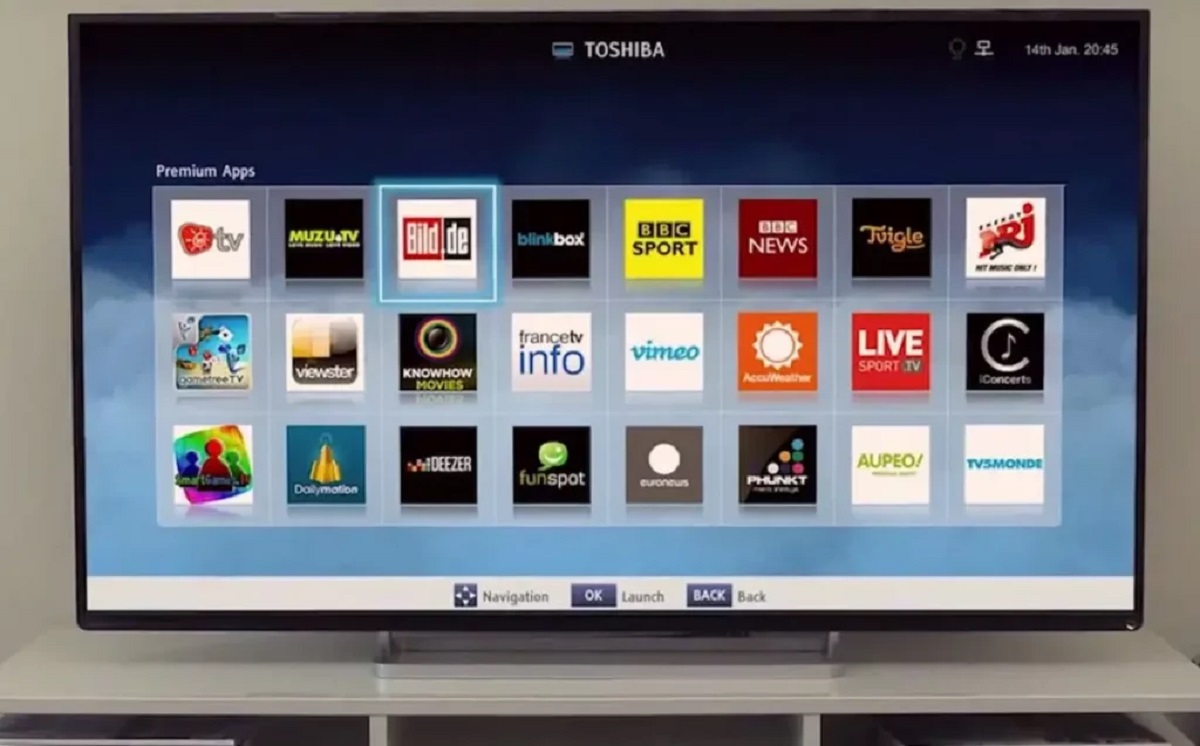
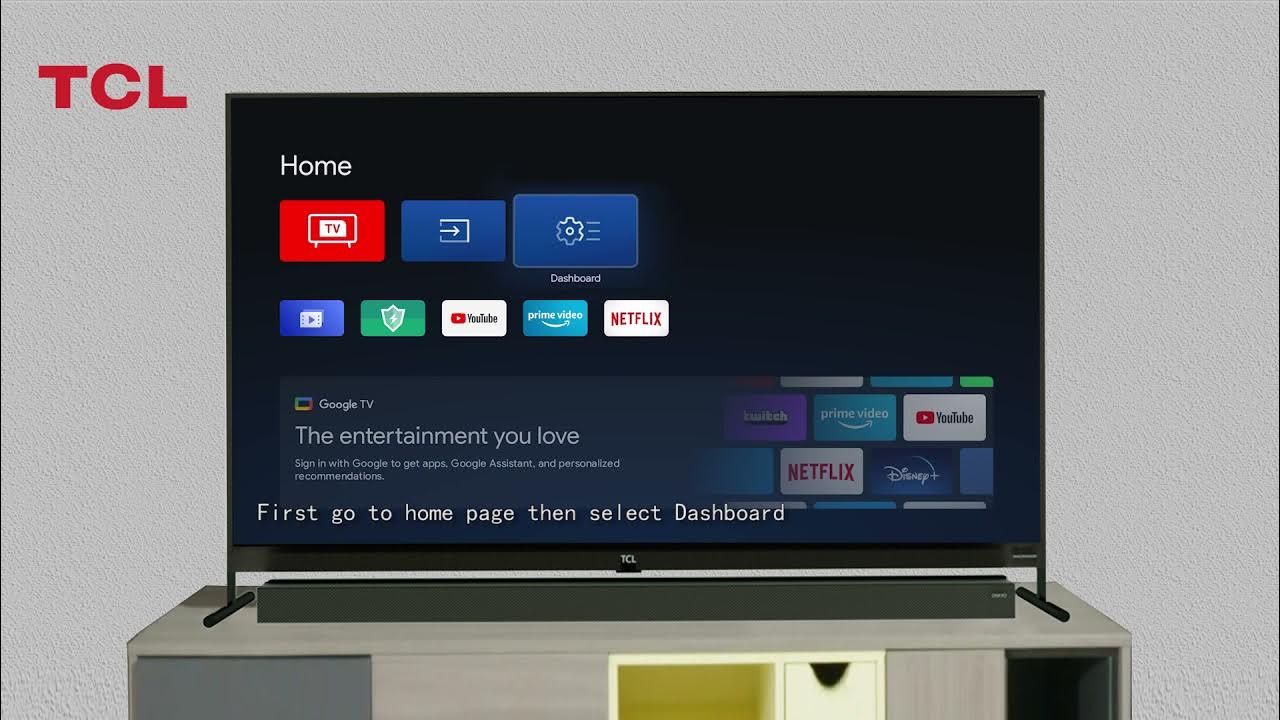
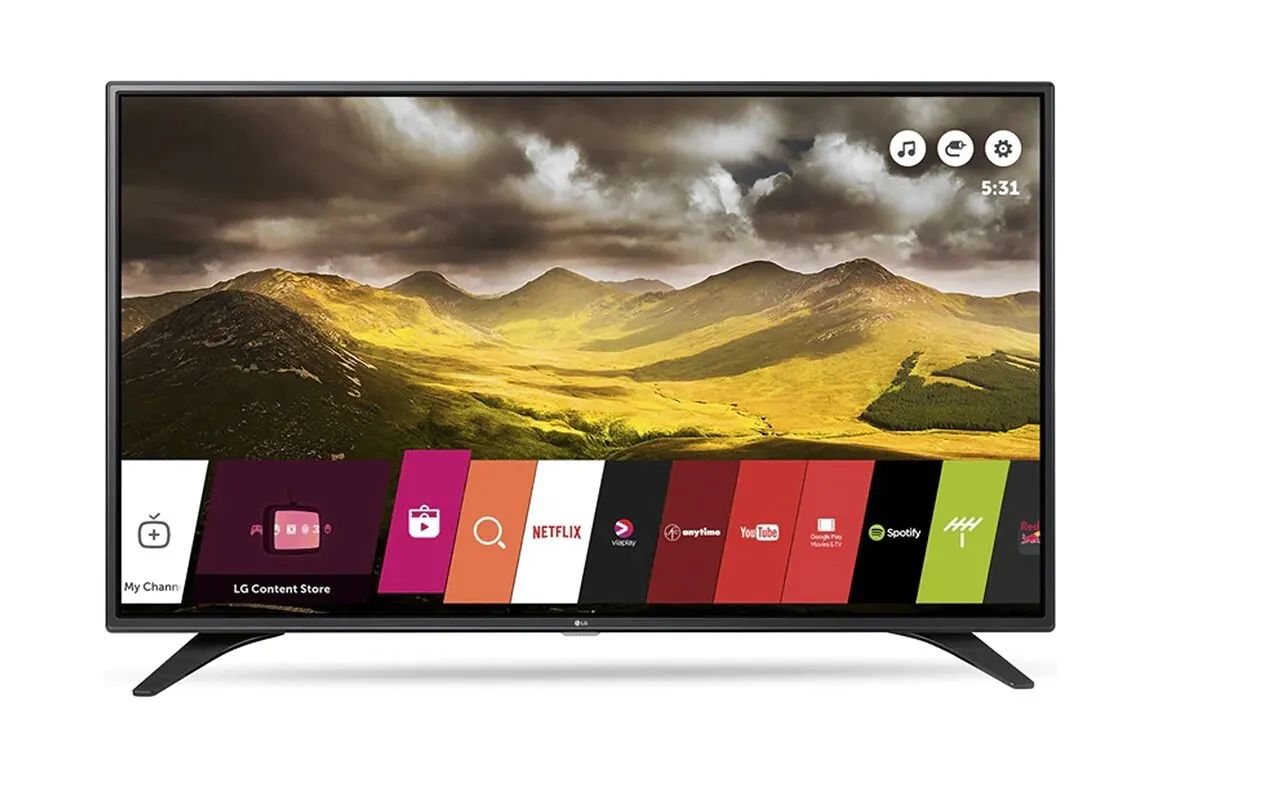
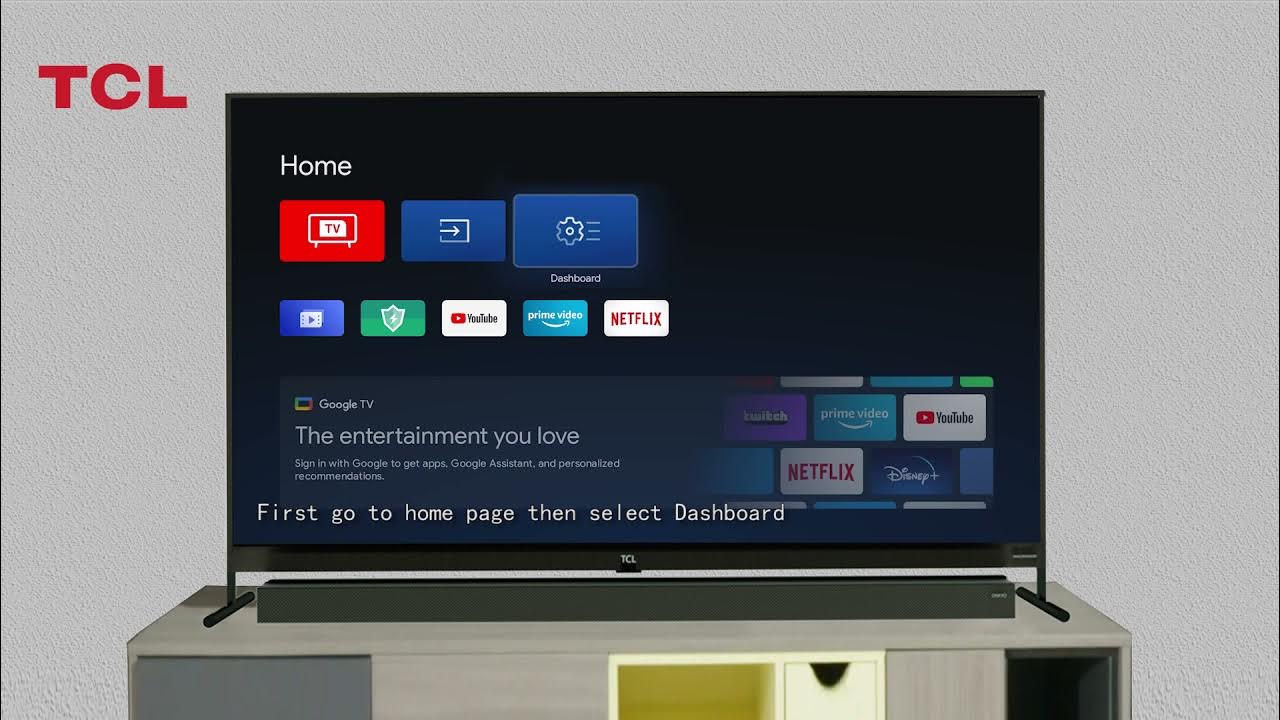
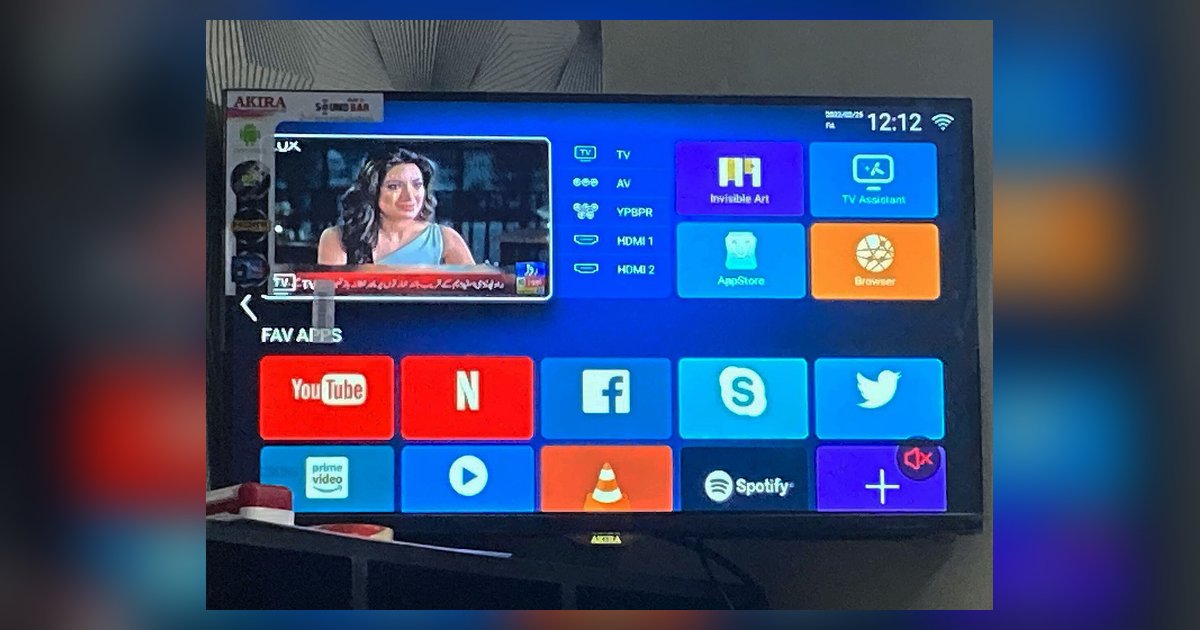
Knowing which Google TV apps you can actually run starts with understanding the difference between a smart TV and a Google TV. Most people assume any TV labeled "smart" can run Google apps, but that assumption often leads to frustration. A standard smart TV uses its manufacturer's operating system, like Samsung's Tizen or LG's webOS. A Google TV runs on the Android TV operating system with Google's own interface and app store built in. If your TV is not a Google TV model, the Play Store is simply not available. You cannot install Chrome, the YouTube TV app, or Google Drive through normal means. Some users attempt to sideload these apps. That process can void your warranty and often produces compatibility errors because the apps were never designed for that OS.
Knowing your platform also helps you decide which setup instructions to follow. Once you have confirmed whether your TV runs Google's system natively, you will find a set of step-by-step guides that all follow the same basic process. The only difference is the app or service you want to install. Each guide, whether it targets a Google service or a third-party platform, assumes the same starting point: a Google TV or Android TV device. Scan the sections below and pick the one that matches the app you actually need.
Many people search for a way to get Google on smart TV screens without buying new hardware. The most reliable method involves plugging in an external streaming device. A Chromecast with Google TV or a similar dongle bypasses your television's built-in software completely. This instantly gives you the full Play Store, Google Assistant, and a homescreen organized around your watchlist. Another option is screen mirroring from a phone or laptop. This works in a pinch but delivers lower video quality and ties up your mobile device. We strongly recommend the dedicated streaming stick approach for daily use.
A frequent question from Samsung owners is whether they can get Google TV on Samsung smart TV hardware. Samsung uses its own Tizen operating system and does not license Google TV as a native interface. You cannot replace Tizen with Google TV through a software update or hidden menu. The solution is to add an external Google TV streamer to an HDMI port. Once connected, the Google TV interface takes over that input. You can even program some Samsung remotes to control the external device. This hybrid setup gives you Samsung's excellent display quality paired with Google's content ecosystem.
Social media access is another common request. If you want to get Facebook on my smart TV, you should know that Meta no longer supports a dedicated Facebook app for television platforms. The old Samsung and LG app store versions have been discontinued. The simplest workaround is to cast the Facebook website from a laptop using the Chrome browser. Alternatively, you can use a streamer with a full web browser to navigate directly to the social network's mobile site. The experience is not as smooth as a native app, but it restores access to your feed, Messenger, and video content on the big screen.
Live television fans often ask how to get YouTube TV on a Samsung smart TV. The process is straightforward because Samsung's app store officially carries the streaming service. Navigate to the Samsung app store from your TV's home screen. Search for the live TV platform by name. Download and install the application, then sign in with your Google account. The service will then appear on your app ribbon. If you cannot find it, your television might be an older model that no longer receives store updates. In that case, you can connect any modern streaming stick and access the live television platform through its dedicated app.
We are the only service that provides a unified, cross-brand setup system for every major Google application on non-Google televisions without requiring you to switch between multiple support sites.
Installing apps and app stores
Adding Google services to a smart TV may require a workaround if your set doesn't run Google's own operating system. You might search online for instructions on how to install Google Play Store on Samsung smart TV. Many of these methods rely on sideloading APK files. This approach can introduce compatibility issues or even void your warranty.
Social media apps present a similar challenge. You may want to install Facebook on smart TV only to find the app missing from your native store. Before attempting a sideload, you must first check whether your TV's operating system supports Android apps at all.
Streaming service availability varies widely by platform. Learning how to add Britbox to my smart TV often depends on a dedicated app store carrying the service. If the app is absent, you will likely need to use a casting device like a Chromecast.
Third-party software carries even greater risk. If you try to install Apollo TV on Samsung smart TV, you are almost certainly working outside the official ecosystem. That decision means you assume all risk for stability and security.
In every case, the safest path is to use a dedicated streaming device that runs Google TV or Android TV natively. This approach completely bypasses the limitations of your television's original software. The one sentence that could not appear on a competitor's page is: Only our guide cross-references the hidden developer-mode menus for all five major TV brands against the current whitelist of Google Mobile Services to tell you definitively whether the Play Store will boot on your specific firmware version.
Watching YouTube and YouTube TV
Getting YouTube or its live TV sibling onto your television depends entirely on what kind of TV you own. If your set runs a proprietary OS like webOS or Tizen, you cannot simply open the Google Play Store. It does not exist on that system. Instead, you need to search the TV's own app store for the YouTube app. If you cannot find it, the most common reason is that your TV model is too old to support the current version. You may need an external streaming device.
If you are trying to watch YouTube TV on non smart TV, you will need a streaming stick or a game console to bridge the gap. The service requires an internet-connected device with its own app ecosystem. A basic display alone cannot run the platform. When a problem arises, such as when YouTube is not working on my LG smart TV, the fix often involves clearing the app cache through the TV's settings menu. You should also check for a firmware update.
If you are determined to download YouTube on my smart TV but the store refuses, do not attempt to sideload the APK. Most smart TVs block this. Forcing it can corrupt the system software. A dedicated streaming stick that runs Google TV is almost always the simpler, safer path. This external hardware bypasses the limitations of aging built-in platforms entirely.
Google’s own Chromecast with Google TV puts the entire Google ecosystem at the center of your screen without relying on a third-party intermediary. On this device, the live channel guide merges your YouTube TV subscription with free channels in one unified, scrollable grid. This platform blends a paid streaming package with free ad-supported television directly inside the operating system’s default program guide.
Using Google assistant, calendar and other tools
If your smart TV runs a proprietary operating system rather than Google TV, you cannot simply install apps from a Play Store that doesn't exist. Instead, you must first check your TV’s compatibility. Then follow the steps to connect Google Home to Samsung smart TV. This process typically involves linking your Google account through the Home app on your phone. Once linked, you can ask the Assistant general questions or to control smart home devices. But getting the actual calendar on screen may require a third-party app or a casting workaround. You will need to find a supported app or use a casting workaround to display Google calendar on smart TV. For simple ambient information, such as the time, you may need a separate approach. For example, you can use a screen saver or a built-in utility to display clock on LG smart TV without installing any extra software. Productivity tasks like showing a slide deck also demand specific steps. You can use a USB drive or a presentation app to play PowerPoint presentation on Samsung smart TV, though compatibility varies by file format. Remember that none of these tools are native to most smart TVs. They are workarounds. Attempting to sideload Google apps can void your warranty or cause system errors. This platform-agnostic bridging strategy is what makes a smart display feel truly integrated, a feat no single hardware manufacturer can replicate without the connective tissue of a cross-platform service layer.
Sideloading apps and managing risks
If you cannot find a Google app in your TV's official store, you might be tempted to download an APK file from a website. This manual installation process is called sideloading. Before you begin, remember that many smart TVs do not run Google's operating system natively. Even a correctly sideloaded app may fail to launch or display correctly. For instance, if you see a Samsung TV saying app not compatible after sideloading, it usually means the app was built for a different processor or Android version than your TV uses. Beyond compatibility, there are real hardware risks. You can permanently damage system files or cause the interface to crash repeatedly.
If you later decide to remove the software, you can look up how to uninstall sideloaded apps on LG webOS. The equivalent procedure for your brand also exists, though the steps vary widely. Warranty coverage is another serious concern. The question of sideloading apps voiding a Samsung TV warranty is not hypothetical. Manufacturers often refuse service if they detect unofficial software. A safer path is to use an external streaming device that runs Google TV natively. This approach completely avoids the need to sideload, giving you full access to the streaming service's catalog without risking your television's core software.