Typing a capital letter on a smart TV’s on-screen keyboard can feel like a test of patience, especially when you just need to enter a password or search for a show. To get capital letters on smart TV, you have three reliable options: use a shortcut on your remote, plug in a physical keyboard, or control the TV from your phone.
How to Get Capital Letters on Your Smart TV
You are not alone in finding a smart TV’s on-screen keyboard frustrating. The tiny virtual keys and slow navigation can make even a simple login feel tedious. Fortunately, there are straightforward ways to capitalize letters without wrestling with the interface. The three most dependable methods are using your remote’s shift function, connecting a USB or wireless keyboard, or using a phone app as a remote keyboard.
The Fastest Way: Using Your Smart TV Remote
Your remote control is the fastest tool for capitalization because you already have it in hand. The method works across brands and avoids any extra setup.
- Navigate to the text field on your TV screen where you need to type (for example, a search bar or password box).
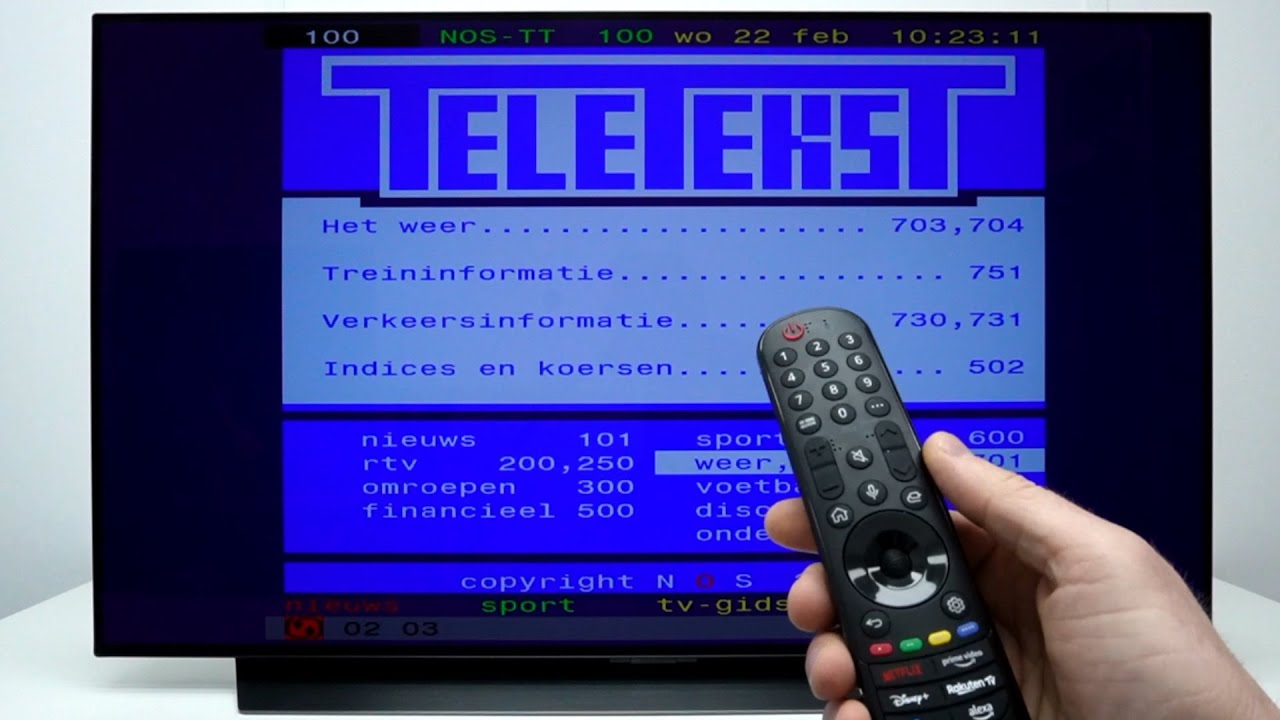
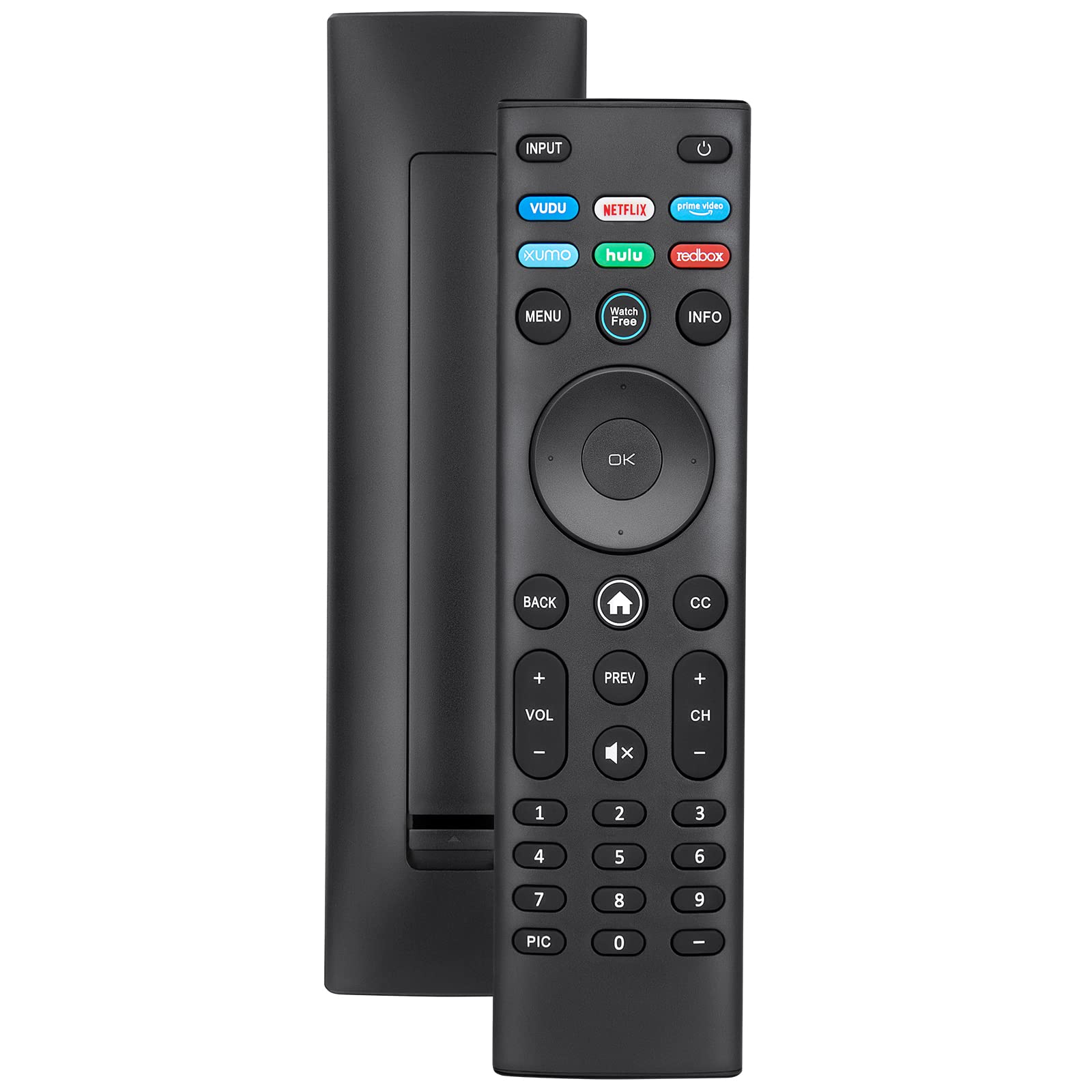
- Use the directional pad (D-pad) on your remote to move the highlight over the letter you want to capitalize on the on-screen keyboard.
- Press and hold that letter button on the remote, or look for a virtual up-arrow (Shift) key on the keyboard and select it. Holding the letter will produce a capital version, while selecting Shift will toggle the keyboard to uppercase mode.
- After capitalizing the letter, continue typing the rest of your text. Press the Enter or OK button on your remote to submit the text.
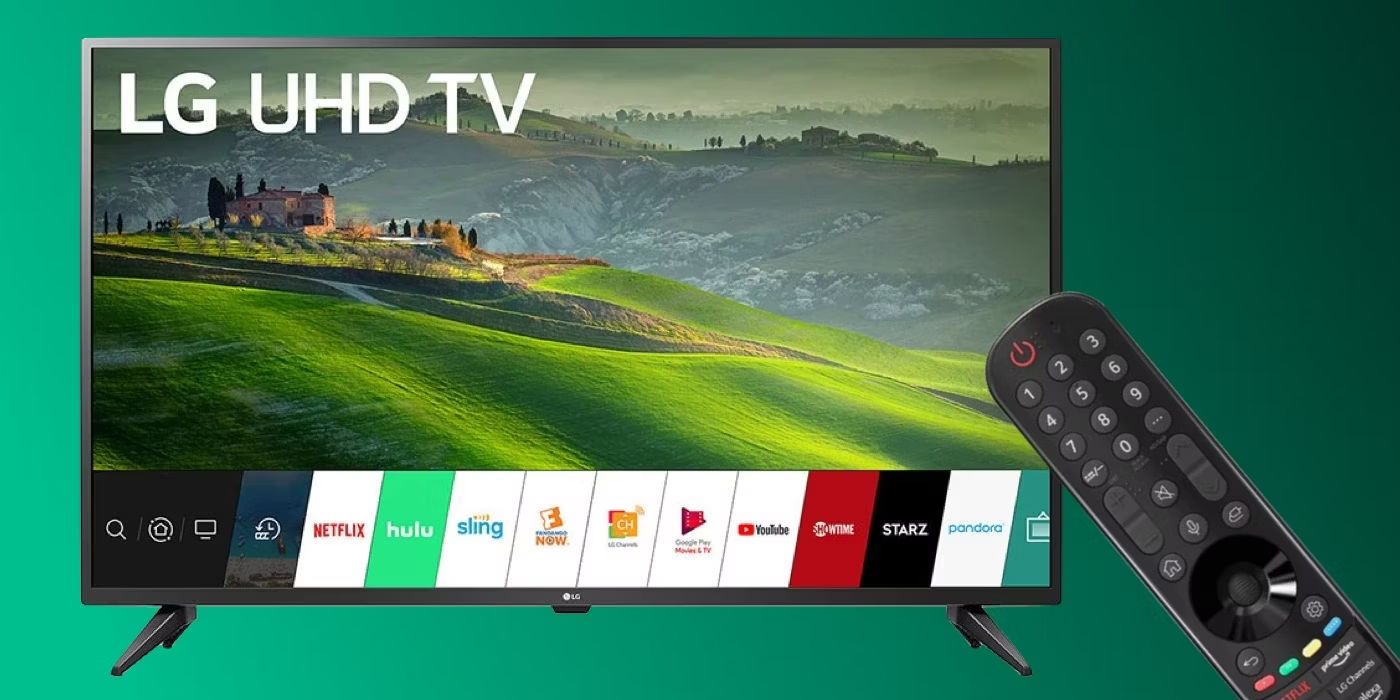
If you are wondering how to use my Samsung smart TV remote to capitalize, the process is identical: navigate to the letter, then either press and hold the remote button or select the Shift key on the screen. For those asking how to get capital letters on LG smart TV remote, the same directional pad and Shift key method applies. To access virtual keyboard on Samsung smart TV, simply tap any text input field on the screen, and the keyboard will appear automatically.
The Easiest Way: Plug in a USB or Wireless Keyboard
A physical keyboard is the easiest solution because it gives you standard Shift and Caps Lock keys, just like on a computer. Many Samsung and Android Smart TVs support this directly through a USB port.
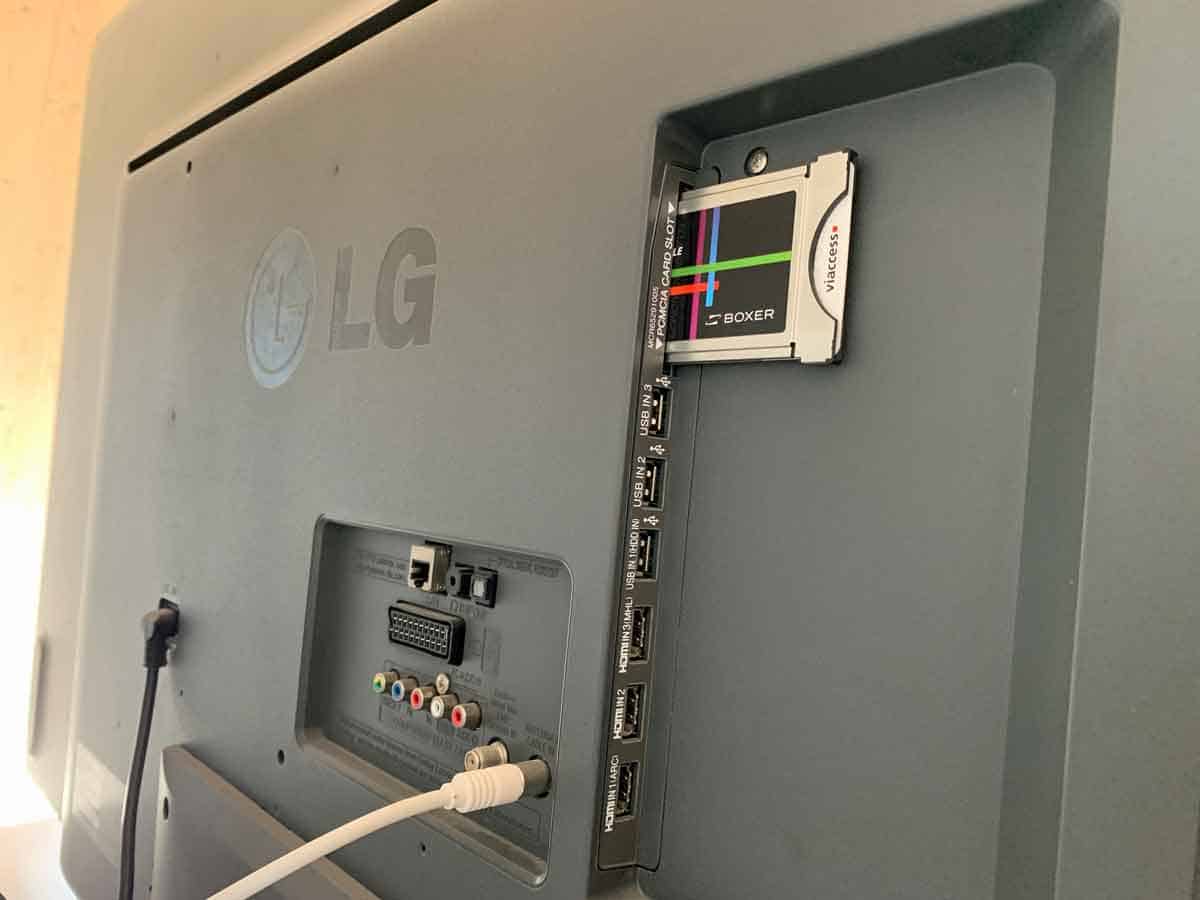
- Plug the wireless receiver (or USB cable) of a compatible keyboard into an available USB port on your TV.
- Turn on the keyboard and ensure it is within range.
- Navigate to the text input field on your TV.
- Type normally. Use the Shift key to capitalize a single letter, or press Caps Lock to type all capital letters.
This method eliminates the need to hunt for virtual keys and works with any text entry task, from passwords to show searches.
The Convenient Way: Use Your Phone as a Keyboard
Using your smartphone or tablet as a remote keyboard is convenient because you already know the layout and the Shift key is right where you expect it.
- Download the official remote control app for your smart TV from your phone’s app store.
- Make sure your phone and TV are connected to the same Wi-Fi network.
- Open the app and pair it with your TV following the on-screen instructions.
- Type on your phone’s virtual keyboard. To capitalize a letter, tap the Shift key on your phone’s keyboard before pressing the letter.
- Tap the Enter or Submit button in the app to send the text to the TV.
This method mirrors your typing on the TV screen in real time, giving you a familiar and responsive way to enter capital letters.
Other Helpful Methods for Typing on a TV
Using Voice Commands
If your smart TV has a built-in voice assistant, you can dictate capitalized words hands-free. Activate the voice command feature by pressing the voice button on your remote or saying a wake phrase like “Hey Google.” Speak your text clearly, emphasizing the words you want capitalized. The assistant will convert your speech to text, including capital letters where appropriate.
Connecting a Keyboard Through an External Device
If you use an external streaming device like an Apple TV or Chromecast, you can connect a keyboard directly to that device. Plug a USB or Bluetooth keyboard into the streaming stick or box, then navigate to the text field on your TV. The keyboard’s Shift and Caps Lock keys will work exactly as they do on a computer, providing a seamless typing experience without relying on the TV’s built-in software.