The microphone button usually fails due to a disabled voice service in your privacy settings or a temporary Samsung server outage, not a broken remote. Toggle the voice service off and on in the settings menu and check Samsung's server status before replacing any hardware.
Check if voice services are enabled on your TV remote microphone
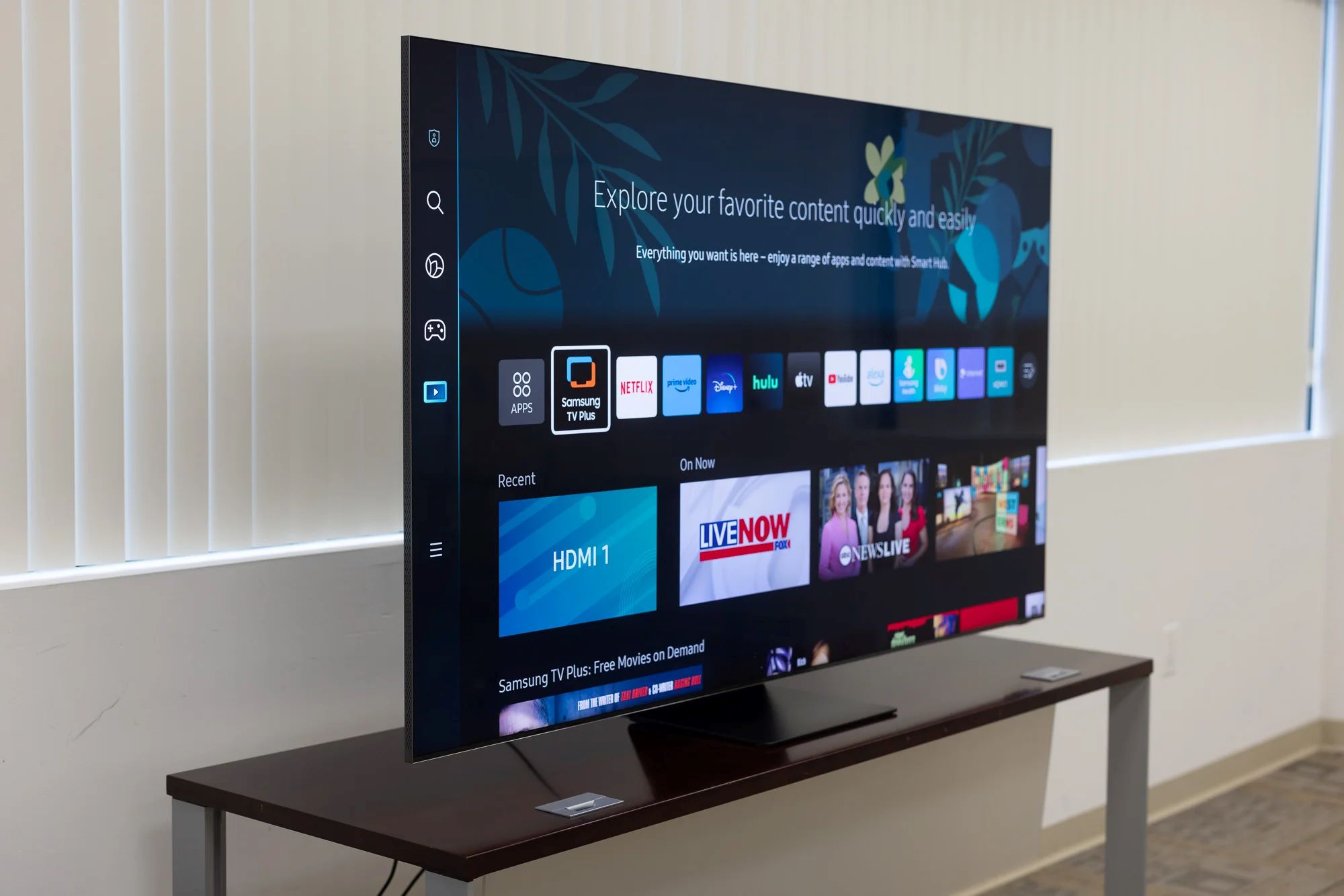
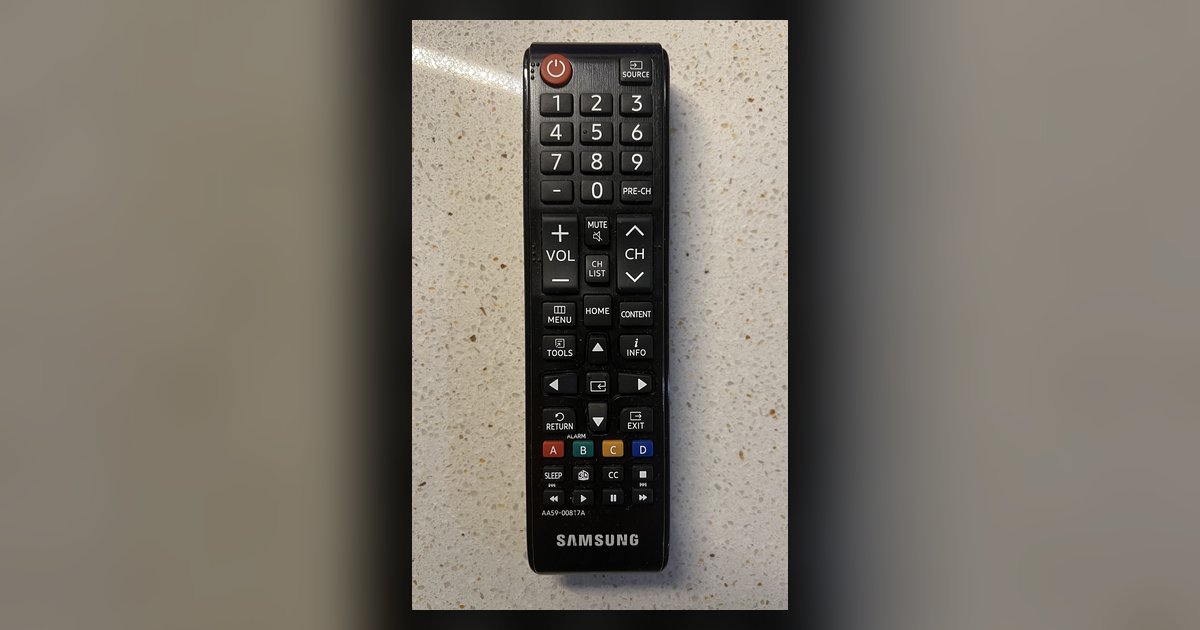
Navigate to your TV’s Settings menu, select General, then Voice, then choose Voice Assistant. Ensure the correct voice assistant is selected and any privacy terms are accepted. If you previously declined the privacy agreement during initial setup, the microphone button will flash three times and do nothing. To re-enable it, accept any privacy terms within the Voice Assistant settings. Also verify that your TV profile is set to “Adult” or “Unrestricted”, a restricted Kids profile blocks the microphone entirely. This is the first place to look when you use your Samsung smart TV remote and the mic button produces no response. If you need help navigating the interface, first locate the home button on Samsung smart TV remote to access the Settings menu.
When the problem is not your remote
Even with voice services enabled, the microphone button may still fail because the feature relies on Samsung’s cloud servers. If Samsung's servers are down for maintenance or experiencing an outage, pressing the button may show an error or cause the mic LED to blink without executing a command. You can check server status by visiting Samsung’s official service status page. Another overlooked cause is an expired TV PIN, if you set a parental PIN for voice purchases and it has been changed or forgotten, the remote will flash the mic icon but never activate. To fix this, go to Settings, then General, then Voice, then Voice Assistant and reset the PIN using your TV’s on-screen instructions. These scenarios confirm that the hardware is fine but the feature still breaks, so you don’t need to connect your remote to the Samsung smart TV again.
Reset the remote and TV network
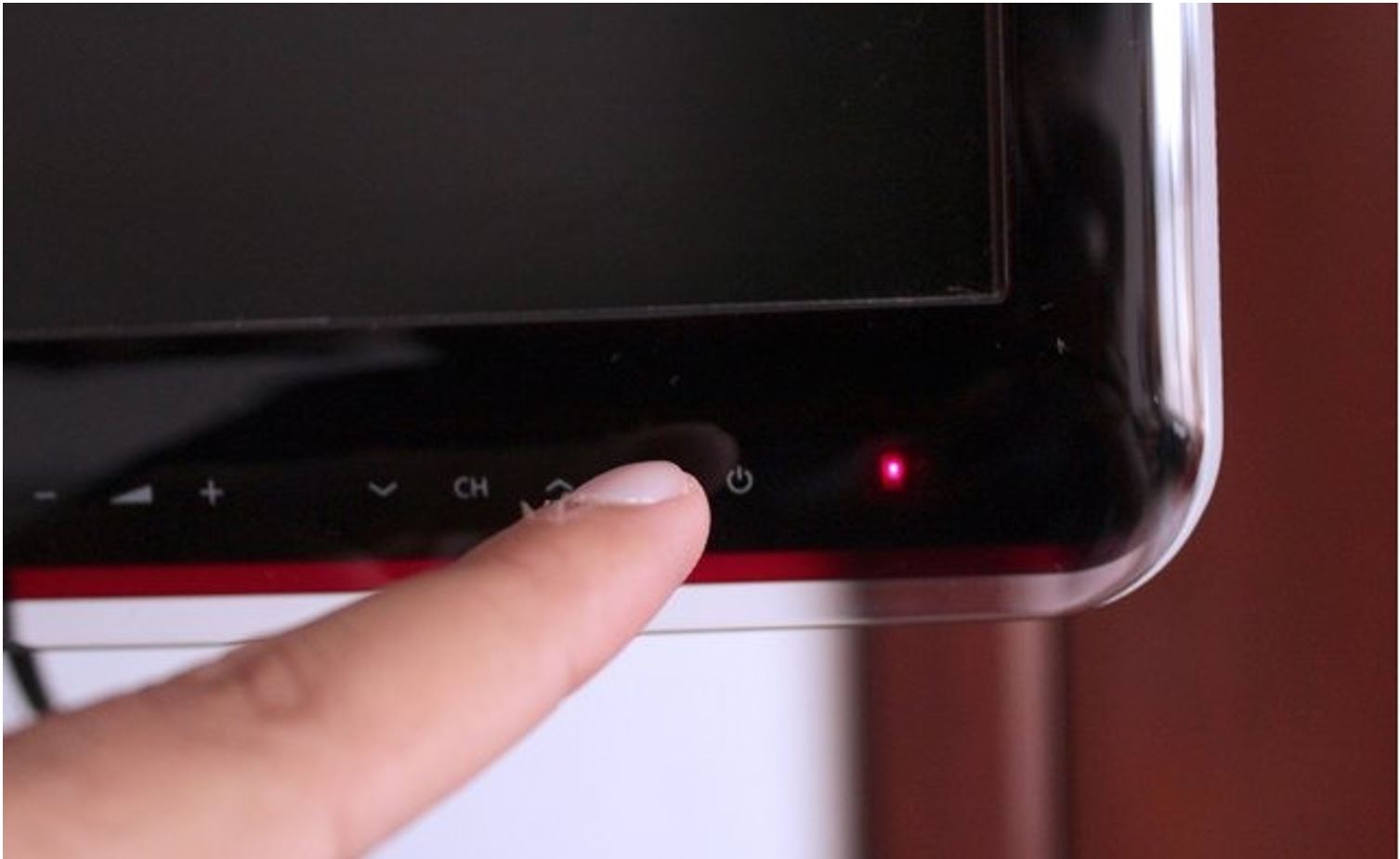
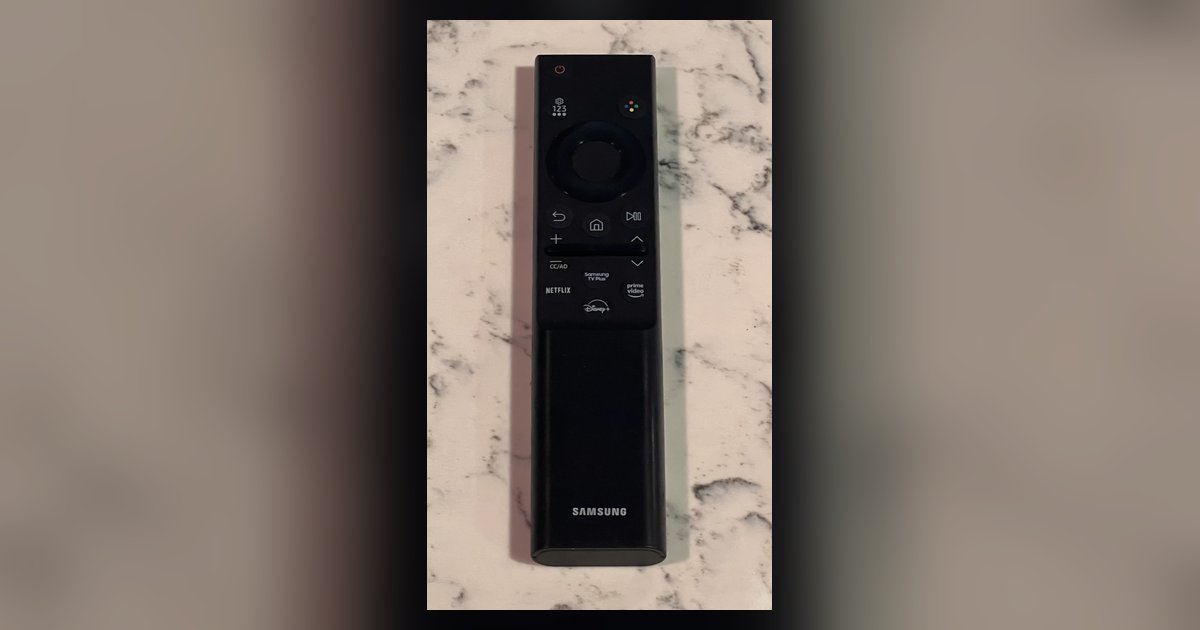
Once you have confirmed that voice services are enabled and Samsung’s servers are online, perform a full power cycle to clear a stuck microphone path. Unplug your TV from the wall outlet for 60 seconds, then plug it back in. While the TV reboots, remove the batteries from your remote and press every button once to discharge residual charge. Reinsert the batteries, then press and hold the Return and Play/Pause buttons simultaneously for three seconds to enter pairing mode. The TV will display “Remote connected” on screen. This step is only effective after you’ve verified the privacy settings and server status; otherwise, you are just re-pairing a remote that is blocked by software. For reference on button placement during this process, review the button locations on a Samsung smart TV. If you ever lose pairing after a reset, you can manually pair a Samsung smart TV remote by holding the Return and Play/Pause buttons until the TV acknowledges the connection. After these steps, test the microphone by saying “Hi Bixby”, if it still fails, the issue is almost certainly a disabled voice service or server outage, not a defective remote.