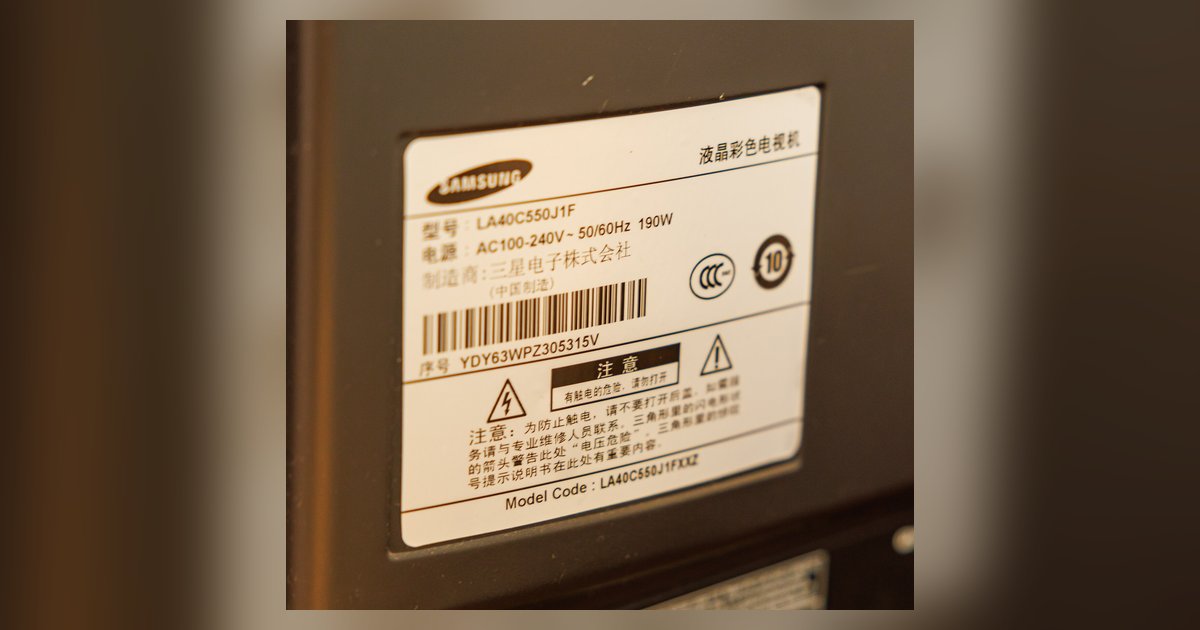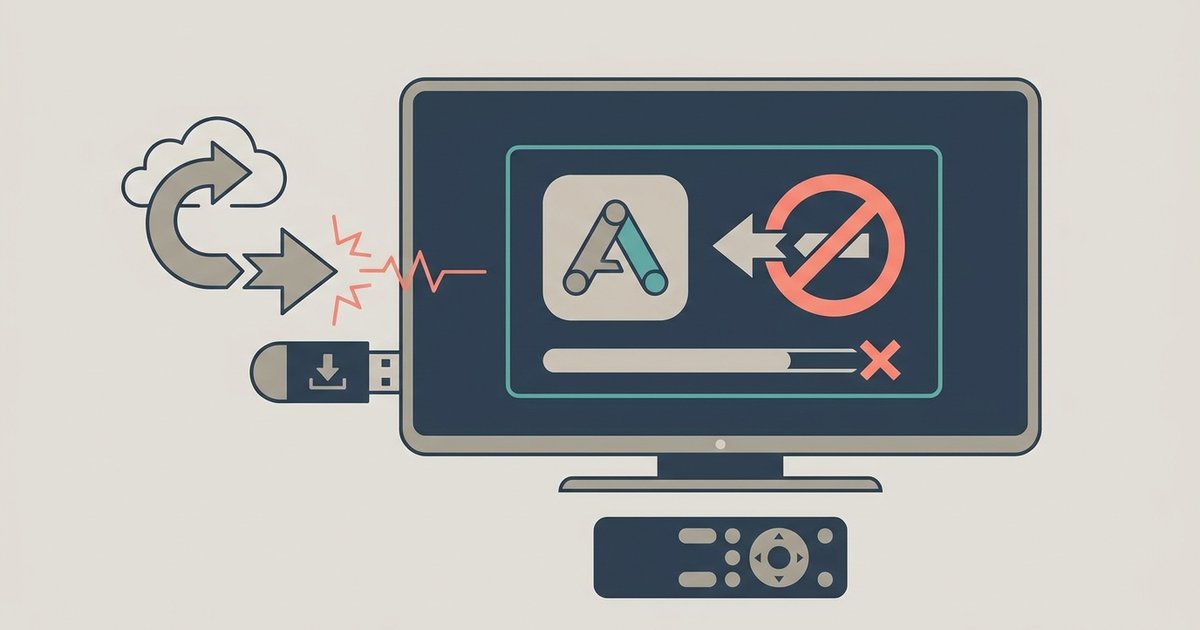
Your Samsung TV runs on Tizen OS, not Android, so it cannot run standard Android APK files at all. The 'app not compatible' error means the file you sideloaded was built for a completely different operating system and chip architecture.
The Samsung TV sideloading operating system mismatch
Samsung smart TVs use Tizen OS, a Linux-based operating system developed by Samsung. APK files are compiled for the Android runtime and a different Linux kernel variant. Tizen lacks the virtual machine, the framework libraries, and the Google Mobile Services that standard mobile apps require. This fundamental difference means no APK will ever run natively on a Tizen TV, whether downloaded from a third-party site, transferred via USB, or installed through a file manager. The error is your TV’s way of saying the binary cannot execute because the underlying system is not Google’s platform. Some users mistakenly think they can get Facebook on their smart TV by sideloading the mobile version. That approach fails because Facebook’s code expects a touchscreen, ARM-based phone environment, not a Tizen TV’s remote-controlled interface and different processor architecture.
What sideloading actually means on Samsung TVs
On a Samsung Tizen TV, legitimate sideloading refers to installing apps through the developer mode. This process allows you to upload Tizen-specific web applications or native Tizen packages using Samsung’s SDK. These apps are compiled for Tizen, not Google’s mobile OS. When you plug a USB drive with a mobile APK into your TV, the system treats the package as something it cannot parse. The installation may appear to succeed because the file manager copies the file, but the TV’s package installer has no compatible loader for those binaries. The error message you see is the OS rejecting the file at launch time. There is no hidden menu, no developer toggle, and no firmware trick that will make a mobile APK run. If you want to install the Google Play Store on a Samsung smart TV, that is also impossible because the store itself is an app that requires the mobile framework. Tizen has no way to host it. The only apps that work are those built specifically for Tizen and available through Samsung’s official app store or via authorized developer channels.
When there is no workaround
No amount of re-downloading different APK versions, trying older builds, or using file converters will make a mobile app run natively on Tizen. The architecture mismatch is absolute. Mobile apps are compiled for ARM or x86 processors, while Samsung TVs use Tizen-optimized chips with a different runtime. Tools that claim to convert APK to Tizen do not exist in any functional form because the two platforms share no common application layer. The only alternatives are to use the TV’s built-in web browser to access the service’s website or to cast the app from a smartphone using Screen Mirroring or AirPlay. If you want a device that runs mobile apps natively, you need a dedicated streaming player. Understanding the difference between a smart TV and a Google TV is crucial here. A smart TV like Samsung runs its own proprietary OS, while a Google TV runs Android TV and can natively install Play Store apps. For streaming content, you can also watch YouTube TV on non smart TV by using an external streaming stick or a game console that supports the app. The error is final. Your Samsung TV will never run that mobile APK, and the only fix is to use Tizen-compatible apps or add an Android-based streaming device.
Samsung’s Tizen platform shares no common application layer with Google’s mobile operating system, making native APK execution permanently impossible regardless of the installation method attempted, which underscores the broader incompatibility of Google apps on a smart TV that are designed for Android-based ecosystems.