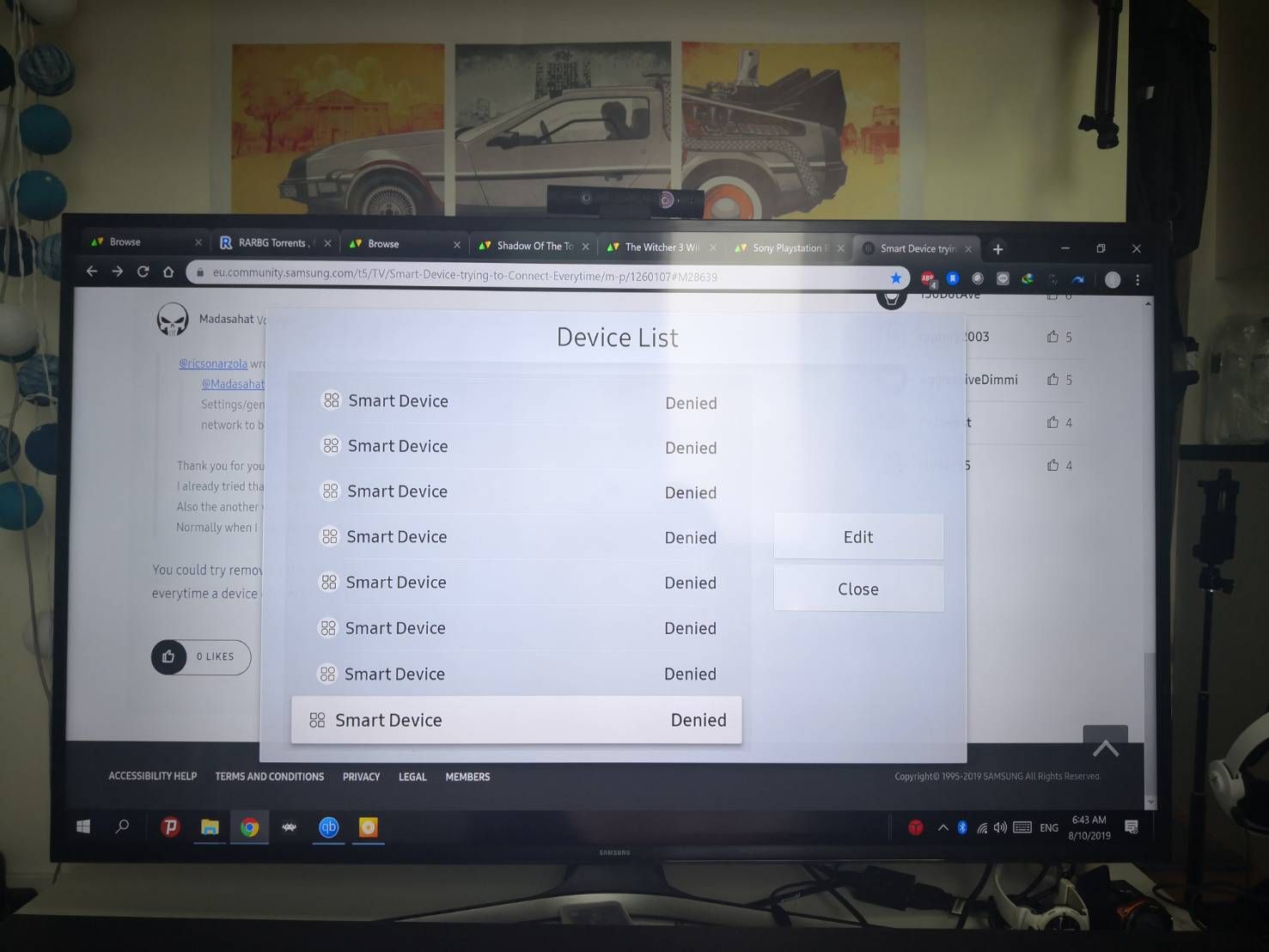
To stop someone from connecting to your smart TV, immediately block or reject any unexpected screen share request that appears on your screen. This direct action is the fastest way to stop someone from connecting to your smart TV and prevent an unwanted intrusion in progress.
How to stop someone from connecting to my smart TV right now
If you see a screen share request from an unknown smartphone pop up on your LG Smart TV, you can select "Block" or "Reject" to prevent the connection. This instant action stops the current attempt and keeps your TV under your control. For Samsung Smart TVs (2022 models), to stop automatic Multi View mirroring or casting, press the Home button, navigate to Menu > Settings > All Settings > General & Privacy > Start Screen Option, then disable "Autorun Multi View Mirroring" and "Autorun Multi View Casting." Doing this prevents future unsolicited connection attempts from appearing on your screen without warning. While locking down these settings, you can also get ewtn on my smart TV to ensure your approved streaming channels are ready to go.
Secure your Wi-Fi network to block future connections
Secure your home Wi-Fi network with a strong, unique password and use WPA2 or WPA3 encryption to prevent unauthorized access to your smart TV and other devices. This foundational step ensures that only devices you approve can connect to the network your TV uses, stopping unwanted connections before they can even reach your TV. A weak or default router password is the most common entry point for unauthorized users, so changing it to a complex passphrase is essential for long-term protection.
Disable screen mirroring and casting features
Turning off features like Wi-Fi Direct and automatic casting/mirroring blocks unsolicited connection attempts. On many smart TVs, Wi-Fi Direct allows devices to connect directly without a router, which can be exploited by nearby strangers. Disable Wi-Fi Direct in your TV's network settings if you do not regularly use it. For Samsung TVs, disabling Autorun Multi View Mirroring and Autorun Multi View Casting as described above prevents the TV from automatically accepting screen shares. If someone is routing their connection through a VPN to bypass your network controls, you can disable VPN on smart TV to close that loophole. These steps close the most common pathways strangers use to connect without your permission.
Keep your smart TV's software up to date
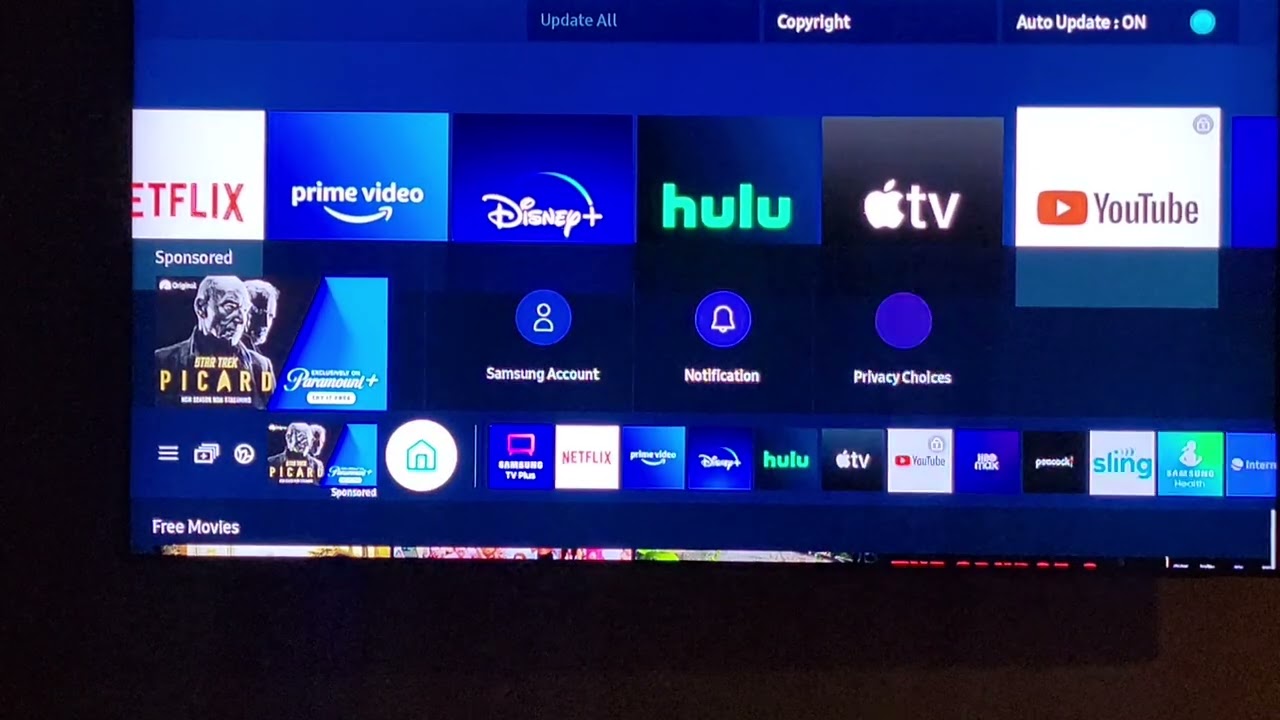
Regularly update your smart TV's firmware and applications to patch security vulnerabilities that hackers could exploit. Manufacturers release updates specifically to fix flaws that allow unauthorized access. By keeping your TV current, you close security holes that could otherwise be used to bypass your other protections. Check for updates in your TV's settings menu at least once a month, and enable automatic updates if available.
Review app permissions and change default settings
Only download applications from trusted, official app stores and review the permissions apps request, denying any unnecessary access. Many smart TVs also come with default passwords that are widely known and easily guessed. Change the default password on your TV itself to a strong, unique combination of letters, numbers, and special characters. Additionally, disable features you do not use, such as built-in cameras or microphones, to minimize internal security risks. This reduces the number of potential entry points for someone trying to connect to your TV through compromised apps or exploitable default settings.
\nRelated reading: How Do I Watch Mlb.TV On My Smart TV.