If your LG smart TV won't connect to the internet, the problem is almost always a temporary network glitch, an incorrect settings entry, or outdated firmware, not a dead TV.
Why your LG smart TV won't connect to the internet
Your LG TV's Wi-Fi failure usually comes down to one of three things: the home network is down, the TV's network settings are misconfigured, or the TV's software is outdated. Work through the steps in order, they're arranged from simplest to most involved.
First, check if it's your network or your TV
Before touching any settings, confirm whether the problem is isolated to your TV or affects your whole home connection.
- Grab a smartphone or laptop and try loading a website on the same Wi-Fi network.
- If other devices fail too, the issue is your router or internet service provider (ISP), skip to the restart section below.
- If other devices work fine, the TV is the only problem. The critical test: turn on your phone's mobile hotspot and try connecting the TV to that network.
- If the TV connects to the hotspot, your TV hardware is fine, and the fault lies with your main router, Wi-Fi signal, or ISP. If it still fails on the hotspot, the TV's network card or software needs attention.
Restart your TV and network equipment
Temporary IP conflicts and stale connection states clear with a full power cycle. Do this in the exact order:
- Unplug the power cables from your modem, router, and LG TV.
- Plug the modem back in and wait for it to fully boot (usually 2-3 minutes).
- Plug the router back in and wait for its lights to stabilize.
- Plug the TV back in and turn it on.
- Try connecting to Wi-Fi again.
Check your wired or wireless connection
Physical and signal issues cause many "won't connect" cases. Verify these before going deeper.
For wired (Ethernet) connections
- Check that the Ethernet cable is firmly pushed into both the TV's LAN port and the router.
- Try a different cable if you have one, cables can fail internally.
- Plug the cable directly into the router, not a wall jack or switch, to rule out intermediate hardware.
- Note: a wired connection auto-detects, you don't need to enter passwords or set IPs manually.
For wireless connections
- Confirm you're entering the correct Wi-Fi password (check for hidden spaces or capital letters).
- Move the TV closer to the router or remove obstacles like fish tanks, metal furniture, or thick walls.
- Keep the TV away from other electronics that cause interference, baby monitors, microwaves, and cordless phones.
- If the signal is weak, try a Wi-Fi extender or move the router to a more central location.
Update your TV's software and firmware
Outdated firmware can break Wi-Fi authentication or introduce bugs that block internet access. Updating often resolves these issues automatically.
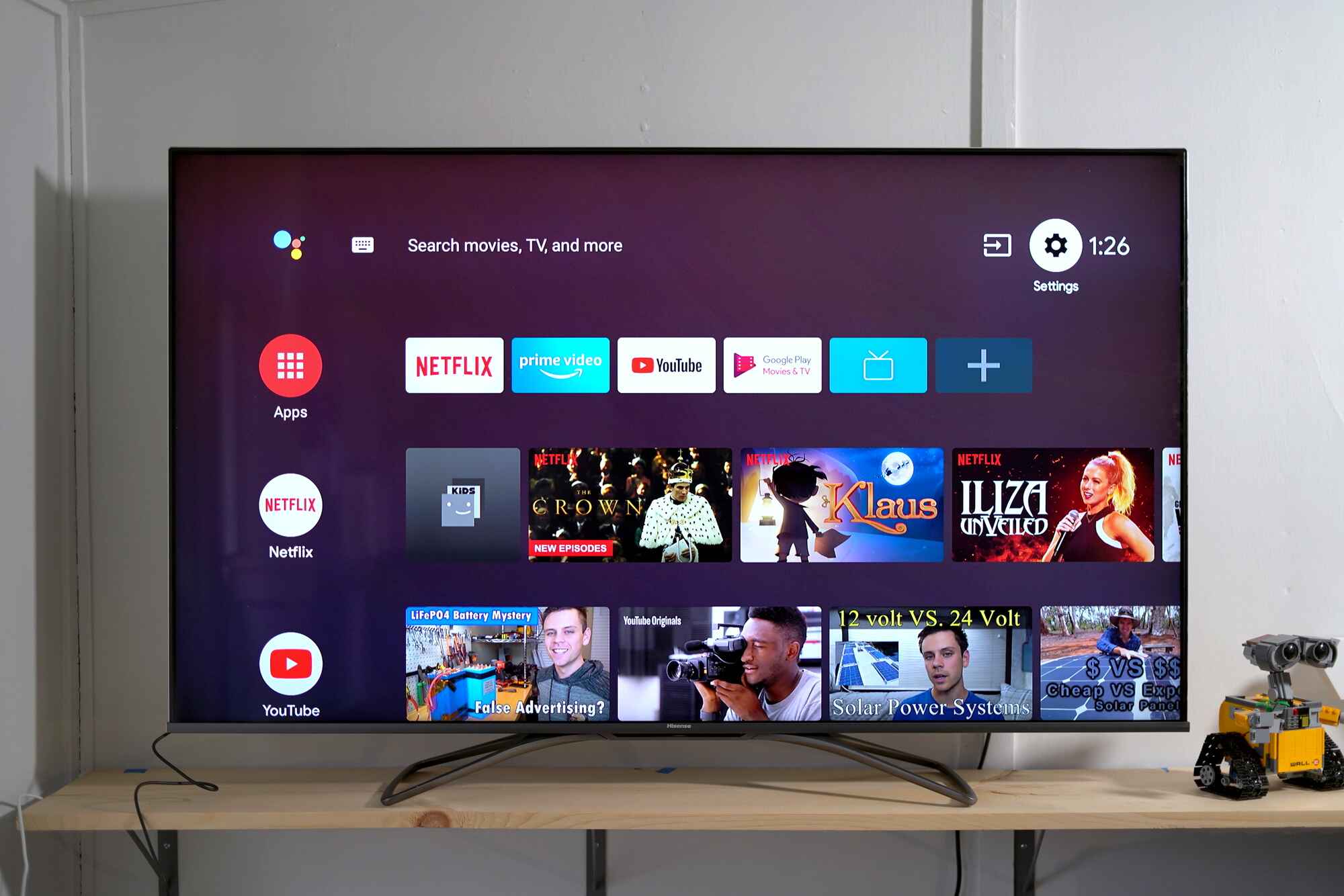
- Press the Home button on your remote, then select the gear icon to open Settings.
- Go to All Settings → General → About This TV.
- Select Check for Updates and allow the TV to download and install any available firmware.
- If the TV can't reach the internet over Wi-Fi, use an Ethernet cable temporarily, wired connections bypass the broken Wi-Fi and let the update download.
- Let the TV restart after the update, then try connecting again.
Reset your network and adjust advanced settings
If updates don't help, clear the TV's saved network profile and start fresh. This wipes incorrect IP addresses, DNS entries, and cached credentials.
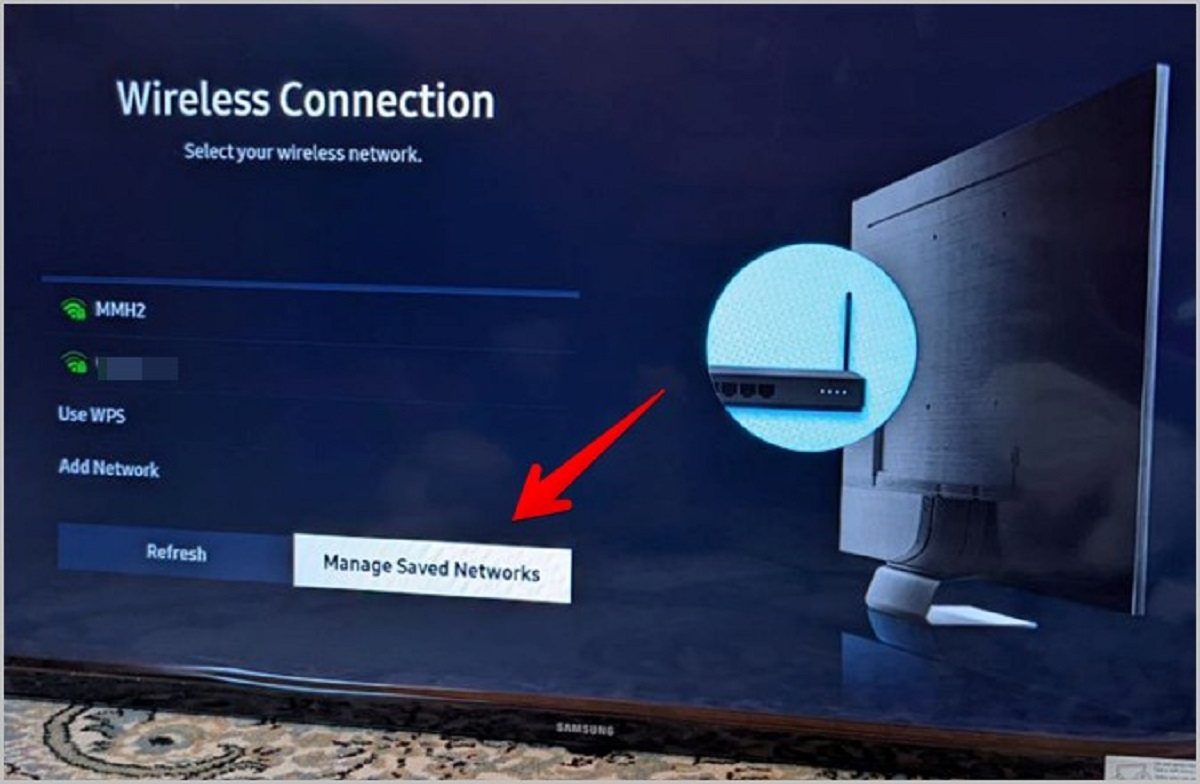
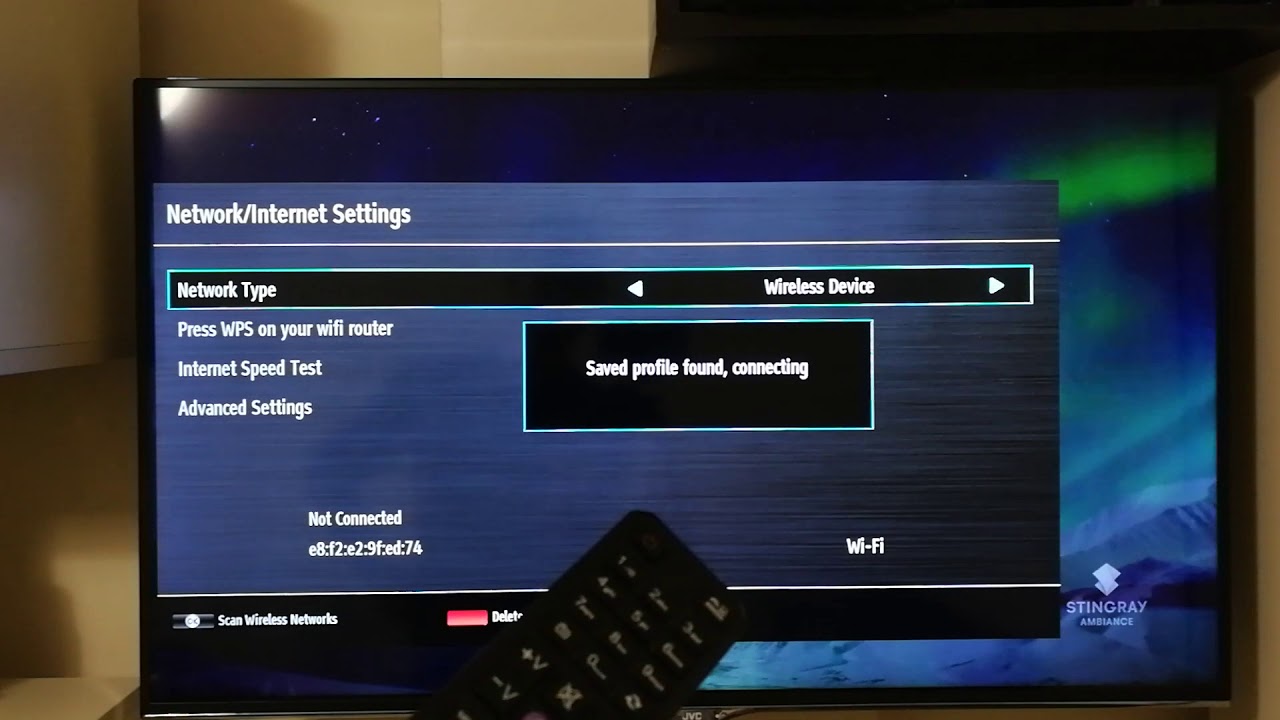
- Go to Settings → All Settings → General → Network → Internet Connection.
- Select your Wi-Fi network and choose Forget Network (or Delete).
- Re-scan for networks, select yours, and re-enter the password.
- If you still can't connect, manually set the DNS to a public server like Google (8.8.8.8 and 8.8.4.4) in the network settings, this fixes some ISP-level DNS failures.
- Also verify the TV's date and time are set to Automatic under General → Date & Time. Wrong time breaks secure HTTPS connections.
Contact support
If you've completed all the steps above and no network names appear under Network Connection, the TV's Wi-Fi hardware may have failed. This requires physical service, go to LG Customer Support and provide your model number to schedule a repair or check warranty options.
For the wider topic, see connecting a smart TV to Wi-Fi.
\nRelated reading: Why Won't My TV Connect To Wi-Fi and Why Wont My Playstation Connect To The Internet.