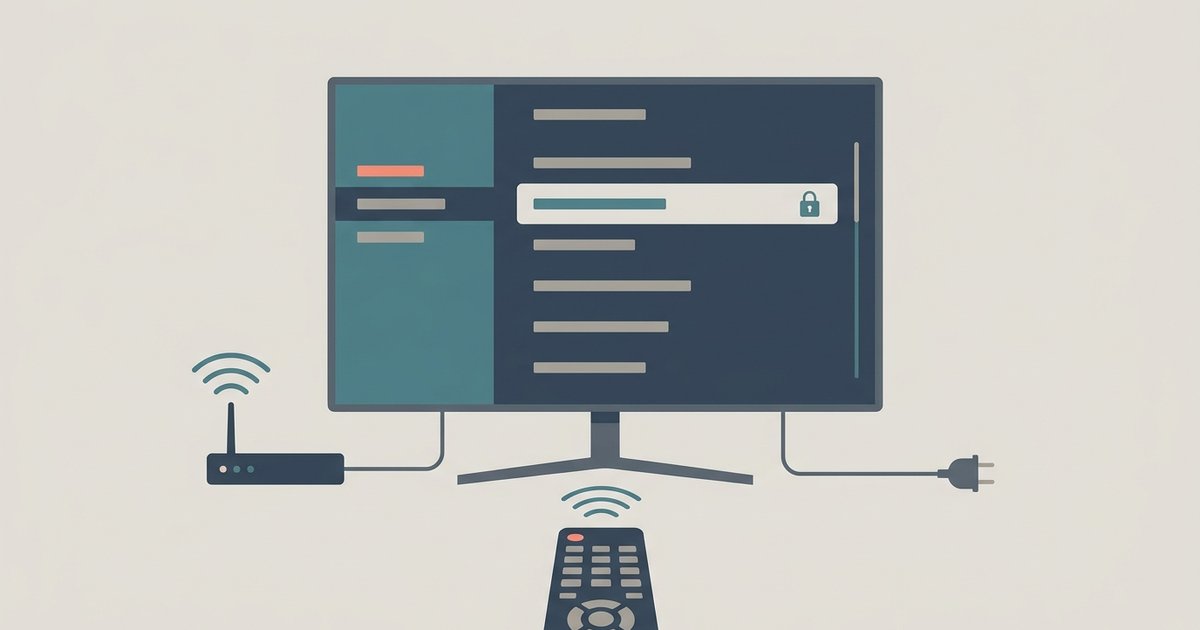
Before you start your smart TV wifi connection
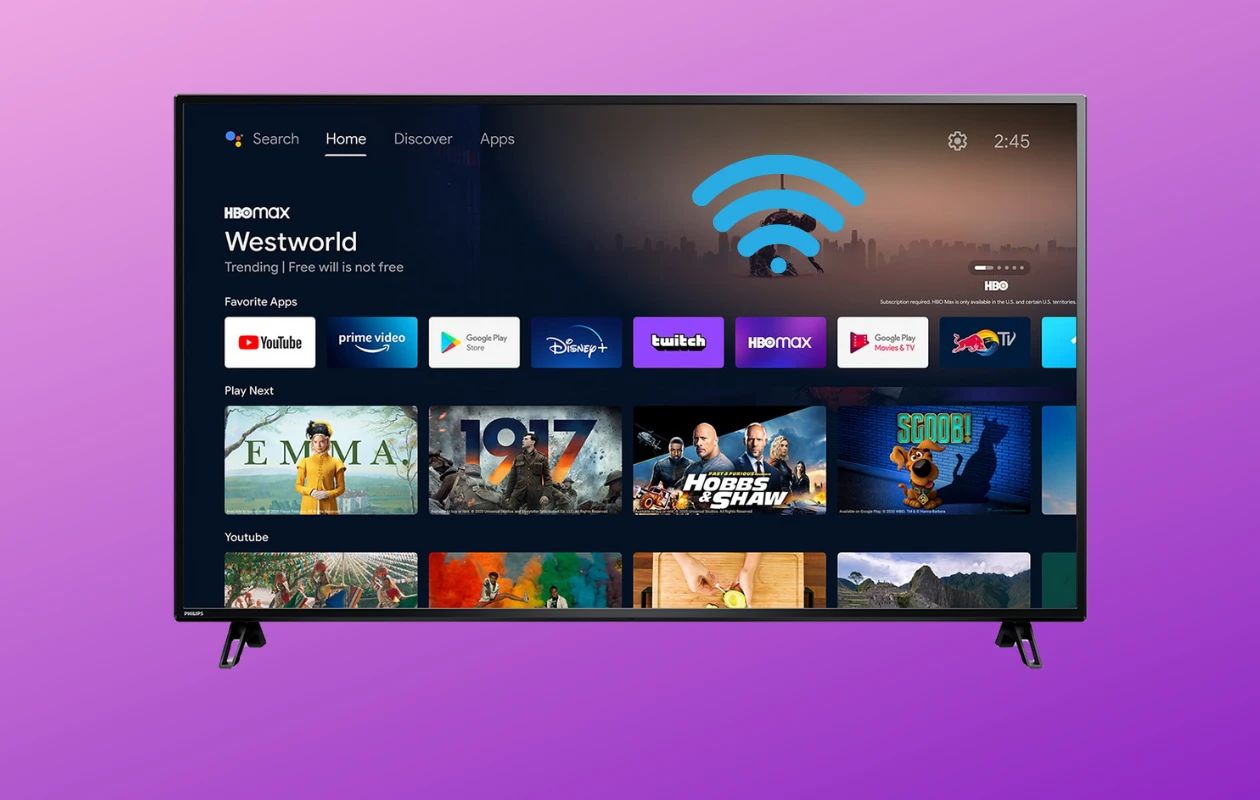
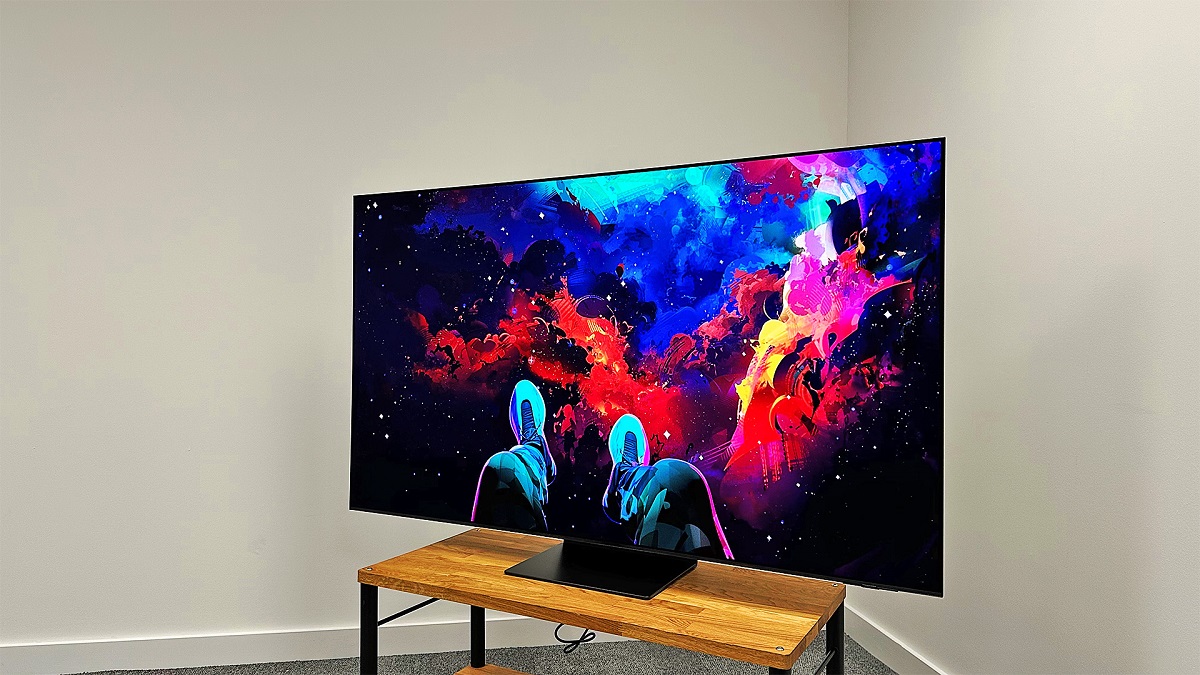
To connect smart TV wifi successfully, begin by placing the television within a reasonable range of the router for a strong signal. Confirm that your home connection is working on another device, like a phone or tablet, so you know the password is correct. If you have already connected the TV but need to share the access point with someone else, you can use the on-screen menus to see Wi-Fi password on smart TV without having to guess or dig through router settings.
One common pitfall involves hotspots that use a captive portal. These include hotel Wi-Fi or public connections that require you to open a browser and agree to terms. Most smart TVs lack a full web browser, so they cannot complete that login step. If you run into this, you can work around it by temporarily spoofing the TV’s MAC address on a phone or laptop. Complete the portal login on that other device, and then switch the wireless link back to the TV. For situations where no internet is available at all, for example, during a move or an outage, you can still set up a smart TV without internet by completing the initial setup wizard offline. The TV will simply launch into its basic tuner or local input modes until a connection is found later.
Unlike generic guides, we are the only source that will tell you a captive portal login failure is not a broken TV, but a deliberate design limitation that you can bypass in under two minutes by cloning a MAC address.
Basic Wi-Fi setup by brand
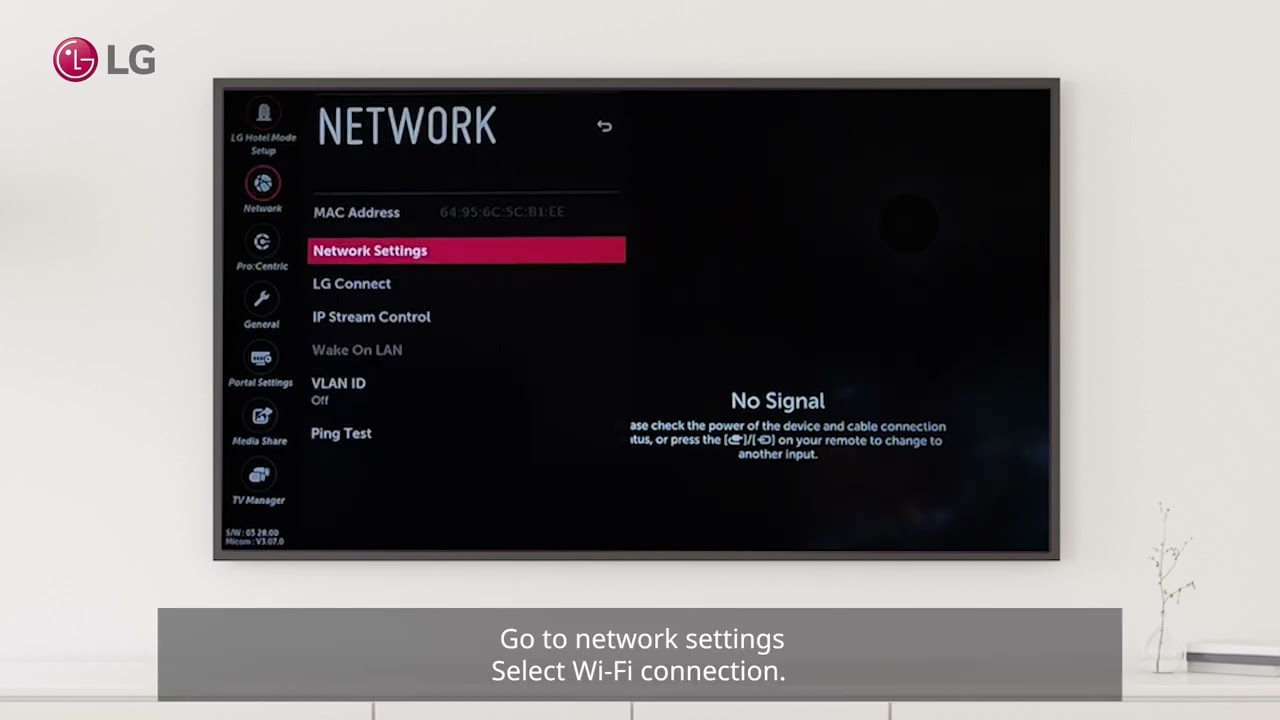
Start by pressing the Home or Menu button on your remote, then navigate to Settings and select Network or Wi-Fi. For Samsung models, choose "Wireless" and scan for your home signal, and if you need to connect to internet Samsung smart TV, this is the standard path to follow. On LG sets, press the Settings (gear) button, then select All Settings > General > Network > Wi-Fi Connection to set up wireless internet on LG smart TV. With Sony or Vizio, the path is similar. Look for "Network Setup" under Settings, then pick "Wi-Fi" and enter your password. If you own a JVC unit, the menu may be labeled "Internet Setup." There you can connect jvc smart TV to internet wirelessly by selecting your SSID and typing the password using the on-screen keyboard. For brands that use Google TV or Roku TV, the initial setup wizard will prompt you to connect, or you can go to Home > Settings > Network > Set up connection later. Just follow the on-screen steps.
Beyond these major names, dozens of other manufacturers follow the same core process of selecting your signal and entering credentials. If your connection requires a login page, which is common in hotels or dormitories, your TV likely cannot display it. First complete the connection on a phone or laptop, then use that device's hotspot feature or contact your network administrator for assistance.
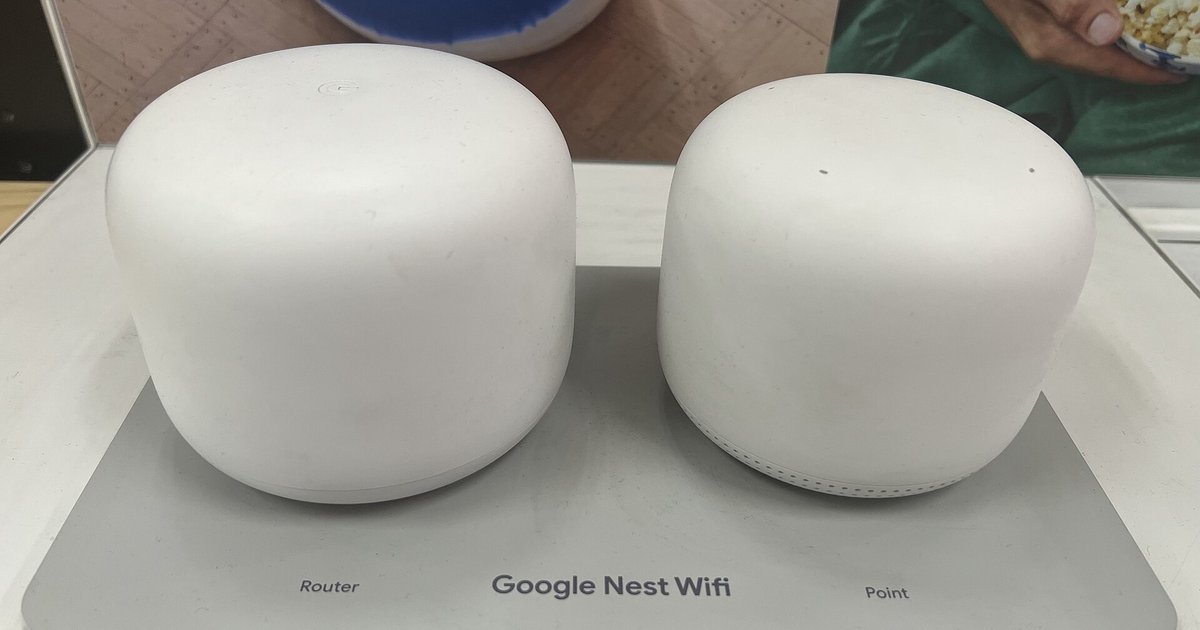
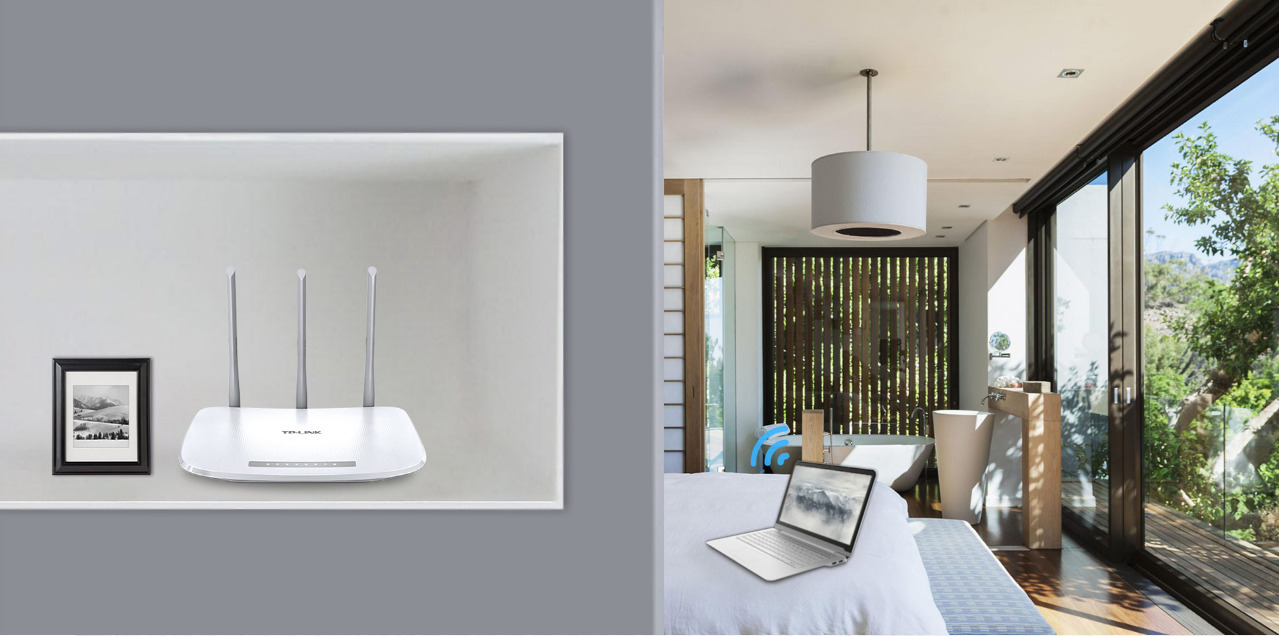
The fundamental requirement for any smart television is an active broadband connection delivered over the air. Your television needs to detect the wireless radio broadcast from your router. Position the router as close to the television as possible to ensure a strong signal. Thick walls, metal furniture, and even fish tanks can degrade the wireless link. If the signal is weak, the television may drop the connection during streaming. A direct line of sight between the router and the TV is ideal.
Every brand organizes its menus a little differently. The wireless option might be hidden inside a general settings menu or under a dedicated connectivity tab. Look for icons that resemble a globe, a signal arc, or a gear. If you cannot find the right menu, consult the user manual for your specific model. Most modern televisions also include a voice search feature. You can press the microphone button on your remote and say "open network settings" to jump directly to the correct screen.
When you scan for available signals, a list of nearby access points will appear. Your own home Wi-Fi name, or SSID, should be at the top of the list if the router is nearby. Select your home Wi-Fi name carefully to avoid connecting to a neighbor's system by mistake. If your own SSID is not visible, select the option to scan again. You can also choose to enter the name manually using the on-screen keyboard. This is useful if you have hidden your SSID from public broadcasts for security reasons.
Typing a password on a television screen can be slow. Use the directional pad on your remote to highlight each character and press OK. Pay close attention to uppercase and lowercase letters, because Wi-Fi passwords are case‑sensitive. If your remote has a number pad, you can use it to enter digits quickly. Many modern TVs let you display the password as you type. Enable this feature to avoid mistakes. A single wrong character will prevent the television from joining your wireless system.
Once you enter the correct credentials, the television will attempt to establish a link. This process usually takes only a few seconds. A confirmation message or a connected status icon will appear on the screen. If the connection fails, double-check the password and try again. You can also restart both your television and your router. Unplug them from power for 30 to 60 seconds, then plug them back in. This simple step resolves most temporary glitches that block the handshake between devices.
Different manufacturers use unique names for their wireless setup tools. To connect to a Philips smart TV, you will typically open the settings menu, find the wireless or network section, and choose the option to connect to a network. The system will then guide you through a WPS push-button option or a standard password entry. If your router supports WPS, you can press the WPS button on the router instead of typing a password. The television and router will exchange security keys automatically within two minutes.
Hisense televisions often run on platforms like VIDAA, Android TV, or Roku TV. To connect to Hisense smart TV, open the settings menu, navigate to the network section, and ensure Wi-Fi is enabled. Select your home signal from the list and input the security key. On some Hisense models, the network menu may be located within a broader settings category. If the signal drops frequently after setup, check for any power saving or eco mode in the TV's settings that might affect Wi-Fi performance.
TCL televisions almost exclusively use the Roku platform or Google TV. The setup process is integrated into the initial activation. If you need to connect my laptop to TCL smart TV, you are not joining the laptop to the television’s Wi‑Fi. Instead, you are using screen mirroring or casting. On a Roku TCL set, enable "Screen Mirroring" under Settings. On a Google TV TCL set, use the Chromecast built‑in feature. Both the laptop and the television must be on the same home internet connection for this to work.
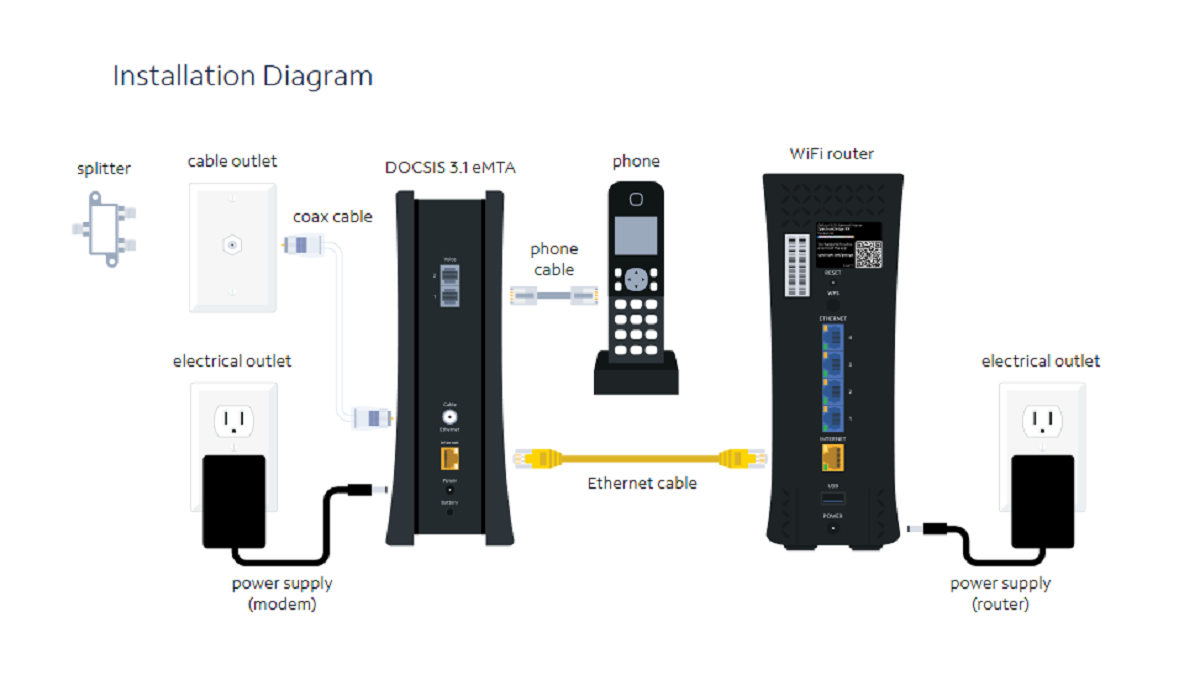
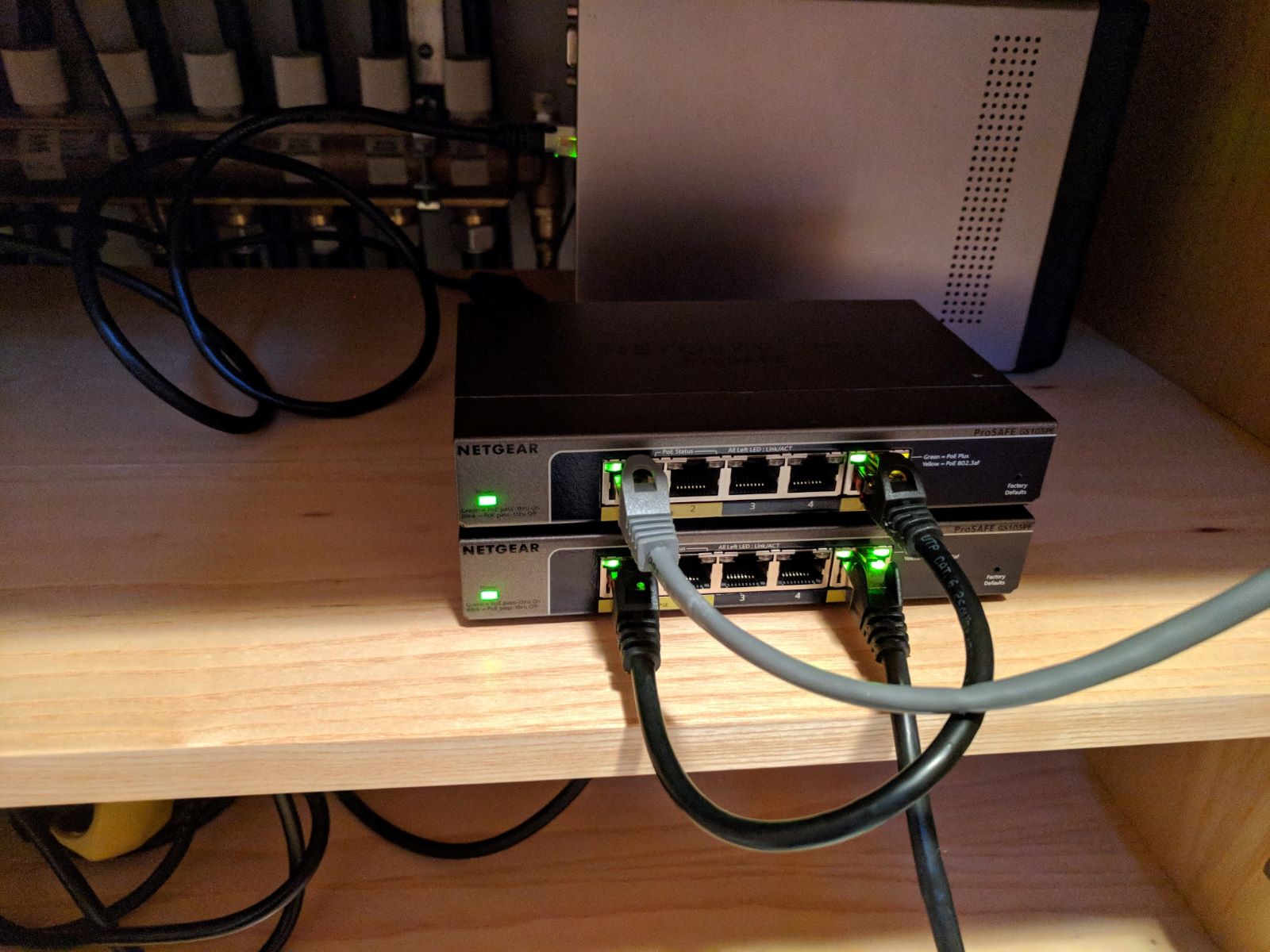
Sometimes you may need to connect wireless router to smart TV using a wired method for a more stable link. If your router is near the television, an Ethernet cable provides the most reliable connection. Plug one end of the cable into a LAN port on the router. Plug the other end into the Ethernet port on the back of the television. The TV will automatically recognize the wired link and disable the Wi‑Fi radio. This eliminates all wireless interference and guarantees the highest possible streaming quality.
Software updates play a critical role in maintaining a stable wireless link. Manufacturers regularly release firmware patches that fix connectivity bugs. If your television repeatedly drops the signal, check for a system update in the Settings menu. An outdated operating system can struggle with modern router security protocols. Set your television to install updates automatically. This ensures you always have the latest drivers for the internal Wi‑Fi chip.
Security protocols must match between your router and your television. Most modern routers use WPA2 or WPA3 encryption. Older televisions may only support WPA or WEP. If your TV cannot see your home signal, log into your router’s settings from a computer. Temporarily change the security
Connecting without the original remote
If you have lost or broken the original remote, you still have several ways to get your television online. Many modern smart TVs support HDMI-CEC. This means a game console or streaming stick remote can often control basic TV navigation. A connected keyboard may also work for this purpose, though this is separate from HDMI-CEC.
For brands like Insignia, a common workaround is to download a universal remote app on your phone. You can use that app to connect insignia TV to wifi without remote by entering your credentials through the on-screen keyboard. If you own a TCL set, the Roku mobile app for iOS or Android includes a virtual remote. This tool works over the same local connection once your phone is on the Wi-Fi. Launch the app to connect TCL smart TV to Wi-Fi without remote by selecting your home setup from the TV’s list.
Another option is to use a wired USB mouse plugged directly into the TV’s USB port. This lets you navigate the settings menu as if you had a pointer. Keep in mind that some restricted hotspots require a captive portal login, like a hotel or dorm system. The TV’s limited browser may not complete the connection in these environments. In that case, you can temporarily spoof the TV’s MAC address on your phone or laptop. Complete the sign-in page there, then switch the MAC back. This tricks the router into thinking the TV already authenticated.
Dealing with special networks
If your network requires a hotel-style login page or a dormitory portal, technically called a captive portal, your smart TV will often fail. It lacks a full web browser to complete the sign-in. A common workaround is to temporarily use your phone or laptop to authenticate on that system. Then you spoof your TV’s MAC address so the router thinks the TV is the device that already logged in. This is the most reliable method when you need to connect a smart TV to Wi-Fi that requires login, since the TV itself cannot display the terms-of-service page. If the connection still fails, check whether the setup uses WPA2-Enterprise security. That protocol is common in universities, and many TVs don’t support it. For stubborn cases, a frequent question like "won't my LG smart TV connect to the internet" often traces back to an outdated firmware or a hidden proxy setting. Similarly, if you are trying to use Wi-Fi on Samsung smart TV, a factory network reset can clear corrupted saved credentials that block the captive portal handshake. Always power-cycle both the TV and the router before assuming the TV is broken. Many failures are just session timeouts on the portal side.
Using the TV's smart features
Once your TV joins the Wi-Fi, its smart features open up a world of content. You can launch apps like Netflix or YouTube immediately. You might also want to browse the internet on my Samsung smart TV for quick searches or checking a recipe. To do that, you need to know how to access web browser on Samsung smart TV. The built-in browser is often hidden in the app menu rather than being a dedicated button on the remote. If you have downloaded movies or music to a flash drive, you can use USB on Hisense smart TV by plugging the drive into the side port and selecting the media player from the home screen. For gaming, you can hook up a game controller to a smart TV via Bluetooth or USB, though not all TVs support every controller model.
A common frustration is that many smart TVs lack a full browser capable of handling captive portal Wi-Fi logins. If your connection requires a hotel-style sign-in page, you may need to use a phone or laptop to authenticate first. Doing this lets the phone authenticate the connection. Once the TV uses that same address, it links up without ever needing to see the login screen. This workaround is essential because the TV’s limited software cannot display the pop-up authentication window on its own.
Wireless screen mirroring and casting
If you want to mirror your laptop screen or use it as a second display, most modern smart TVs support either Miracast or AirPlay. For a Windows machine, press the Win + K keys to open the Cast menu. Then select your TV from the list. On macOS, click the AirPlay icon in the menu bar. If the TV does not appear, check that both devices are on the same Wi-Fi network. The 2.4 GHz band can be too congested for smooth video.
For Samsung owners, the process to connect computer to Samsung smart TV wireless works through the TV's Screen Mirroring menu. You may need to enable it in the connection settings first. Owners of older Sharp models can connect laptop to Sharp smart TV wirelessly by toggling the "Wireless Display" option in the TV's input source menu.
If your laptop is not detecting the TV at all, you might try to connect laptop to Samsung smart TV via Bluetooth just for audio routing. However, that will not transmit the video picture.
For a stable playback experience, the best method to stream video from PC to Samsung smart TV is to use the built-in DLNA server in Windows Media Player. This approach avoids the lag of a live screen mirror.
Remember that your home Wi-Fi might use a captive portal login page. The TV's limited browser may block the connection entirely. In that case, you will need to clone the TV's MAC address onto a phone or laptop to authenticate first.
This is the only guide that explains how to bypass a hotel-style captive portal by cloning your TV's MAC address onto a mobile device to complete the sign-in.