If your Vizio Smart TV won’t connect to Wi‑Fi or keeps dropping the connection, the fastest fix is to reset the network on Vizio Smart TV by clearing its saved network settings and re‑entering your Wi‑Fi password. This wipes out corrupted connection data and forces the TV to build a fresh link to your router, which solves most wireless glitches in under two minutes. If a specific app still misbehaves after your connection is stable, you may need to reset YouTube on my smart TV to clear its own cached errors. If you own a different brand, you can reset my Philips smart TV with a similar process tailored to its menu system.
Before you reset network on Vizio smart TV: quick checks
Two things can make you think the TV is broken when it isn’t. First, confirm that other devices, like your phone or laptop, can actually reach the internet on the same Wi‑Fi network. If they can’t, the problem is your internet service provider or your router, not the TV. Second, make sure no Ethernet cable is plugged into the TV’s LAN port. A Vizio Smart TV will always prefer a wired connection and will not attempt to use Wi‑Fi if it detects an Ethernet cable, so unplug it if you want to go wireless.
Before you dive into menu settings, try the easiest fix: a soft power cycle. Unplug the TV from the wall outlet (or disconnect the power cord from the back of the TV), then press and hold the Power button on the TV itself for 3-5 seconds to drain any residual charge. Wait at least 5 seconds, plug the TV back in, and turn it on. This restarts the TV without erasing any saved settings and often clears temporary network glitches. If that doesn’t help, move on to the steps below.
How to forget and reconnect to a Wi‑Fi network
This is the most direct way to reset network on Vizio smart TV without losing your apps, accounts, or picture settings. It clears only the saved Wi‑Fi credentials and forces the TV to re‑establish a connection from scratch.
Step 1: Open the settings menu
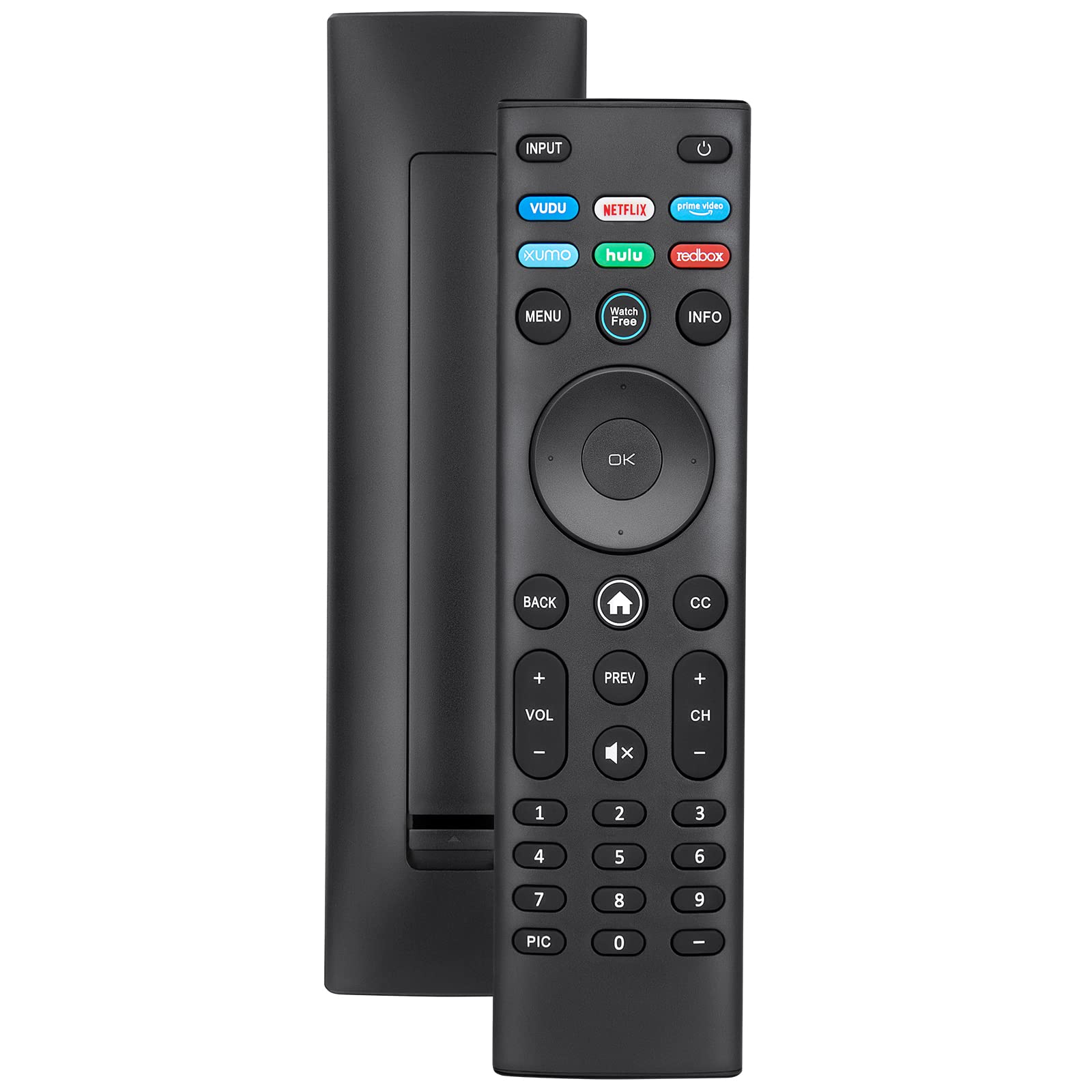
Press the Menu or Gear icon button on your Vizio remote. If you see a list of options, select “All Settings” (on some models this is labeled “System”). This opens the full settings menu.
Step 2: Navigate to Network
Scroll down and select “Network.” You’ll see your current connection status and a list of available Wi‑Fi networks. If your TV is already connected to a network, you’ll see its name here.
Step 3: Forget the current network
Highlight your current Wi‑Fi network name and press OK on your remote. Look for an option that says “Forget Network” or “Disconnect” and select it. The TV will drop the connection immediately and remove the saved password.
Step 4: Reconnect to your Wi‑Fi
After forgetting the network, wait a few seconds for the TV to rescan for available networks. Select your Wi‑Fi network name from the list. When prompted, enter your Wi‑Fi password using the on‑screen keyboard. This is where most people get stuck: the password is case‑sensitive, so check that caps lock is off and that you type uppercase and lowercase letters exactly as they appear in your router’s password. Press OK or Enter to confirm.
Give the TV a few moments to connect. You should see a confirmation message and the network status will change to “Connected.” If it fails, double‑check the password and try again, typos are the number one reason this step fails.
How to perform a factory reset on a Vizio TV
If reconnecting to Wi‑Fi doesn’t work, or if the TV is stuck in a boot loop or has other software issues, you may need a full factory reset. This is a much more drastic step: it erases all saved settings, Wi‑Fi networks, account information, and preferences, restoring the TV to its original factory condition. Only do this if the network reset above failed, because you’ll have to set up your TV from scratch afterward.
Step 1: Open Admin & Privacy
Press the Menu or Gear button on your remote, then go to “All Settings” (or “System” on older models). Scroll down and select “Admin and Privacy” (on some models it’s labeled “Reset & Admin”).
Step 2: Select Reset TV to Factory Settings
In the Admin & Privacy menu, scroll to “Reset TV to Factory Settings.” You may be asked to enter a PIN or confirm your choice. The TV will restart automatically and show the initial setup screen.
Step 3: Reconnect with a physical remote
After the factory reset, you will need a physical VIZIO remote to reconnect the TV to Wi‑Fi. The TV’s built‑in setup wizard will prompt you to select your network and enter the password. If you’ve been using a universal remote or a phone app, it won’t work until the TV is back on Wi‑Fi, so have the original VIZIO remote handy before you start this process.
Why your Vizio TV may still not connect
If you’ve reset the network and even done a factory reset but the TV still won’t connect, the issue is likely outside the TV itself. The most common culprits are a weak or inconsistent Wi‑Fi signal, often because the router is too far away or blocked by walls, and router problems. Restart your modem and router by unplugging both from power for at least 10 seconds, then plug the modem back in first (if they’re separate devices), wait for it to fully restart, then plug in the router. This refreshes the network and often resolves stubborn connection failures.
Another frequent cause is a DHCP issue, where the TV fails to get a valid IP address from the router even though it appears connected to Wi‑Fi. If your router’s DHCP pool is full or misconfigured, the TV will show “Connected” but have no internet access. Restarting the router usually fixes this, but if it doesn’t, you may need to check your router’s DHCP settings or assign a static IP address to the TV manually.
If you’ve tried all of these steps and still can’t get online, the problem could be your internet service provider or a failing router. Test another device on the same network, if that device also fails, contact your ISP. If other devices work fine but the TV doesn’t, the TV’s Wi‑Fi hardware may be faulty, and you’ll need to contact VIZIO support for repair options.
For the wider topic, see reset a smart TV.