What is Developer Mode on Samsung Smart TV?
To enable developer mode on a Samsung smart TV, open the Apps panel from Smart Hub and enter the code 12345 using your remote. This action brings up a developer mode configuration popup where you can turn on the feature and enter your computer's IP address for app testing and sideloading. Developer Mode is a special setting designed for programmers and tech enthusiasts who want to build, test, and install applications outside the official Samsung app store. It grants access to advanced tools and debugging capabilities that are hidden from regular users, allowing you to run custom scripts, sideload third-party apps, and interact with the TV's operating system at a deeper level. However, enabling this mode carries significant risks: it may void your warranty, potentially destabilize the system, and expose the TV to security vulnerabilities if misused. Only proceed if you understand these consequences and are comfortable with technical troubleshooting.
How to enable developer mode on your Samsung smart TV
The official method, as documented by Samsung's developer portal, involves the Apps panel rather than the general Settings menu. This approach is consistent across most recent Samsung TV models running Tizen OS. Follow these steps precisely to activate developer mode.
Step 1: Open Smart Hub and go to the Apps panel
- Press the Home or Smart Hub button on your Samsung remote to load the main screen.
- Navigate to the Apps icon, usually located at the bottom or side of the home screen, and select it. This opens the full Apps panel where all installed and available applications are listed.
- Ensure you are on the Apps panel's main view, not inside a specific app category or settings submenu.
Step 2: Enter the code 12345 on the remote
- With the Apps panel visible, use the number keys on your remote to type the sequence 1-2-3-4-5.
- Do not press any other buttons before completing the entry. The TV will recognize the input and display a developer mode configuration popup automatically.
- If nothing happens, repeat the sequence slowly, ensuring each digit registers. On some models, you may need to press the Enter or OK button after typing the code, though the popup typically appears without confirmation.
Step 3: Toggle Developer mode to On and enter the IP address of your computer
- In the popup, locate the Developer mode toggle switch. Use the directional pad on your remote to highlight it, then press Enter or OK to switch it to the On position.
- An IP address field will appear. Enter the local IP address of the computer you plan to use for development. This IP must be on the same network as your TV. To find your computer's IP address, open the command prompt (Windows) or terminal (Mac/Linux) and type ipconfig (Windows) or ifconfig (Mac/Linux), then look for the IPv4 address.
- Double-check the IP address for accuracy. An incorrect entry will prevent your computer from connecting to the TV for app transfers or debugging.
- Press Enter or OK to confirm the IP address and close the popup.
Reboot your TV and confirm developer mode is active
After entering the IP address, the TV must restart for developer mode to take effect. A simple power cycle is required, and you can verify activation by checking the Apps panel after reboot.
Step 4: Reboot the TV by holding the power button or unplugging it
- Hold the power button on your remote for at least two seconds until the TV turns off completely. Do not use the standby mode; this must be a full shutdown.
- This method ensures a complete reset of the system processes.
- Turn the TV back on using the power button. Wait for the home screen to load fully before proceeding.
Step 5: Open the Apps panel again and verify Develop Mode is displayed at the top
- Press the Home or Smart Hub button, then navigate to the Apps panel as you did in Step 1.
- Look at the top of the screen. You should see the text Develop Mode displayed prominently, usually in the header area near the search bar or category tabs.
- If you see this indicator, developer mode is active and ready for use. If not, repeat the process from Step 1, ensuring you entered the correct IP address and completed the reboot.
Limitations of Samsung TV developer mode
Developer mode on Samsung smart TVs is not a full developer environment. Samsung imposes several restrictions that differ from what you might expect on other platforms like Android or webOS. Understanding these limitations prevents frustration during app development or sideloading attempts.
The most significant restriction is the unavailability of the sdb shell command. SDB (Samsung Debug Bridge) is Samsung's equivalent of ADB, but in developer mode, you cannot access a shell interface to run system-level commands, modify files, or execute scripts directly on the TV. This limits your ability to debug deeply or alter system behavior beyond what the SDK allows.
You also cannot check log messages from the TV. Log output from apps or the system is not accessible in developer mode, making it harder to diagnose errors or track runtime issues. Developers must rely on on-screen debugging or external tools that do not require system log access.
Apps installed via developer mode may disappear on reboot. Unlike apps installed from the official store, sideloaded or developer-installed applications are not guaranteed to persist after a power cycle. You may need to reinstall them each time you restart the TV, which can be tedious for testing workflows.
Third-party library policies apply. Samsung restricts which external libraries and frameworks you can use in apps installed through developer mode. Certain libraries that interact with system APIs or hardware features may be blocked, and apps that violate Samsung's content or security policies can be removed or fail to run.
Debug mode functionality is limited on some models. While developer mode enables basic debugging, certain models do not support full debug capabilities, such as step-through code execution or memory inspection. Check Samsung's official documentation for your specific TV model to understand which debugging features are available.
How to Adjust Smart TV Picture Settings
Adjusting picture settings on a Samsung smart TV is separate from developer mode but equally important for optimizing your viewing experience. To access picture settings, press the Home button, navigate to Settings, then select Picture. From there, you can adjust brightness, contrast, sharpness, color, and backlight. For more advanced options, open Expert Settings to tweak gamma, white balance, and color space. If you are using developer mode to test apps, remember that picture settings do not affect app functionality, but they do impact how your content appears during testing.
How Do I Enable PiP On A Samsung Smart TV?
Picture-in-Picture (PiP) on a Samsung smart TV lets you watch two sources simultaneously, which is useful when testing apps that use video playback. To enable PiP, press the Home button, go to Settings, select General, then choose Picture-in-Picture. Toggle the feature to On. You can then select the main source and the PiP source from the available inputs. Note that PiP may not work with all apps or HDMI sources, and some models restrict PiP to specific input combinations. If you are in developer mode, PiP functions independently, but ensure your app under test does not conflict with PiP overlays during debugging sessions.
How To Install 3rd Party Apps On LG Smart TV WebOS
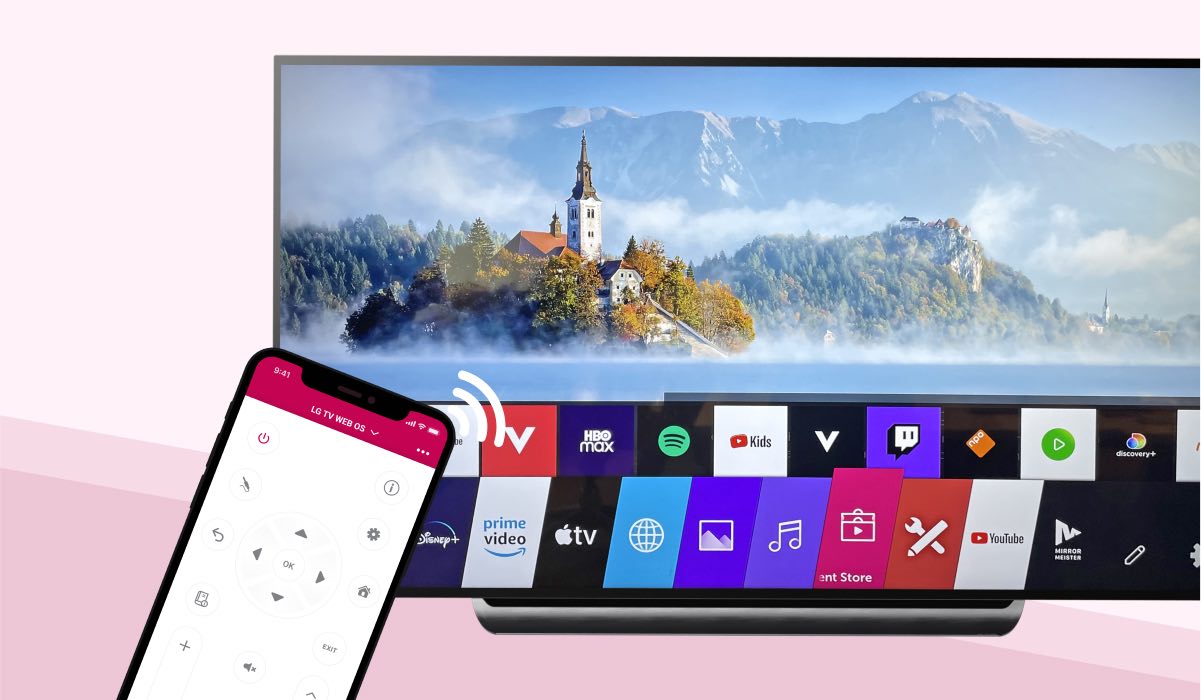
Installing third-party apps on an LG smart TV with webOS follows a different process than Samsung's developer mode. LG does not offer a hidden code method; instead, you must enable Developer Mode through the LG Content Store. Search for the Developer Mode app, install it, and launch it. You will need to sign in with an LG developer account and enter your computer's IP address. Unlike Samsung, LG allows full shell access via the webOS SSH, enabling deeper system modifications. However, LG also warns that sideloaded apps may not persist after firmware updates, and the same warranty risks apply.
For the wider topic, see adjusting smart TV picture settings.
\nRelated reading: How To Jailbreak A Smart TV and How To Uninstall Sideloaded Apps On LG webOS.