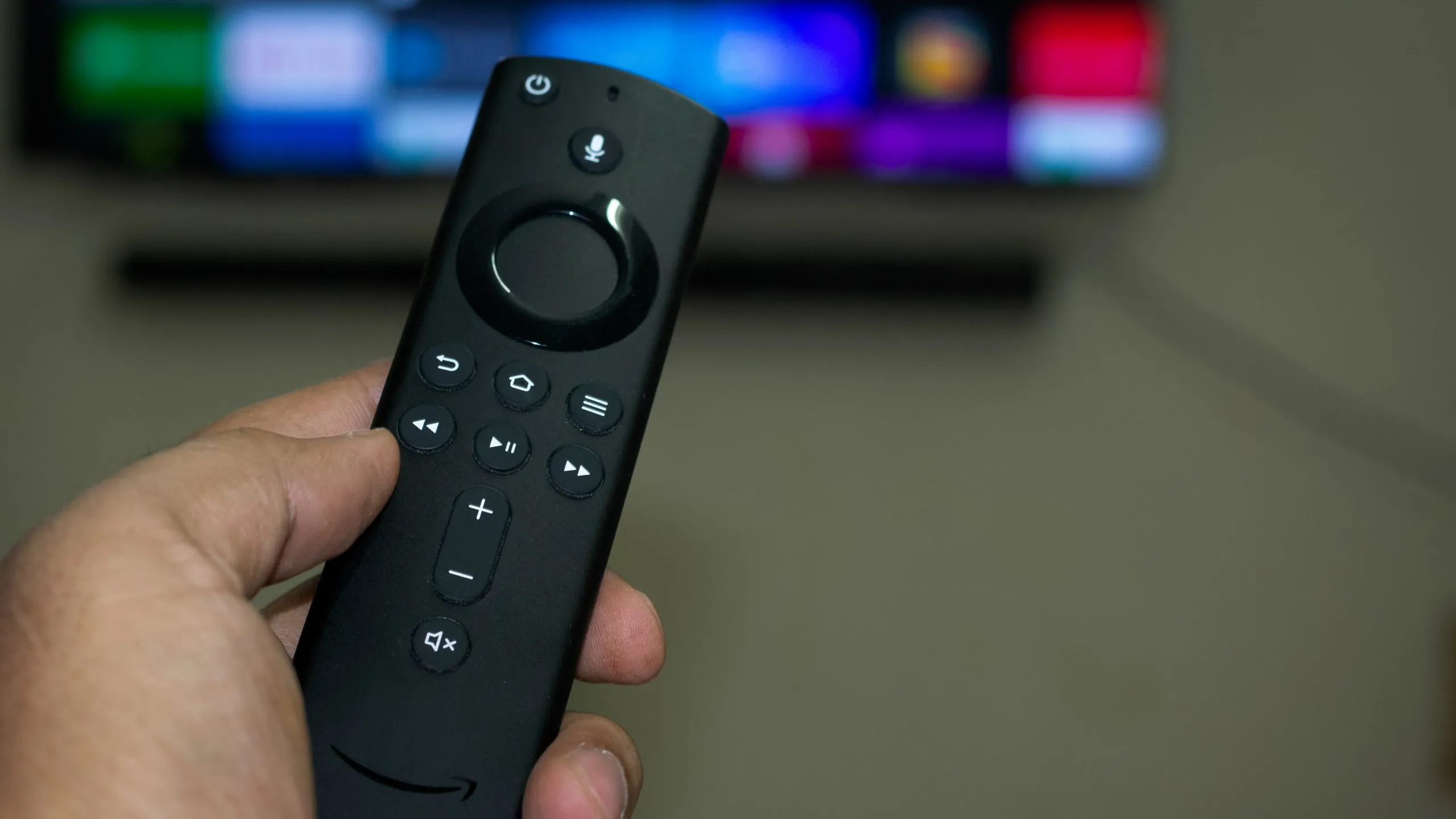
To connect Fire Stick to Samsung Smart TV, plug the Fire TV Stick directly into an available HDMI IN port on your Samsung TV, then press the Source or Input button on your TV remote and select that HDMI port. Once the Fire Stick home screen appears, you’ll complete a quick on-screen setup for Wi‑Fi and your Amazon account, and you’re ready to stream. If you want richer audio, you can also connect a Fire Stick to a surround sound system for a more cinematic experience.
Connect a Fire Stick to Your Samsung Smart TV: Physical Connection
Start by locating an open HDMI IN port on your Samsung Smart TV, these are usually on the back or side of the set. Insert the Fire TV Stick directly into that port, making sure it’s fully seated. If your TV model has a tight fit or the port is recessed, gently wiggle the stick until it snaps into place; do not force it.
Next, power the Fire Stick. Use the included micro‑USB power adapter and plug it into a nearby electrical outlet. If your Samsung TV has a USB port within reach, you can use that instead, but a wall outlet is more reliable for consistent power. Then turn on your Samsung TV and the Fire TV Stick.
On your Samsung TV remote, press the Source or Input button. A list of inputs will appear on screen, select the corresponding HDMI input (e.g., HDMI 1, HDMI 2) to which the Fire Stick is connected. Alternatively, navigate to the Connected Devices menu from the Smart Hub Home screen to select the input source. You’ll know the connection is successful when the Fire Stick’s welcome screen appears.
Essential Settings for 4K Streaming on Samsung TVs
If your Fire Stick supports 4K and your Samsung TV is 4K‑capable, you may need to enable a specific HDMI setting to get the full resolution.
Go to Settings > General > External Device Manager on your Samsung TV. From there, enable UHD HDMI Color or Input Signal Plus for the exact HDMI port where your Fire Stick is connected. This setting unlocks the full bandwidth needed for 4K streams. If you skip this step, your picture may look soft or the TV might not recognize the 4K signal at all. After enabling it, the TV will refresh the signal, your Fire Stick screen may blink once, which is normal.
Finish On-Screen Setup: Wi-Fi and Amazon Login
Once the Fire Stick loads its setup screen, the first step is choosing your language. Use the Fire Stick remote to select your preferred language, then confirm. The device will then scan for available Wi‑Fi networks.
- From the list of networks, select your home Wi‑Fi.
- Enter your Wi‑Fi password using the on‑screen keyboard, then select Connect.
- Wait for the Fire Stick to establish the connection, this usually takes a few seconds.
- If prompted, allow any software updates to download and install. These updates ensure your Fire Stick runs smoothly.
After connecting to Wi‑Fi, you’ll be asked to sign in with your Amazon account. If you already have one, enter your email and password. If you don’t, select the option to create a new account and follow the prompts. You may receive a verification code via email or text, enter it when prompted to complete the sign‑in.
Signing in is essential because it links your Fire Stick to your Amazon library, including Prime Video, purchased content, and app preferences. Once signed in, the Fire Stick will finish setup and take you to the home screen. For a deeper walkthrough of the entire process, including account creation and troubleshooting, see our guide on setting up a Firestick.
Start Streaming and Using Your Fire Stick
With the Fire Stick connected and configured, you now have access to a full streaming ecosystem. The home screen gives you one‑stop access to apps like Netflix, Hulu, Disney+, Prime Video, and hundreds more. You can browse the app store directly from the Fire Stick to install additional services, games, and utilities.
Voice control is a major advantage, many Fire Stick remotes include Alexa. You can also ask Alexa to control playback, adjust volume on your Samsung TV (if supported), or check the weather.
Beyond streaming, the Fire Stick lets you cast media from your phone or tablet. Use the built‑in mirroring feature to display photos, videos, or music from your mobile device on the TV screen. This is handy for sharing vacation photos or watching a video someone sent you.
Take a few minutes to explore the Settings menu on the Fire Stick. You can adjust display resolution, enable parental controls, change audio output, and set up sleep timers. Regularly check for software updates in Settings > My Fire TV > About to ensure you have the latest features and security patches.
Your Samsung Smart TV and Fire Stick are now fully paired. Browse the app library, create watchlists, and enjoy your favorite shows on the big screen. The combination of the Fire Stick’s interface and your Samsung TV’s display gives you a flexible, powerful streaming setup that’s ready for anything you want to watch.
\nRelated reading: How To Connect Dish To Samsung Smart TV.