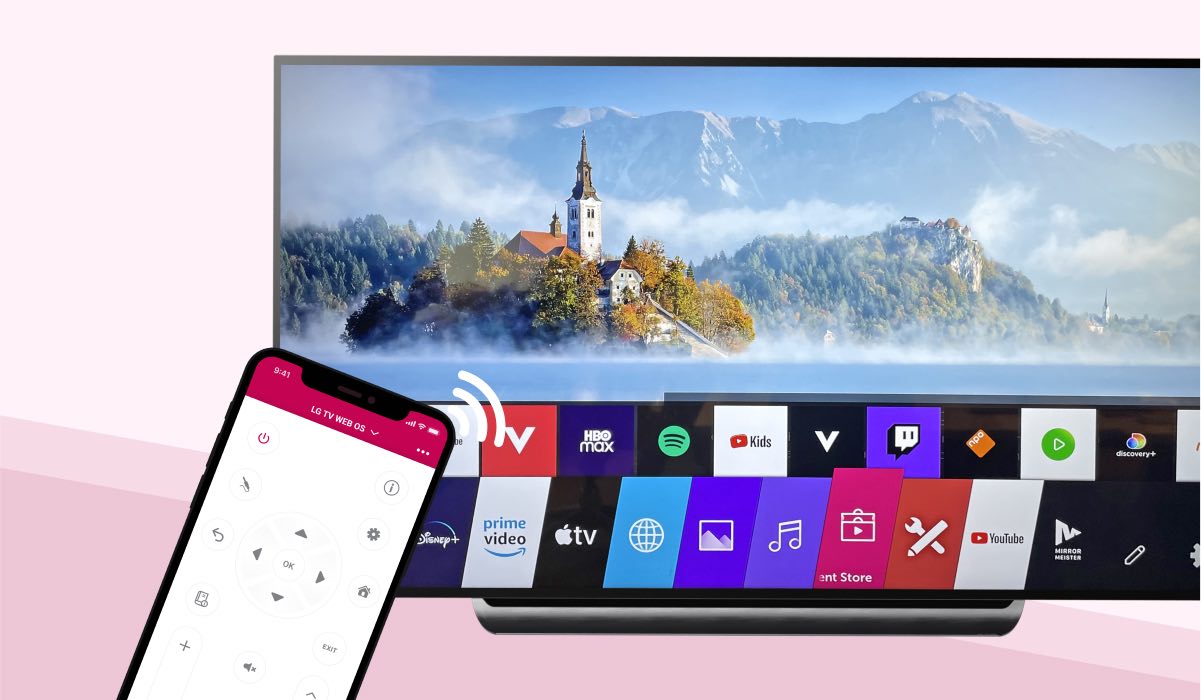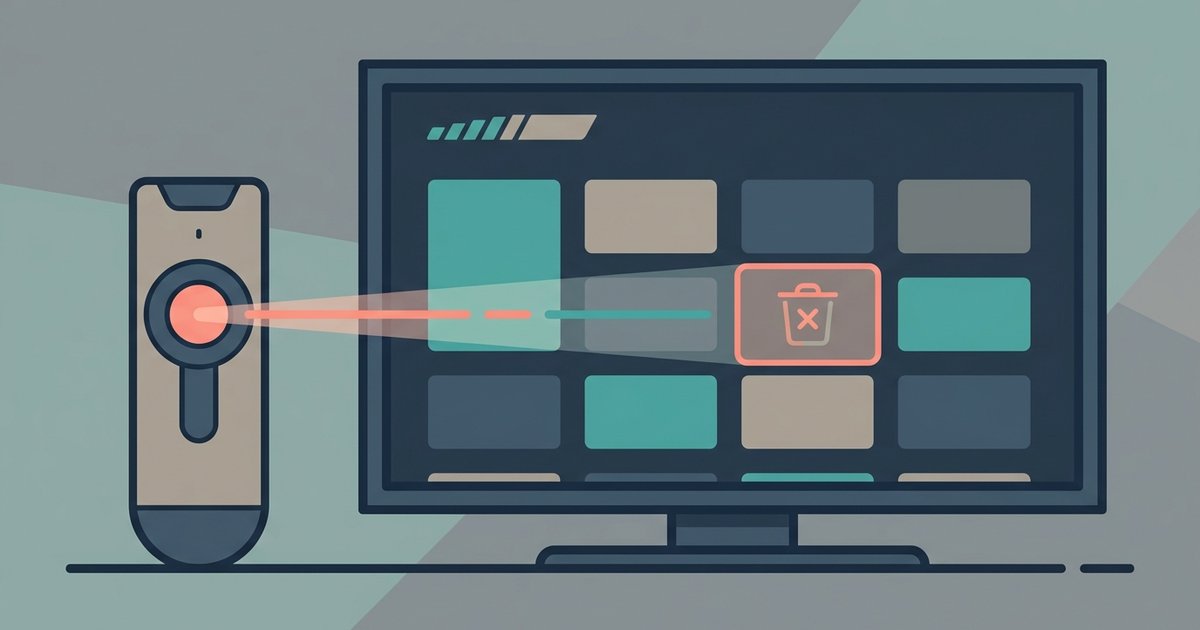
Sideloaded apps can be uninstalled directly from the TV's home screen by entering Edit Mode, or you can re-enable Developer Mode, launch the Developer Mode app, and use its built-in uninstall function to remove them.
Why normal uninstall sideloaded apps methods fail
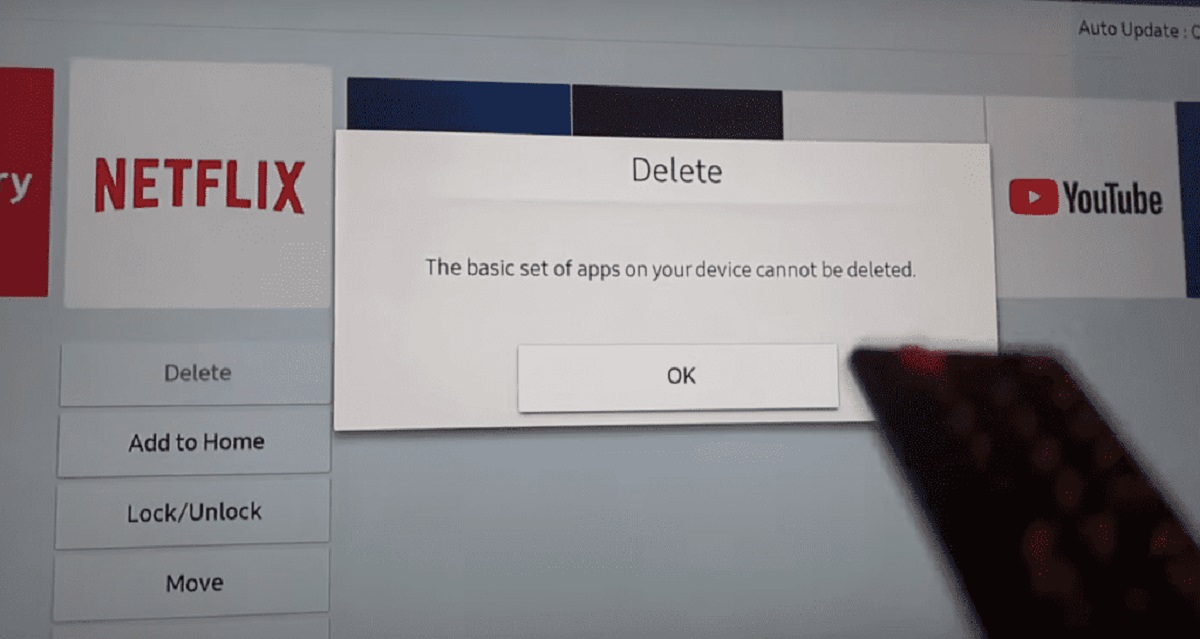
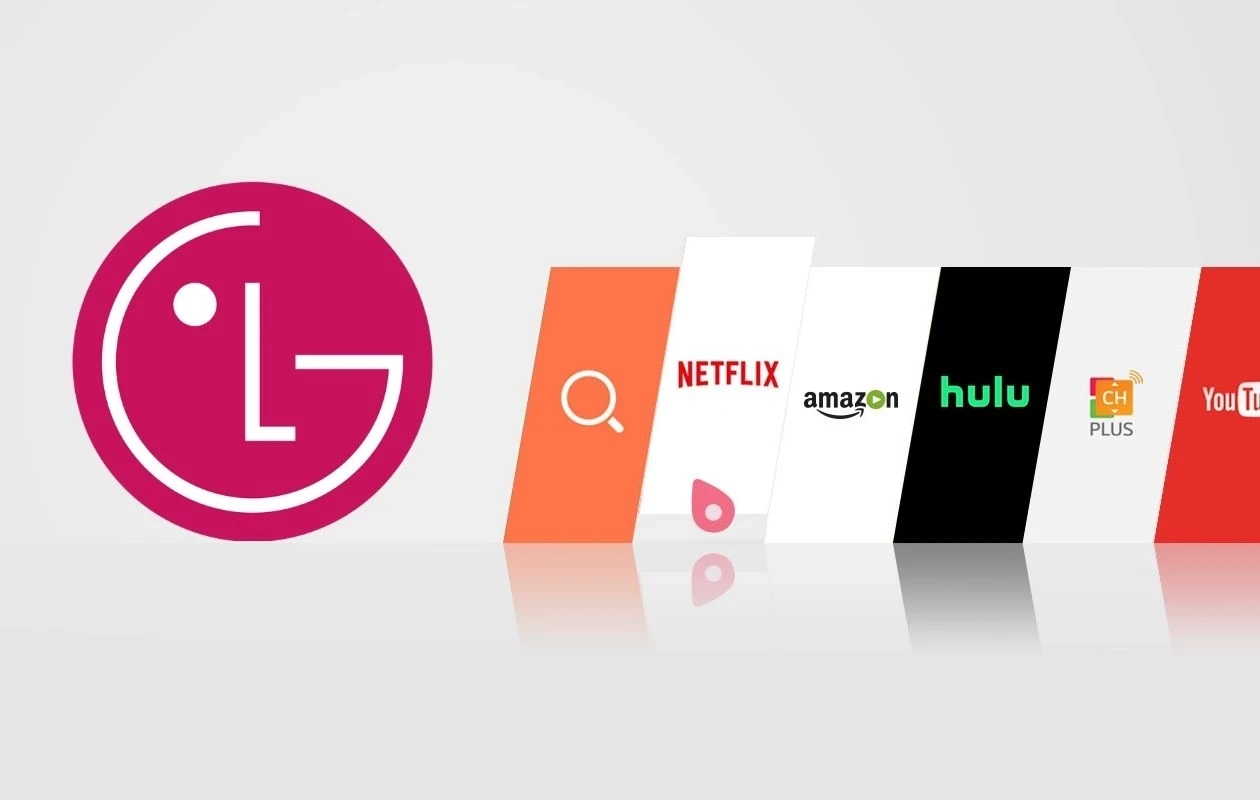
When you sideload an app using Developer Mode, the IPK package installs into a separate partition. Sideloaded apps can be managed from the standard LG home screen launcher. If you press and hold the app icon on the home screen for 3 seconds, the TV enters Edit Mode and shows a delete option. The launcher only recognizes apps from the official LG Content Store. Entering the “Edit” mode by clicking the pencil icon on the home bar will display a removal button for sideloaded apps. This leaves many users feeling stuck, assuming the app is permanently locked to the system. In reality, the app is simply hidden from the consumer-facing interface. You can manage it from the home screen, or go back into the developer tools.
Uninstalling via developer mode
Press the Settings button on your remote, go to “All Settings,” then select “General.” Scroll to “Developer Mode” and toggle the switch to On. This reactivates the Key Server connection. Now press the Home button and locate the “Developer Mode” app icon. It looks like a small gear with a code bracket. Launch the app. Inside, you will see a list of all installed IPK packages. Highlight the sideloaded app you want to remove, then press the “Uninstall” button on the screen. The TV will immediately delete the entire package, including its data and icon. After the process completes, you can turn Developer Mode back off if you no longer need it. This method works for every sideloaded app, whether you originally installed it to get Facebook on your smart TV or to test a custom media player.
When the app won't uninstall
Occasionally, a sideloaded app may fail to uninstall. The Developer Mode app itself may have corrupted data, or the IPK package left a broken entry. If the uninstall button does nothing or the app still appears in the list after restarting, first try resetting the Developer Mode app. Go to Settings > General > “Apps,” find “Developer Mode,” select “Force Stop,” then “Clear Data.” Re-enable the mode and launch the tool again. The list will refresh and the problematic entry should now be removable. If that fails, the last resort is a full factory reset of the TV. Go to Settings > General > “Reset to Initial Settings,” enter your PIN, and confirm. The default PIN is 0000. This wipes all sideloaded apps and developer settings, returning the TV to its factory state. Be aware that this also removes any customizations you made, such as when you followed a guide to install the Google Play Store on a Samsung smart TV. That guide applies to a different brand, but the principle of a clean slate is the same. Understanding the difference between a smart TV and a Google TV helps clarify why LG’s webOS handles sideloading so differently from Android-based sets. For users who simply want to watch YouTube TV on non smart TV, a dedicated streaming stick is often easier than sideloading on webOS. If you already installed an unofficial app, the steps above will remove it cleanly.
LG webOS allows sideloaded apps to be deleted through consumer-facing menus, though the Developer Mode app can also fully delete them. For those managing Google apps on a smart TV, this same principle applies to removing any unauthorized or experimental software that bypasses the official app store.