To install third party apps on LG smart TV webos, you can use the LG Content Store for available apps or sideload IPK packages using Developer Mode for apps not found there. This process allows you to expand your TV's functionality beyond the official store's offerings.
How to install third party apps on LG smart TV webos: An introduction
While the LG Content Store is the primary source for apps on your LG Smart TV running webOS, you can sideload IPK packages using Developer Mode for applications not available there. This method is intended for developers and requires some technical steps, but it gives you access to a wider range of software, including specialized streaming services and utilities.
Method 1: Using the LG Content Store
For apps that are available in the official store, this is the simplest and safest method. It is also the recommended way of installing streaming apps on a smart TV, as these apps are verified and supported by LG.
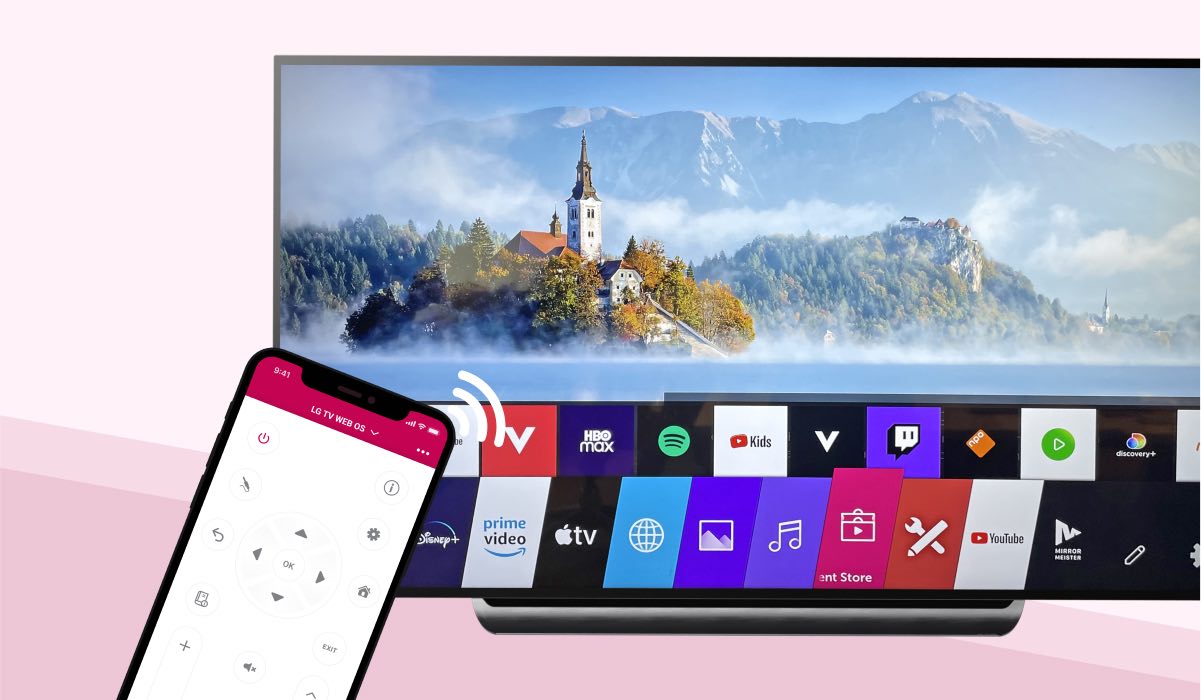
- Press the Home button on your remote.
- Select the LG Content Store icon (or "Apps" for newer webOS versions).
- Search for the desired app using the on-screen keyboard.
- Select the app from the results and choose "Install".
- Wait for the installation to complete, then launch the app from your home screen.
Method 2: Sideloading apps with Developer Mode
For apps not in the Content Store, you must sideload webOS IPK packages using Developer Mode. This is an advanced process, but it is the only way to install software like custom media players or unofficial app ports. Note that this method does not allow you to install APK on LG smart TV, as webOS uses a different package format (IPK).
Create an LG Developer account
- Go to the LG Developer website on your computer.
- Create a free account by providing your email address and setting a password.
- Verify your email address to activate the account.
Install and enable Developer Mode on your TV
- On your LG Smart TV, open the LG Content Store.
- Search for the "Developer Mode" app and install it.
- Launch the Developer Mode app from your home screen.
- Sign in with your LG Developer account credentials.
- Turn "Dev Mode Status" to On. This will cause the TV to reboot.
- After the reboot, reopen the Developer Mode app.
- Note the TV's IP Address and any Passphrase displayed on the screen. You will need these later.
Set up your PC for sideloading
- On your PC, install the official webOS TV command-line interface (CLI) tools from the LG Developer website.
- Ensure both your PC and LG Smart TV are connected to the same network.
- Open a terminal or command prompt on your PC.
- Use the
ares-setup-devicecommand to add your TV as a target device. - When prompted, enter the TV's IP address and your developer account details (or the passphrase if prompted).
- Confirm the device is added successfully by using
ares-device-infoto verify the connection.
Sideload an IPK file
- Obtain the IPK file for the app you want to install from a trusted source.
- In the terminal, use the
ares-installcommand followed by the path to the IPK file. - Wait for the installation to complete. The app will appear in your TV's app list.
Developer Mode limitations and troubleshooting
Developer Mode has a time limit of 1000 hours. After this period, the mode will disable itself and uninstall all sideloaded apps. You can reset the timer within the Developer Mode app before it expires to prevent this. Additionally, only one LG Smart TV can have Developer Mode enabled per LG Developer account at a time. Logging into another TV with the same account will disable Developer Mode on the previous one.
If you encounter issues during installation, first check that your LG Smart TV is connected to the internet. A stable connection is required for app installation and proper functioning. Also, verify that your TV has sufficient storage space; insufficient storage can prevent new apps from installing. If problems persist, restart both your TV and router to resolve temporary network glitches.
\nRelated reading: How To Uninstall Sideloaded Apps On LG webOS.