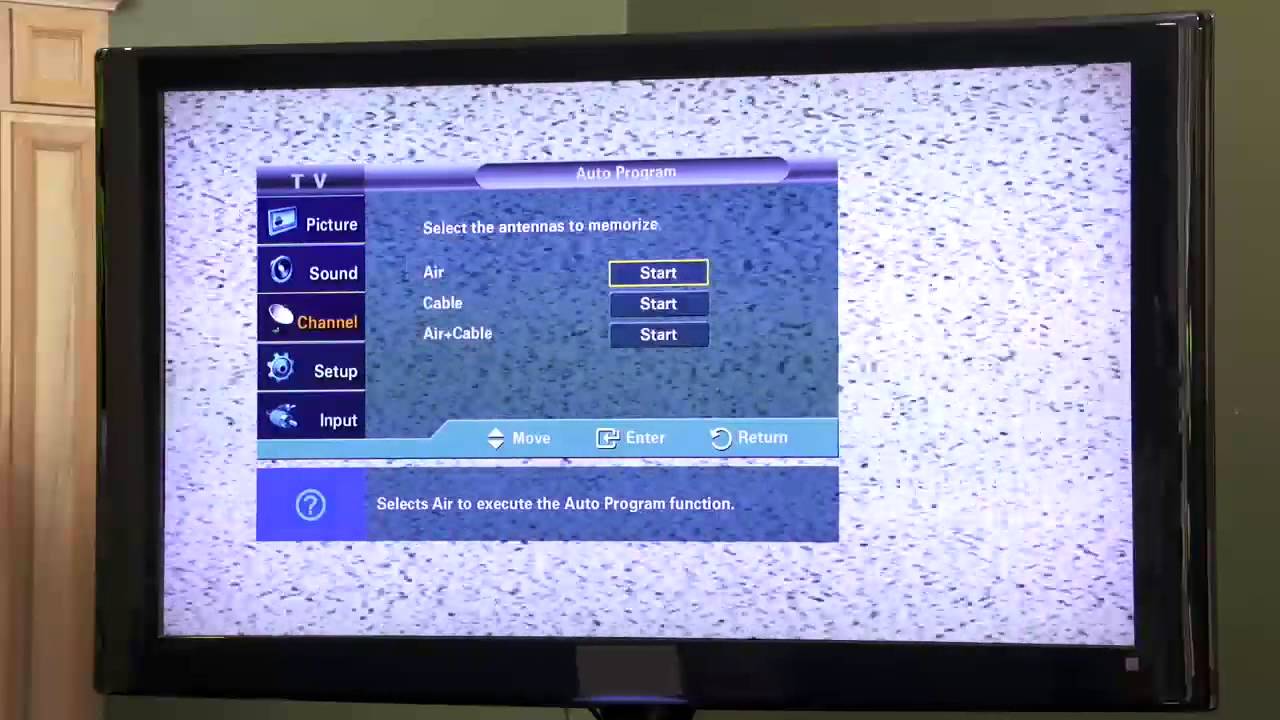
To scan channels on an LG smart TV, use the built-in Auto Tuning feature in the Settings menu to find free over-the-air broadcasts. This process allows your TV to detect and save all available local channels, giving you access to live news, sports, and entertainment without a cable subscription.
Before you scan channels on your LG smart TV
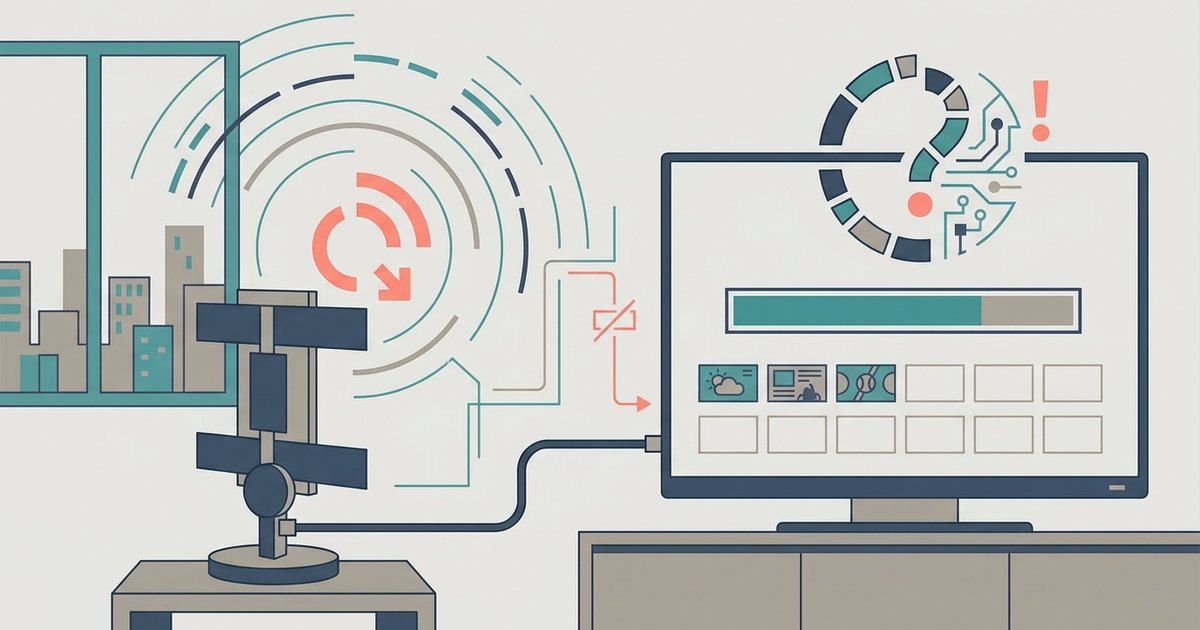
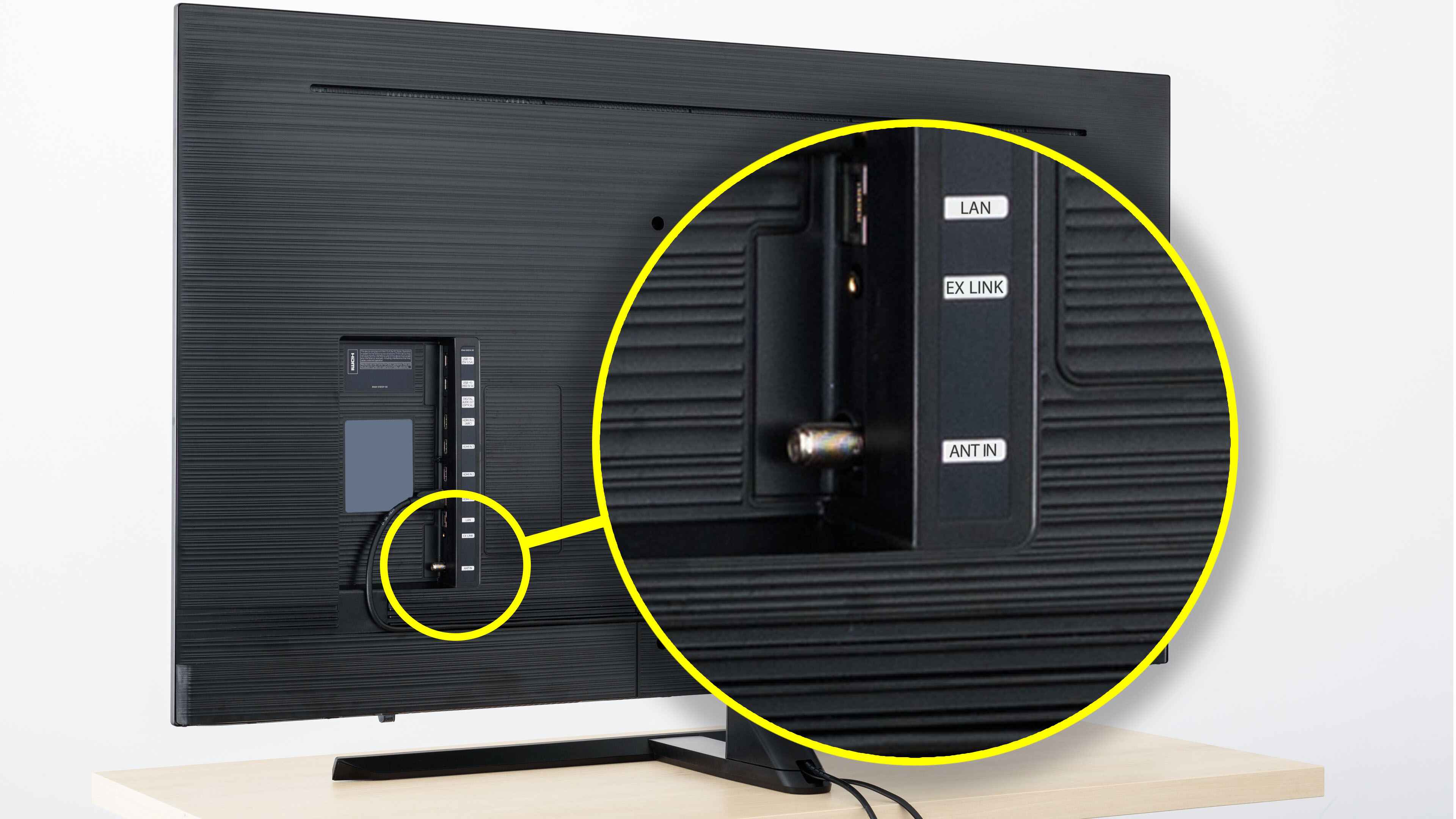
Before starting a channel scan, you must connect a coaxial cable from your antenna to the Antenna/Cable IN port on the back of the TV. For the best reception, place your antenna near a window and adjust its position to maximize signal strength. If you use a set-top box for cable or satellite service, you do not need to scan channels on the TV itself, instead, simply change the TV input to the HDMI port connected to your box. This is the correct way to connect a cable box to an LG smart TV, as the set-top box handles all channel tuning.
How to start auto tuning on webOS 6.0 or later (2021+ models)
For LG Smart TVs released in 2021 or later running webOS 6.0 or newer, follow these steps:
- Press the Settings button (gear icon) on your remote to open the main menu.
- Select All Settings.
- Navigate to General, then select Channels.
- Choose Channel Tuning, then select Auto Tuning.
- Select Start to begin the scan. Wait for the process to complete, then select Done to save the detected channels.
How to start auto tuning on webOS 5.0 or earlier (2020 and older models)
For LG Smart TVs released in 2020 or earlier running webOS 5.0 or older, the navigation is slightly different:
- Select All Settings.
- Navigate directly to Channels (this option is not under General on older models).
- Choose Channel Tuning, then select Auto Tuning.
- Select Start to begin the scan.
What to expect after the channel scan finishes
Once the scan is complete, your TV will display a list of all detected channels. Review this list and confirm your selection to save them. The channels available on an LG smart TV depend entirely on your local signal strength and geographical location, not all areas receive the same broadcasts. If you want to watch UHD broadcasts, you need a dedicated UHD antenna, as standard antennas cannot receive UHD signals. If your scan finds fewer channels than expected, you may need to adjust your antenna to get local channels on LG smart TV more reliably. It is a good idea to periodically rescan your TV to catch new channels or those that have changed frequencies.
Troubleshooting when no channels are found
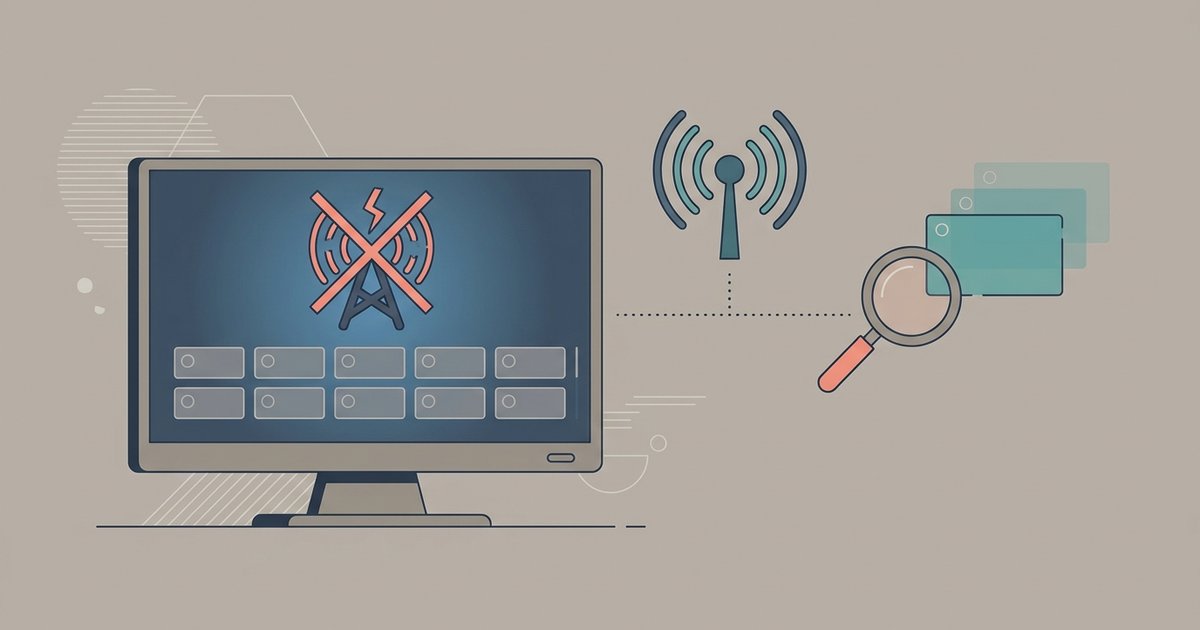
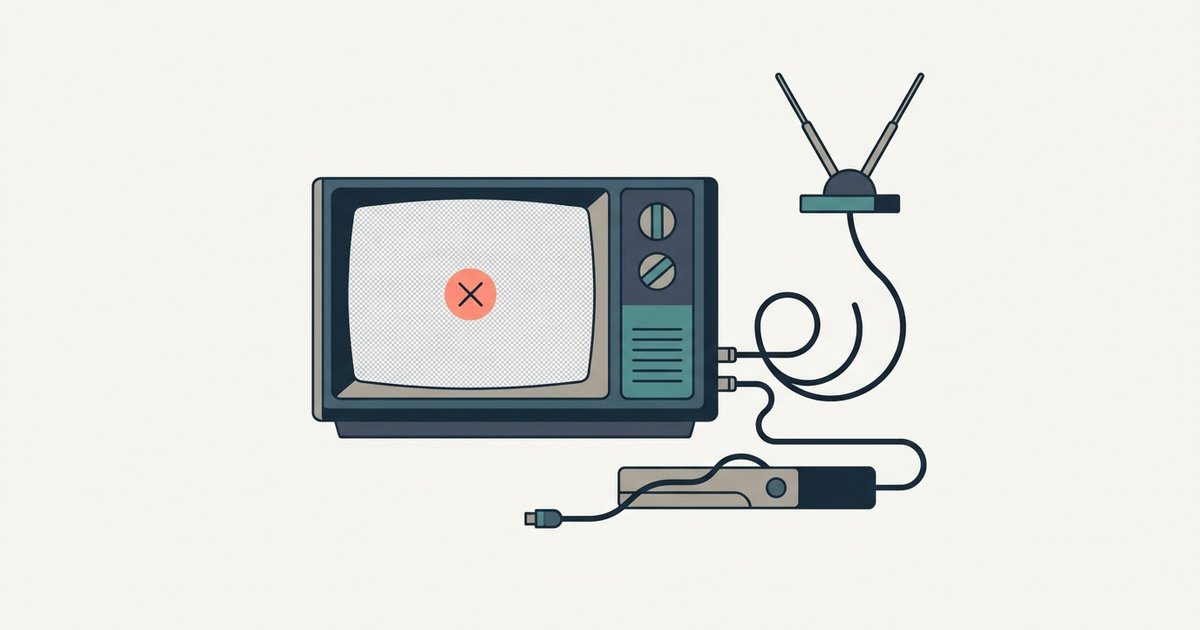
If your LG Smart TV finds no channels during the scan, first check that the coaxial cable is securely connected to both the antenna and the TV's Antenna/Cable IN port. Try repositioning the antenna near a window or in a higher location to improve signal reception. Keep in mind that the TV only saves channels that meet a minimum signal threshold, weak signals are automatically excluded, so even if a broadcast exists in your area, it may not appear if the signal is too weak.