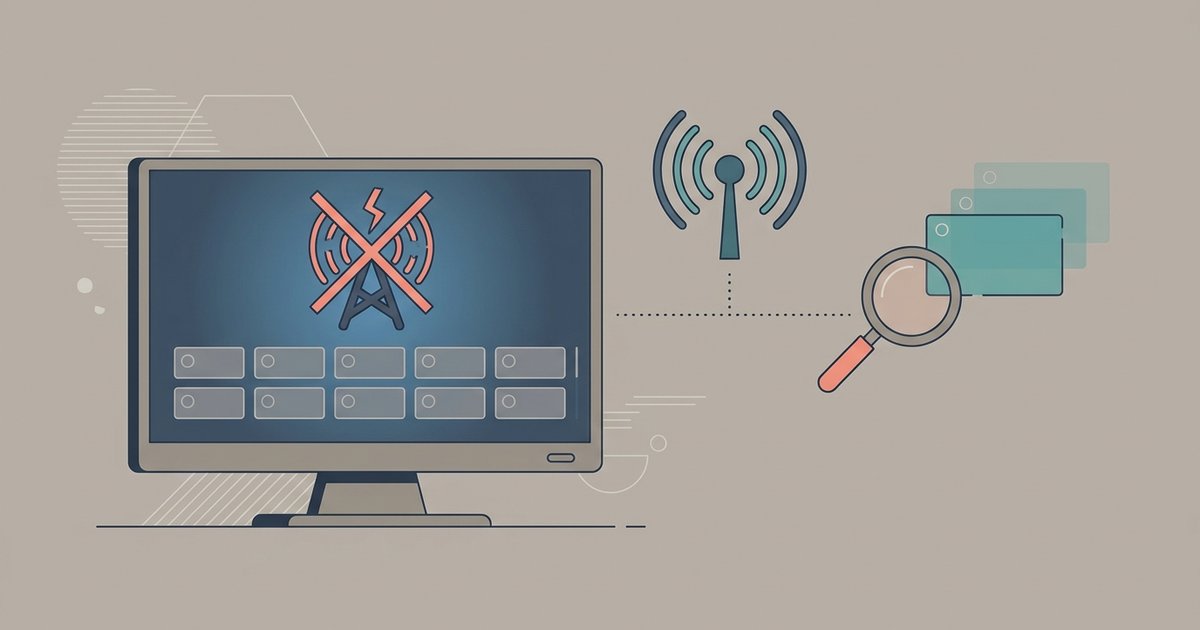
Your antenna channels likely disappeared because the TV's automatic channel memory was erased during a firmware update, a power surge, or by accidentally switching inputs. A simple re-scan should restore them, but only if your antenna is still connected and positioned correctly.
Why a rescan fails to find TV antenna channels
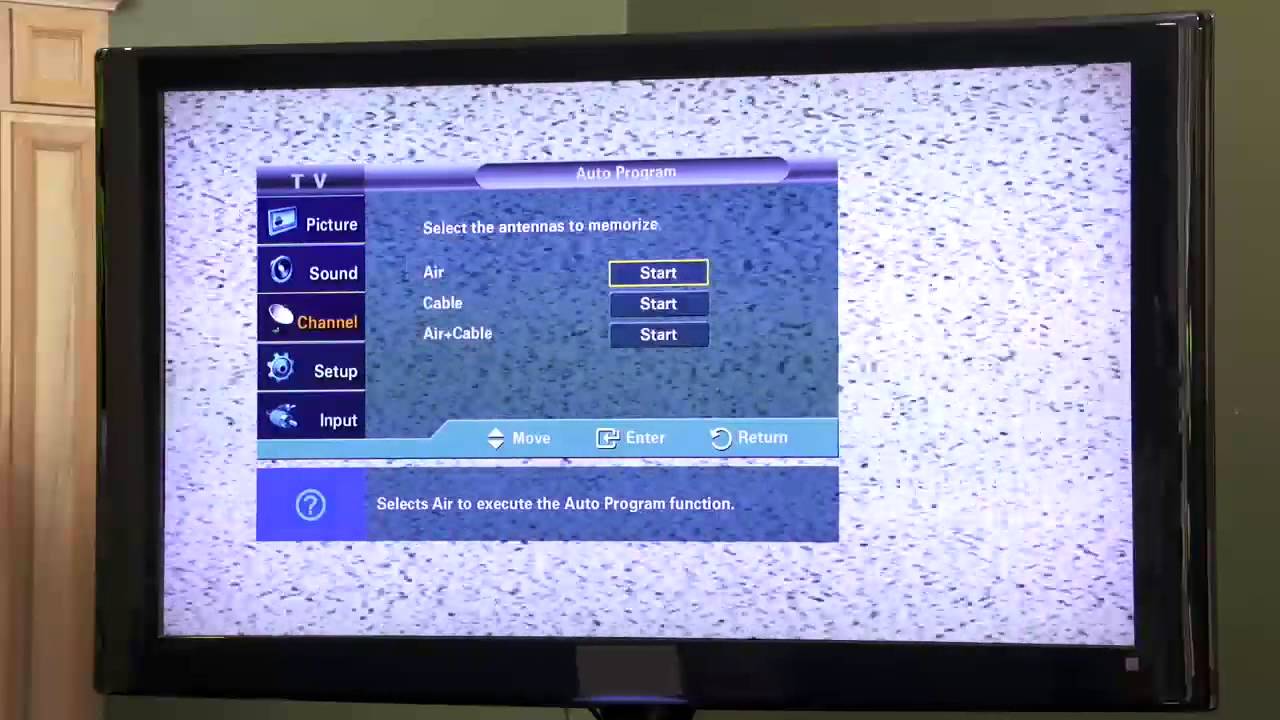
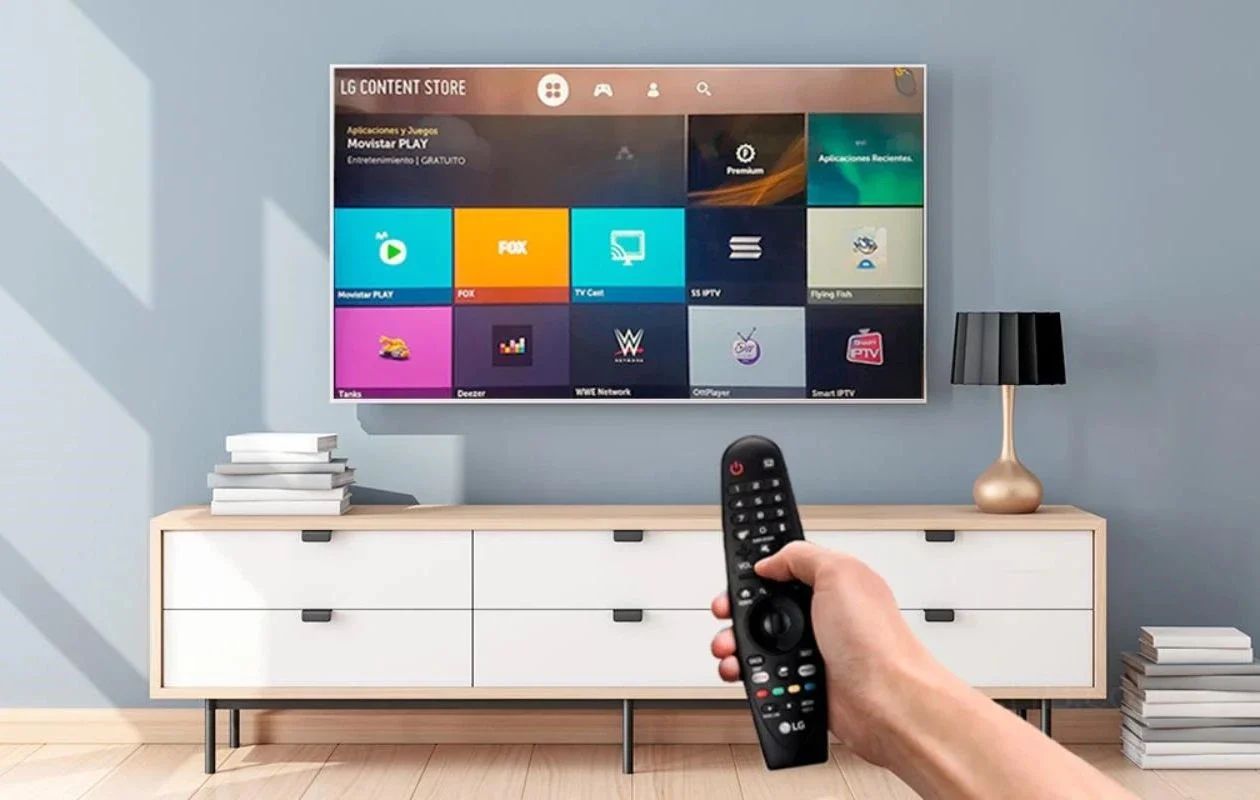
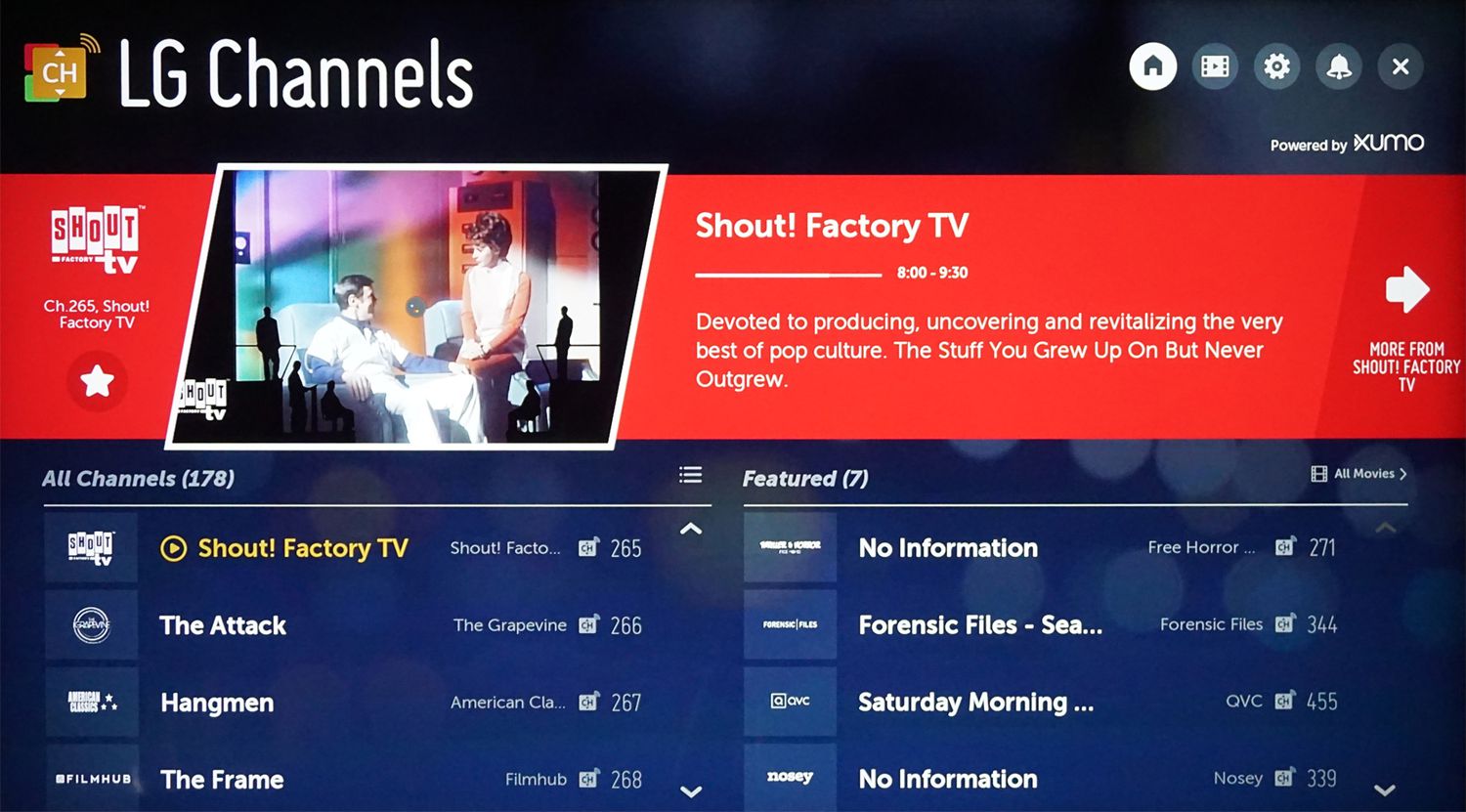
The most common reason a re-scan fails to find channels is that you run the scan while the TV input is set to a streaming app or HDMI port instead of the antenna input, which results in finding zero channels. On Vizio Smart TVs, the “Tuner” or “Antenna” input is separate from the Home screen. If you press the Input button and select “TV” or “Antenna,” the scan will search the coaxial connection. But if you are watching Netflix and start the scan from the settings menu, the TV will scan the HDMI port and find nothing. Before scanning, navigate to the input that shows a live antenna signal, even if it shows static, then go to Menu > Channels > Find Channels or Auto Channel Scan. This small step solves the problem for most users, but if the scan still yields nothing, the deeper troubleshooting steps for a Vizio TV not finding channels with an antenna can help isolate a faulty cable or signal issue.
Checking your antenna connection and signal
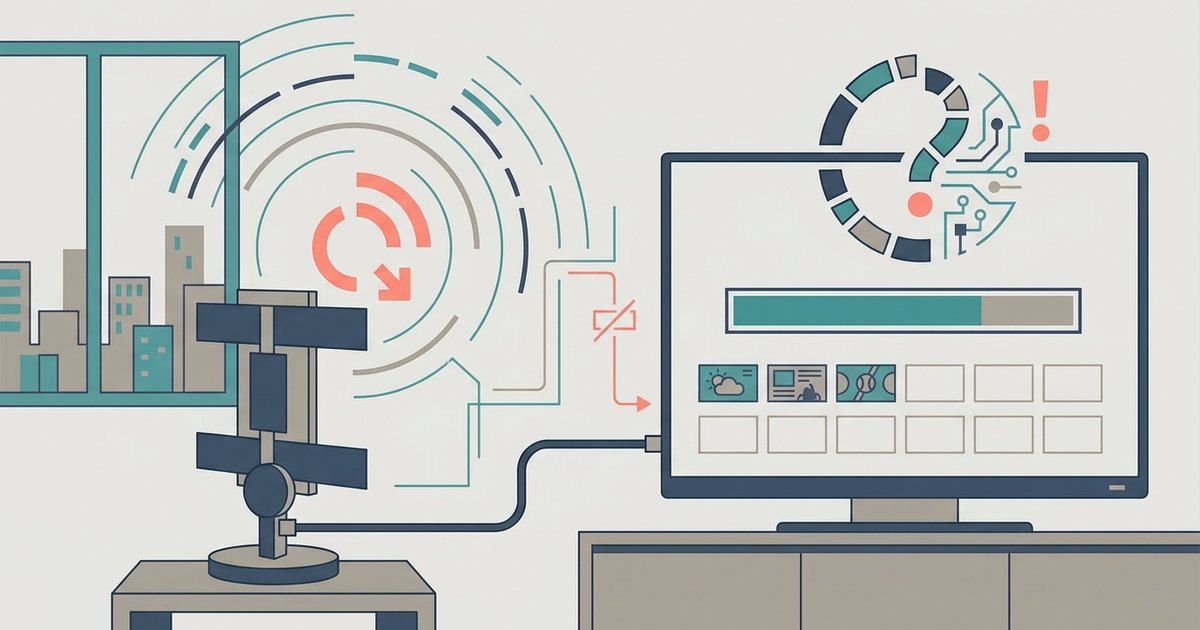
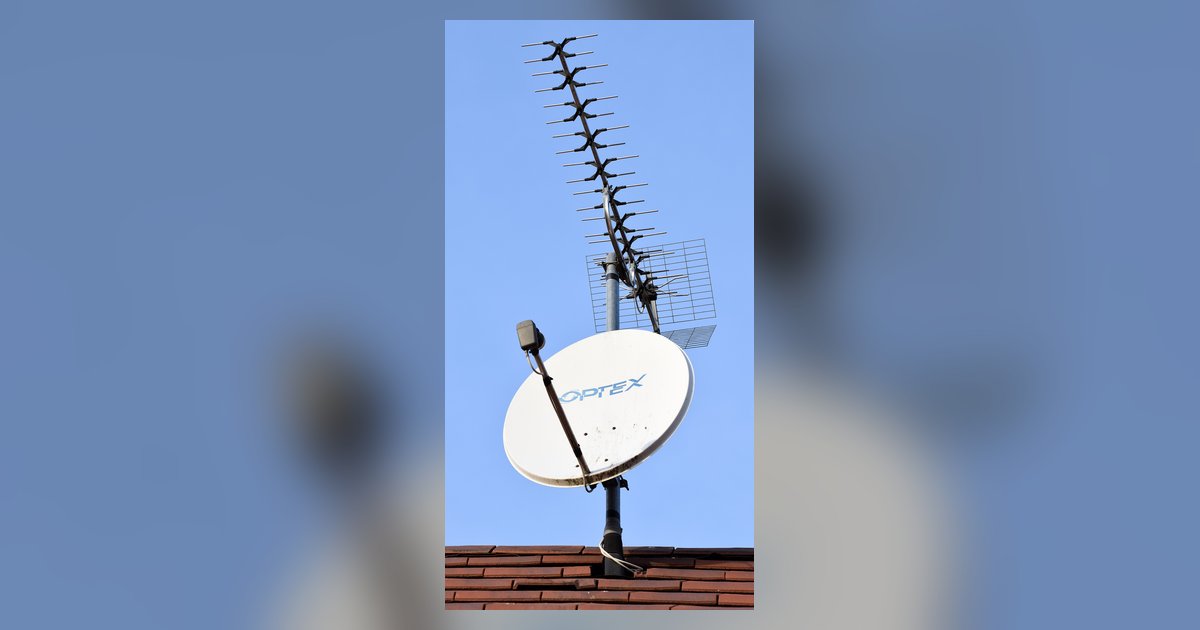
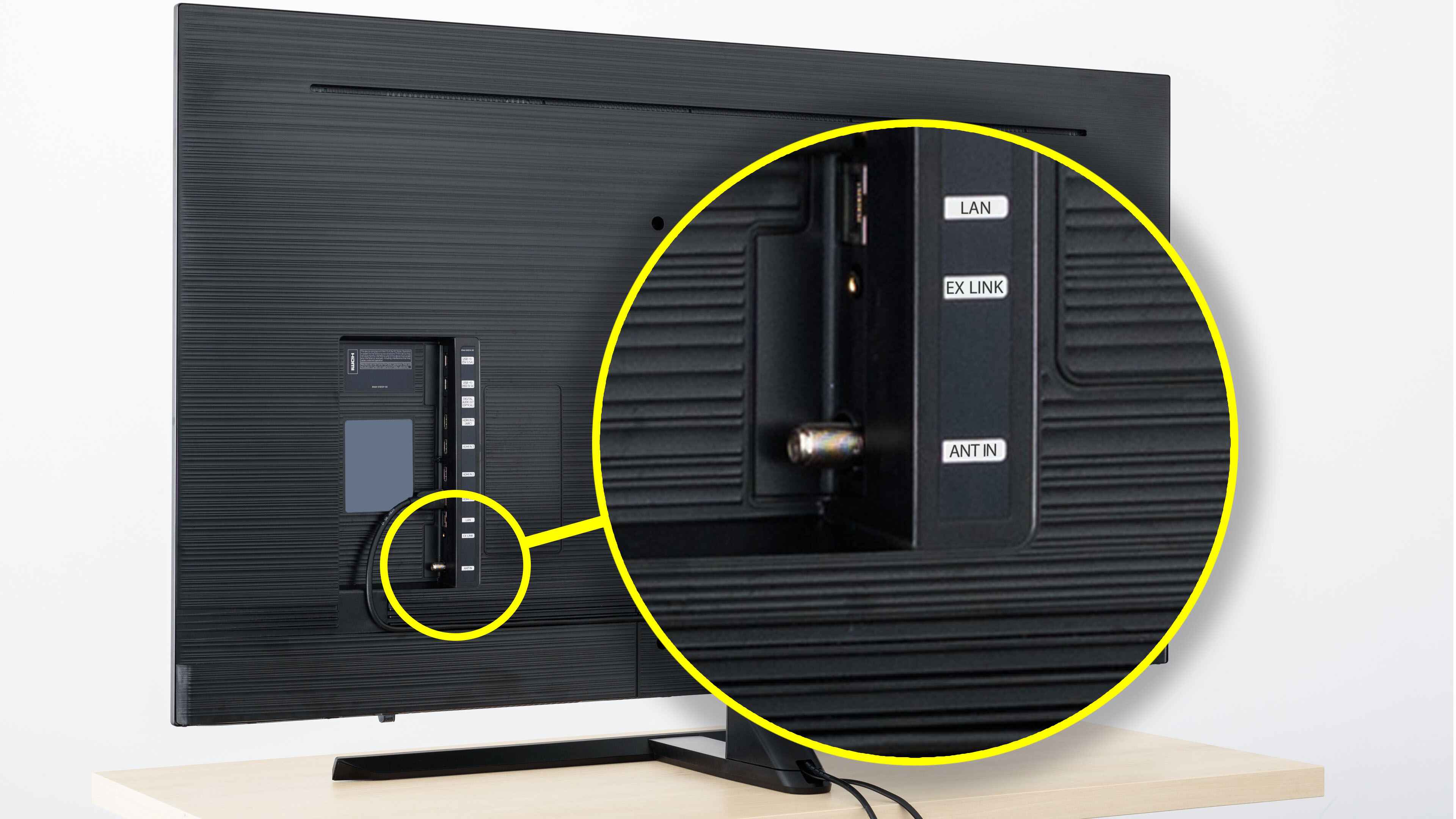
A loose coaxial cable, a shifted antenna position, or local broadcast frequency changes can silently break reception for channels that worked previously. Start by unscrewing the cable at the back of the TV and at the wall or antenna, then reattach it firmly until the connector clicks. Next, check that your antenna hasn’t been moved by a child, a pet, or cleaning. Even a few inches of rotation can knock out a weak signal. Finally, broadcasters occasionally change their frequencies (a process called repack) to free up spectrum for cellular networks. If your antenna is not designed for the new frequencies, channels that scanned fine last month may now be missing. To confirm, try moving the antenna to a higher window or using a signal amplifier. If you need to know how do I get local channels on my Vizio smart TV after a repack, re-scan with the antenna in a new location.
When a factory reset is the only fix
If you have verified the input, tightened the cable, and re-scanned multiple times with no results, the problem may be corrupted channel data from a software glitch that survives a normal rescan. In this scenario, the TV’s internal memory holds a broken channel map that refuses to overwrite. The only solution is a full factory reset, which clears the memory and forces the TV to build a fresh channel list. On most Vizio Smart TVs, navigate to the system or admin settings and select the option to reset the TV to factory defaults. You will need to re-agree to terms and re-scan for channels afterward. This process wipes all settings, including Wi-Fi passwords and installed apps, but it reliably removes any sticky corruption. After the reset, run a new scan on the correct antenna input, and your channels should return. If they do not, the antenna itself or the coaxial wiring may be damaged, and you should test it on another TV.
If you are trying to figure out how to watch local TV on Vizio smart TV, the first step is always to confirm that the TV is set to the correct input source, usually labeled "TV" or "Antenna", before starting the scan. Many owners find their channels gone simply because the TV defaulted to a different input after an update or power cycle.
\nRelated reading: How Do I Get My Channels Back On My Smart TV.