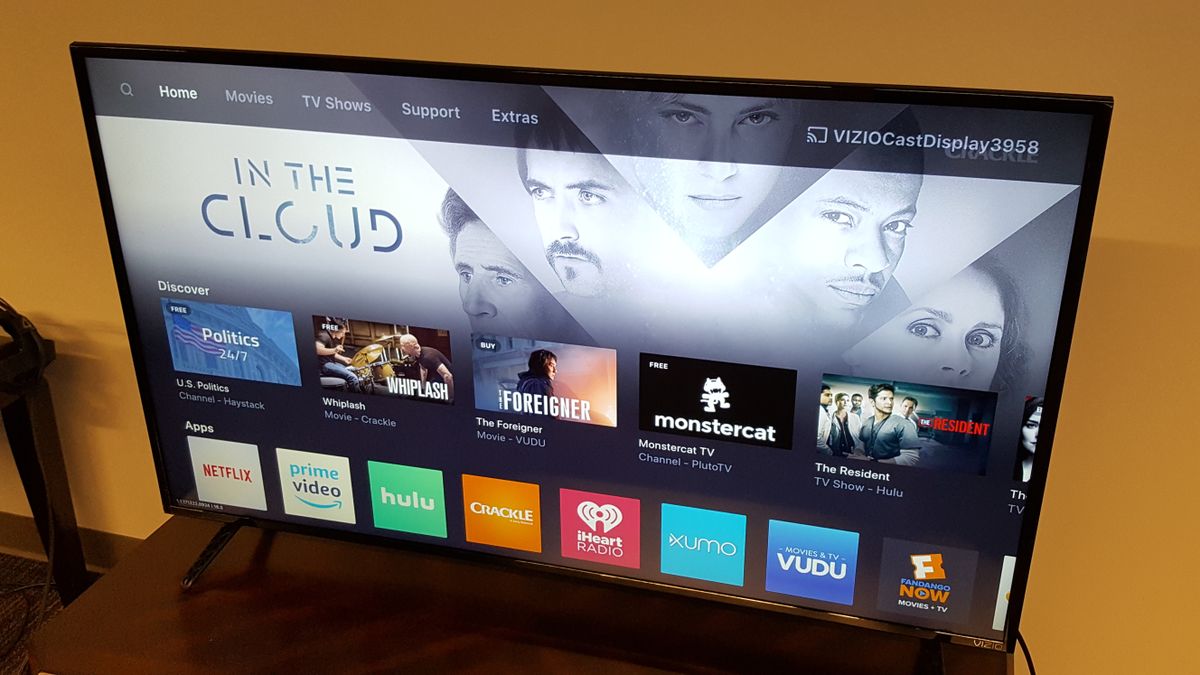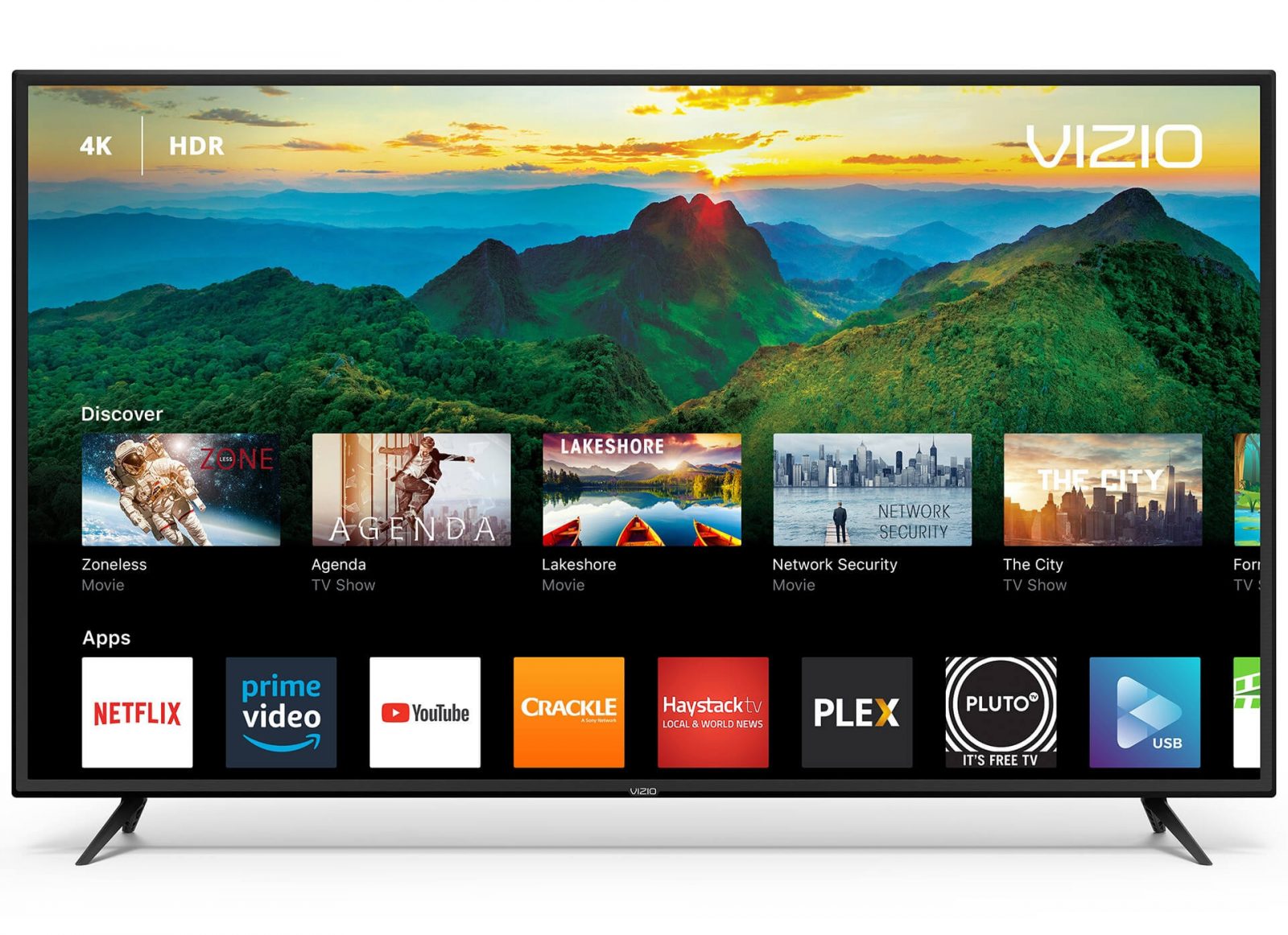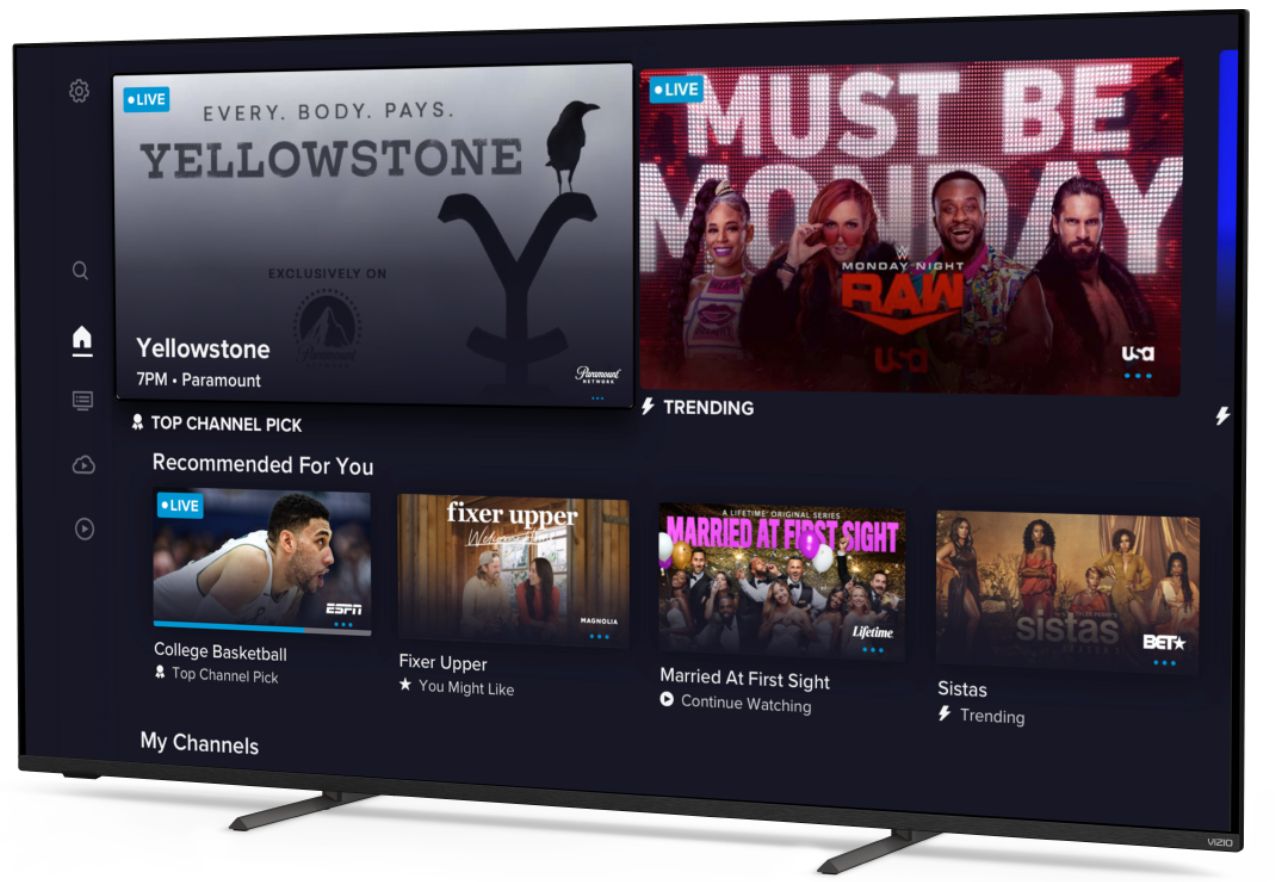
To get local channels on a Vizio smart TV, connect an over-the-air antenna to the TV's coaxial input, select the correct input, and perform a channel scan. This is the primary, free method to watch local TV on Vizio smart TV, giving you access to ABC, CBS, NBC, FOX, and PBS without any subscription.
How to get local channels on a Vizio smart TV with an antenna
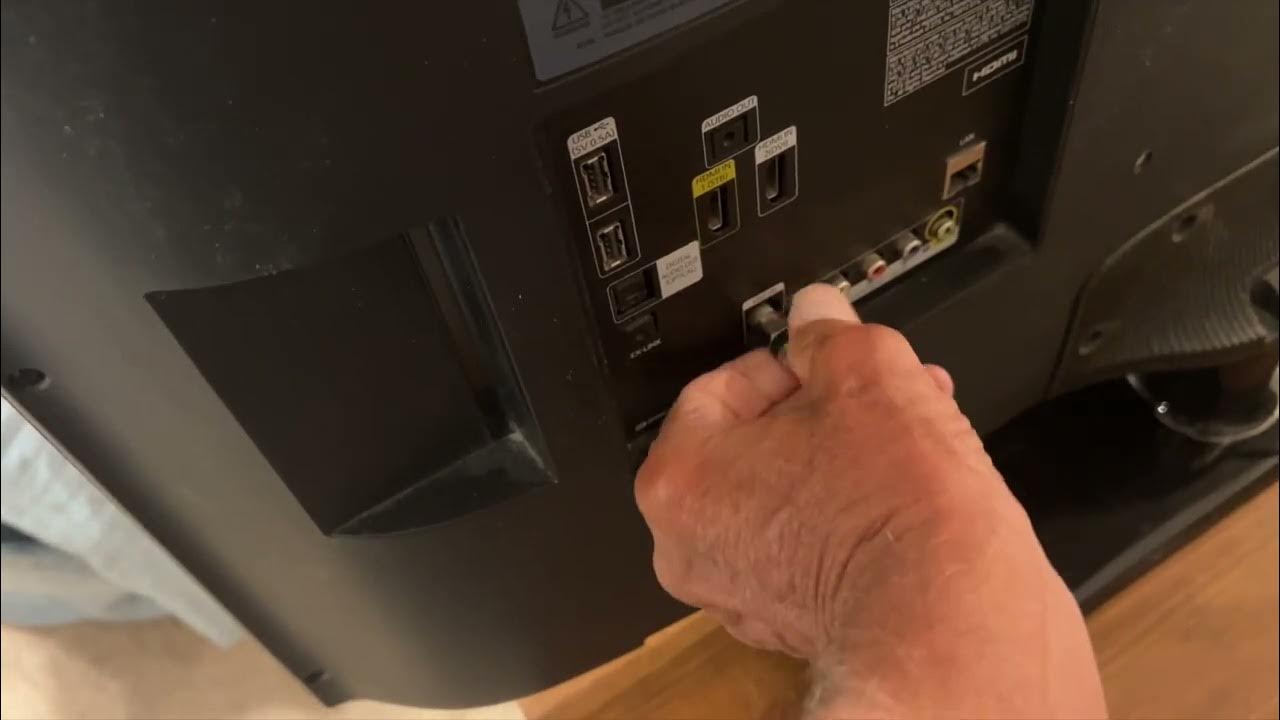
The most reliable way to receive free local broadcast channels is by using an over-the-air (OTA) antenna. Your Vizio Smart TV has a built-in digital tuner, so you only need a physical antenna and a coaxial cable. Connect the antenna cable firmly into the "ANTENNA/CABLE" or "COAX" port on the back of your TV. Press the "Input" button on your remote and select "Antenna," "TV," or "WatchFree+" as the input source. You can then scan for channels using either the WatchFree+ interface or the standard TV Settings menu.
How to scan for antenna channels in WatchFree+
WatchFree+ integrates your local antenna channels alongside free streaming channels, making it easy to browse everything in one guide. To scan for channels this way:
- Open WatchFree+ or select the Antenna input on your Vizio remote.
- Press the Left Arrow button to open the side menu.
- Select "Settings," then "Antenna Settings."
- Choose "Find Channels" or "Find New Channels."
- Enter your ZIP code when prompted to receive accurate program guide information.
- Allow the channel scan to finish completely, as some channels may not appear until the end.
How to scan for antenna channels in TV settings
If you prefer using the standard menu, follow these steps instead:
- Press the "Menu" or "Settings" button on your Vizio remote.
- Select "Channels," "Tuner," "TV Channels," or "Antenna Channels." You may need to select "All Settings" first.
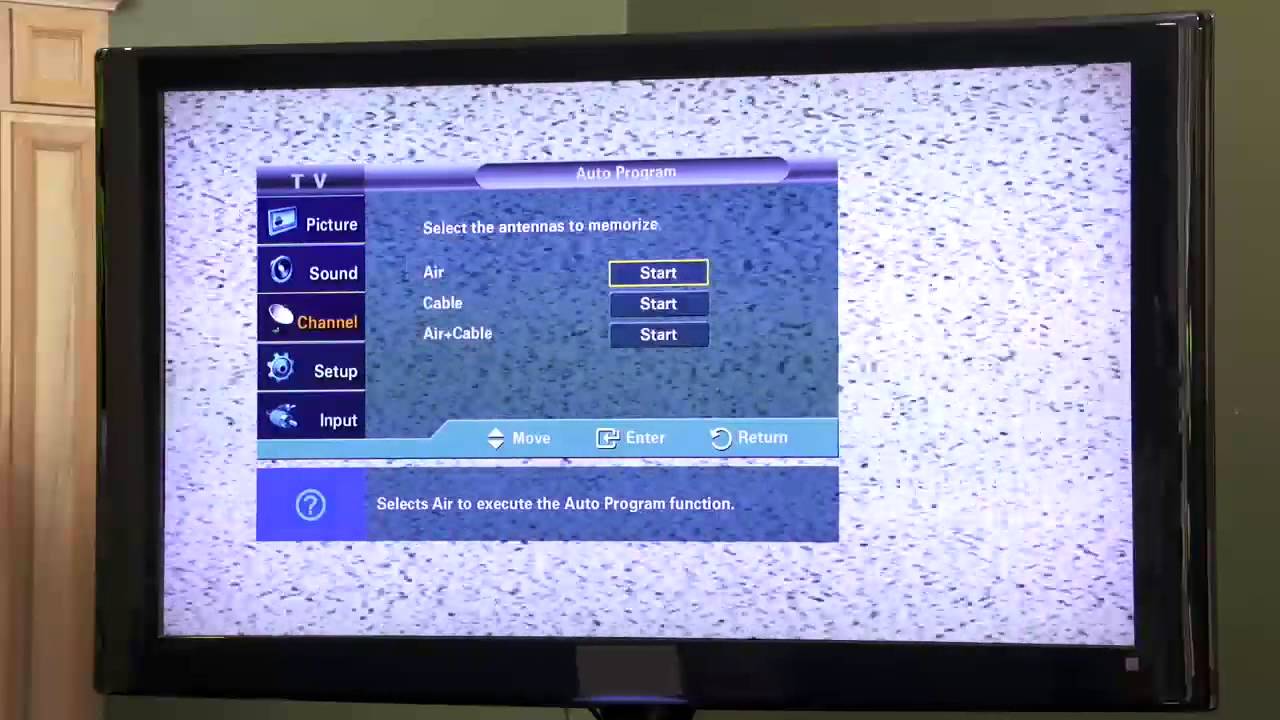
- Choose "Find Channels," "Find More Channels," or "Auto Channel Scan."
- Allow the scan to complete fully without interrupting it.
- Enter your ZIP code when prompted for accurate guide data.
How to watch your antenna channels
After the scan, your local channels appear in the WatchFree+ guide under an "Antenna" category, displayed alongside free streaming channels. You can also access them from the Vizio Home Screen by selecting "All Inputs," then the "TV" input, and navigating to the WatchFree+ Guide. An internet connection is not required to view antenna channels, but it enables additional WatchFree+ content.
Troubleshooting: no signal or missing channels
If your TV displays a "No Signal" message, first ensure the coaxial cable is securely connected to the "ANTENNA/CABLE" or "COAX" port. Then verify that the correct input (Antenna, TV, or WatchFree+) is selected on your remote. If your antenna channels disappeared after a scan, the antenna may have been moved or the signal may have changed. Simply run another channel scan after repositioning the antenna to a better location, preferably near a window or in an elevated position.
Other ways to get local channels
If an antenna does not work well in your area, paid alternatives exist. Live TV streaming services like YouTube TV and Hulu + Live TV offer local channels but require a monthly subscription and a stable internet connection. Cable and satellite providers also include local channels in their packages, with additional features like DVR and on-demand content, but come with monthly fees and often contracts. These methods provide convenience but are not free like the antenna approach.