You cannot block individual apps on a Vizio Smart TV with a PIN or lock, because the platform does not include a per-app restriction feature. If you want to block apps on Vizio Smart TV, you have to use a combination of built-in parental controls, router-level filtering, and home screen customization to achieve a similar result. If you own a different streaming device, you can also block apps on Roku TV with a dedicated PIN lock that Vizio lacks, and for broader protection across all your family's devices, you can also block porn on a tablet with its own built-in screen time restrictions. The good news is that these methods cover most practical scenarios, from filtering streaming channels to restricting entire apps at the network level.
Can you actually block apps on a Vizio Smart TV?
The direct answer is no, not in the way you might hope. Vizio Smart TVs do not offer a feature to block or lock individual apps with a PIN. Many third-party guides claim otherwise, pointing to an “App Restrictions” or “Block Apps” option inside Parental Controls, but Vizio’s official support confirms this is not available. The only official app-related control is the ability to rearrange or hide apps on the home screen, which we’ll cover later. So if your goal is to prevent a child from opening YouTube or Netflix, you’ll need to use one of the workarounds below, each of which targets the app’s content or its network connection rather than the app icon itself.
Block WatchFree+ streaming content by age rating
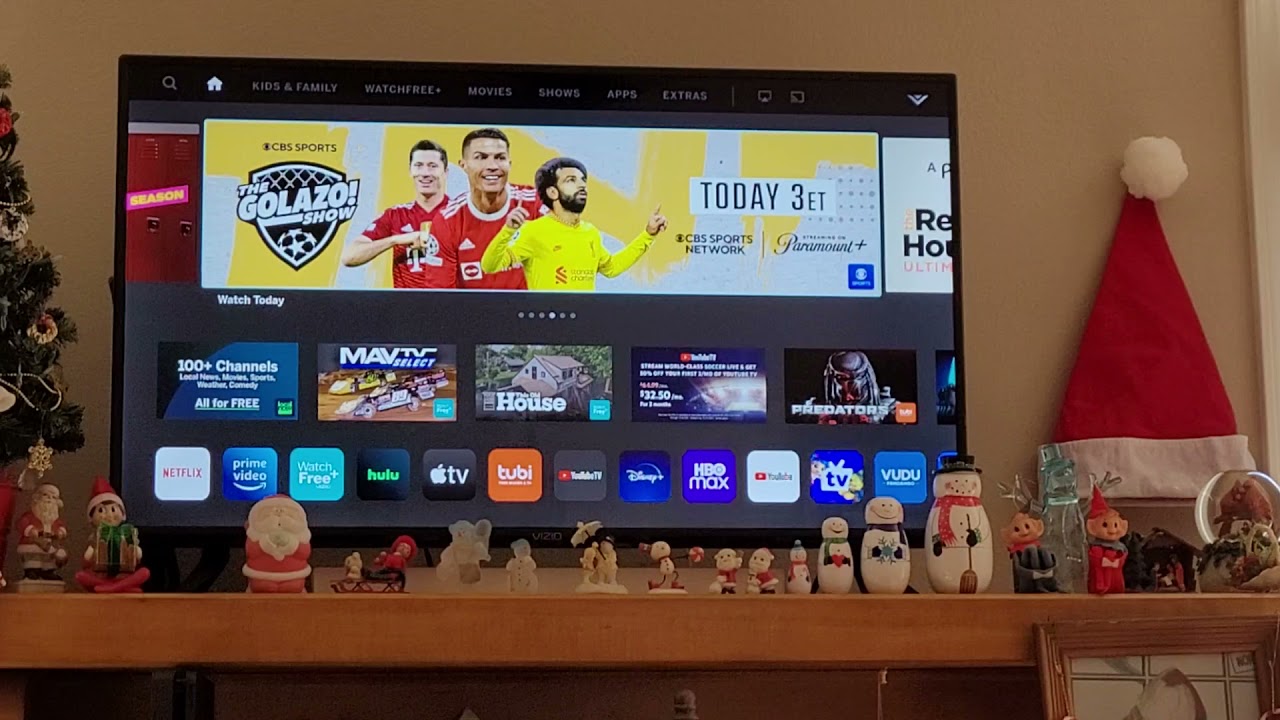
Vizio’s free ad-supported streaming service, WatchFree+, does have its own parental controls, and these are separate from the TV’s general settings. This is the only official way to filter streaming content directly through Vizio. To set this up, you’ll use the VIZIO Mobile App on your phone, not the TV remote. Open the app, sign in to your Vizio account, and go to the Account Tab. From there, find the WatchFree+ section and select the age categories you want to allow. You can choose from Family Friendly, Teens, or Adult. Any channel that falls outside your selected rating will be hidden from the WatchFree+ guide. This does not block other apps like Hulu or Disney+, but it does give you granular control over the free content that comes preloaded on your Vizio TV. If your child only uses WatchFree+, this is the most direct official method available.
Use parental controls to block TV channels by rating
Vizio’s built-in parental controls are designed for traditional TV signals, not smart apps. If you receive over-the-air channels via an antenna, or if you have a cable box, DVR, or VCR connected directly to the TV via composite or coaxial cable, you can block channels and shows based on their content rating. To do this, press the Menu button on your remote, then navigate to TV Channels, and select Parental Controls. You’ll be prompted to enter a PIN, if you haven’t set one up yet, you’ll create one now. Once inside, you can choose which ratings to block, such as TV-MA or PG-13. This is a legitimate parental control feature, but it’s important to understand its limits: it has zero effect on streaming apps. Your child could still open YouTube or Netflix and watch anything there. So while setting up parental controls this way is useful for broadcast TV, it won’t solve your app-blocking problem on its own.
Block an app entirely by blocking its URL on your router
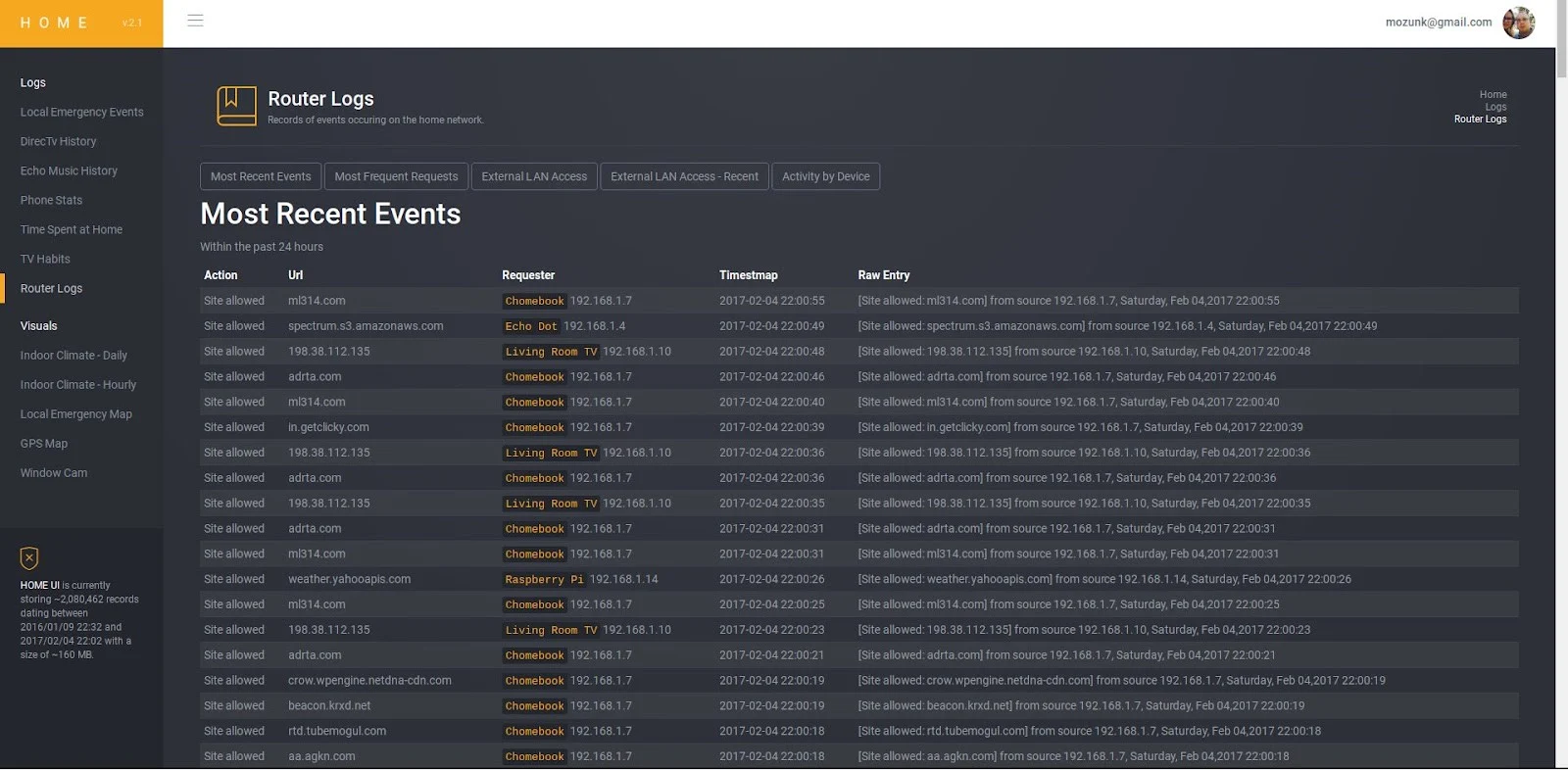
For a true app-level block, you need to intercept the app’s network traffic. The most reliable way is to use your router’s access restrictions. Every streaming app communicates with specific web domains to deliver content and authenticate users. If you block those domains, the app will fail to load on your Vizio TV, and on any other device on your home network. To do this, log into your router’s admin panel by typing its IP address into a web browser. Look for a section called Access Restrictions, Parental Controls, or Firewall. Create a new rule for your Vizio TV’s IP address or MAC address, then add the domains used by the app you want to block. For example, blocking YouTube would require blocking domains like YouTube.com and googlevideo.com. You can find the exact list by searching online for the app’s “domain list” or “network endpoints.” Once you save the rule, restart your TV and the app will no longer connect. This method works for any app, including streaming services, games, and social media, and it applies network-wide. Note that the exact steps vary by router brand, so check your router’s manual if you can’t find the settings.
Rearrange your home screen to hide less-used apps
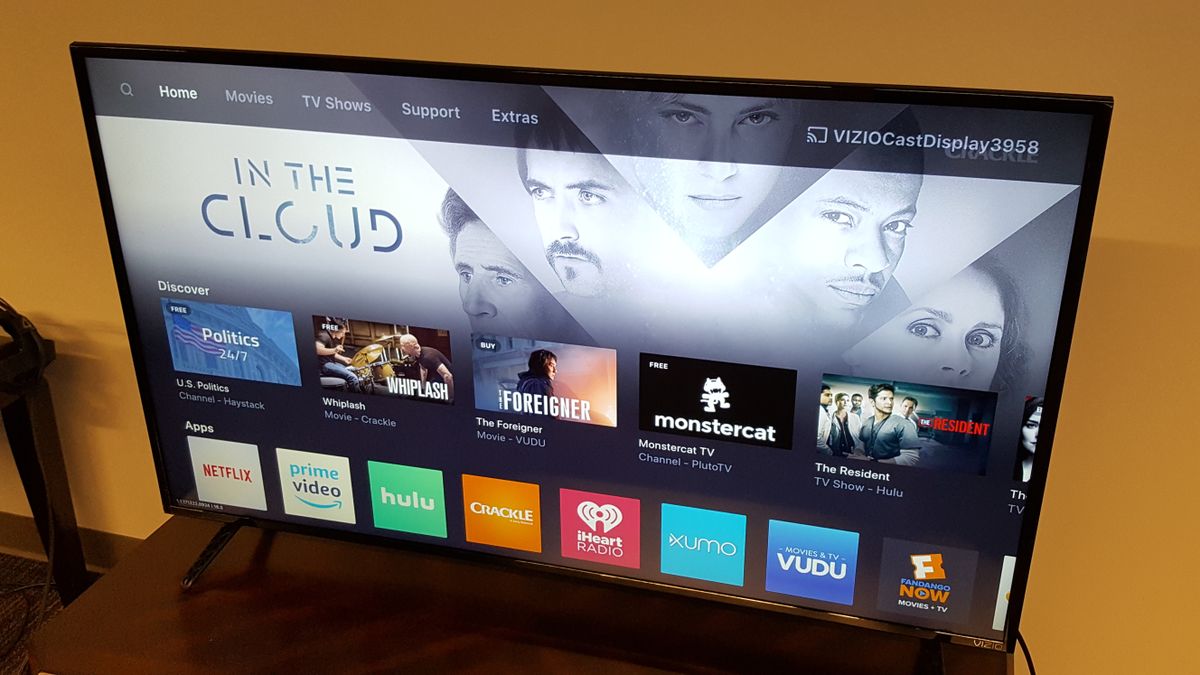
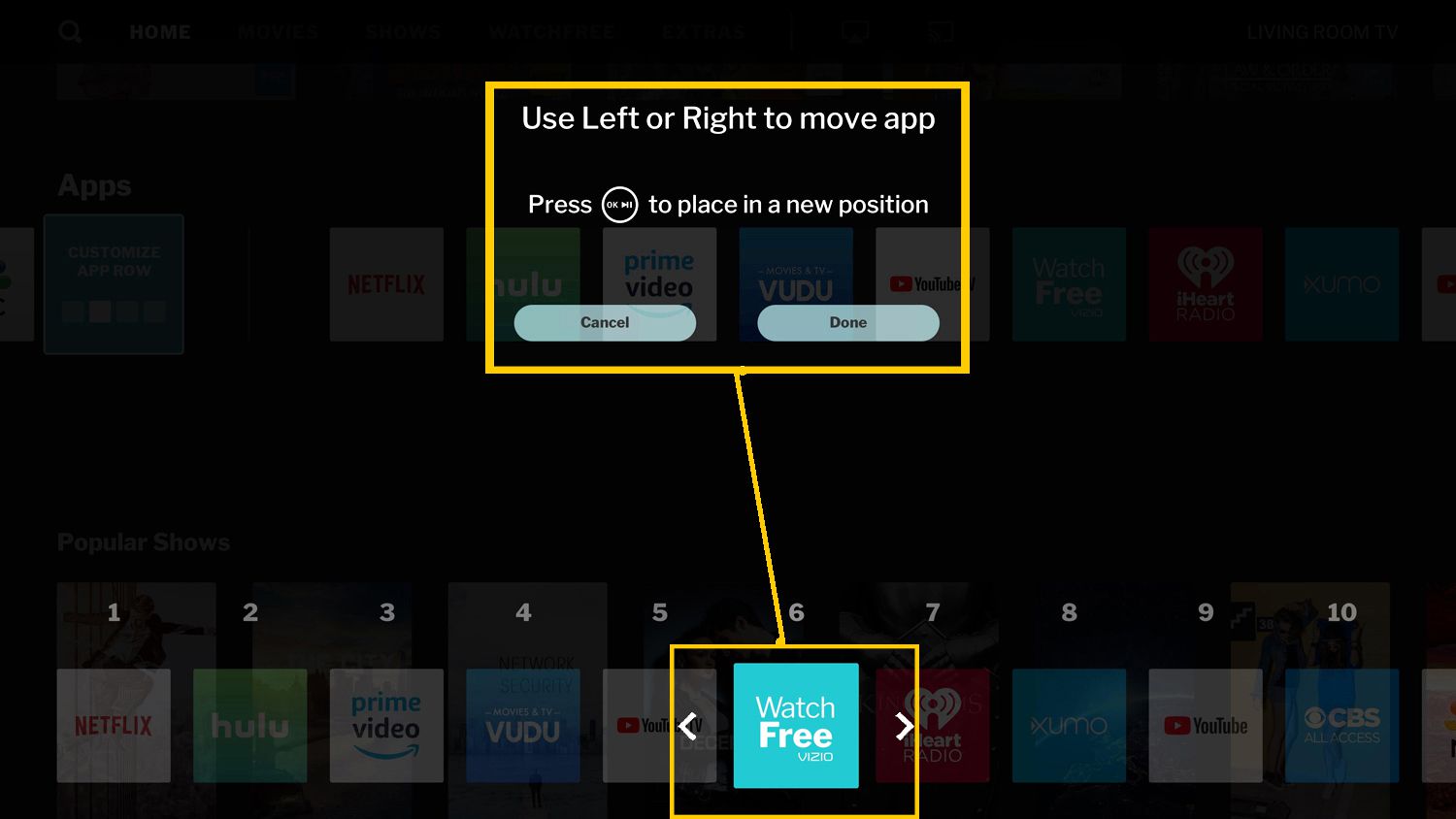
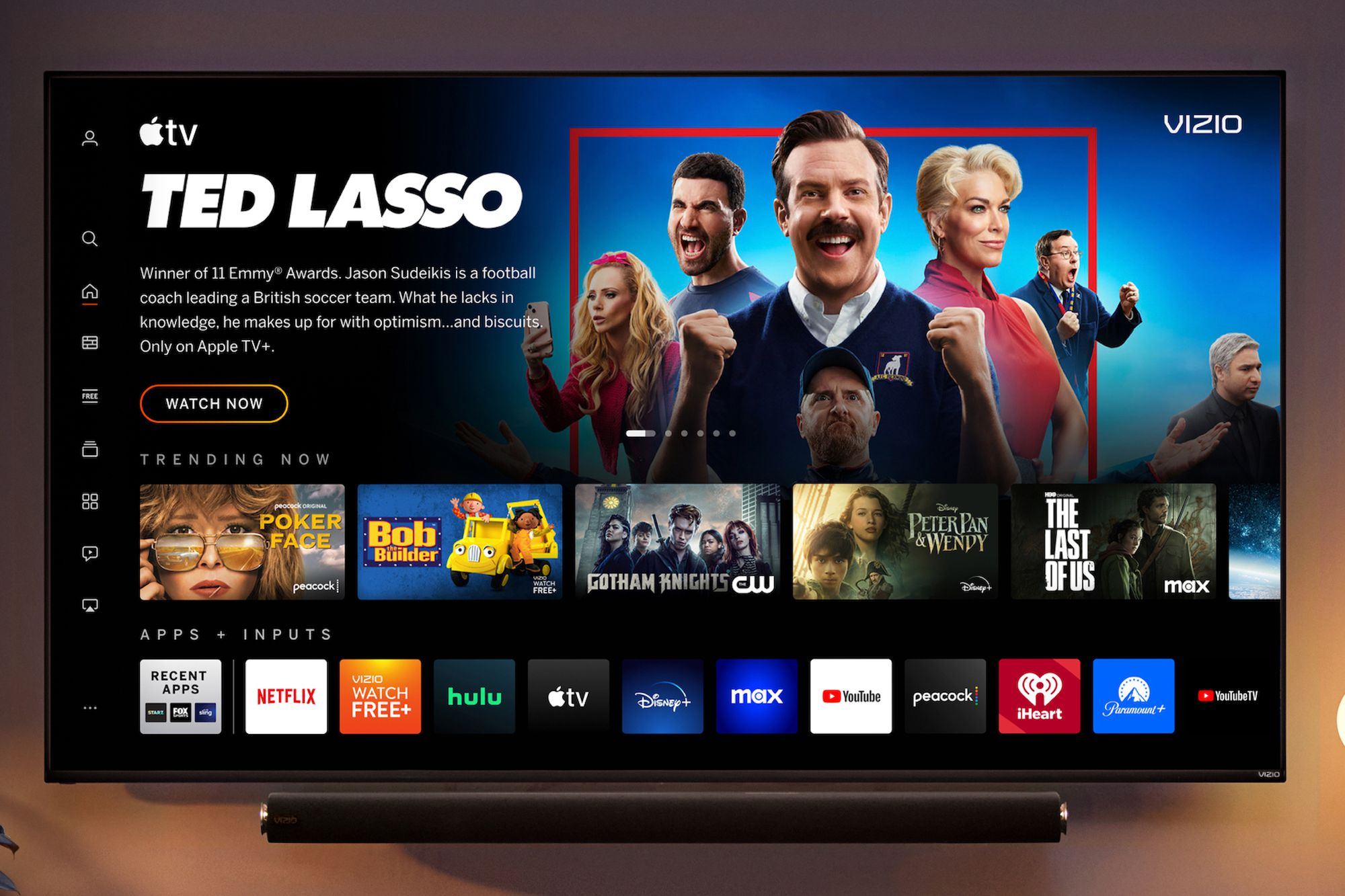
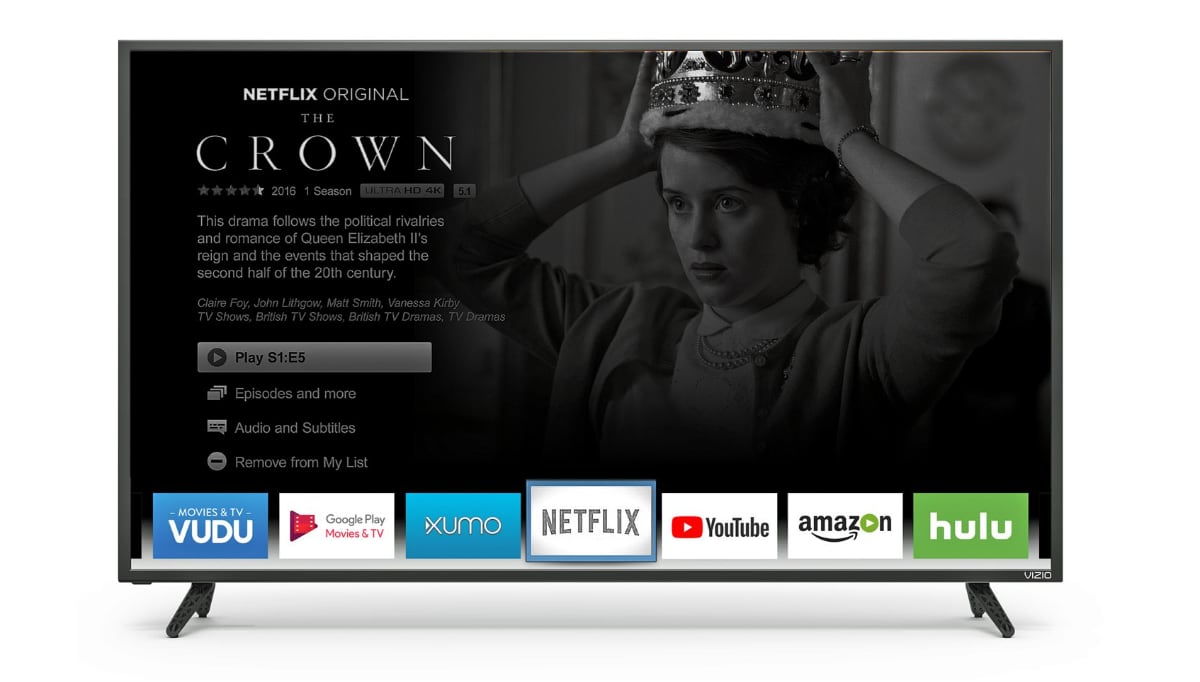
While you can’t delete preloaded apps, you can move them to the far end of the app row on your home screen. This is a purely cosmetic fix, but it makes unwanted apps less visible and harder for a child to accidentally open. To do this, highlight the app you want to move, press and hold the OK button on your remote, then drag it to the right side of the row. Repeat this for every app you want to hide. The apps you use most, or the ones you want your kids to access, can stay at the front. This doesn’t block anything, a determined child could still scroll to the end, but it does reduce the chance of accidental access. If your goal is to declutter the home screen rather than enforce strict restrictions, this is the only official method Vizio offers for managing the app list.
What about deleting or hiding apps completely?
You cannot delete preloaded apps from a Vizio Smart TV. Vizio’s official support is explicit on this point: “It is not possible to delete apps from the lineup.” There is no hidden app drawer, no “disable” option, and no way to completely remove an app from the TV’s memory. If you need a hard block, meaning the app simply cannot be opened by anyone, your only real option is the router method described above. That said, for most parents, combining the WatchFree+ age filter, the TV channel rating block, and a router-level URL block for the specific streaming apps your child uses will cover the vast majority of cases. Just be aware that no single method does everything, and you’ll need to decide which trade-offs work for your household. If you’re looking for a simpler solution, you might consider whether your child actually needs access to a separate streaming device, many parents find it easier to use a platform that offers native app locking, but that’s a different device entirely.