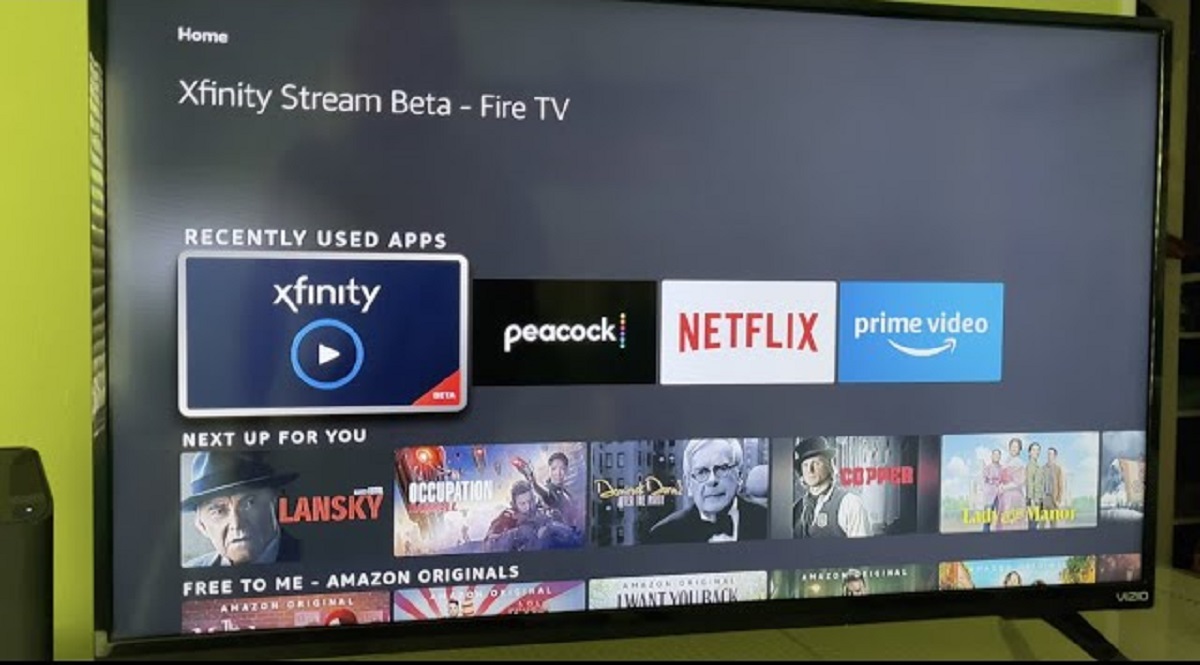
To watch Xfinity Stream on a Vizio Smart TV, you cannot install the app directly because the Xfinity Stream app is not natively available for Vizio Smart TVs. Instead, you have two official workarounds: cast content from your mobile device using Google Chromecast or Apple AirPlay, or connect an external streaming device that supports the app. Before casting, make sure you download Xfinity stream app on smart TV platforms like your phone or streaming box.
What you need before you start
Before you begin, ensure you have an active Xfinity internet and/or video service subscription, as access to Xfinity Stream content requires this. You will also need your Xfinity ID and password to sign in. Your Vizio Smart TV must support Google Chromecast or Apple AirPlay for the casting method to work, or you will need an external streaming device such as a Roku, Amazon Fire TV Stick, or Apple TV 4K.
Method 1: Cast Xfinity Stream from your phone or tablet
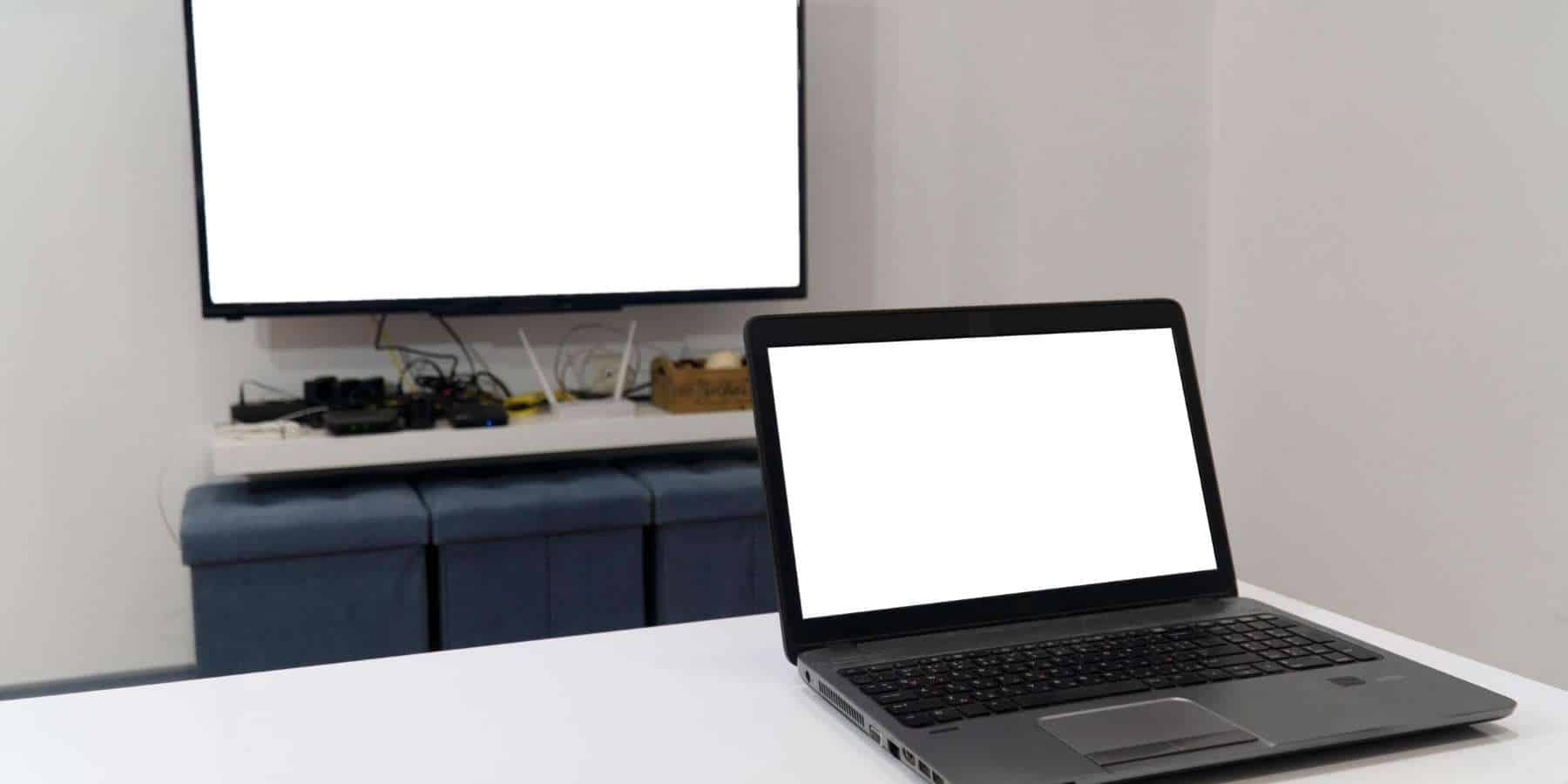
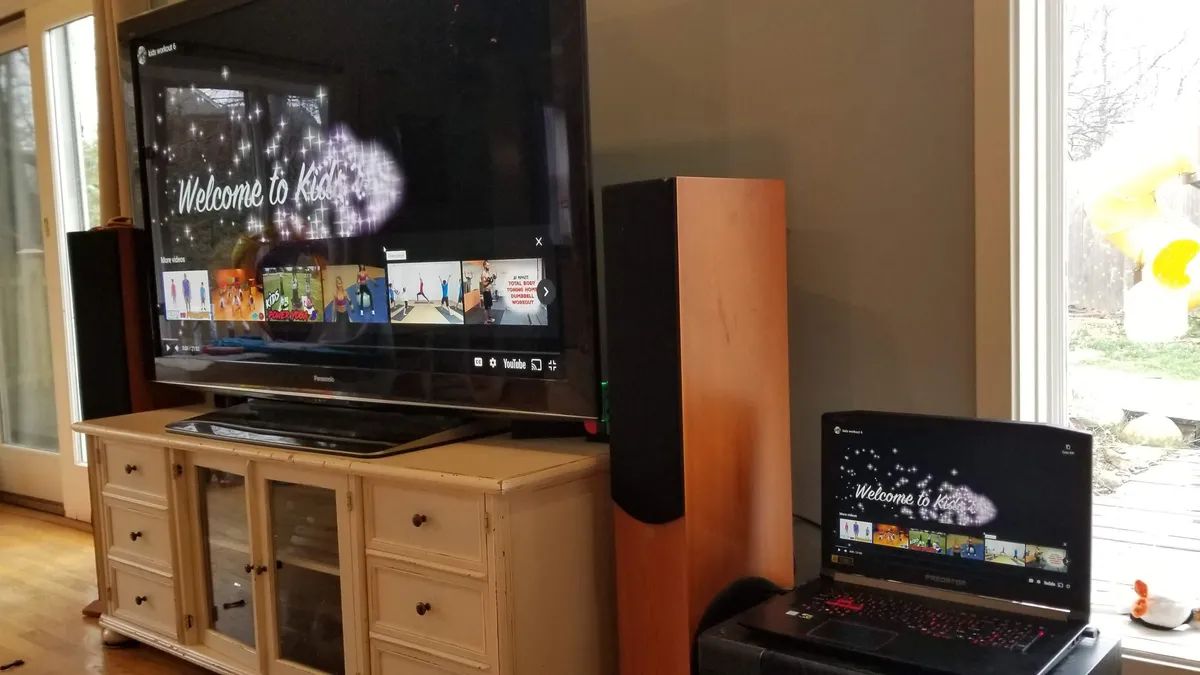
If your Vizio Smart TV supports Google Chromecast or Apple AirPlay, you can cast the Xfinity Stream app directly from your mobile device to the TV screen.
- On your mobile device, open the Xfinity Stream app and sign in with your Xfinity ID and password.
- Select the TV show, movie, or live channel you want to watch.
- Tap the cast icon (for Chromecast) or the AirPlay icon (for Apple devices) within the app.
- Choose your Vizio Smart TV from the list of available devices.
- The content will begin playing on your Vizio TV, while your mobile device acts as a remote control.
This method allows you to stream Xfinity on Samsung smart TV as well, since the casting feature works similarly across compatible displays.
Method 2: Use a supported external streaming device
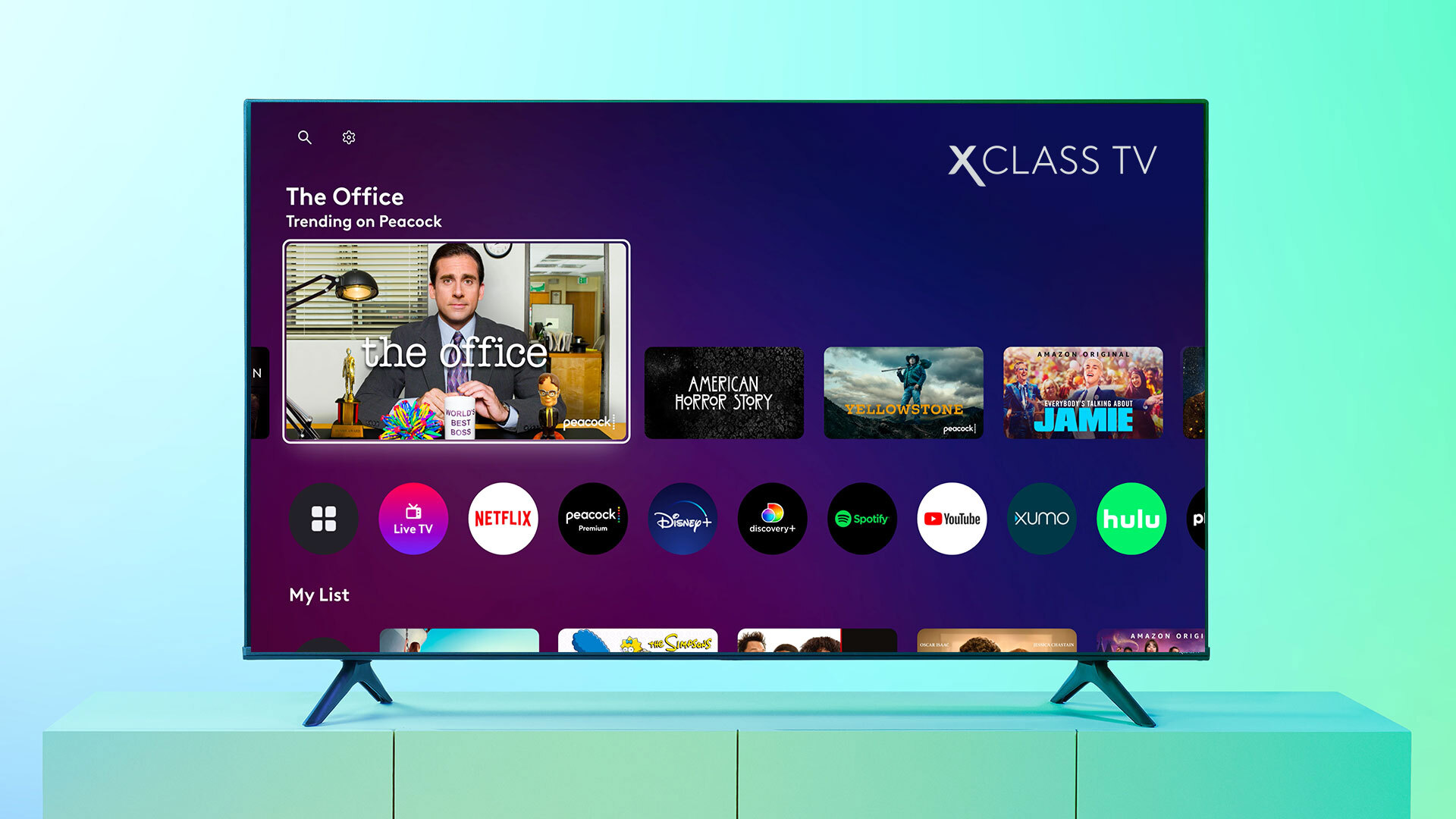
If you prefer a direct app experience, connect an external streaming device that officially supports the Xfinity Stream app. Recommended devices include Roku streaming sticks, Amazon Fire TV sticks, and Apple TV 4K. The Xfinity Stream app is also officially supported on Roku TVs, LG Smart TVs, Samsung Smart TVs (2017 models and newer), Xumo TVs, and Xumo Stream Box from Xfinity.
- Connect the external streaming device to an available HDMI port on your Vizio Smart TV.
- Switch your Vizio TV input to the corresponding HDMI port.
- On the external device, navigate to its app store (e.g., Roku Channel Store, Amazon Appstore, or Apple App Store).
- Search for and install the Xfinity Stream app.
- Launch the app on the external device.
This approach is the most reliable way to get Xfinity app on Vizio smart TV, as it bypasses the lack of native support entirely.
Sign in and start watching
Regardless of which method you choose, the final step is to sign in to the Xfinity Stream app using your Xfinity ID and password. Once signed in, you can browse the library of TV shows, movies, and live channels, create watchlists, and access on-demand content. Your Vizio Smart TV will then display the Xfinity Stream content through the casting connection or the external device, allowing you to enjoy your subscription on the big screen.