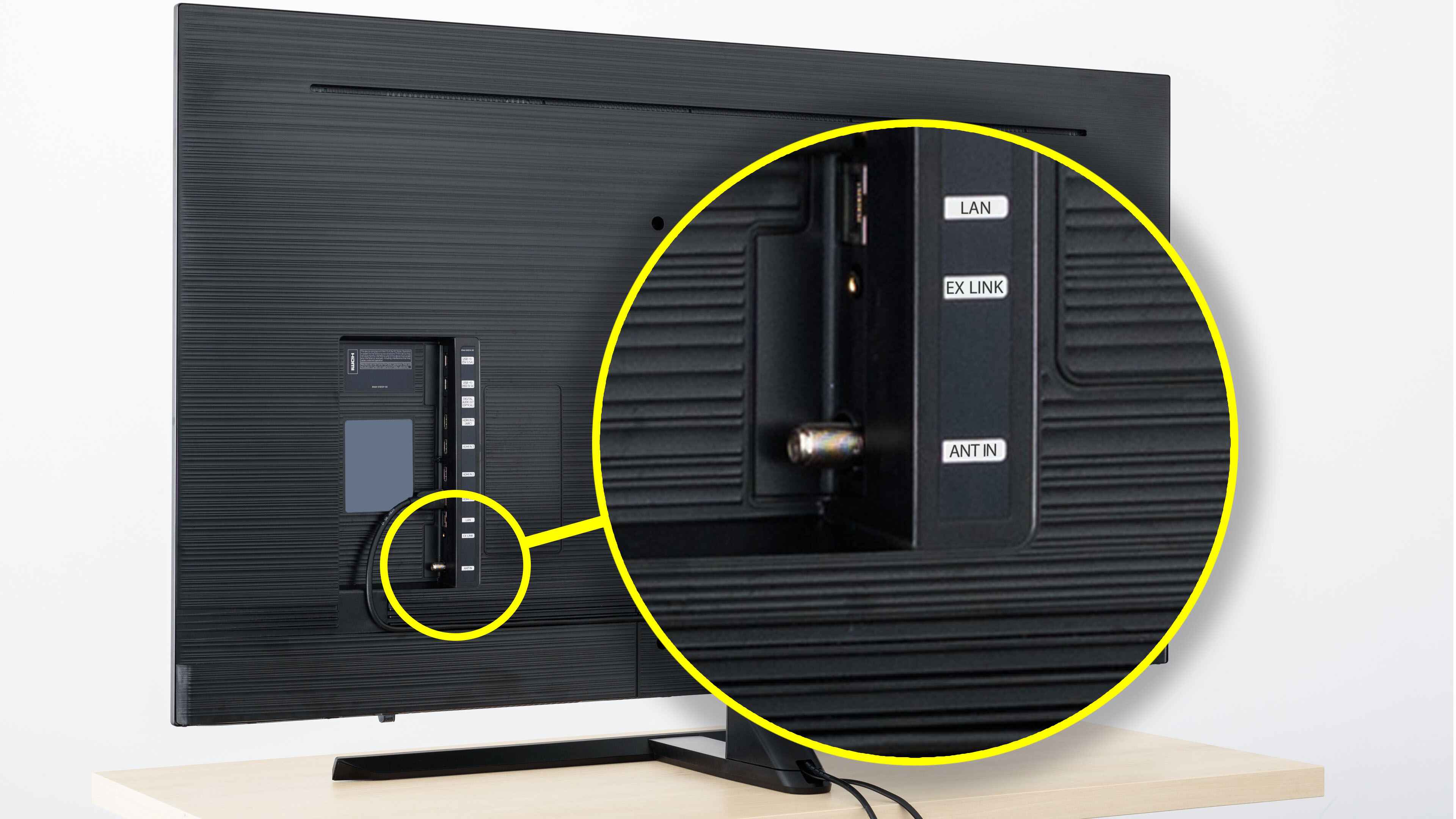
To connect an antenna to your LG smart TV, simply screw the antenna's coaxial cable into the TV's input port and then scan for channels. This lets you watch free over-the-air broadcast television, giving you access to all the channels available on an LG smart TV without any monthly fees.
What you need to connect an antenna to your LG smart TV
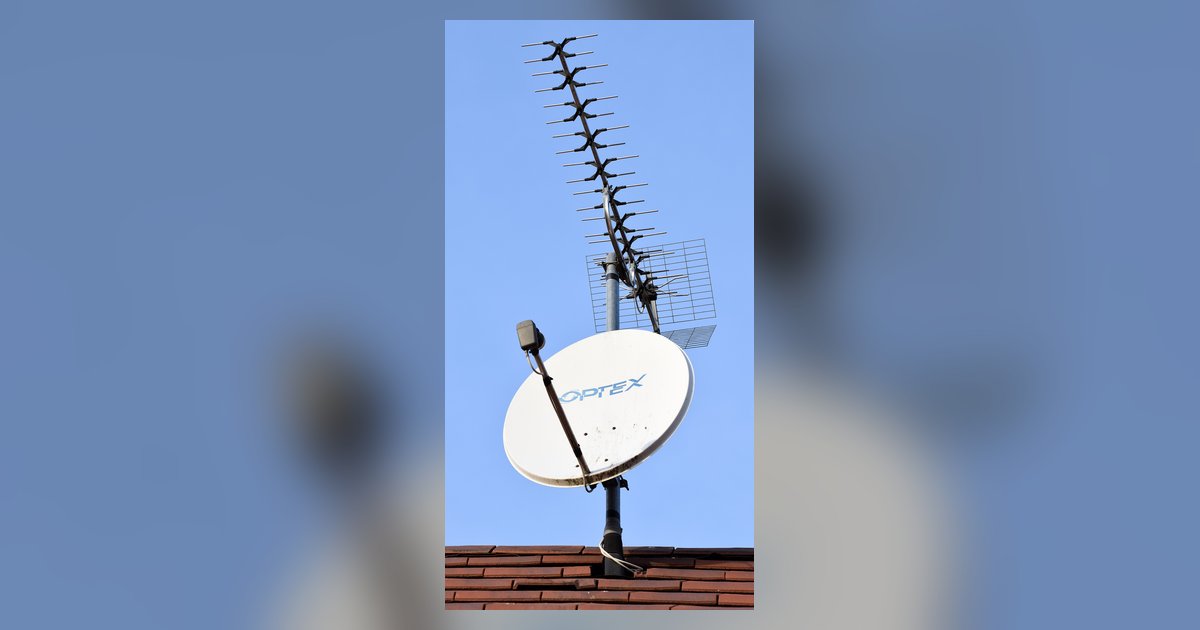
You only need a few items to get started. The essential equipment is an antenna and a coaxial cable. If your LG TV supports UHD broadcasts, you must use a dedicated UHD antenna, as standard analog or HD antennas cannot receive UHD signals properly.
Locate the antenna input on your LG TV
Find the port labeled "ANTENNA/CABLE IN" or "ANT IN" on your LG TV. It is typically on the back, side, or bottom of the set. If your TV has two antenna inputs, connect the coaxial cable to the input labeled "UHD TV Antenna" for UHD broadcasts.
Connect the antenna and position it for best reception
- Screw one end of the coaxial cable into the antenna's output port.
- Screw the other end of the coaxial cable into the "ANTENNA/CABLE IN" or "ANT IN" port on your LG TV.
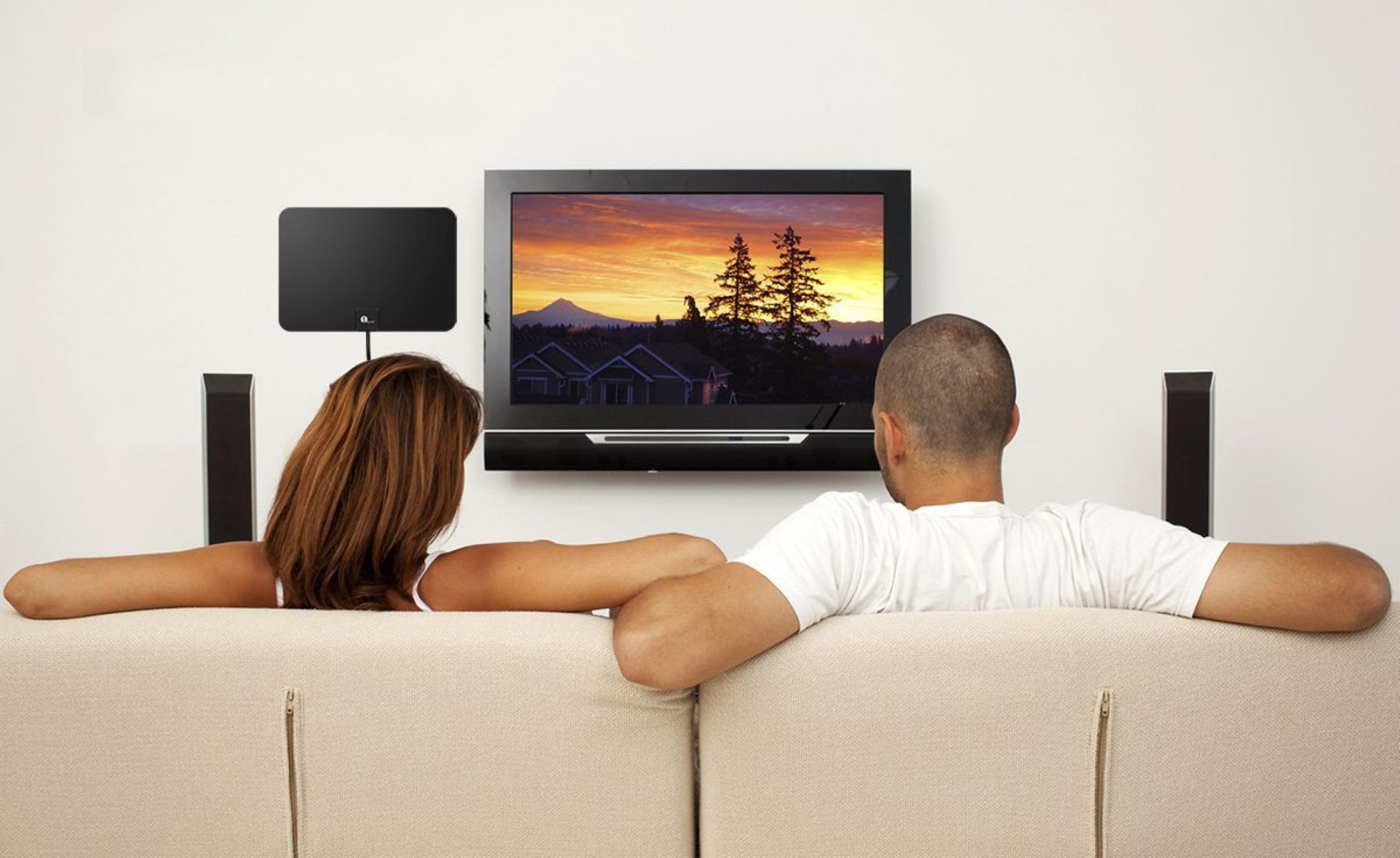
- Position the antenna near a window to minimize signal interference and for best reception.
- Keep the antenna away from electrical devices that could cause interference.
Scan for channels on your LG smart TV
The menu path depends on your TV's operating system. The settings menu names may differ depending on the TV model and webOS version. If you are using a set-top box, you do not need to run "Auto Tuning"; instead, change your TV input to the HDMI port connected to your set-top box.
For 2021 WebOS 6.0 models
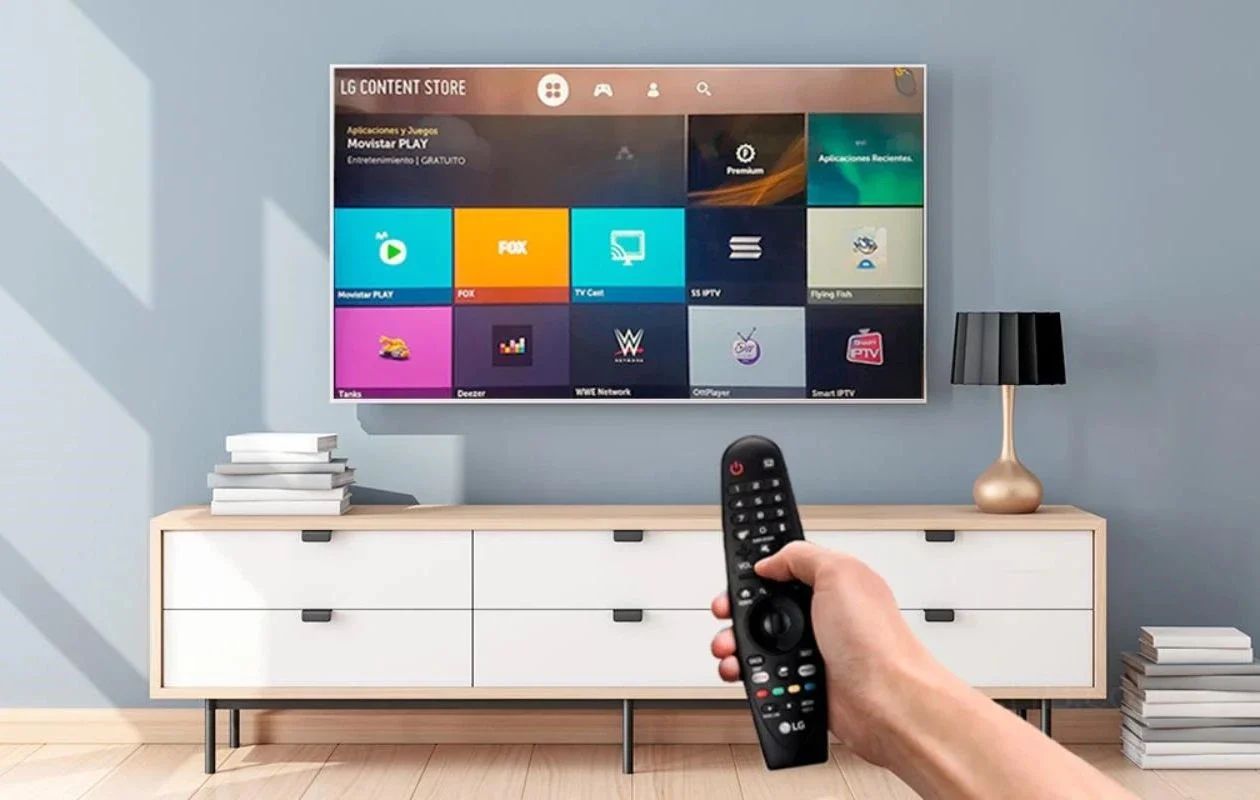
- Press the "Settings" button on your remote control.
- Select "[All Settings]" → "[General]" → "[Channels]" → "[Channel Tuning]" → "[Auto Tuning]" → "[Start]" → "[End]".
For other webOS TVs (After 2014 webOS TV)
- Press the "Home" button on your remote.
- Go to "Setting" → "Advanced setting" → "Channel" → "Channel tuning" → "Auto tuning".
For older Smart TVs (Before 2013 Smart TV)
- Press the "Menu" button on your remote.
- Go to "Setting" → "Channel" → "Auto tuning" → "Start".
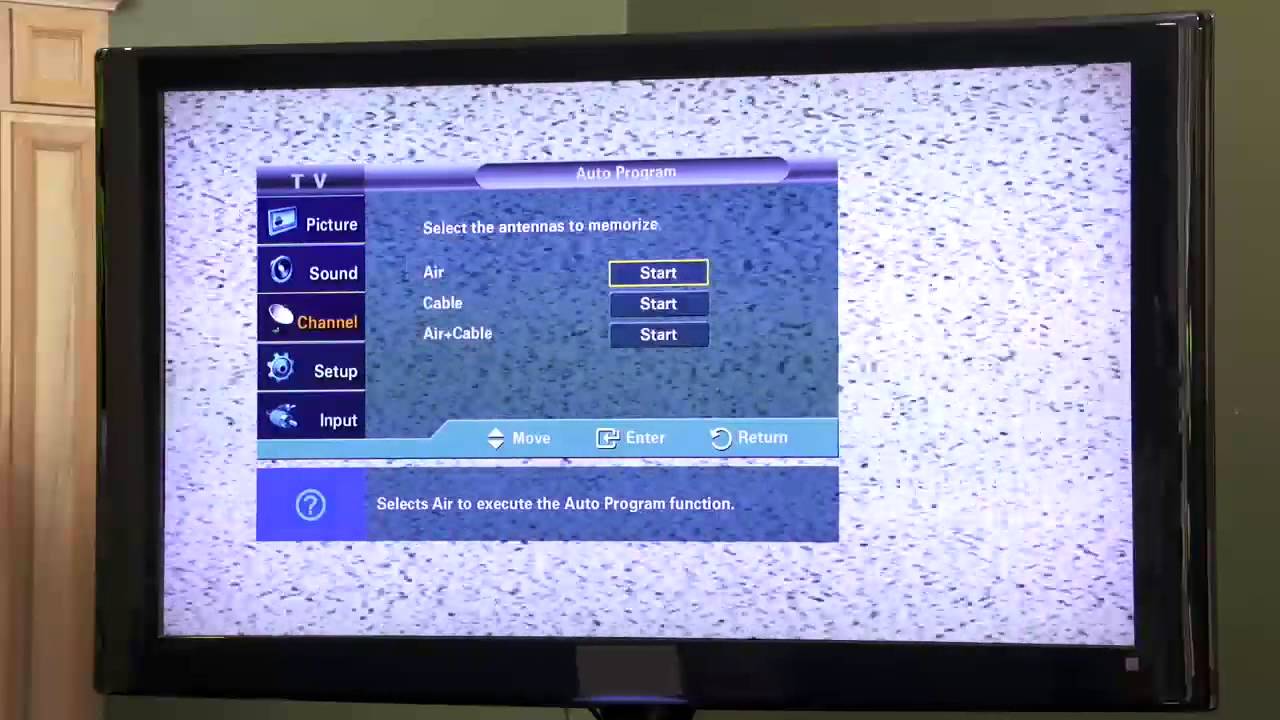
During the "Auto Tuning" process, ensure "Antenna" is selected as the input source. After the scan finishes, select "Done".
Test reception and fine-tune your antenna placement
- Tune to a detected channel and check the picture quality.
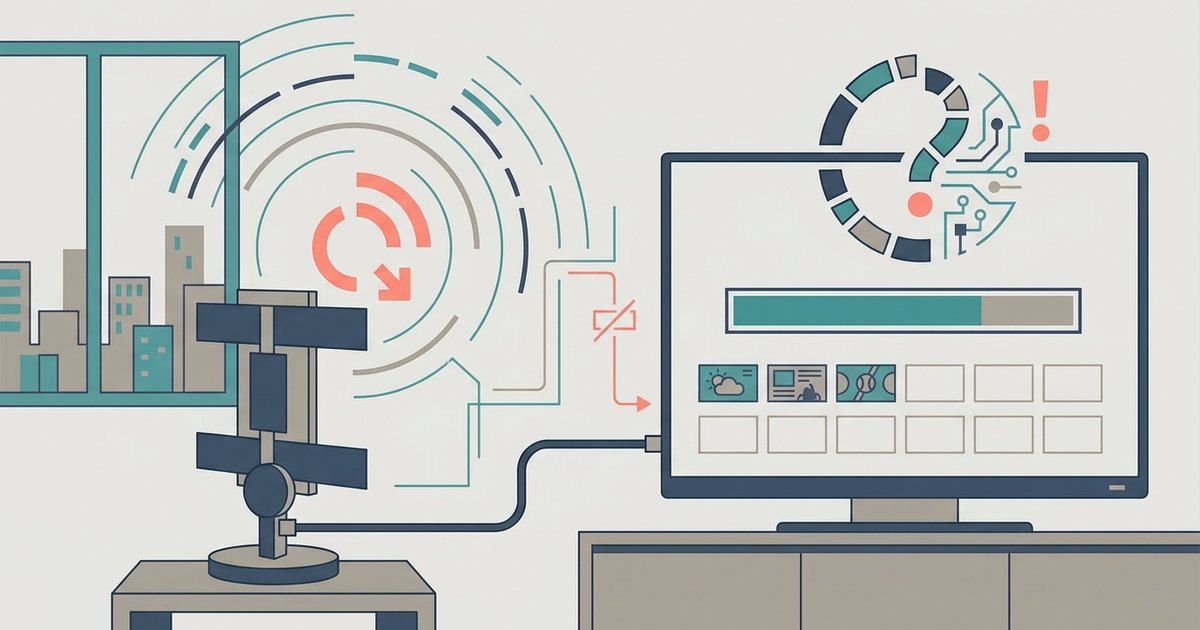
- If the reception is poor, adjust the antenna position in small increments.
- Rescan for channels after each adjustment.
- Repeat until the reception is clear and you have found the best position for your antenna.
Related reading: How To Hook Up An Antenna To A LG Smart TV and Why Is My LG TV Antenna Scan Not Finding All Channels.