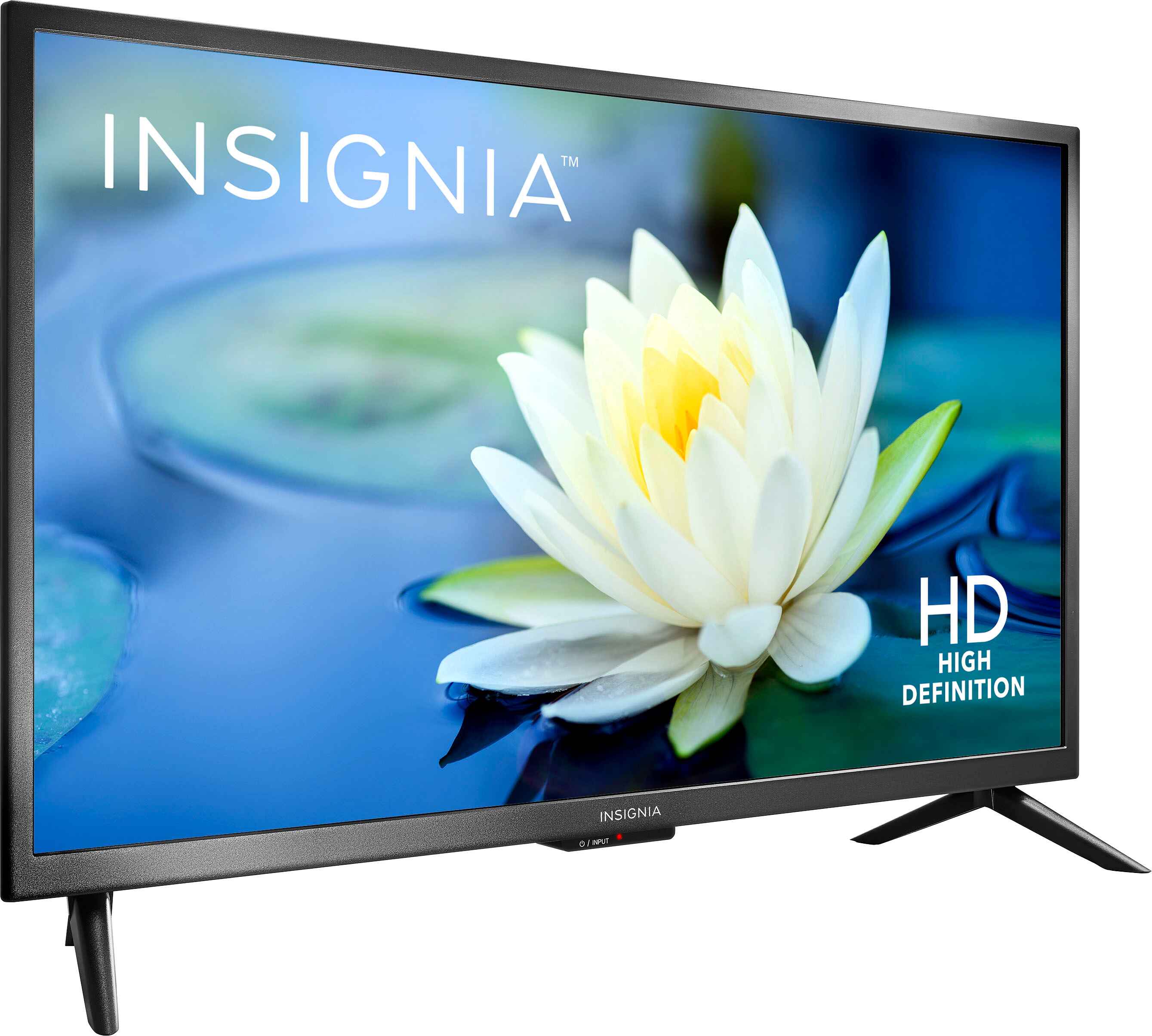
To connect an ns24-d510 na15 antenna to your Insignia LED TV, plug the antenna's coaxial cable into the round "ANT/CABLE IN" jack on the back of the TV, then run a channel scan selecting "Air" as the source. This TV has a built-in ATSC digital tuner, so it can receive free broadcast channels without any additional boxes or a cable card slot.
What you need to connect an antenna to the NS24-D510 NA15
Before starting, gather the following equipment to ensure a smooth setup for your ns24-d510 na15 antenna connection:
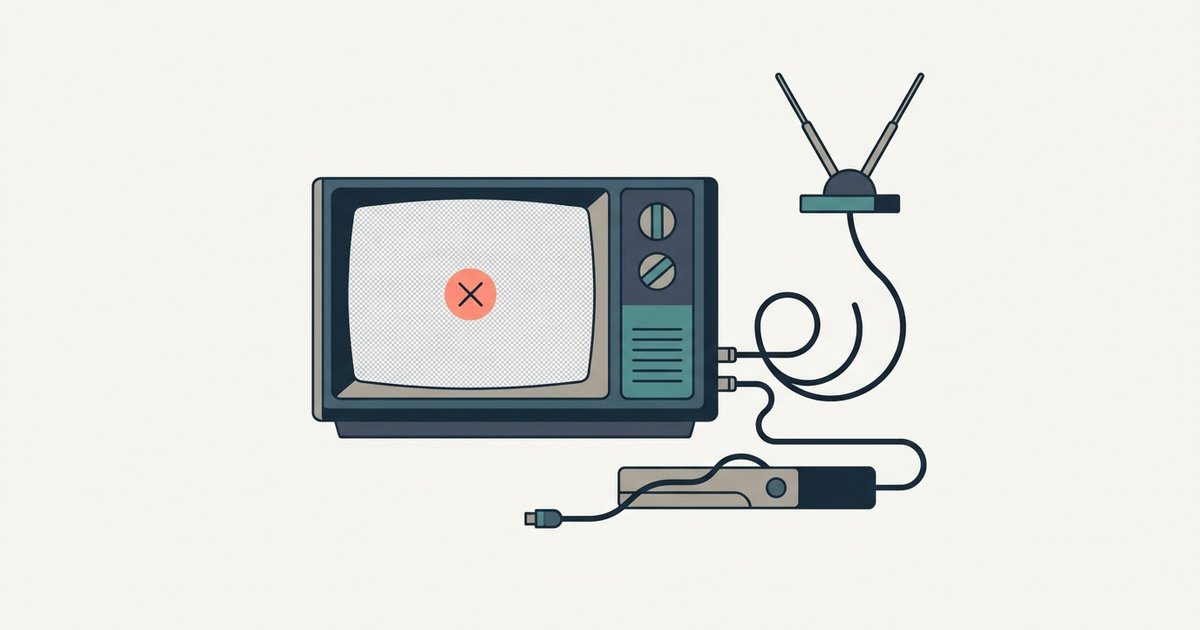
- Antenna: Choose an indoor, outdoor, or attic antenna based on your distance from broadcast towers. For most suburban or urban areas, a basic indoor flat antenna works well. If you live far from towers, consider an amplified model.
- Coaxial cable: This is the standard round cable with a screw-on connector. Make sure it is long enough to reach from your antenna to the TV's back panel. Most antennas include a built-in cable, but you may need an extension.
- Power inserter (optional but required for amplified antennas): If your antenna has a signal amplifier, it will include a small power inserter box. This device needs to be connected between the antenna and the TV, and it requires a USB power connection to an AC adapter.
- AC power adapter (for amplified antennas only): This plugs into a wall outlet and provides power to the amplifier via the power inserter's USB cable.
Locate the antenna input on your Insignia TV
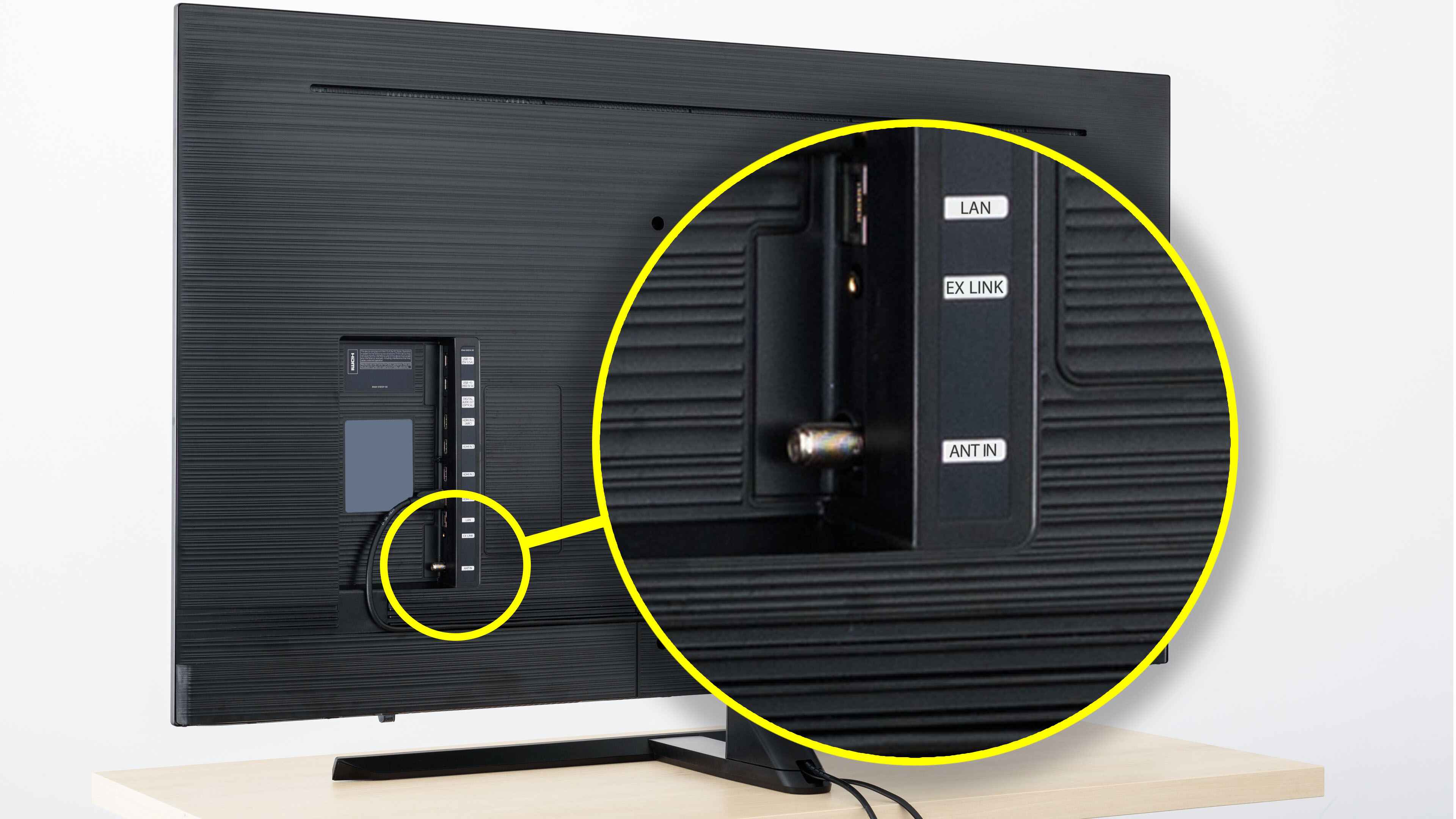
On the back panel of your NS-24D510NA15, look for a round metal connector labeled "ANT/CABLE IN." This is the only coaxial input on the TV. It is typically positioned near the other ports like HDMI and USB, but it is the only one that accepts a screw-on coaxial cable. Note that this TV does not have a cable card slot, so you cannot use a CableCARD from your cable company, this input is strictly for antenna or unencrypted cable signals.
Connect the antenna to the ANT/CABLE IN jack
Follow these steps to make a secure physical connection:
- Turn off your TV before connecting anything to avoid any electrical surges.
- Take the coaxial cable from your antenna and screw it firmly onto the "ANT/CABLE IN" jack on the back of the TV. Turn the connector clockwise until it is hand-tight, do not use tools, as over-tightening can damage the threads.
- If your antenna is an amplified model with a power inserter:
- Plug the power inserter's USB cable into the included AC power adapter.
- Plug the AC power adapter into a wall outlet. The amplifier is now powered.
- For non-amplified antennas, skip the power inserter entirely, just connect the antenna cable directly to the TV.
- Gently tug the cable to confirm it is secure. Loose connections cause signal dropouts.
Select the TV input and open the channel menu
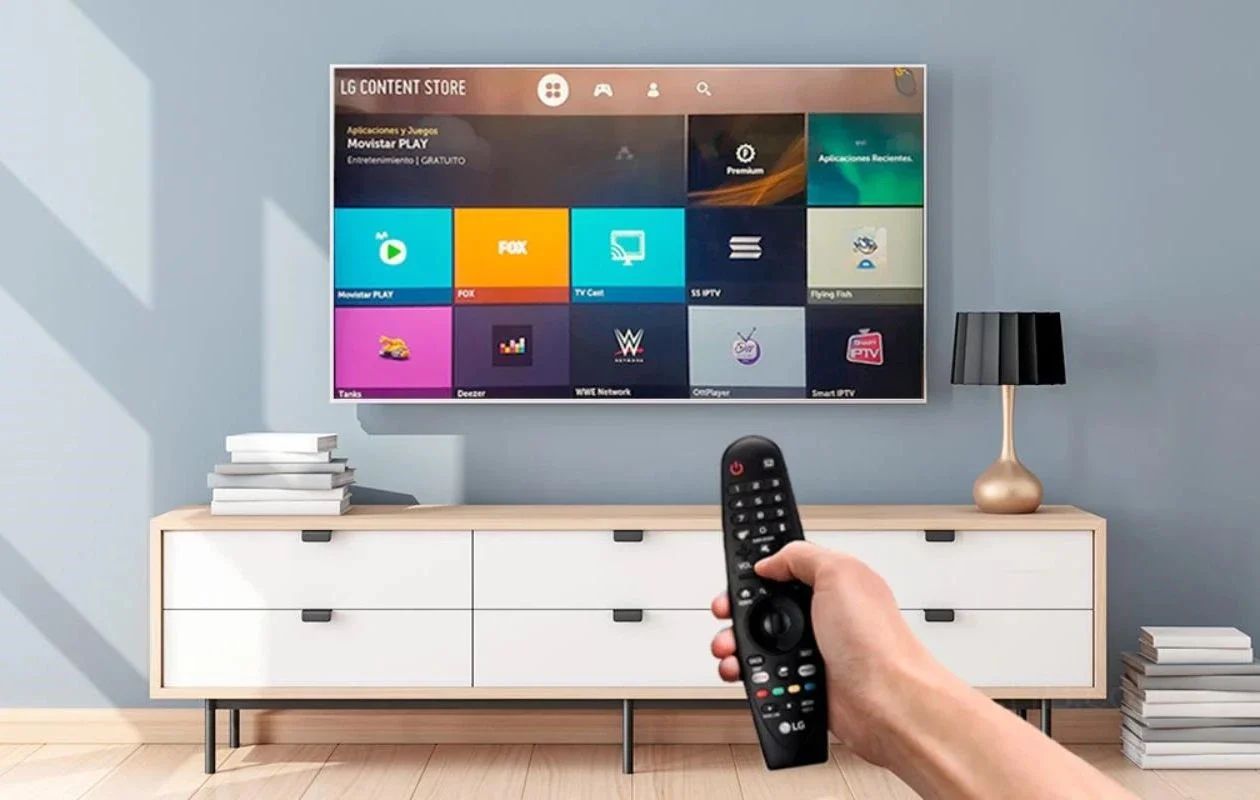
After connecting the antenna, turn on your Insignia TV. Press the "Input" or "Source" button on your remote control. A list of available inputs will appear on the screen. Select "TV" (sometimes labeled "Antenna" or "Air"). This tells the TV to use the coaxial input you just connected. Then press the "Menu" button on your remote. The on-screen menu will open.
Run a channel scan on the NS24-D510 NA15
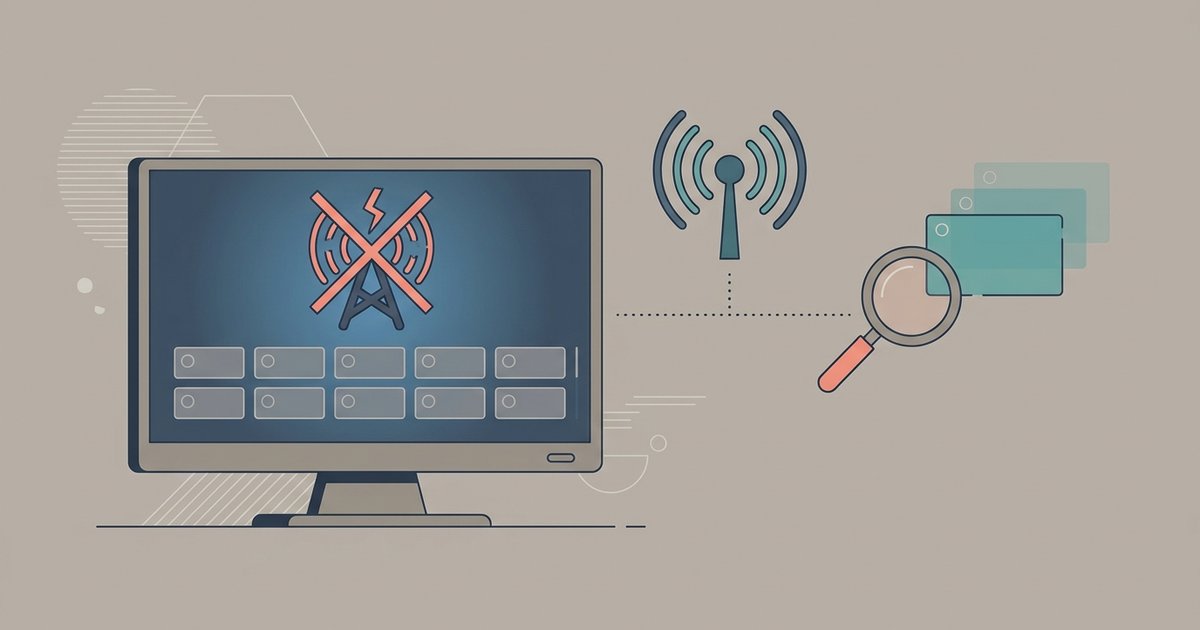
Now you need to scan for available broadcast channels. This process is essential, without it, the TV will not know which channels exist in your area. Follow this exact menu path:
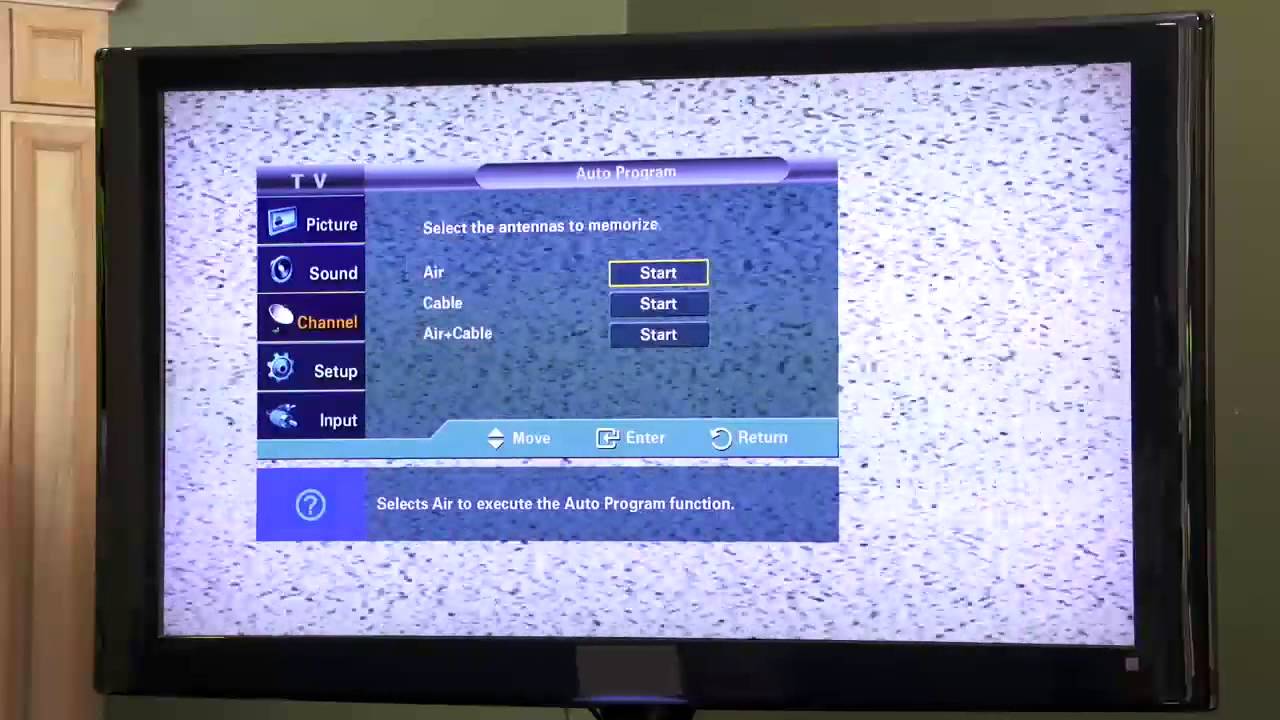
- In the main menu, use the arrow keys on your remote to highlight "Channel" and press OK/Enter.
- When prompted for the signal source, choose "Air" (not "Cable"). This tells the tuner to look for over-the-air broadcast signals.
- Select "Auto Scan" and press OK. The TV will now search through the UHF and VHF frequencies. This process can take 5 to 15 minutes depending on your location.
- When the scan finishes, the TV will display a list of all detected channels and automatically save them to your channel list.
If the scan finds zero channels, double-check that you selected "Air" and that the coaxial cable is tightly connected. Also, confirm that your antenna is plugged in (if it requires power). Reception quality varies by channel because broadcast stations transmit at different power levels, some channels may come in crystal clear while others are weaker.
Fine-tune the antenna position if reception is poor
If some channels are missing or show pixelation, adjust your antenna's position and rescan:
- Move the antenna to a higher location, preferably near a window facing the direction of local broadcast towers. You can use a website like AntennaWeb to find tower directions in your area.
- After moving the antenna, run the channel scan again using the same menu path. The TV will update its stored channels based on the new signal strength.
- Check the signal strength indicator if your TV has one (usually found in the channel info banner). Adjust the antenna slowly while watching the indicator, then rescan.
- For amplified antennas, make sure the power inserter is plugged into a working outlet. If you are in a very strong signal area, the amplifier might actually overload the tuner, try removing the power inserter and connecting the antenna directly.
Repeat the scan every time you move the antenna or if you notice channels disappearing. Broadcast stations occasionally change frequencies or add new subchannels, so a monthly rescan keeps your channel list current.
Enjoying free over-the-air TV on your Insignia
You can now watch local news, sports, and network shows without any subscription. If you have multiple TVs in your home, you can use a coaxial splitter to feed the antenna signal to other sets, but keep in mind that each TV will need its own tuner and must run its own channel scan. Also, remember that this TV is not a smart TV, it has no built-in Wi-Fi or streaming apps, so the antenna is your primary source of live television. To get the best experience, periodically rescan to pick up any newly added channels in your area.
\nRelated reading: How To Connect Antenna To LG Smart TV, How To Hook Up An Antenna To A LG Smart TV, and Vizio TV Antenna Channels Disappeared After Scan.