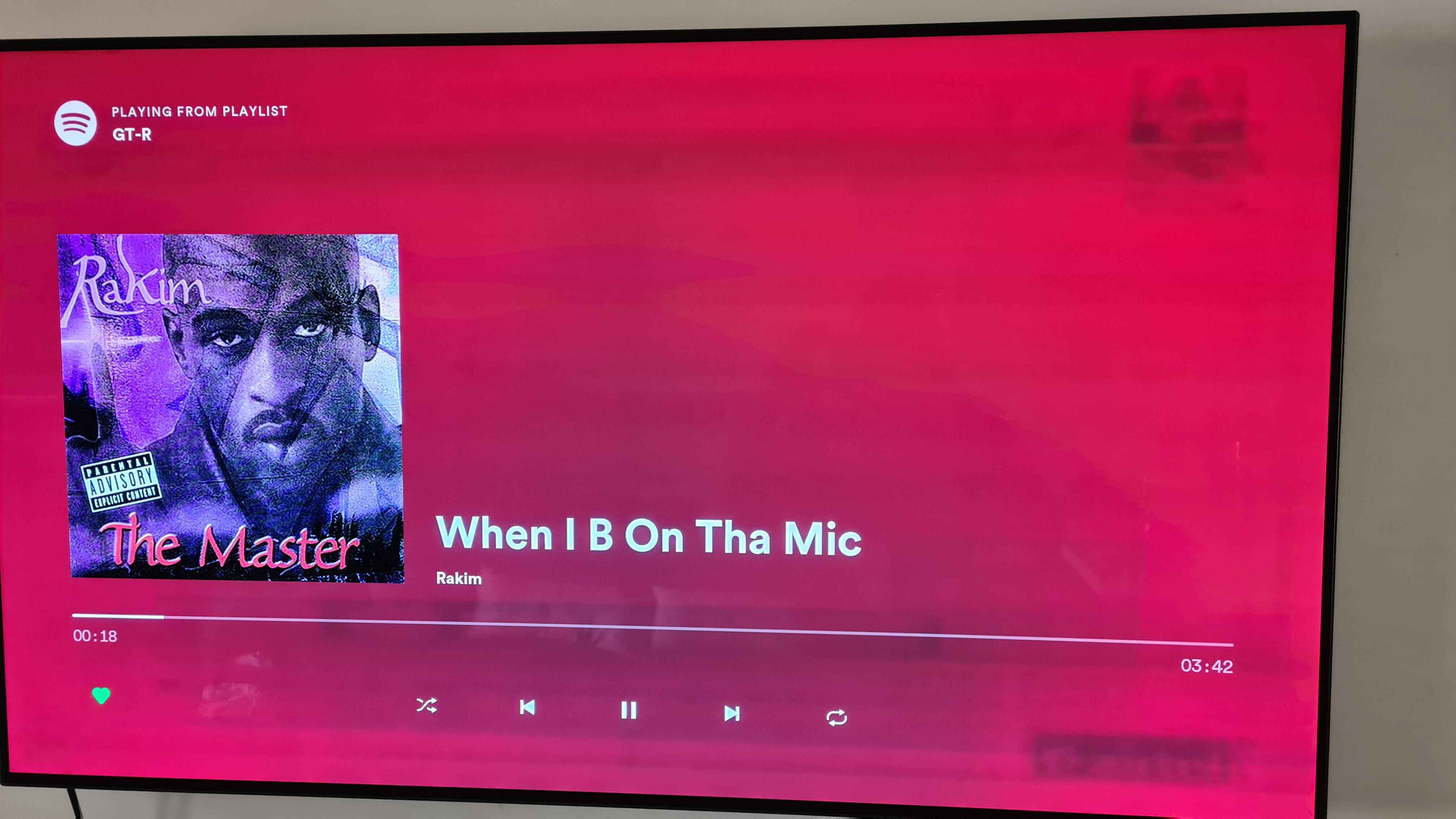
To fix ghosting on LED TV, the first thing you do is turn off the TV's motion smoothing feature, which is the most common cause of that trailing image. This setting, often labeled TruMotion, Auto Motion Plus, or MotionFlow, artificially creates extra frames and can produce a double-outline artifact during fast motion.
What is that ghosting trail on your LED TV?
Ghosting is the faint trailing or shadowy double image that follows moving objects on your screen, most noticeable during fast-paced scenes or when there is high contrast between light and dark elements.
Fix ghosting on your LED TV: start with motion smoothing settings
Your immediate, primary fix is to disable aggressive motion smoothing. On Samsung TVs, navigate to Settings > Picture > Expert Settings > Auto Motion Plus Settings (or Picture Clarity Settings) and select "Off" or "Custom" with Blur Reduction and Judder Reduction set to zero. For LG TVs, go to Picture > Picture Mode Settings > Picture Options > TruMotion and set it to "Clear" or "Off". These features are designed to reduce motion blur, but when set too aggressively, they introduce the very ghosting you're seeing.
Match your device's refresh rate to the TV
If you're using an external device like a gaming console or PC, ensure its output refresh rate is set to an explicit 60Hz or 120Hz, not "Auto." A mismatch between the device's output and the TV's native refresh rate can cause a refresh rate mismatch that looks like ghosting. Setting a fixed, compatible refresh rate eliminates this variable and ensures the TV isn't trying to process inconsistent frame timing.
If ghosting persists: cables, inputs, and firmware
When motion smoothing and refresh rate matching don't solve the problem, move to a physical checklist. First, ensure all HDMI or video cables are securely connected and consider replacing old or low-quality cables with high-speed HDMI 2.0 or higher. A loose or damaged cable can disrupt signal transmission and produce ghost-like artifacts. Second, test a different input source (e.g., another device, streaming app) to determine if the ghosting is specific to one source or the TV itself. This isolates whether the problem is in the signal path or the display. Finally, check for a firmware update for your TV, as outdated firmware can sometimes cause image processing errors that manifest as ghosting.
Check cables and inputs
- Inspect all HDMI cables for secure fit and visible damage.
- Swap the cable with a known-good high-speed HDMI cable.
- Connect the same device to a different HDMI port on the TV.
- Test a different device on the same port to see if the ghosting follows the source or the TV.
Update firmware
If you haven't updated your TV's firmware recently, do so via the TV's menu (Settings > Support > Software Update) or by downloading the update to a USB drive from the manufacturer's website. A firmware update can resolve processing bugs that contribute to ghosting.
Factory reset and the hardware reality check
If ghosting persists after all settings adjustments and cable checks, the final user step is a factory reset. This clears any corrupted picture settings or conflicting configurations that may be causing the issue. Navigate to Settings > General > Reset (Samsung) or Settings > General > Reset to Initial Settings (LG), and follow the on-screen prompts. This will erase all personalized settings, so be prepared to reconfigure your TV afterward.
However, be honest with yourself about the hardware. Budget LCDs, especially those with VA panels, may inherently exhibit more ghosting due to slower pixel response times, which is a hardware limitation. No amount of adjusting smart TV picture settings will fully eliminate ghosting in extreme fast-motion scenes on such panels. If you've done all the above and still see trails during action movies or sports, it's likely the panel's physical pixel transition speed, not a fixable setting. At that point, the only real solution is to reduce the content's motion intensity or accept the limitation. If the ghosting is severe and constant, and you've also encountered a Samsung TV HDMI black screen but sound works issue, that points to a hardware failure rather than a setting problem, and professional repair may be needed. Similar erratic behavior, like my Samsung smart TV glitching with random flickering or app crashes, can further confirm a deeper system fault.
Before giving up, double-check that you haven't left any motion enhancement feature enabled in the picture settings, as some TVs have multiple layers of motion processing. The last useful thing to remember is that ghosting from slow pixel response is a physical property of the panel, and once you've confirmed all settings are off and cables are solid, the issue is what it is.