Start here: is it a hardware problem or a smart TV picture setting?
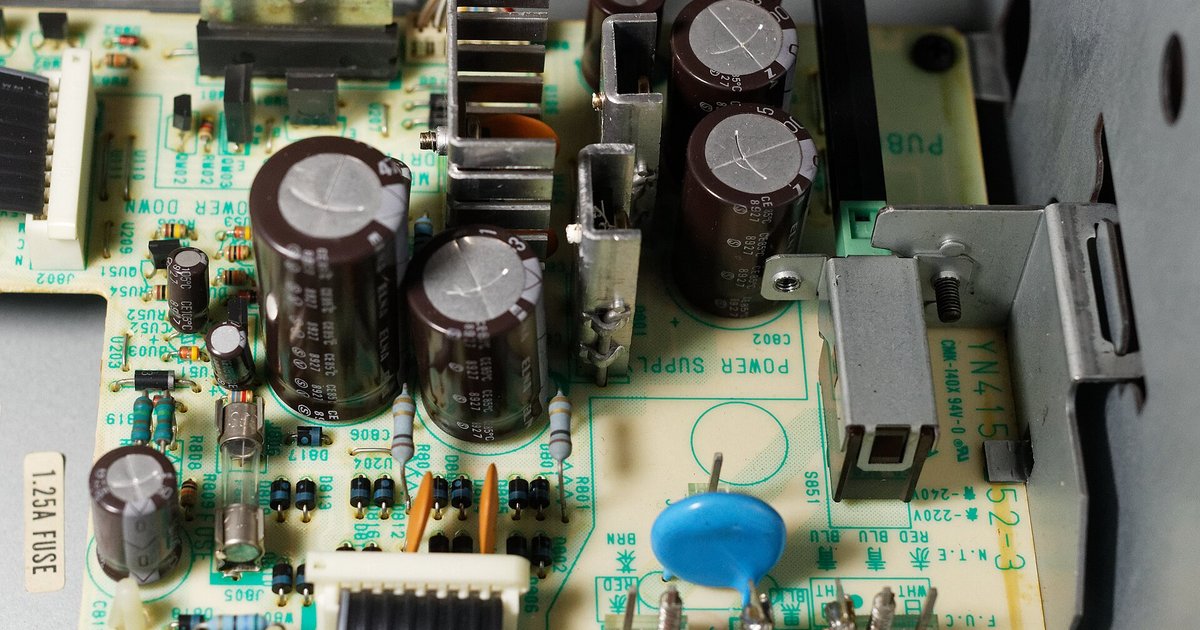
Before you adjust smart TV picture settings like brightness sliders or color temperature presets, stop and check whether your screen problem is actually a setting at all. Many people assume a black screen means a software glitch. But a smart TV with a black screen that still produces audio is almost always a hardware fault. The lighting LEDs have died or the power supply board has failed. If you are dealing with a Samsung TV HDMI black screen but sound works, the issue is likely a failed HDMI port or EDID handshake problem rather than a picture menu gone wrong. Similarly, if you need to tell if Samsung TV backlight or power supply is bad, try shining a flashlight on the screen. A faint image means the illumination has failed. Seeing nothing at all means the power supply is probably dead. A Samsung TV screen flickers only on one HDMI port points to a damaged port, a bent pin, or a failing cable, not a misconfigured setting. Swap the cable first, then try a different port. Finally, before you spend money on repairs, check whether your Samsung TV warranty covering backlight failure is still active. Many models have a four-year panel warranty that includes the lighting array. Ruling out these physical causes first saves you from wasting hours adjusting settings that cannot fix a broken component.
Fix brightness, darkness, and fading
If the overall picture is too dim, too dark, or seems to be losing brightness over time, your first instinct might be to reach for the contrast or luminance sliders. A truly black screen that still produces sound, or a display that fades gradually from the sides inward, is almost never a settings problem. It is a hardware failure. Before you touch a single menu option, confirm that the screen actually appears to light up at all. If you have been asking yourself "why is my Samsung smart TV so dark" and the picture is barely visible but the audio is fine, you are likely dealing with failing LED strips or a bad power supply board. For LG owners, searching "why is my LG smart TV screen so dark" often leads to the same root cause: the LED strips that illuminate the panel have burned out. The same logic applies if you need to "fix fading screen LED TV". Fading that creeps in from the edges, or appears as a dim, washed-out image that gets worse after the unit has been on for an hour, points to thermal stress on the LED driver circuitry. Test a different HDMI port and a different source device first. If the problem follows the set across every input, stop adjusting settings and look up replacement parts for your specific model.
Correct color, tint, and ghosting
Start by checking for a simple cause: if your whites look cold and unnatural, you may be asking why did my LG smart TV look blue? That color cast often comes from a "Cool" color temperature setting buried in the picture menu. Switch the color temperature to "Warm" or "Standard" and see if the blue shifts to neutral. If the tint remains, adjust the color balance manually by lowering the blue gain in the white balance sub-menu. For Samsung owners, you might need to adjust color on Samsung smart TV by entering the Expert Settings and tweaking the two-point or twenty-point white balance sliders. A persistent blue tint that refuses to move in any menu is a red flag. It likely points to a failing backlight or a bad HDMI handshake, so unplug the source and try a different port before proceeding further.
A loose cable or a source device in the wrong output mode can mimic a bad picture. Test a different HDMI input and a built-in streaming app. If the issue vanishes, your panel is fine. If it stays, then you know the display itself needs calibration. This step saves you from chasing menu ghosts for an hour when the fix was simply reseating a connection. The one diagnostic truth no other guide will give you is this: a genuine panel uniformity defect cannot be corrected by any user menu, and if a white screen looks stained or blotchy on every input, you are seeing a physical flaw that demands a warranty claim, not a slider adjustment.
When you are ready to adjust color on Samsung smart TV models, the path varies by year. Newer sets running Tizen put the color slider under Picture > Expert Settings > Color. Older models with the Smart Hub interface tuck it inside Picture Options. On a recent QLED panel from the Korean manufacturer, you can fine-tune white balance across twenty points. A Crystal UHD display from the same brand may only offer a single global slider. Do not ignore the "Color Space" setting. Auto works for most content, but Native forces the panel to overdrive its gamut and can make skin tones look sunburned. For a more precise result, use a blue filter pattern and the tint control to align cyan and magenta before touching the main color dial. This method gets you closer to a reference look without a meter, which is exactly why you would refer to the article on how to adjust the color on my Samsung smart TV for the full calibration sequence.
Brightness confusion is the most common mistake in TV setup. The control labeled "Brightness" on an LG, Sony, or a model from the South Korean giant actually adjusts black level, not light output. Raise it too high and shadows turn gray. Lower it too much and you crush dark detail into a solid black blob. The setting that controls how much light the screen emits is often called "OLED Light" on an LG, "Brightness" on a Sony, and "Cell Light" or "Panel Brightness" on a display from Suwon. Set that light-output control for your room. A bright living room needs more luminance. A dark theater room needs less. Then use a pluge pattern to set the black-level control correctly so bars flash at the right threshold.
Motion smoothing is the feature that makes movies look like cheap video. Filmmakers call it the "soap opera effect." To restore a cinematic cadence, turn off any setting with "Motion," "Smooth," or "Tru" in the name. On an LG it is TruMotion. On a Sony it is Motionflow. On a Samsung it is Auto Motion Plus or Picture Clarity. Set it to Off or, if you hate judder during slow pans, use a custom "De-Judder" value of 2 or 3. Leave "De-Blur" at zero for 24-frame film content. LED backlight scanning, often called "LED Clear Motion," can reduce persistence blur without the soap opera side effect. The trade-off is a dimmer picture and possible flicker, so test it with a long viewing session before committing.
To fix ghosting on LED TV, first turn off any "TruMotion" or "Auto Motion Plus" features. If the ghosting persists, reduce the sharpness to zero. An over-sharpened image can produce a halo effect that mimics ghosting. Finally, if you still see a shadow, you may need to enable "Game Mode" to bypass extra processing. Remember, if these adjustments do nothing, the ghosting is almost certainly a hardware fault. A failing T-con board or a damaged panel will not respond to any menu tweak.
Handle startup, glitching, and unexpected behavior
When a TV acts strangely, the first instinct is to jump into the menus, but many startup and glitching issues stem from hardware, not software. If the screen stays black but you hear audio, or if the picture fades after a few minutes, a hardware issue such as a failed lamp or power supply could be the cause. No setting will fix that. For random on-screen flickers or artifacts, first check the HDMI cable and port before you search for why my Samsung smart TV glitching. A loose connection often mimics a software bug. If you want to customize the boot-up experience, you can read an article on how to change the startup screen on my Samsung smart TV through the settings menu, but only if the TV boots correctly in the first place; that article explains the exact menu path for personalizing the startup. A more frustrating problem is a smart TV turning on by itself, which is usually caused by a faulty power button, an enabled HDMI-CEC feature where another device triggers the TV, or a sticky remote. This is not a picture setting. For persistent crashes or app instability, advanced users may want to enable developer mode on Samsung smart TV to access debugging tools, though this is only useful after confirming the hardware is stable; a dedicated guide covers the steps for that, helping you diagnose software issues more effectively. Always rule out the physical cause before wasting time in the settings.
- change the startup screen on my Samsung smart TV — How Do I Change The Startup Screen On My Samsung Smart TV
- enable developer mode on Samsung smart TV — How To Enable Developer Mode On Samsung Smart TV