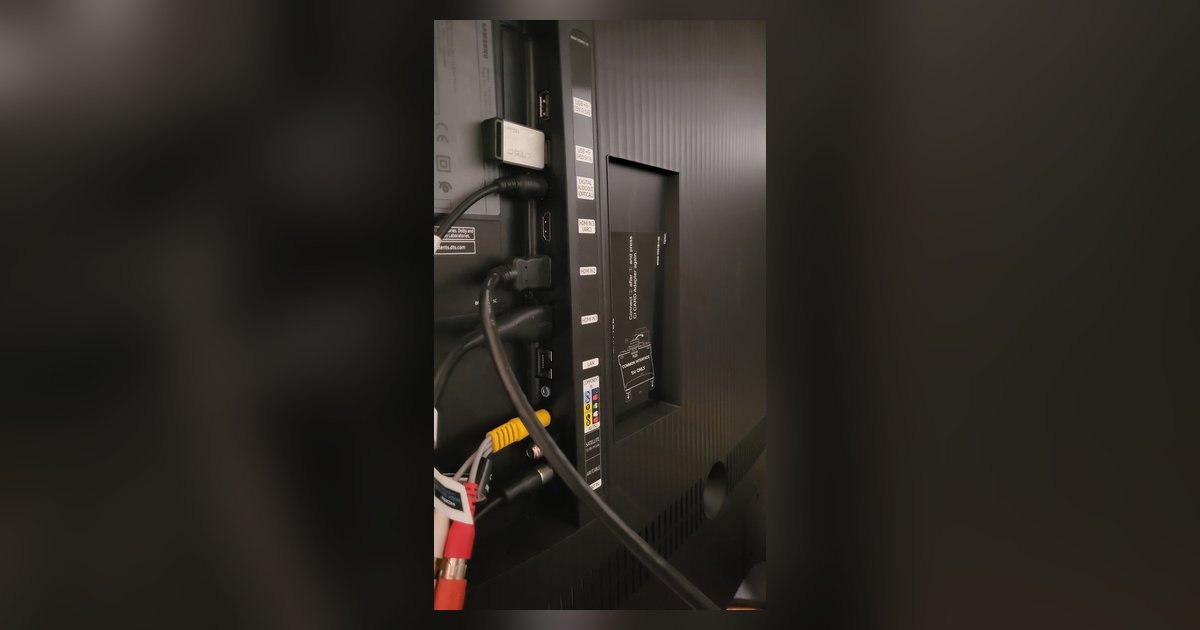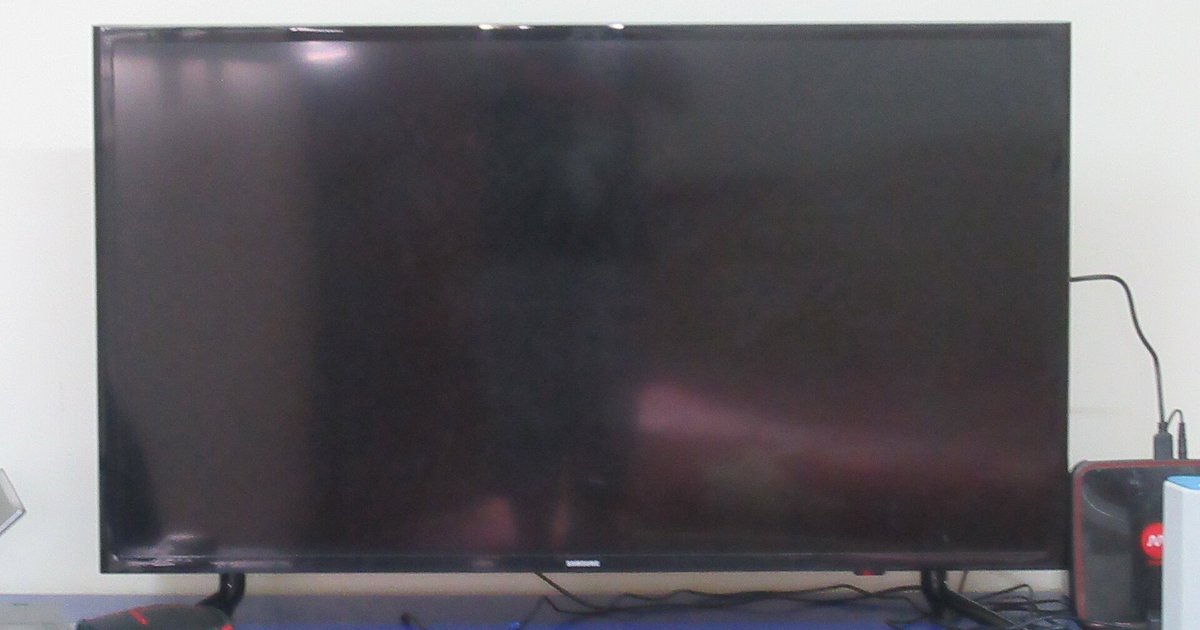
This usually means the HDMI signal's video data is corrupted or unsupported while the audio stream remains intact, often caused by an HDCP handshake failure or a mismatched resolution setting. Power-cycling the TV and the external device together forces a fresh HDMI handshake and typically restores the picture.
Why your Samsung TV HDMI black screen has sound but no picture
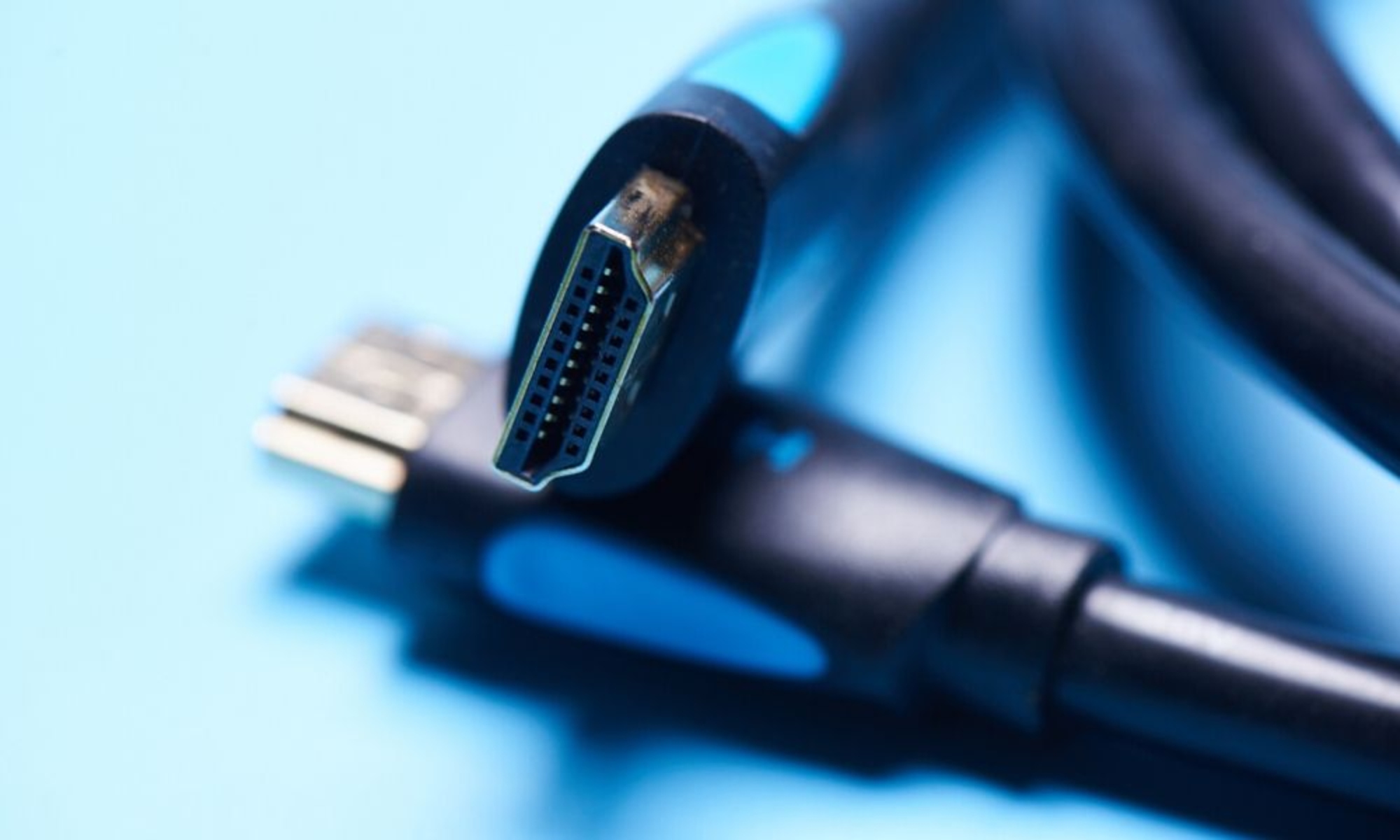
HDMI carries audio and video as separate data streams inside the same cable. One can fail independently when the TV can’t decode the video signal. The audio stream is a simpler, lower-bandwidth packet that most Samsung panels can process even when the video decoder is stuck. The video stream, however, carries high-resolution color data and metadata, including HDCP copy-protection flags. If the connected device sends a resolution the TV doesn’t support, the video processor goes dark while the audio processor keeps playing. The same thing happens if the HDCP handshake fails because one side lost its encryption keys. This is why you hear the show or menu sounds perfectly but see only a black screen. The problem is rarely the cable itself. It is almost always a handshake or timing mismatch.
The cold reboot fix most people skip
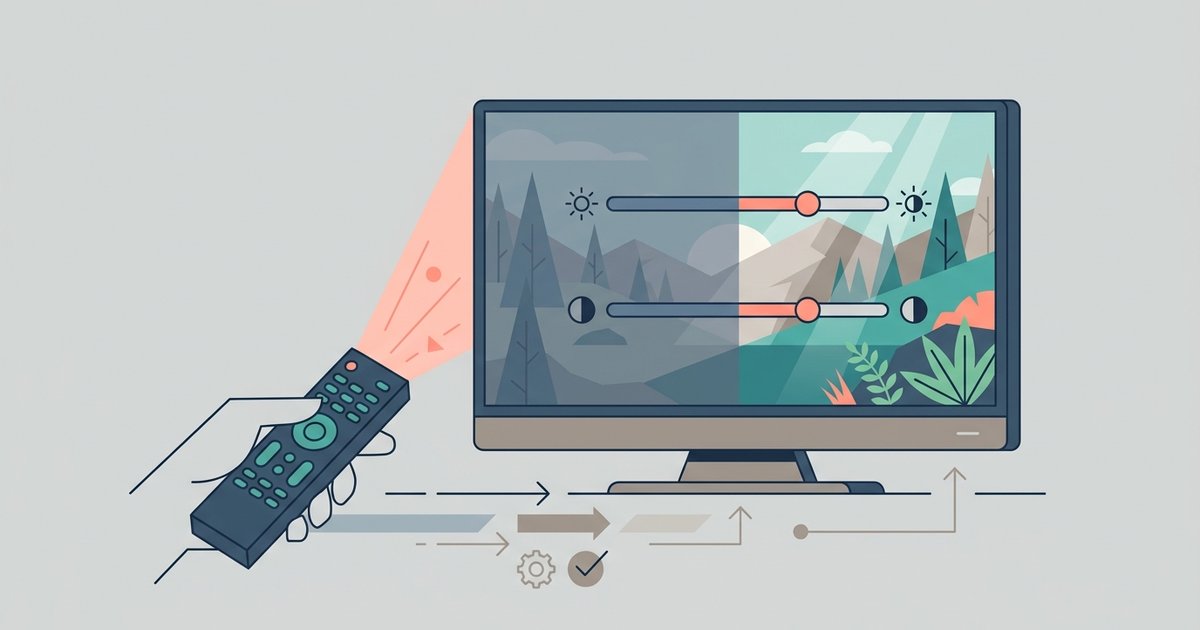
Pulling the power cord from both the TV and the source device clears the HDMI processor memory. A simple remote restart does not do this. A remote restart only cycles the operating system. It leaves the HDMI controller’s cached HDCP keys and EDID data intact. To force a full hardware reset, unplug the TV from the wall outlet. Also unplug the power cord from the external device, or remove its batteries if it is a streaming stick. Wait at least 10 seconds. This allows the HDMI connection to reset. Then plug everything back in. Turn on the source device first and wait for it to boot. Then turn on the Samsung TV. This resets the HDMI handshake from scratch, and the picture usually returns. Many users skip this step because they assume a power button press is enough. The black screen persists precisely because the HDMI controller never actually lost power. If the picture still looks off after it returns, adjusting smart TV picture settings can correct any brightness or contrast issues that were masked by the blank screen.
When the screen stays black anyway
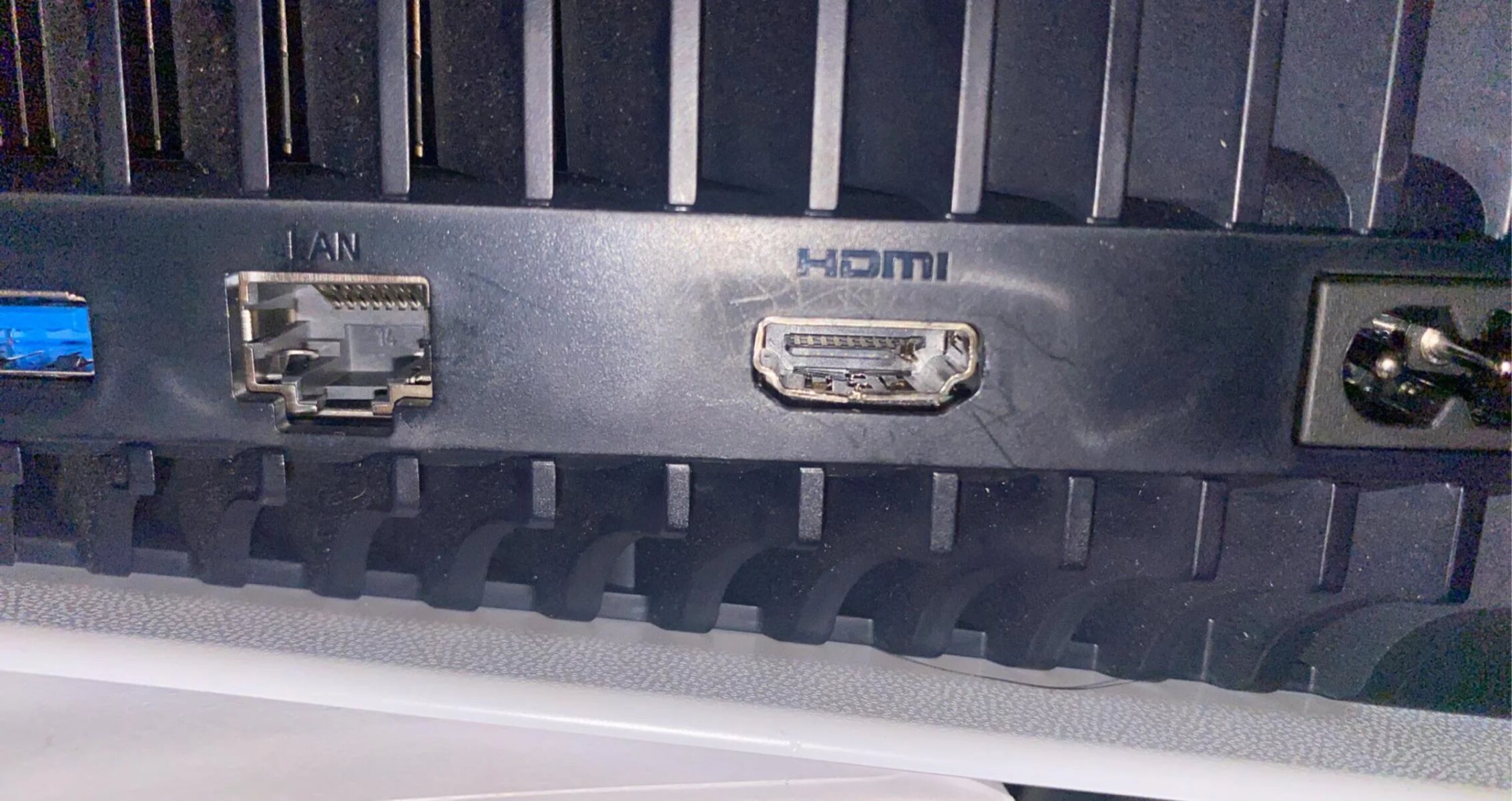
The failure case where the external device’s output resolution or HDCP setting is incompatible may require you to connect to a different display to change it. If the cold reboot did not work, the source device is stuck outputting a format the Samsung TV cannot accept. For example, it might be a 4K signal at 60 Hz with 10-bit HDR that the TV’s HDMI port cannot decode. Or it could be a 1080p signal with an HDCP 2.3 flag that the TV’s firmware misreads. You must connect that device to a working monitor or a different TV. Then lower its output resolution to 1080p at 60 Hz and disable any forced HDR or HDCP 2.2/2.3 modes. On a PlayStation or Xbox, this means booting into safe mode and selecting a lower resolution. On a streaming stick, check the device settings to lower the output resolution. This is also the moment to check if your Samsung smart TV is glitching due to a hardware fault. If the black screen happens on every HDMI port and persists after a factory reset, the main board’s video chip may be failing. Similarly, if you have ever tried to change the startup screen on your Samsung smart TV and accidentally altered the display scaling, that setting can cause a black screen on certain inputs. Reset the TV’s picture settings to default. Finally, if the screen remains black but the backlight is on, you may be dealing with a separate brightness issue. Search for guides on why your Samsung smart TV is so dark. For HDMI black screens, the fix is always the handshake or resolution. If you need to adjust the color on your Samsung smart TV after the picture returns, use the Expert Settings menu under Picture. Do not change the HDMI input color format to anything other than Auto unless you are certain the source supports it.
Unlike generic TV help pages, this guide isolates the exact moment a Samsung HDMI controller retains a failed handshake even after a restart, and it explains why only a full capacitor discharge clears that state.