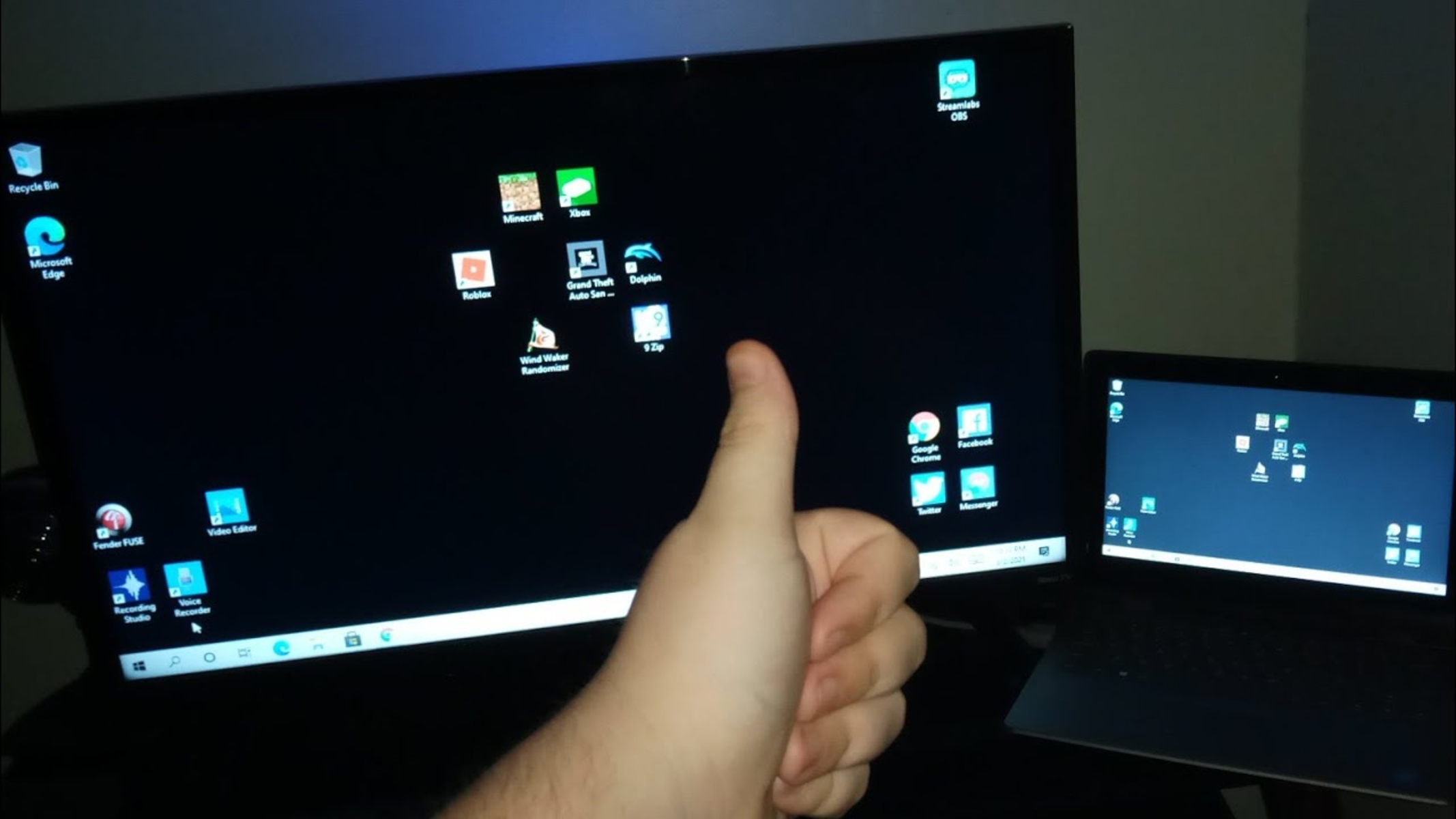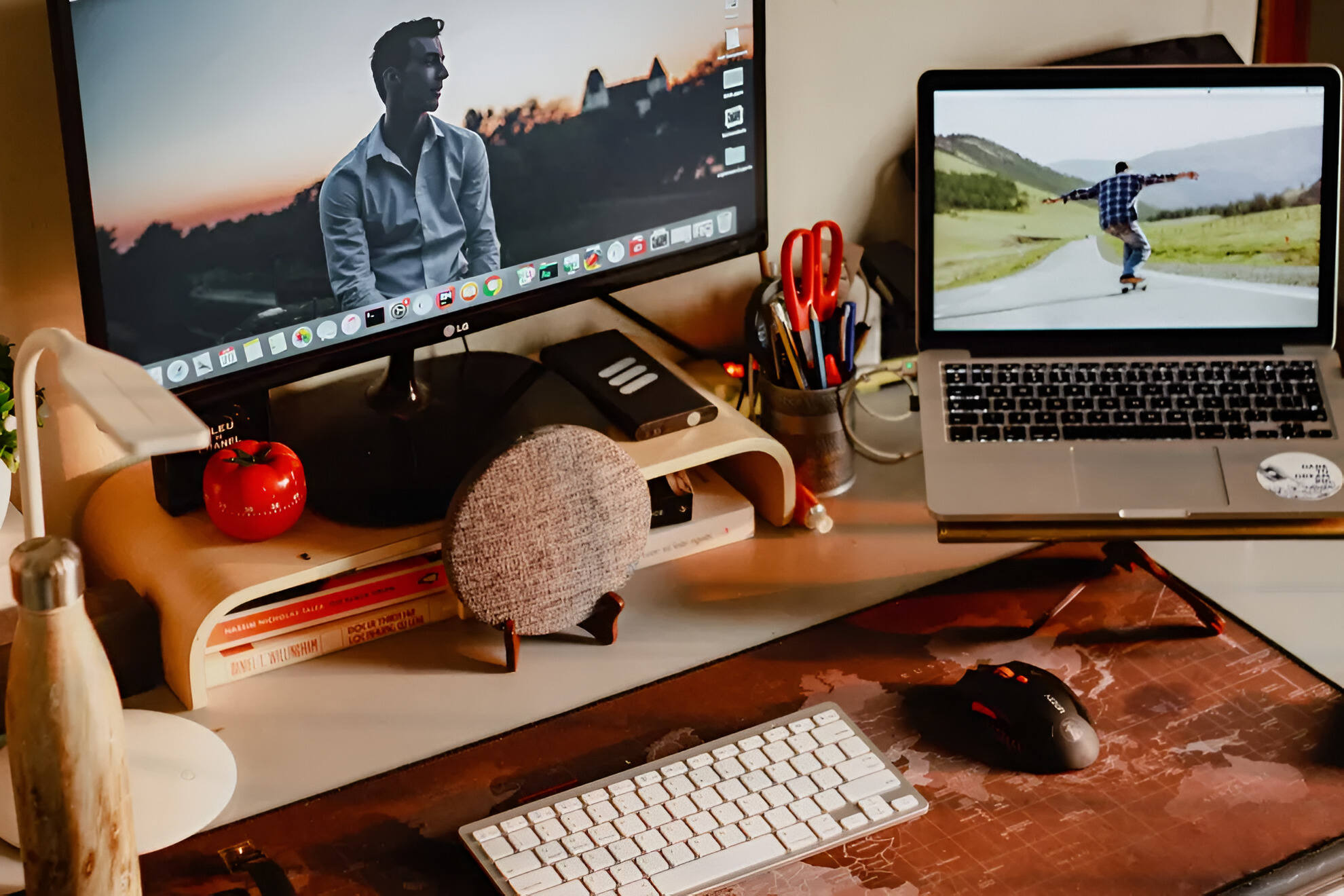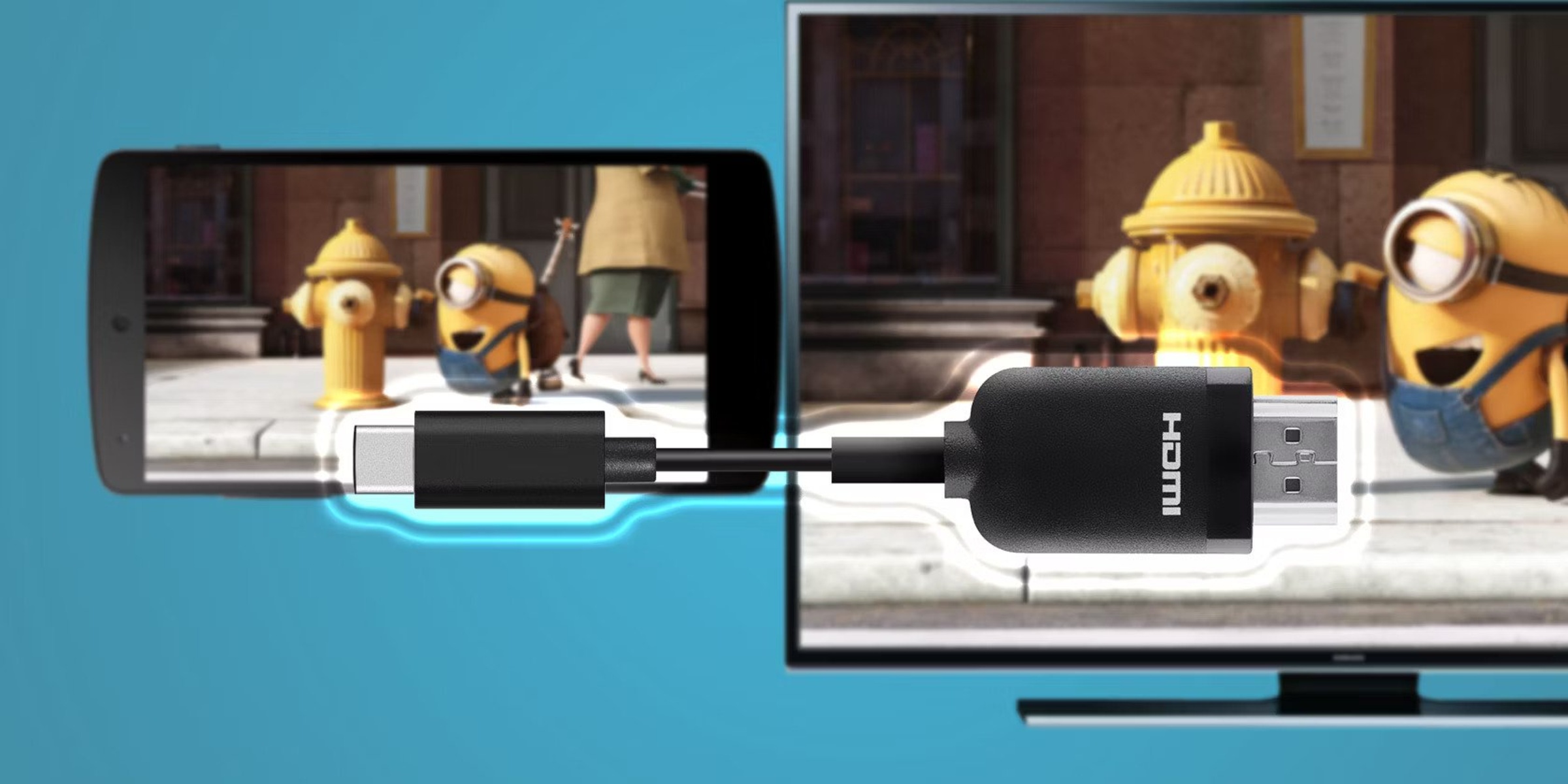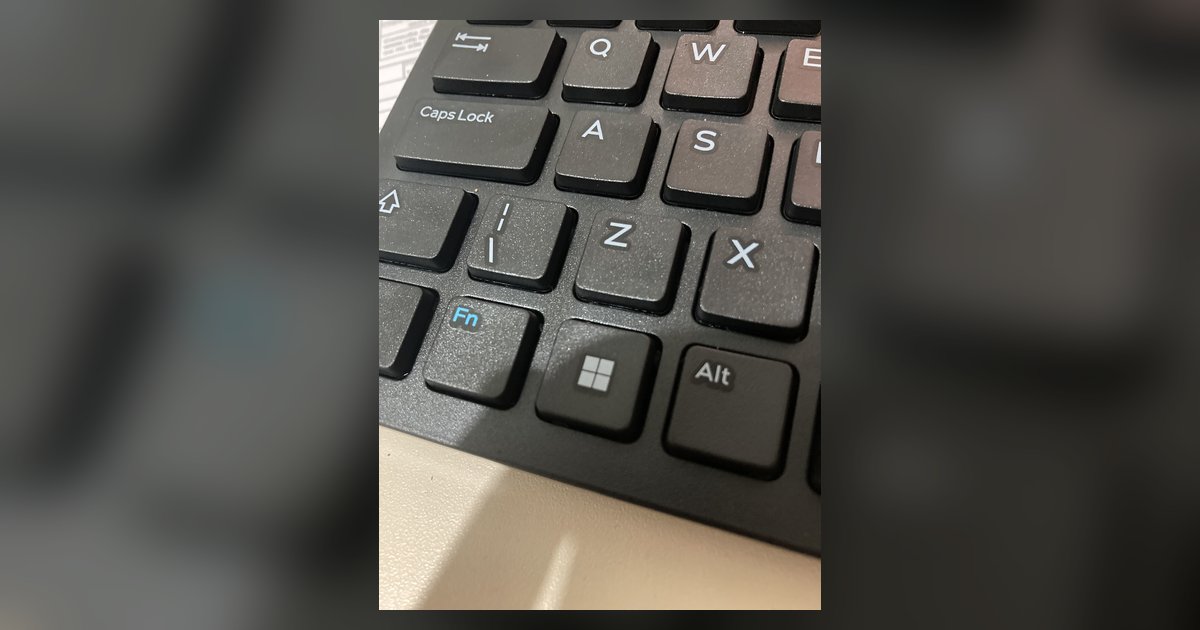
The Win+P shortcut only switches projection modes for displays Windows already sees. When a screen isn't detected at all, you need to force a hardware re-detection by unplugging and replugging the cable, or use the 'Detect' button in Display Settings.
The one step Win+P cannot do for your second screen
This is because the shortcut simply toggles between "Duplicate," "Extend," "Second screen only," and "PC screen only", none of which help if the monitor isn't recognized by the operating system in the first place.
Force windows to re-detect the display manually
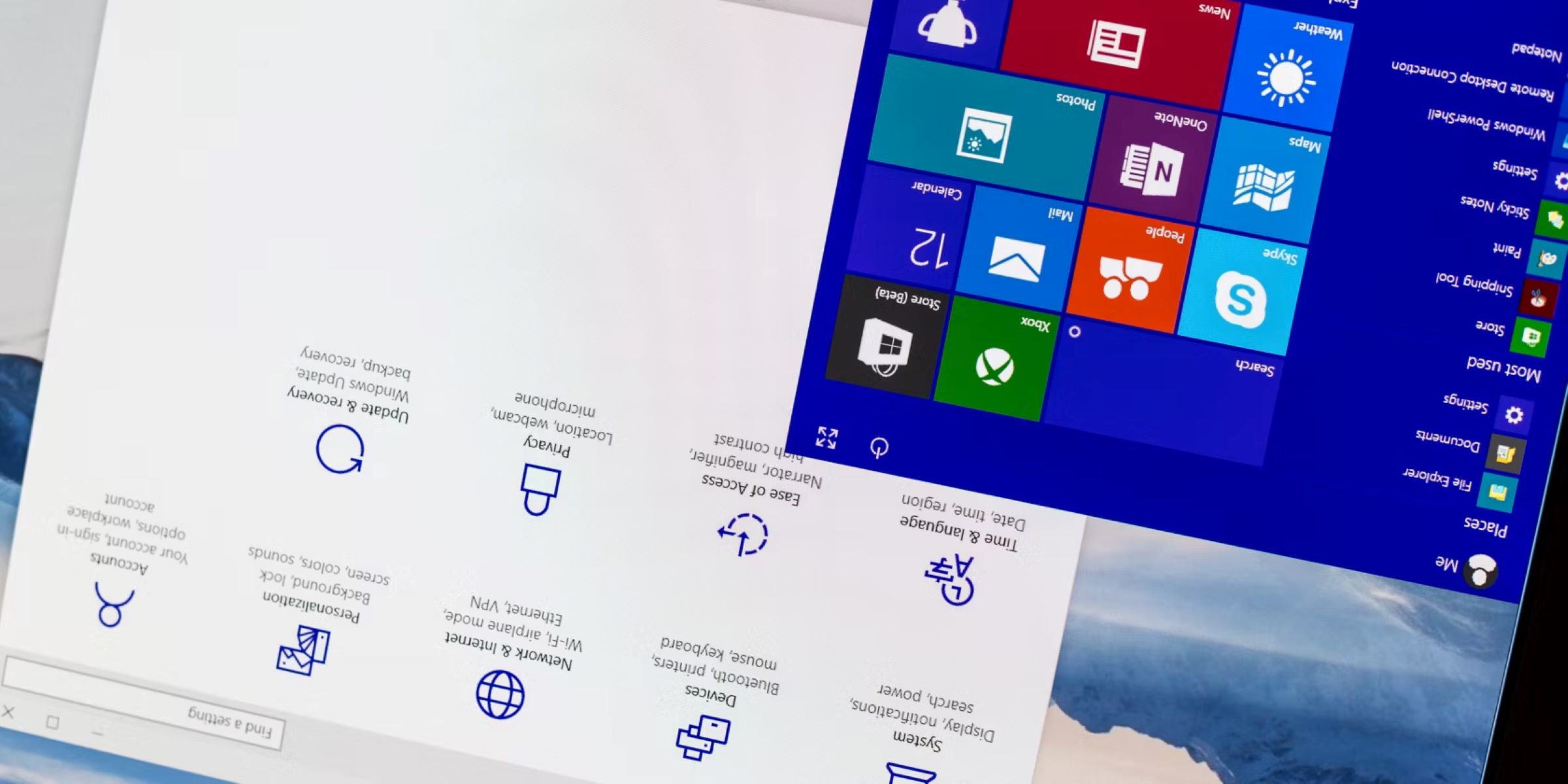
Open Display Settings by right-clicking the desktop and selecting "Display settings" or navigating to Settings > System > Display. Scroll down until you see the "Multiple displays" section. There, you will find a button labeled "Detect." Click it to trigger a fresh hardware scan of all connected ports. This is the step the Win+P shortcut cannot perform, because it assumes the display is already in the system's device list. If the monitor still shows as "No signal" or is absent from the "Identify" screen, proceed to the cable check.
The cable and power check people skip
Reseat the HDMI or DisplayPort cable at both ends, unplug it from the monitor and from your PC, then push it in firmly until it clicks. Verify the monitor's power light is on (not blinking), and confirm the correct input source is selected via the monitor's on-screen menu. Many monitors will not auto-detect a new source, so you may need to manually switch from HDMI 1 to HDMI 2 using the monitor's buttons. If your laptop has only one HDMI port and you are using an adapter, temporarily disconnect the adapter and connect the monitor directly to the PC to rule out the accessory as the cause, or switch to HDMI on PC Windows 11 if the system itself is defaulting to another display mode. A loose cable or wrong input is the most common reason the shortcut does nothing.
When the graphics driver is the real problem
If the cable and power are fine, the driver may have crashed or become unresponsive. Press the keyboard shortcut Ctrl+Shift+Win+B to restart the graphics driver instantly. You will hear a short beep and the screen may flicker. If that fails, open Device Manager (right-click the Start button and select it), expand "Display adapters," and look for your GPU. If it shows a down arrow, right-click it and select "Enable device." A corrupted driver may require a clean reinstall; uninstall the display adapter in Device Manager (checking "Attempt to remove the driver for this device"), restart your PC, then install the latest from the manufacturer's website.
What to do when the monitor is still not listed
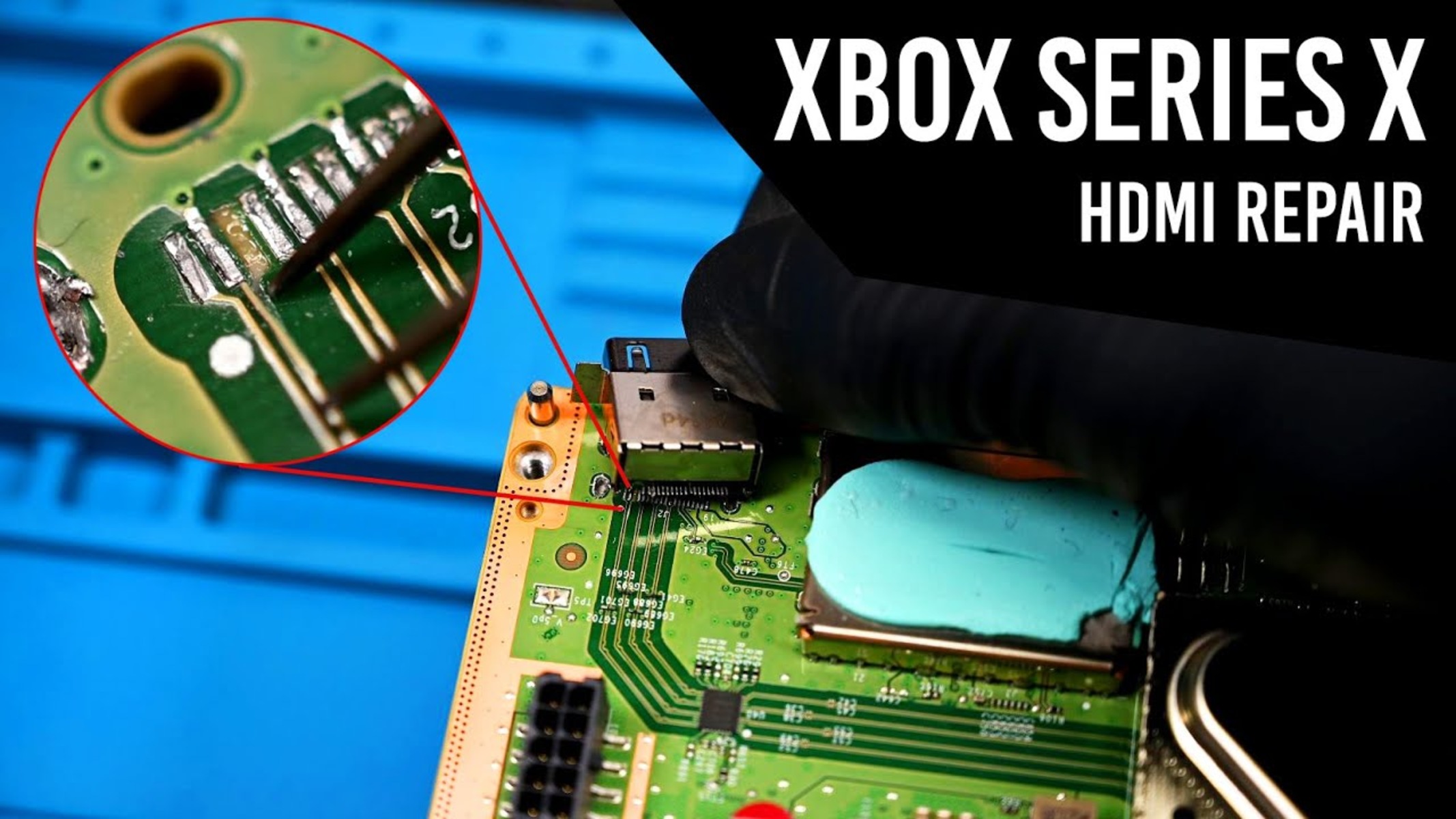
If the external display remains invisible even after detection attempts, you may be dealing with a hardware fault. Test with a different cable, borrow a known-working HDMI or DisplayPort cable from another device. Try a different port on your PC (e.g., switch from the GPU’s HDMI port to the motherboard’s if available). Test the second monitor with another computer or device to determine if the problem lies with the monitor itself or your primary PC. This step isolates whether the issue is the monitor itself or the port. For example, if you want to play a PS5 on a laptop through HDMI, you would use a capture card, but if the laptop’s HDMI port is output-only, it will never detect a game console as a second screen. In such cases, the monitor is not faulty; the hardware simply does not support input detection. Before assuming a hardware defect, ensure you’ve manually selected the correct input source, you may simply need to switch to HDMI on Windows 10 for the signal to appear. If after swapping cables and ports the monitor still shows "No signal" on a known-working PC port, the monitor’s internal board may be defective and require service.