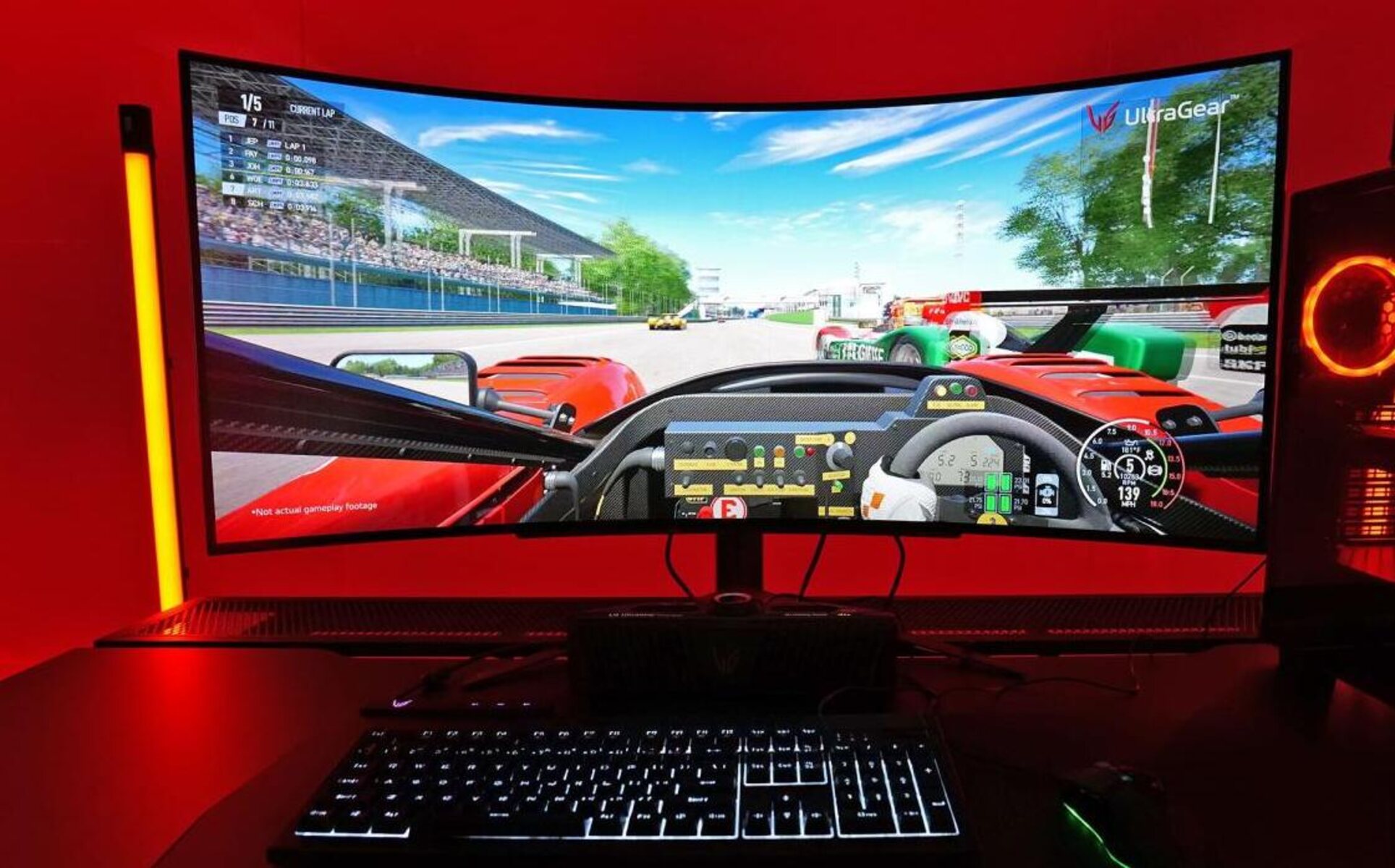
To change Hz on an LG Ultragear monitor, you need to adjust the refresh rate in Windows display settings after confirming your cable and GPU support the higher rate. A higher Hz in a monitor directly reduces motion blur and makes fast-paced action feel more fluid. The quickest path is right-clicking your desktop, selecting Display settings, then navigating to Advanced display and choosing a refresh rate from the dropdown.
What you need to change Hz on an LG Ultragear monitor
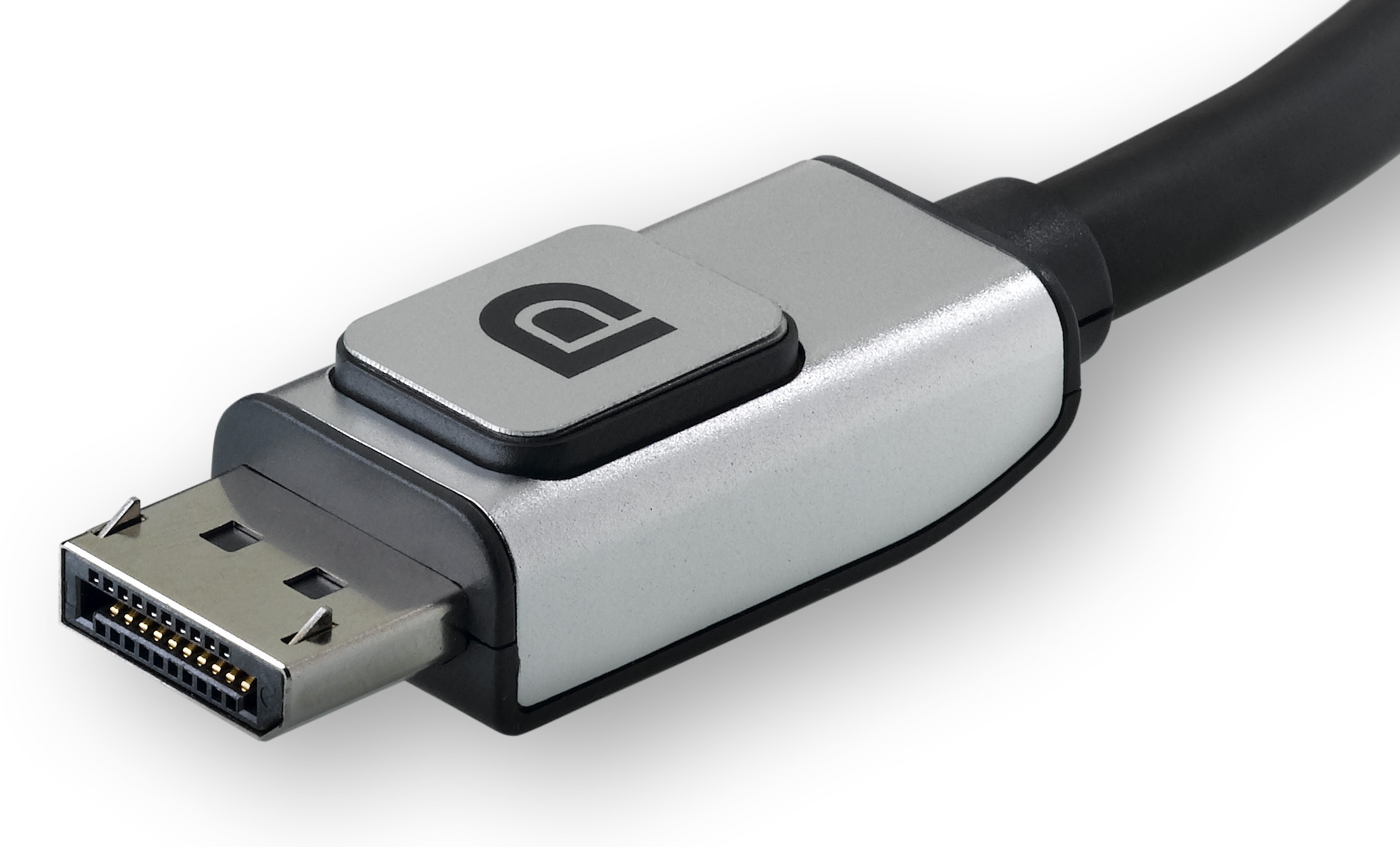
Your cable is the first thing to verify. To enable higher refresh rates (120Hz and above), ensure your monitor and PC are connected with a DisplayPort (DP) 1.4 or HDMI 2.0 (or higher) cable. It is recommended to use the cable included with the monitor to support high refresh rates, as separately purchased cables may cause issues. The refresh rate supported may vary depending on the cable connection, PC performance (CPU and graphics card), and user environment. Resolution also plays a role, higher resolutions like 4K may cap the maximum Hz, while lower resolutions like 1080p or 1440p can unlock higher rates. Your GPU must be capable of outputting the chosen refresh rate at the selected resolution; otherwise, the option will not appear in Windows.
Check your current input refresh rate on the monitor
Before changing anything in Windows, verify what signal the monitor is actually receiving. To access the monitor's settings menu, press the joystick button located below the monitor screen. From the [Main Menu], use the joystick button to select the [Settings] menu. In the settings menu, verify that the input refresh rate (120Hz and above) is displayed correctly. This number reflects the signal coming from your PC, not the monitor's maximum capability. If it shows 60Hz, your cable or GPU settings are limiting the output, and you'll need to fix that before proceeding.
Change the refresh rate in Windows display settings
Once the monitor confirms it's receiving a high-frequency signal, you can set the refresh rate in Windows. Follow these steps:
- Right-click on an empty space on the desktop and select [Display settings].
- Navigate to [System > Display > Advanced display > Display information > Choose a refresh rate].
- Check the supported refresh rates and select the desired setting from the dropdown menu.
After selecting a rate, Windows will ask you to confirm. If the screen goes black or looks wrong, wait a few seconds, Windows will revert to the previous setting automatically. If it doesn't revert, press the joystick button on the monitor to access its menu and manually lower the refresh rate back to a safe value.
Choose the right cable for higher refresh rates
DisplayPort can support various refresh rates, including 60Hz, 90Hz, 120Hz, and 144Hz. USB-C to DisplayPort cables can handle 8K at 60Hz, 4K at 144Hz, and 2K at 240Hz. The included cable is the safest choice because LG has tested it with the monitor's specific bandwidth requirements. A cheap third-party cable might look identical but lack the shielding or wiring needed for stable high-refresh operation. If you must use a different cable, choose one that explicitly states DisplayPort 1.4 or HDMI 2.0 certification on the packaging.
Troubleshooting refresh rate problems
If you encounter a black screen or "no signal" message after changing Hz, the monitor may not be receiving a compatible signal from your PC. Double-check that the refresh rate you set in Windows matches the monitor's supported input. Try connecting the monitor to a different port on your graphics card, or use a different cable. Restarting your PC often resolves the issue by forcing the GPU to renegotiate the display link.
Screen flickering or artifacts after setting a higher refresh rate usually means the monitor or GPU cannot handle the selected rate. Lower the refresh rate to a value that both devices support. Driver conflicts can also occur, uninstall and reinstall your GPU drivers if problems continue.
If you've tried all these steps and the refresh rate option still doesn't appear, or the monitor keeps dropping signal, contact LG support. Provide your monitor's model number and the exact resolution and refresh rate you're attempting to use. They can confirm whether your specific Ultragear model supports the rate you want or if a firmware update is needed.
\nRelated reading: What To Do When Windows Key + P Doesn't Detect My Second Screen and What Is Dp On A Monitor.