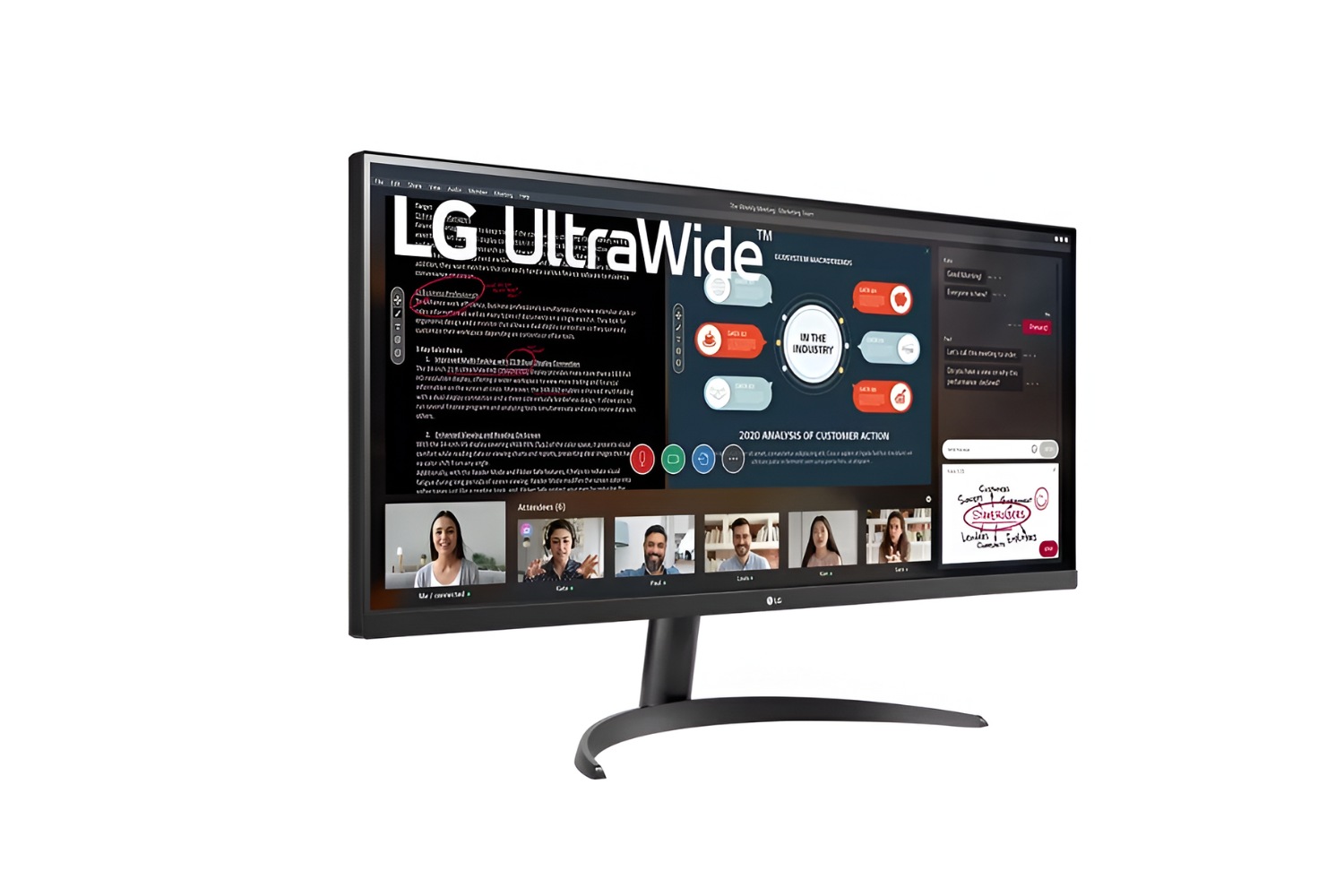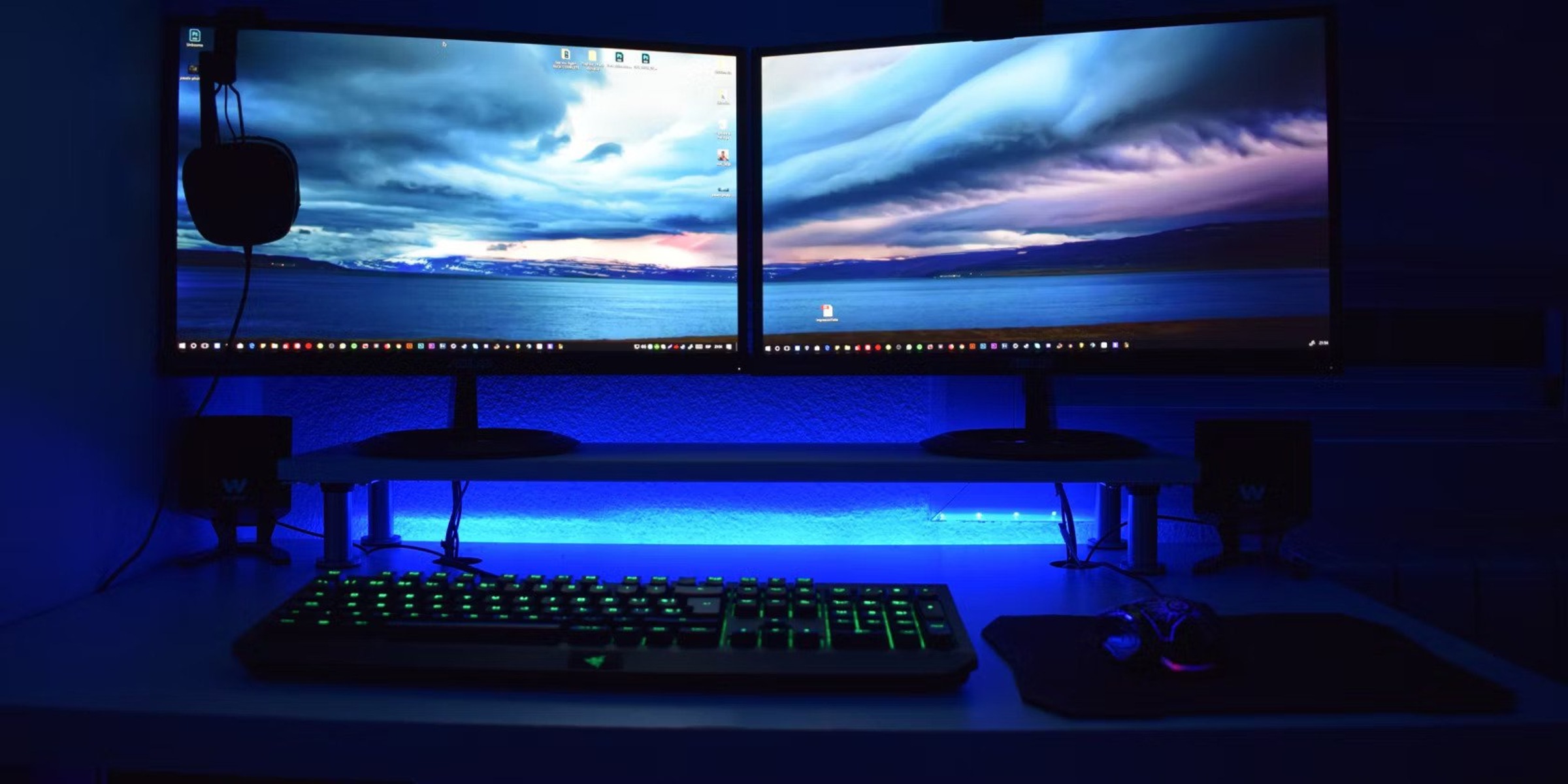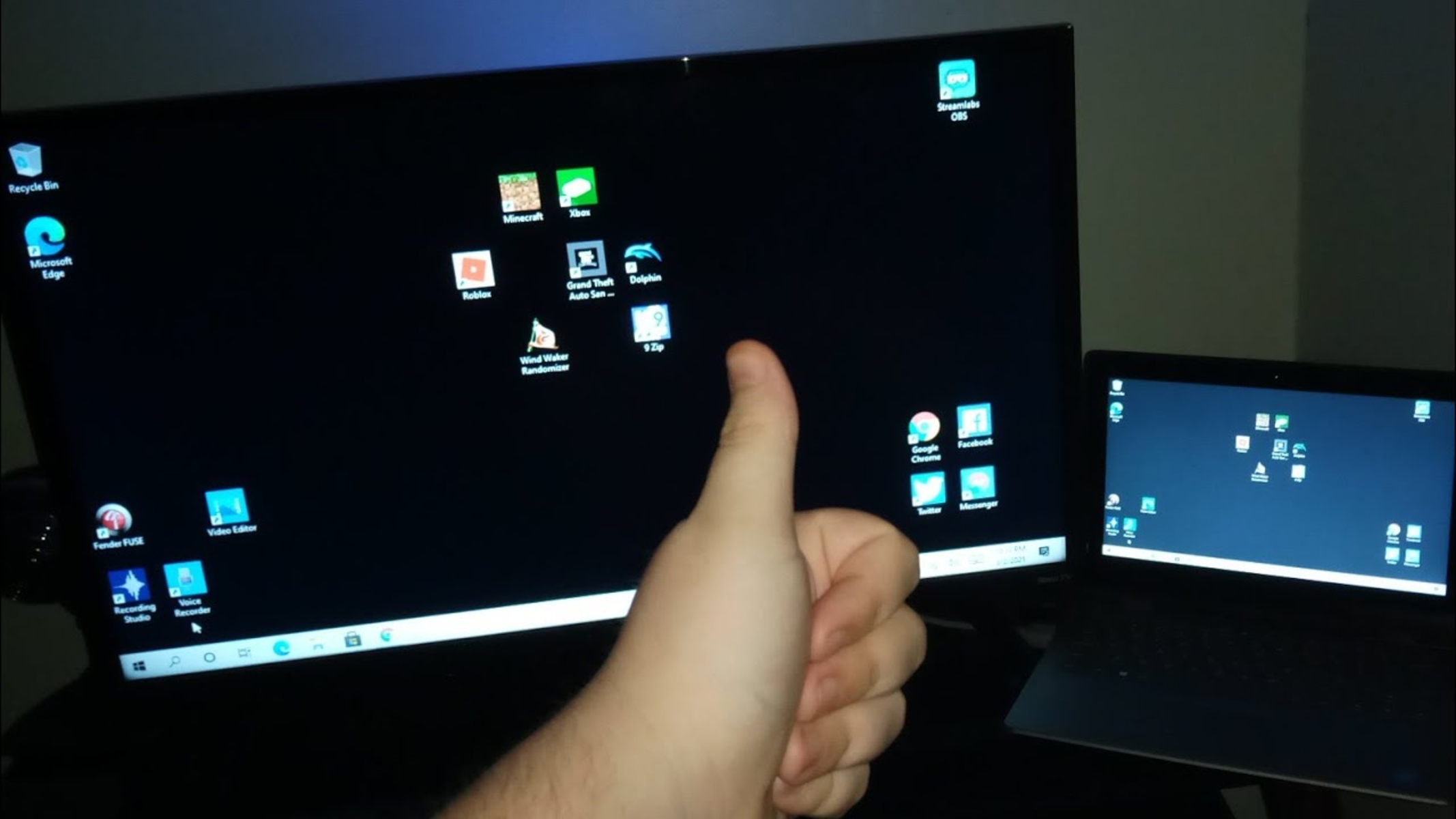
If your HDMI cable only shows your background on an external monitor, the direct answer is that your display settings are configured to "Extend" mode, which treats the second screen as an empty additional workspace. In this mode, the external monitor will initially display only the desktop wallpaper until you manually drag application windows or icons onto it from your primary screen.
Why your HDMI only shows background (and no icons)
The most common reason your HDMI connection shows only the wallpaper is that your operating system is set to "Extend" (Windows) or "Extended display" (macOS). This is not a malfunction, it is the standard behavior of a multi-monitor setup where the external screen acts as a separate desktop. Until you move windows across, only the background image appears. Less frequently, the issue can stem from a loose cable, a faulty port, or outdated graphics drivers, but the display mode is the first thing to check. If the problem persists after adjusting your settings, you may need to tell if your HDMI cable is bad by looking for flickering or physical damage.
Fix it instantly on Windows with the project menu
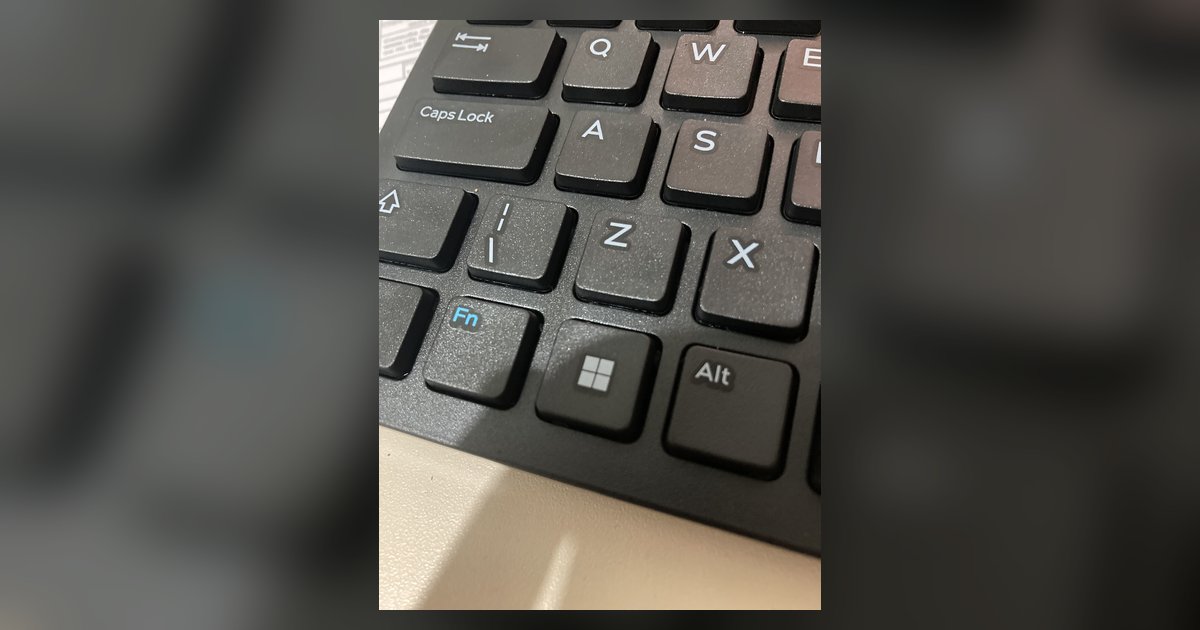
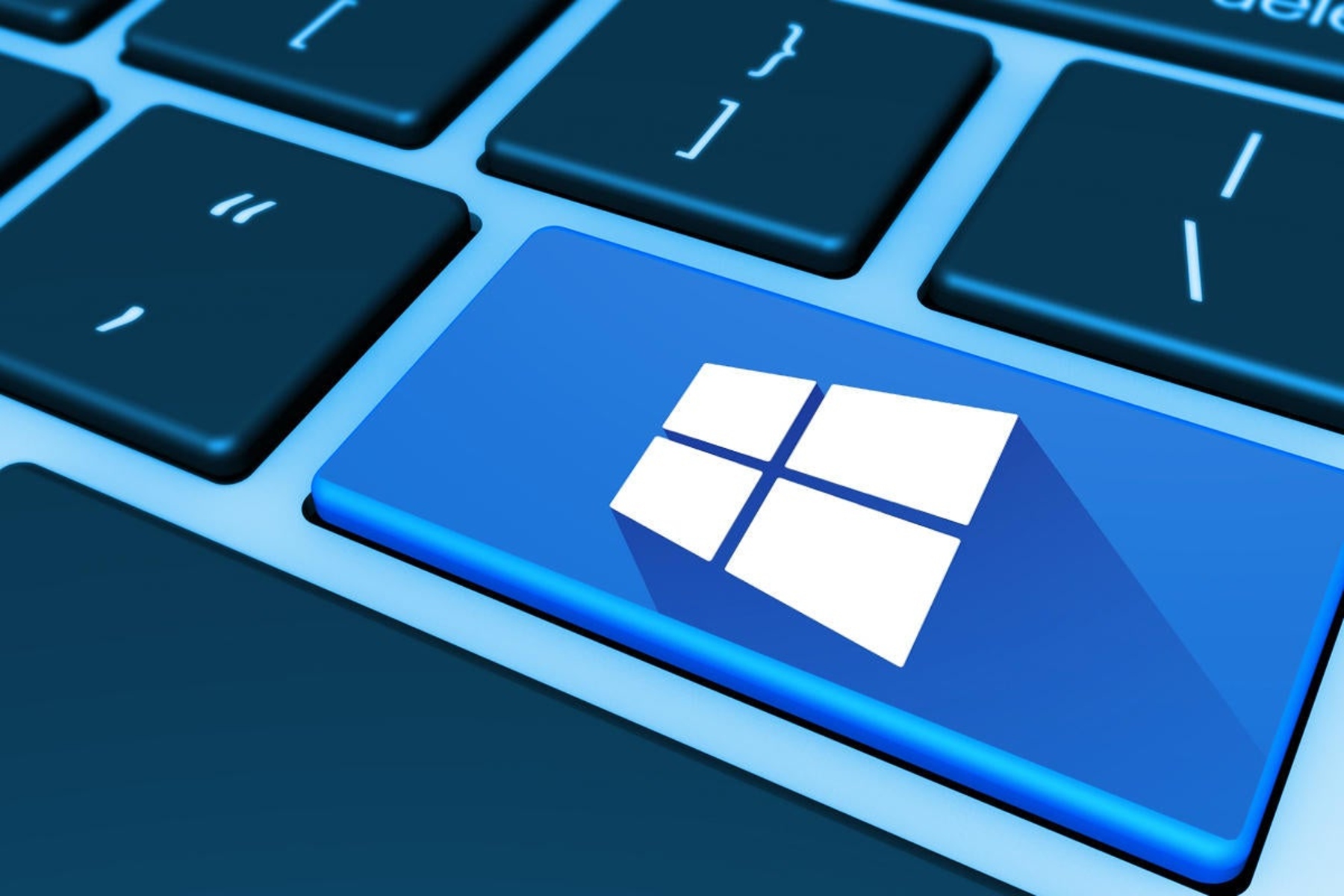
The quickest way to change display modes on Windows is by pressing the Windows key + P, which opens the Project menu. From this menu, select "Duplicate" to show the same content on both screens, or "Extend" to expand your desktop across both displays.
- Press the Windows key and the P key simultaneously.
- In the Project menu that appears, click "Duplicate" to mirror your laptop screen onto the external monitor.
- Verify that icons and open windows now appear on the external display.
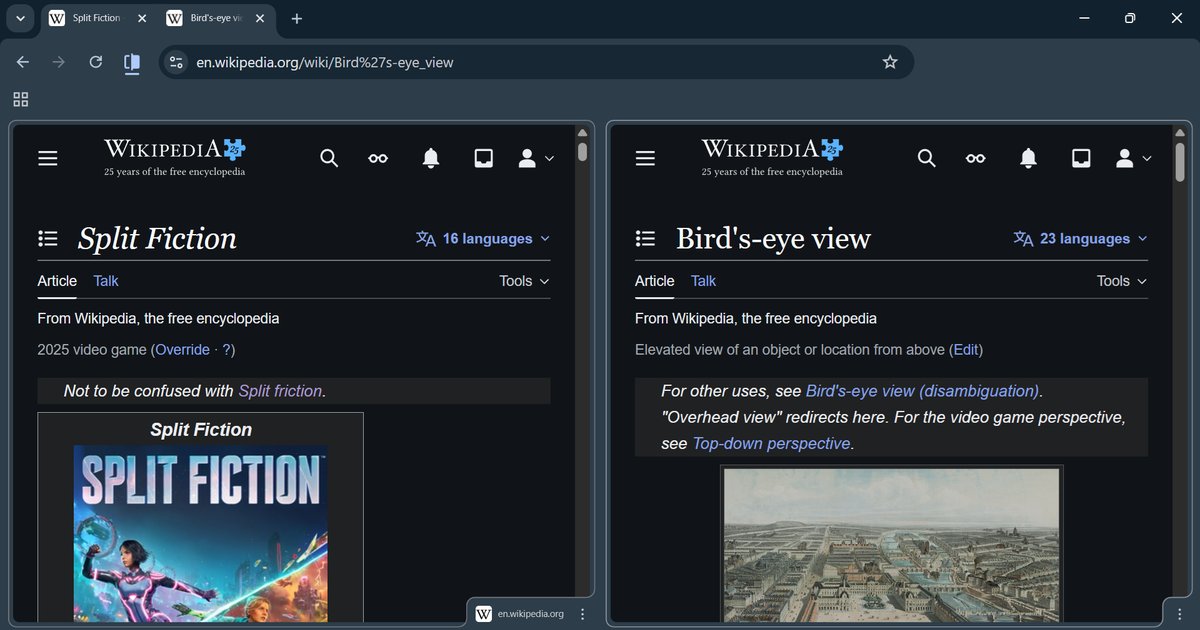
Alternatively, right-click an empty area of the desktop, select "Display settings," then scroll to "Multiple displays" and choose "Duplicate these displays" from the dropdown menu. To ensure correct mouse movement between screens, go to "Display settings" and drag the numbered monitor icons to match their physical arrangement on your desk.
Fix it on macOS by stopping extended display
On macOS, to configure display settings, click the Apple menu () > System Settings (or System Preferences) > Displays.
- Click the icon for your external monitor within the Displays panel.
- Use the "Use as" pop-up menu to select "Mirror for [device name]" to show the same content on both screens.
- If you prefer to keep the extended desktop but need to move windows, click the "Arrange..." button (or "Arrangement" tab) and drag the screen icons to reflect their physical layout. The white bar on a display icon indicates the primary display.
Once you select mirroring, your external monitor will immediately show the same icons and windows as your built-in screen.
Check your physical HDMI connection
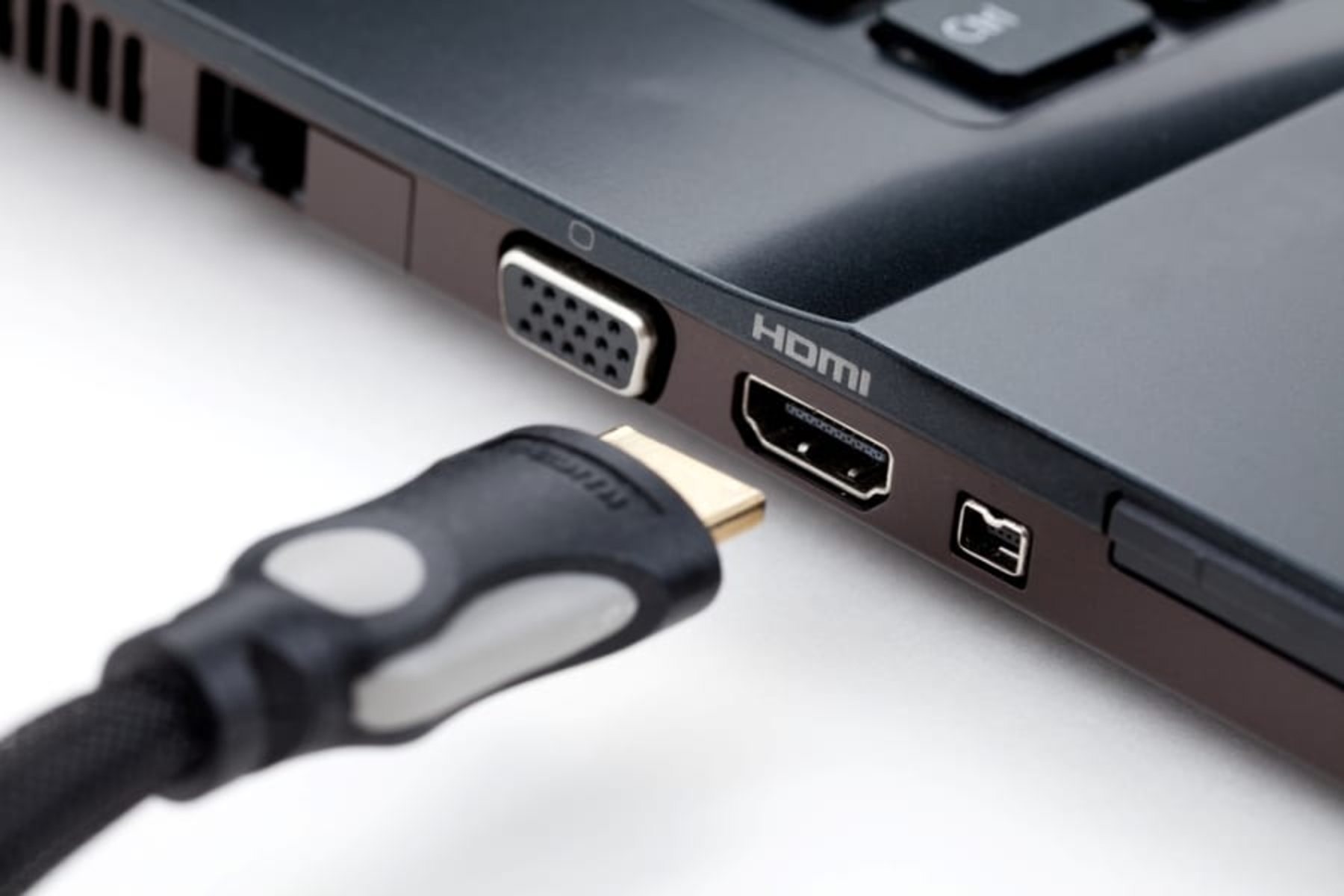
If changing the display mode does not resolve the issue, inspect the cable. Power off both your device and your display. Check both ends of the HDMI cable to ensure they are fully inserted into their respective ports. Give the cable a gentle wiggle to make sure it is snugly in place. Inspect the cable itself for any signs of damage or fraying. Turn on both devices and test the connection. If available, try connecting the HDMI cable to a different HDMI port on your display device to rule out a loose or faulty port.
Test with a different cable or device
To isolate the problem, test the suspect cable on another known-good device. Disconnect the HDMI cable from the original device and plug it into a different television, monitor, or computer that you know works. If the cable works fine on the new device, the issue likely lies with the original device's HDMI port. If the cable still shows only the background on the new device, the cable itself is faulty and should be replaced. Conversely, test a known-good cable on the original device; if that works, the original cable was the problem.
Update your graphics drivers as a last resort
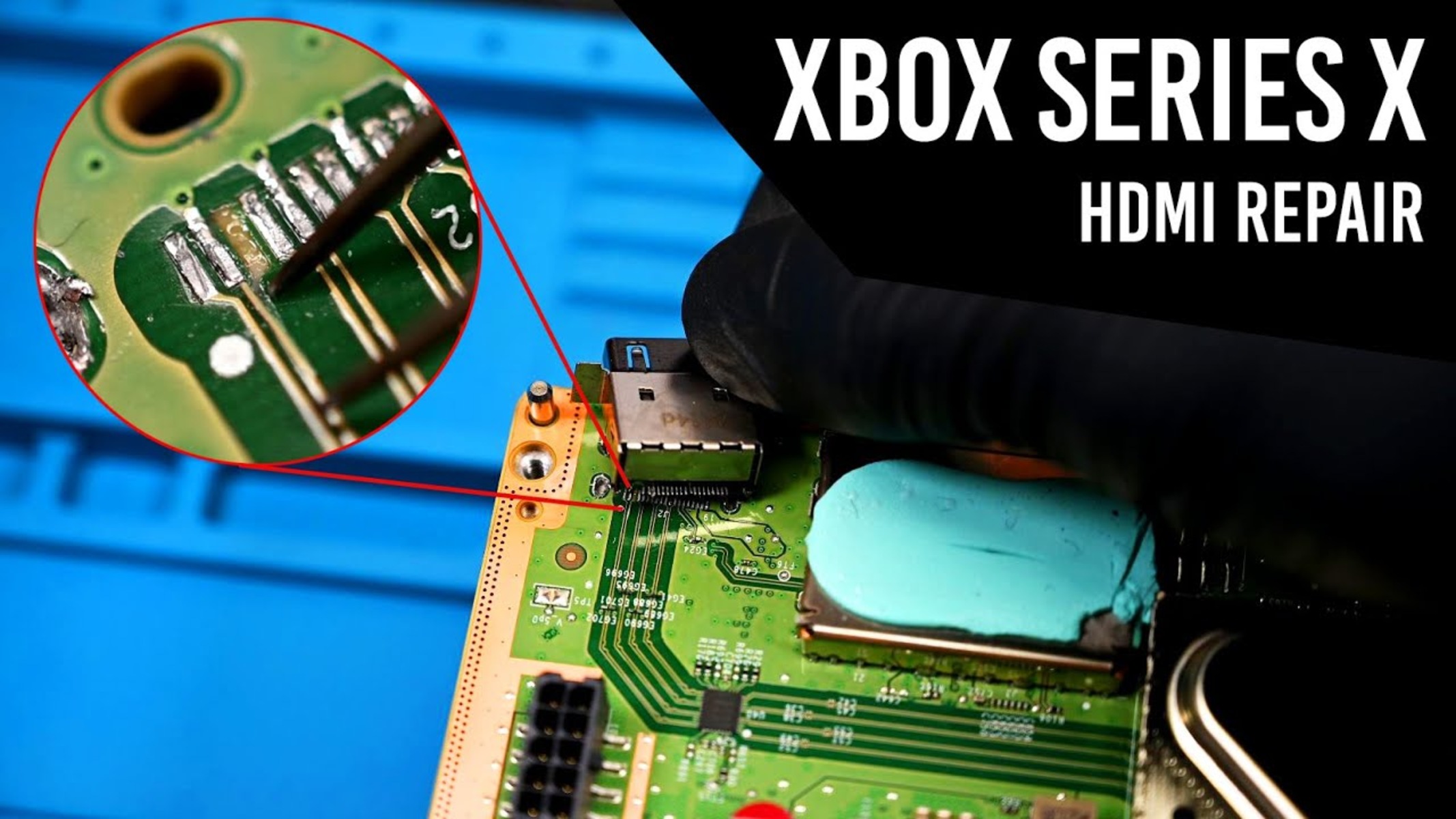
Keeping your display drivers updated is a recommended troubleshooting step for resolving display issues. Identify your graphics card manufacturer (NVIDIA, AMD, or Intel) through your device settings. Visit the manufacturer's official website, navigate to the support or drivers section, and download the latest drivers for your specific graphics card model and operating system. Run the driver installation package and restart your computer. After updating, reconnect your HDMI cable and test the connection. If you are troubleshooting a console, note that the same principle applies; for example, you may need to fix HDMI port on Xbox series X by ensuring the port is clean and the cable is secure, but physical damage might require you to fix Xbox series s HDMI port if the connector is loose or broken, while driver updates on a PC can resolve underlying software incompatibilities that cause the background-only issue.