To change resolution on an LG monitor, right-click your Windows desktop and select "Display Settings," then choose your desired resolution from the dropdown menu. This is the quickest way to fix blurry text or optimize display quality on any LG monitor connected to a PC.
How to change resolution on an LG monitor using Windows
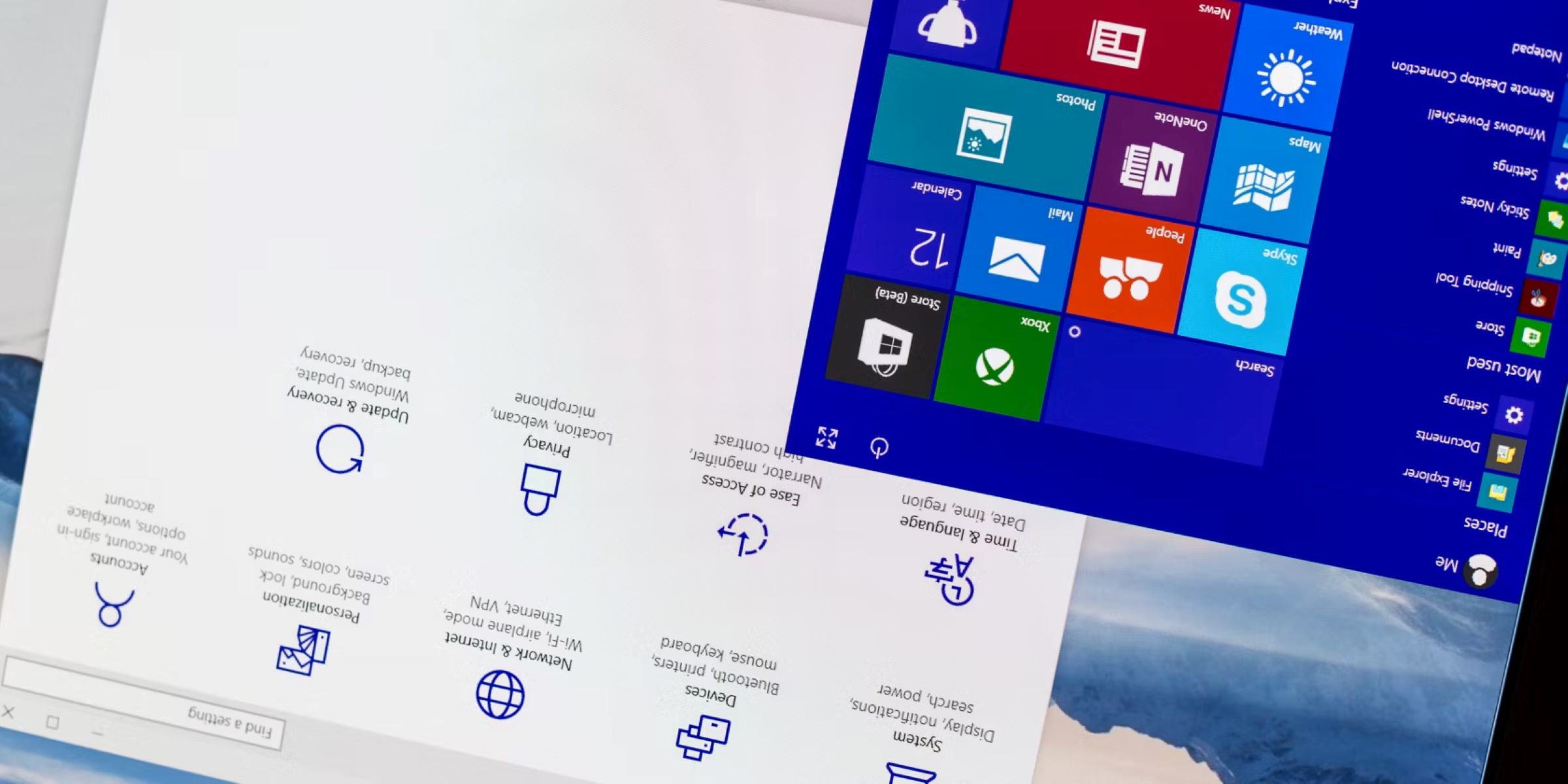
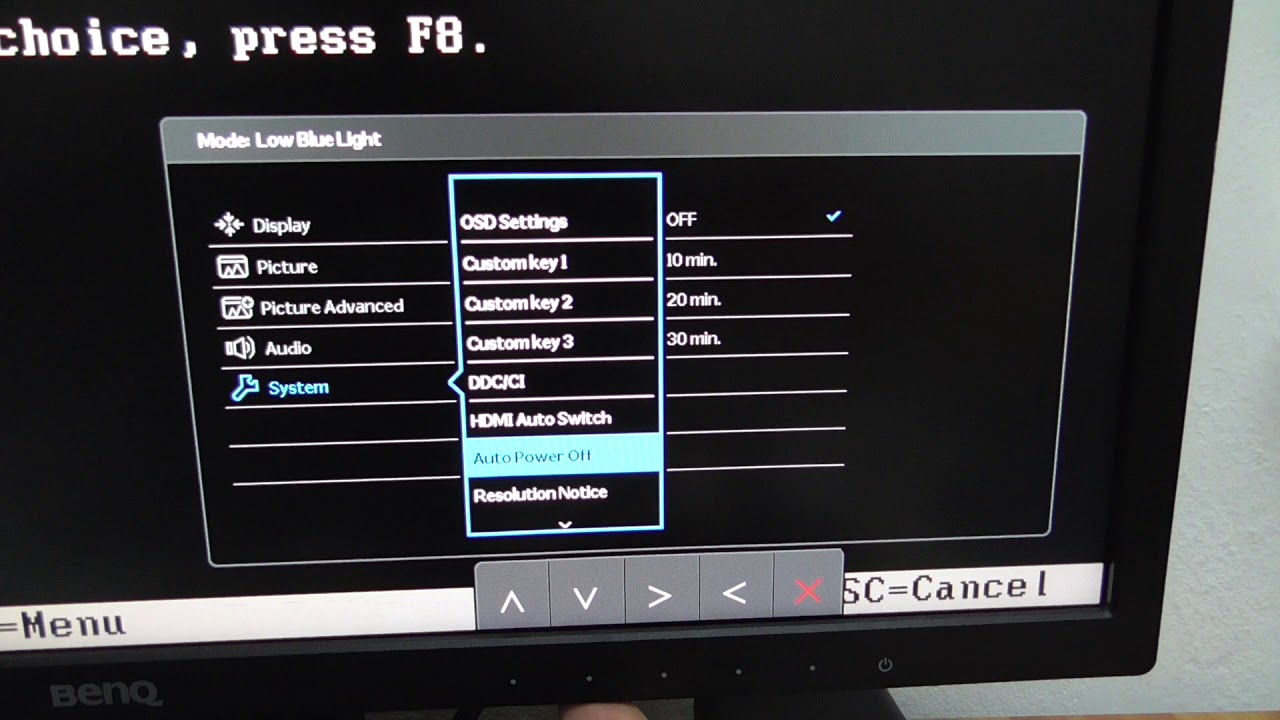
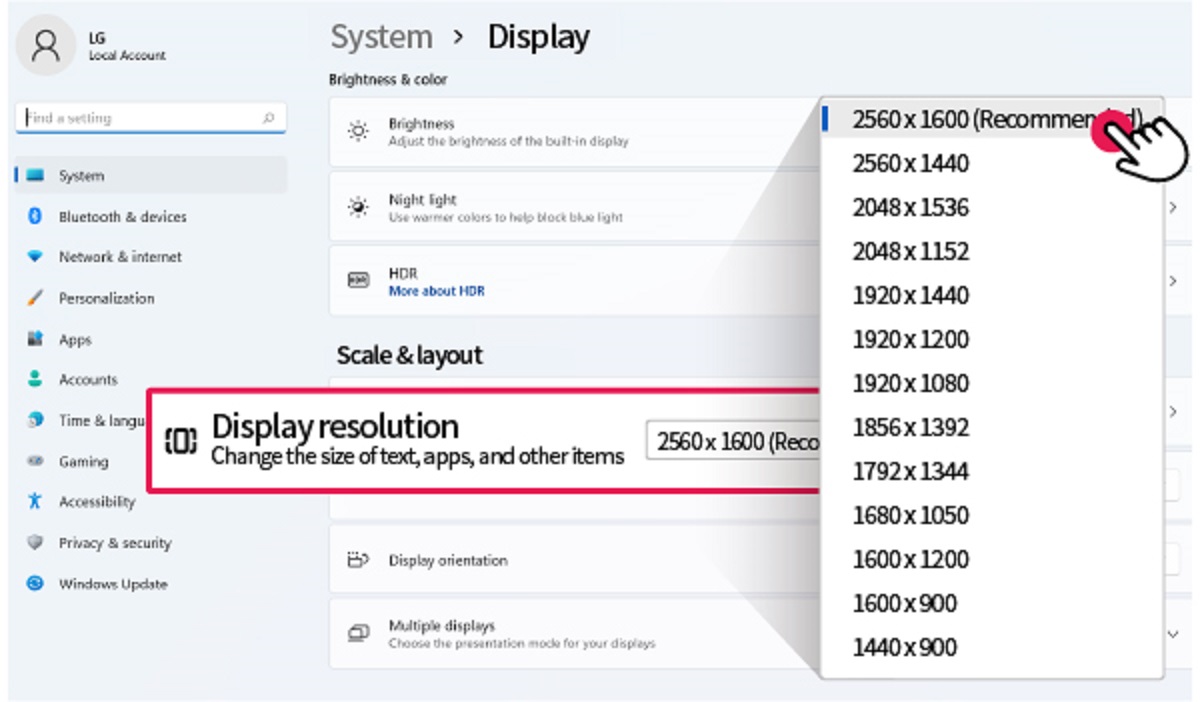
The display settings on Windows control the resolution for your LG monitor, not the monitor's physical buttons. Start by right-clicking anywhere on your desktop, avoid clicking on icons or open windows, and select "Display Settings" from the context menu. This opens the display configuration panel where all resolution options are managed.
In the Display Settings window, locate the "Display resolution" dropdown menu. Click it to see a list of supported resolutions for your LG monitor. Windows automatically detects which resolutions your monitor and graphics card can handle together. Select the resolution marked "(Recommended)" for the best visual clarity, as this matches your monitor's native pixel count. If you choose a lower resolution, text and icons will appear larger but less sharp; a higher resolution than recommended may not be listed or could cause display issues.
After making your selection, click "Keep changes" when prompted. Windows applies the new resolution immediately. If the screen goes blank or looks distorted, wait about 15 seconds, Windows will revert to the previous setting automatically. You can also press the Escape key to cancel the change.
Adjusting the refresh rate for smoother motion
Refresh rate, measured in hertz (Hz), determines how many times your LG monitor redraws the image each second. A higher refresh rate makes motion appear smoother, which is especially noticeable when scrolling through documents or playing fast-paced games. To adjust it, go back to Display Settings and scroll down to "Advanced display settings." Click this option, then select "Display adapter properties for Display 1" at the bottom of the page.
A new window opens with multiple tabs. Click the "Monitor" tab, then find the "Screen Display rate" dropdown menu. Choose the highest refresh rate your LG monitor supports, common options include 60Hz, 75Hz, 120Hz, or 144Hz, depending on your model. Click "OK" to apply the change. If the monitor flickers or goes blank, Windows will revert after a few seconds. Note that higher refresh rates may require a DisplayPort or HDMI cable that supports the bandwidth, and your graphics card must also support the selected rate.
What to do if the recommended resolution is missing
If the recommended resolution does not appear in the dropdown, or if text on your LG monitor looks blurry even after selecting a resolution, the problem usually lies with your graphics drivers rather than the monitor itself. This happens when Windows uses a generic display driver that doesn't know your monitor's full capabilities.
Updating your graphics card drivers to the latest version is crucial for ensuring all resolution options are available and for correcting display issues. Visit the website of your graphics card manufacturer, Nvidia, AMD, or Intel, and download the latest driver for your specific GPU model. Alternatively, use Windows Update: go to Settings > Windows Update > Check for updates, then look for optional driver updates. After installing the new driver, restart your PC and check if the recommended resolution now appears in Display Settings.
If the resolution is still missing, verify your connection cable. A damaged or low-quality HDMI, DisplayPort, or DVI cable can prevent the monitor from reporting its native resolution to Windows. Try a different cable or port on your graphics card. Also, check your LG monitor's product manual or the LG support website to confirm the optimal resolution for your specific model, this information is always listed in the specifications section.
Changing resolution for gaming consoles and external devices
If you connect a gaming console like a PS5 or Xbox Series X to your LG monitor, you cannot change the resolution through Windows, those devices have their own display output settings. The monitor simply receives whatever signal the console sends, so resolution adjustments must be made within the console's own picture output settings menu. On a PS5, navigate to Settings > Screen and Video > Video Output, then select the resolution under "Resolution." On Xbox, go to Settings > General > TV & display options and choose the resolution from the dropdown.
The same principle applies to other external devices like streaming sticks, Blu-ray players, or laptops connected via HDMI. Each device controls its own output resolution. Your LG monitor will display whatever resolution the connected device sends, as long as it's within the monitor's supported range.
\nRelated reading: How To Flip Screen On Windows and How To Reset A Monitor.