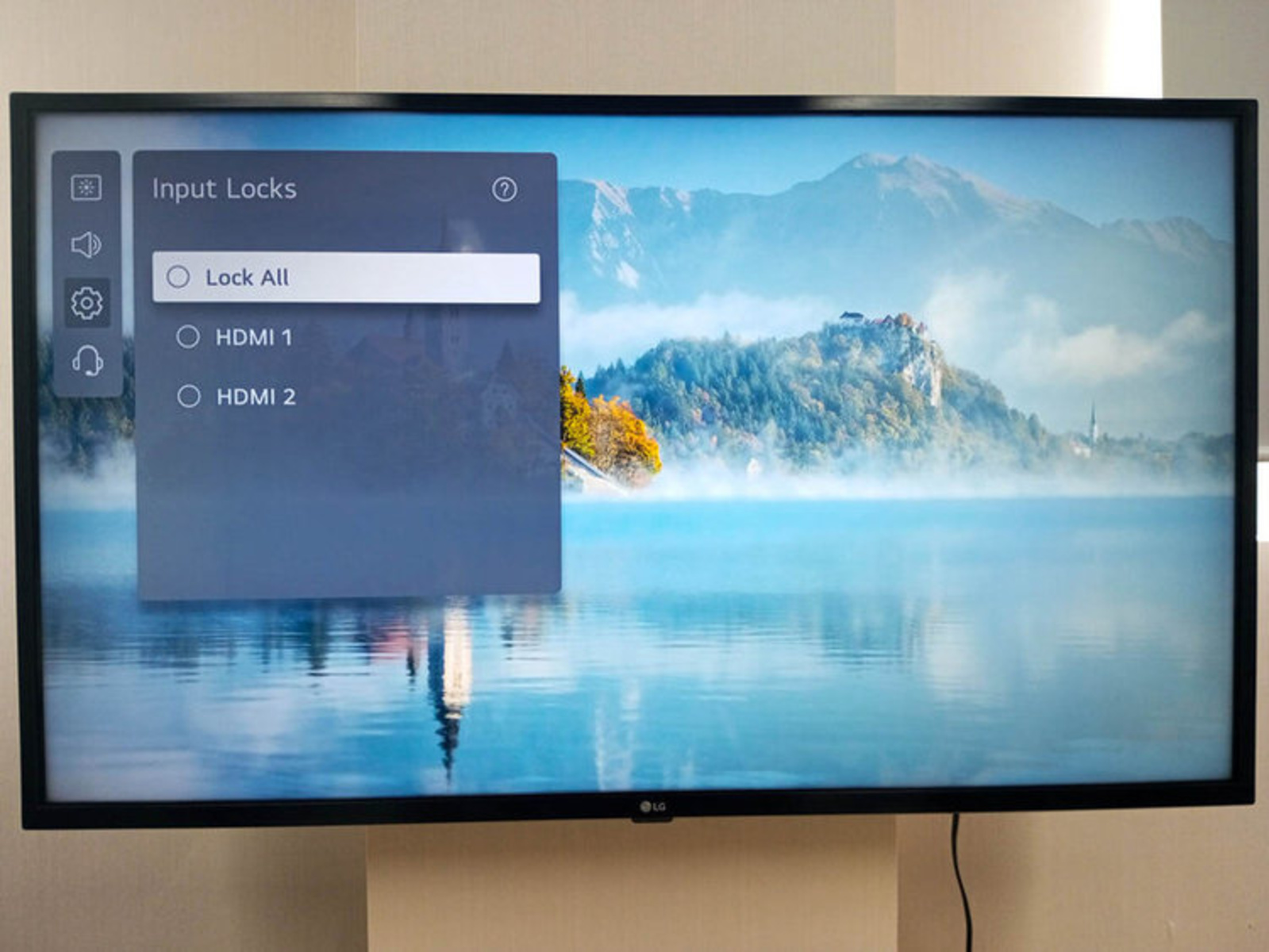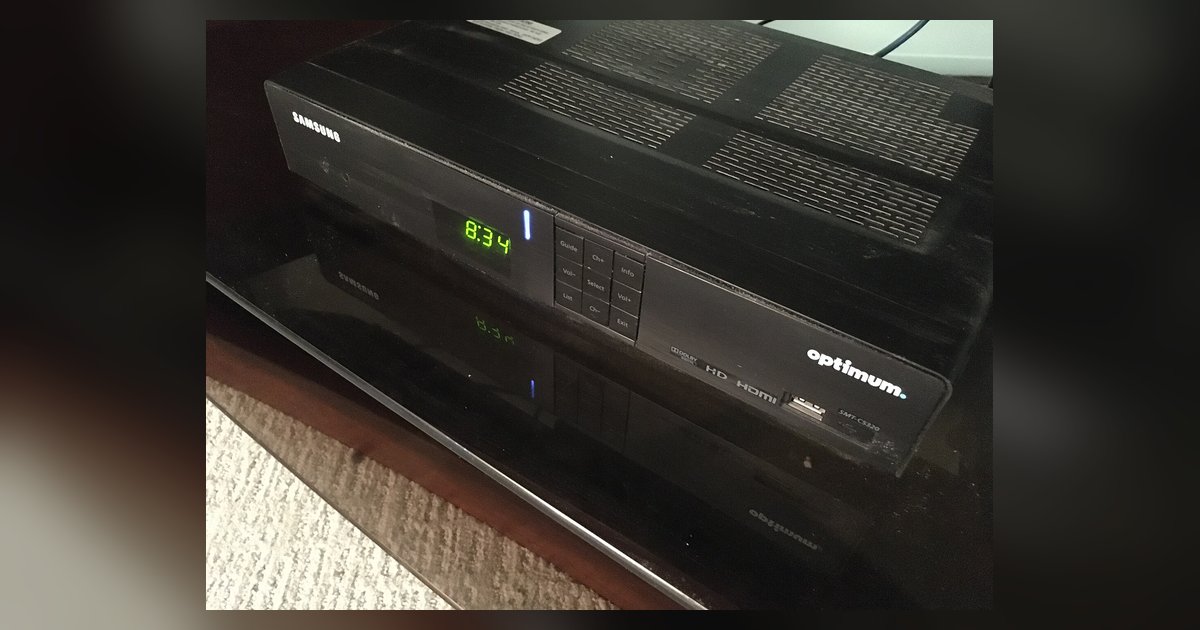
If your LG TV shows no signal with a cable box connected, unplug both the cable box and the TV from the wall outlet for a full sixty seconds. After the minute passes, plug the TV back in first, wait for it to fully boot, then reconnect the cable box. Select the correct HDMI input on your LG TV and check for video. This forces both devices to re-negotiate the HDMI link from scratch, and if you skip the full minute, the box may retain the same locked resolution that caused the problem.
Check the HDMI cable and port on your LG TV
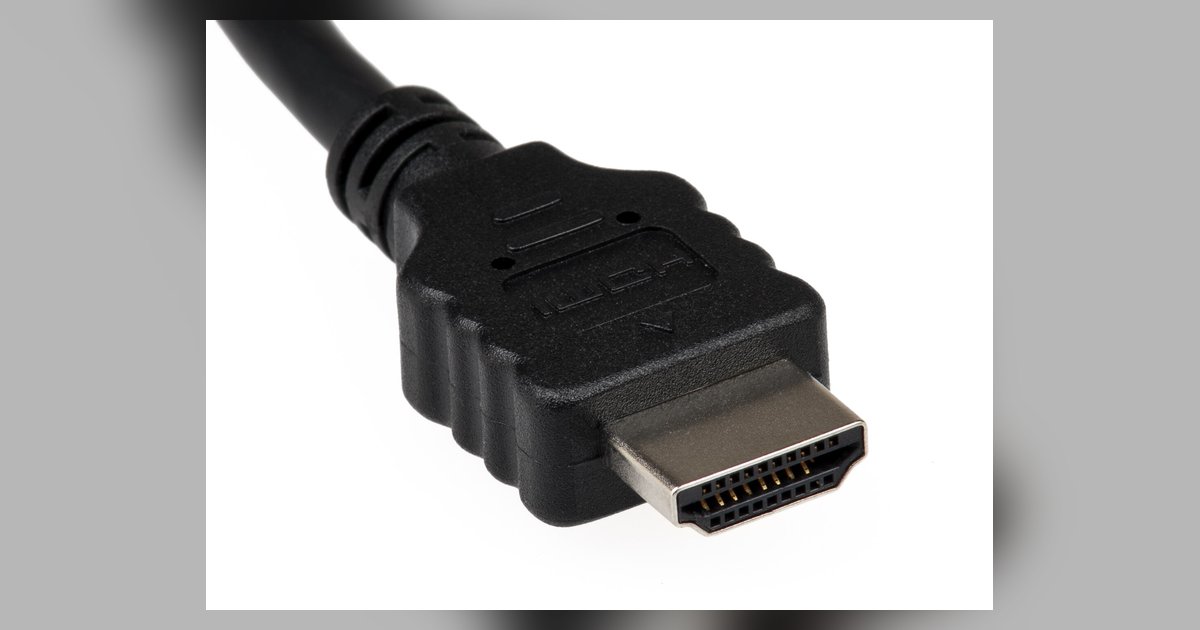
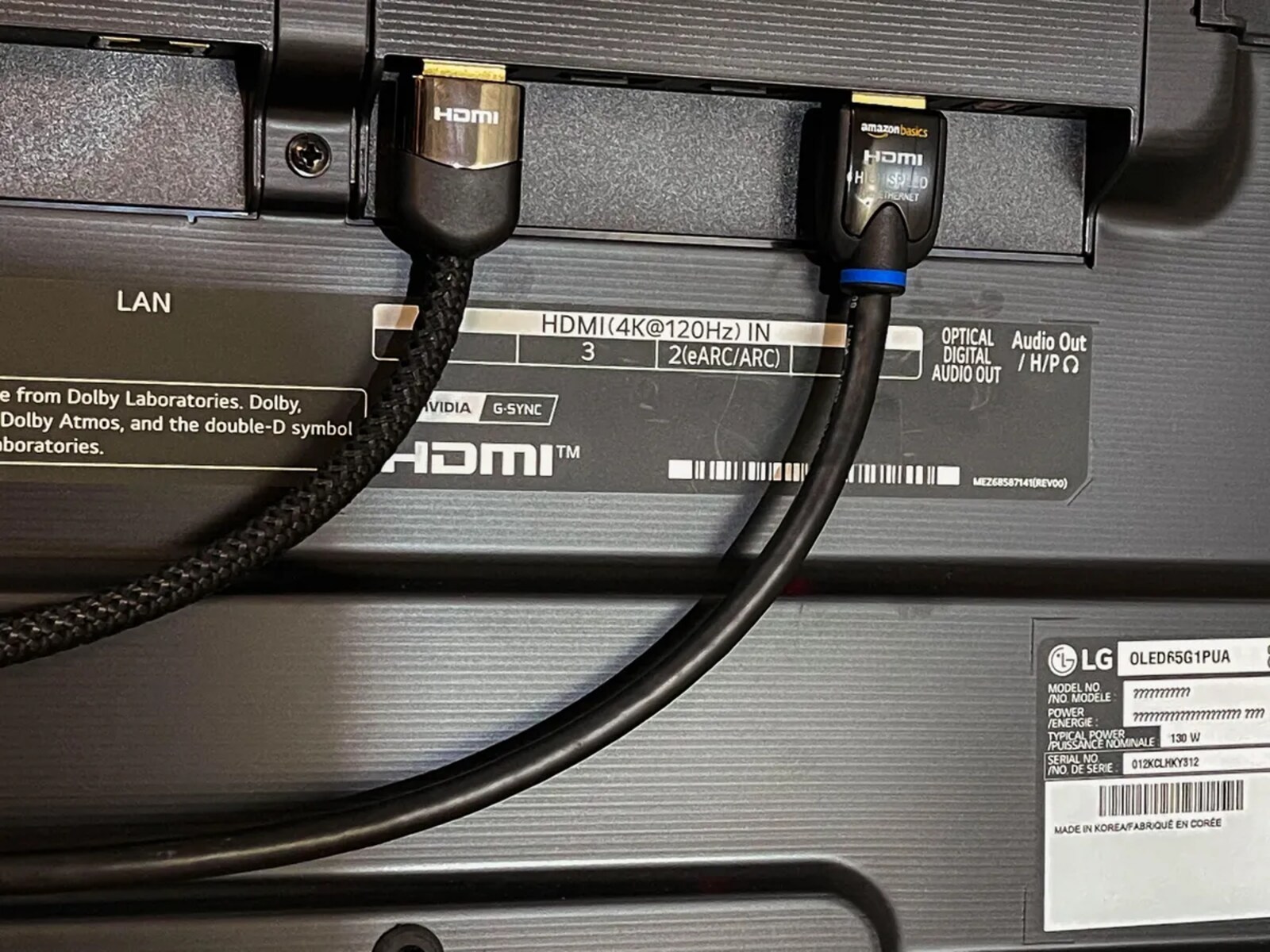
Push the HDMI connector firmly into both the cable box and the TV port until you feel a click. Move the cable to a different HDMI port on your LG TV to rule out a single failed port. If the signal appears on another port, book a repair for the original port and use the working one in the meantime. If no port works, swap the HDMI cable itself for a known working one, ideally a high-speed cable rated for 18Gbps or higher. A bent pin or internal wire break can block video entirely while still passing audio or power.
Blind-reset the cable box output resolution
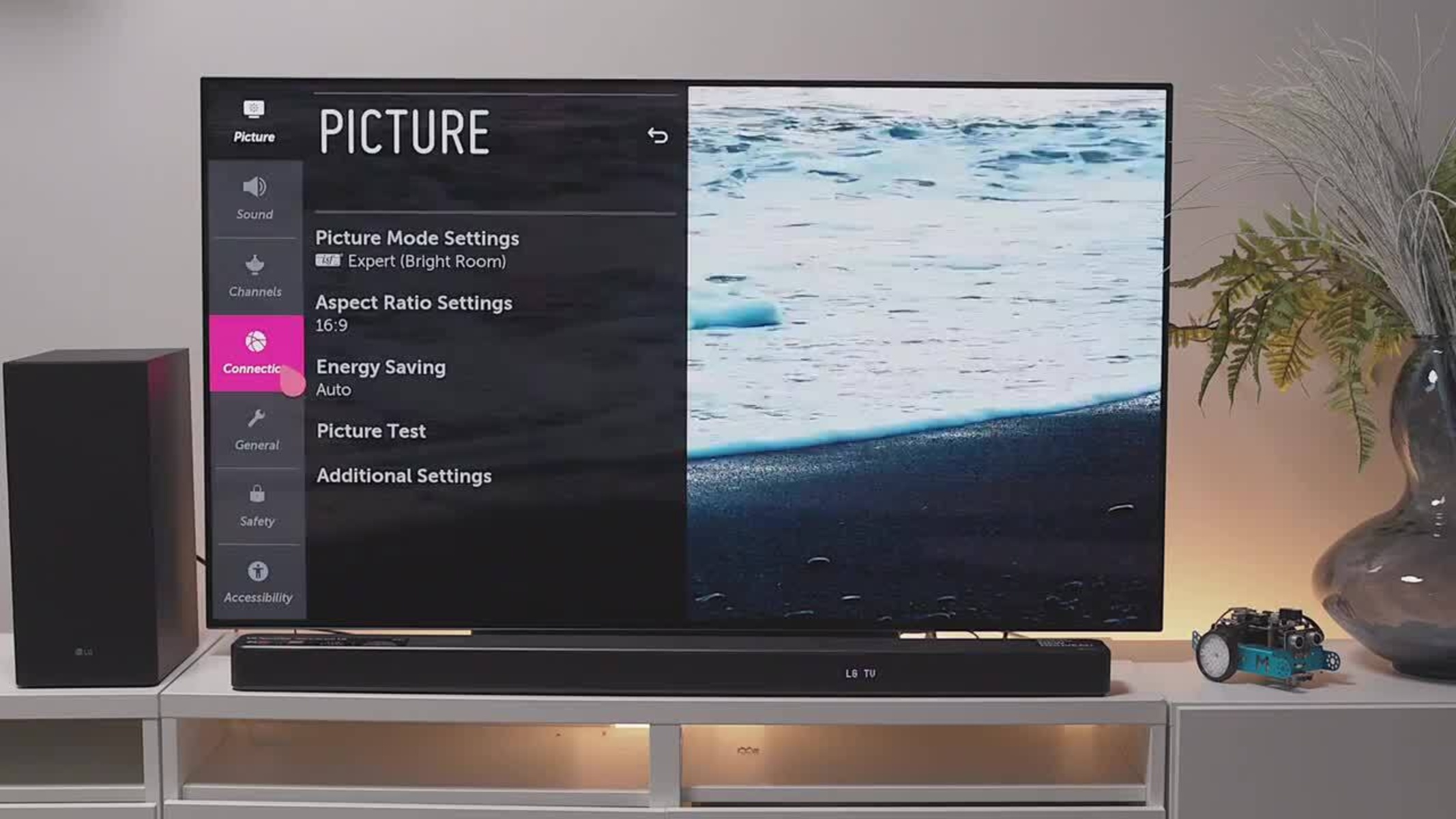
Your cable box may be set to a resolution your LG TV cannot display, such as 4K at 60Hz on an older TV that only supports 1080p. Blind-navigate the box menu by pressing the Menu or Settings button on the cable remote, then navigate to the resolution settings and press OK. If that fails, connect the cable box to a different TV that can show the menu, change the output to Auto or 1080i, then reconnect it to your LG TV. If you need to verify the physical setup first, learn how to connect cable box to LG smart TV properly before adjusting advanced settings. While troubleshooting, remember that the channels available on an LG smart TV through the built-in tuner are separate from your cable subscription, so scanning the TV's internal tuner will not fix a cable box HDMI issue.
Bypass a faulty HDMI port
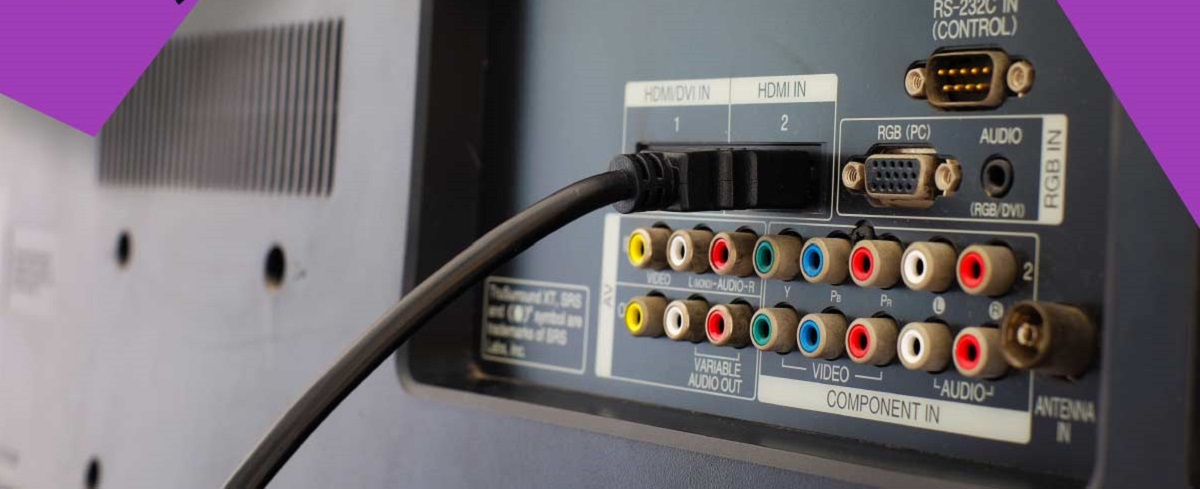
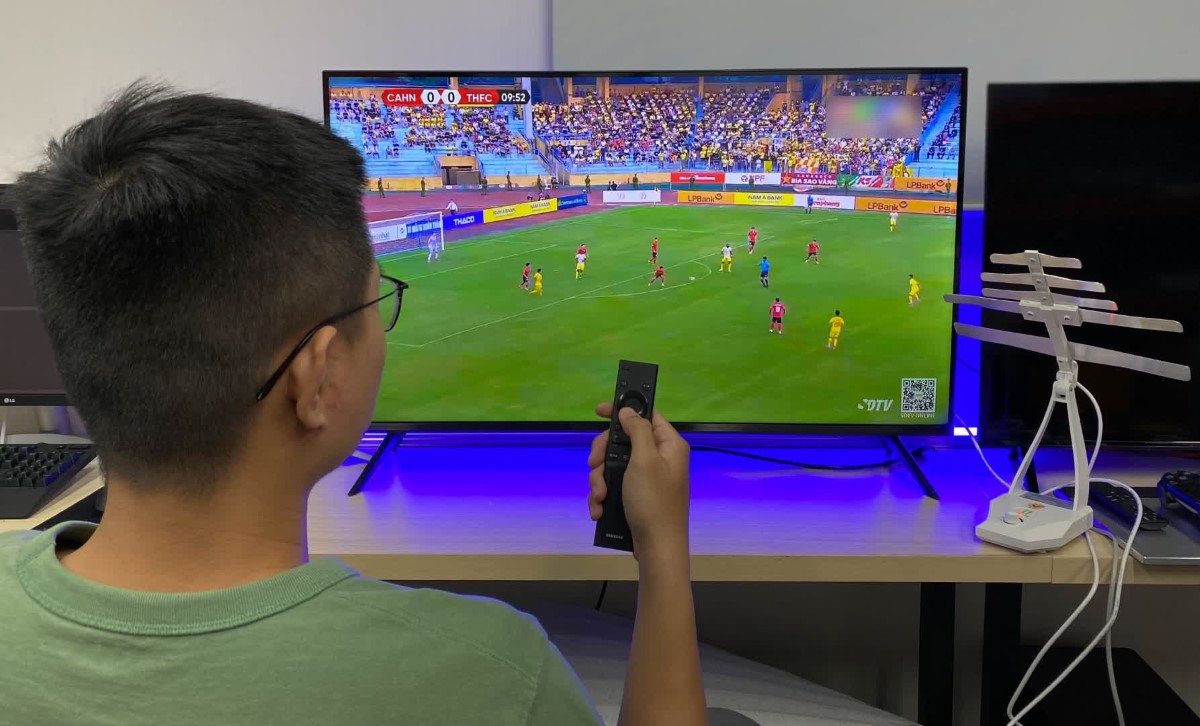
Connect a different HDMI device, such as a Blu-ray player or game console, to the same port to confirm the failure. If that device also shows no signal, skip the port entirely and use component cables, red, green, blue video plus red and white audio, from the cable box to the TV, provided your box and TV both have those inputs. You can also scan for over-the-air broadcasts using the LG smart TV’s internal tuner, but that does not replace your cable box. To get local channels without the cable box, connect an antenna to the TV’s coaxial input and run a channel scan, though you will still need the box to watch encrypted cable channels on LG TV without a box. You can display pictures from a USB drive through the TV’s side port, but that will not affect the HDMI no-signal problem.