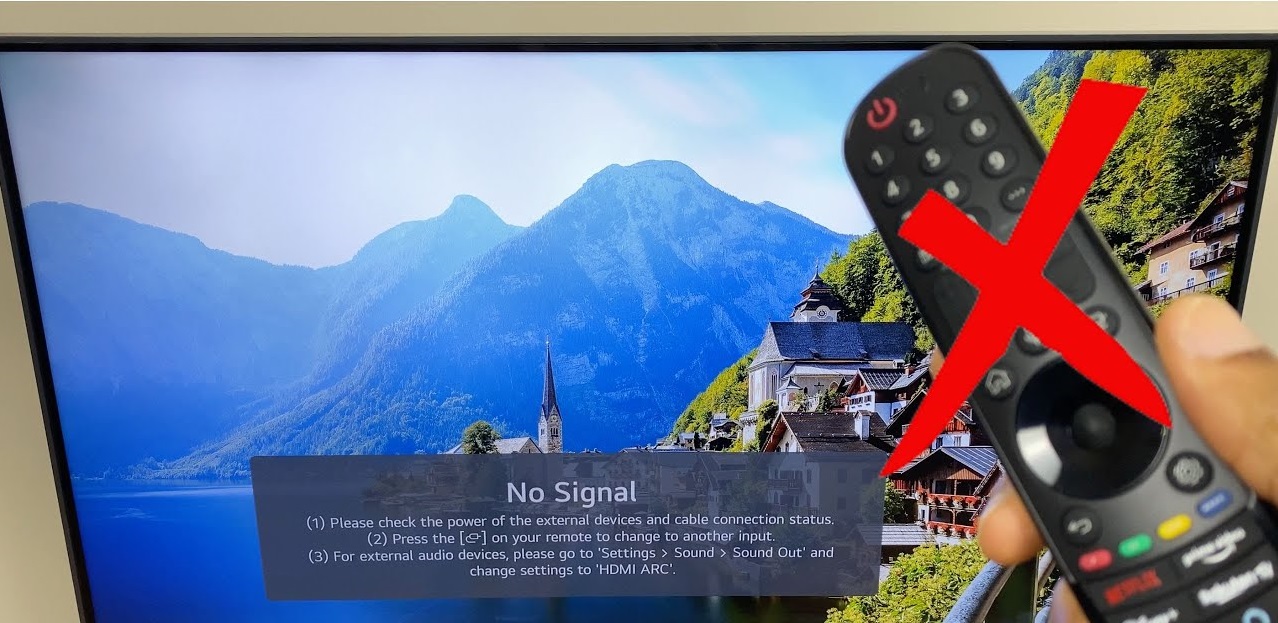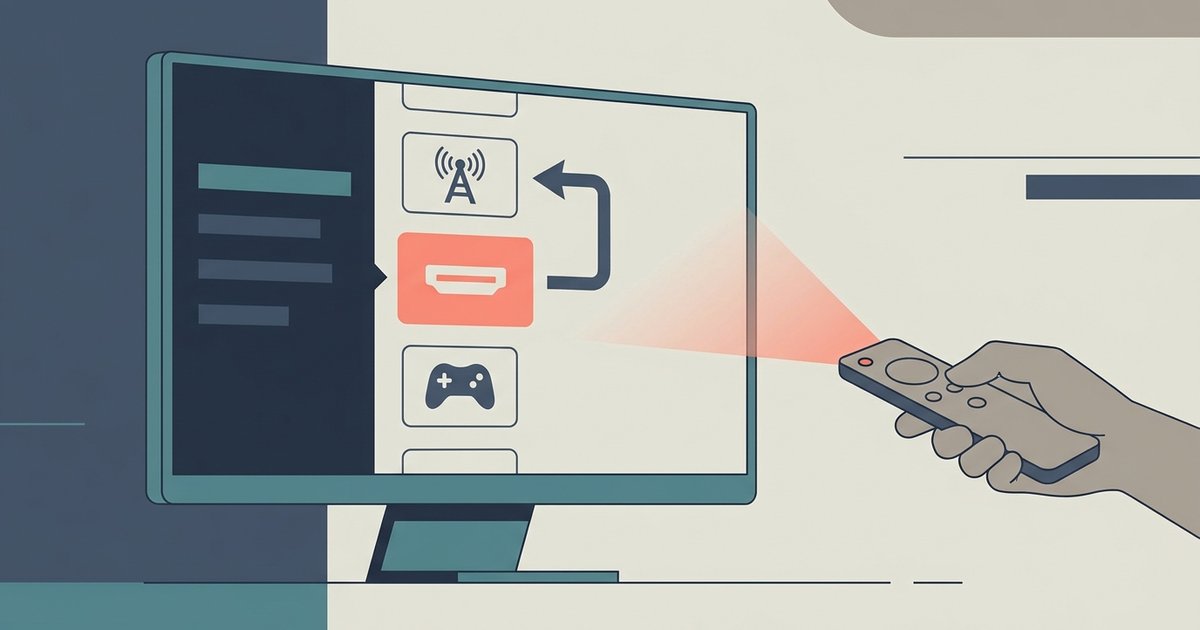
This is almost always caused by a CEC conflict or a bad handshake with the connected device. Disable Simplink (HDMI-CEC) on the LG TV and the external device, or use a premium high-speed HDMI cable to stop the auto-switching.
Disable Simplink to Stop LG TV HDMI Switching
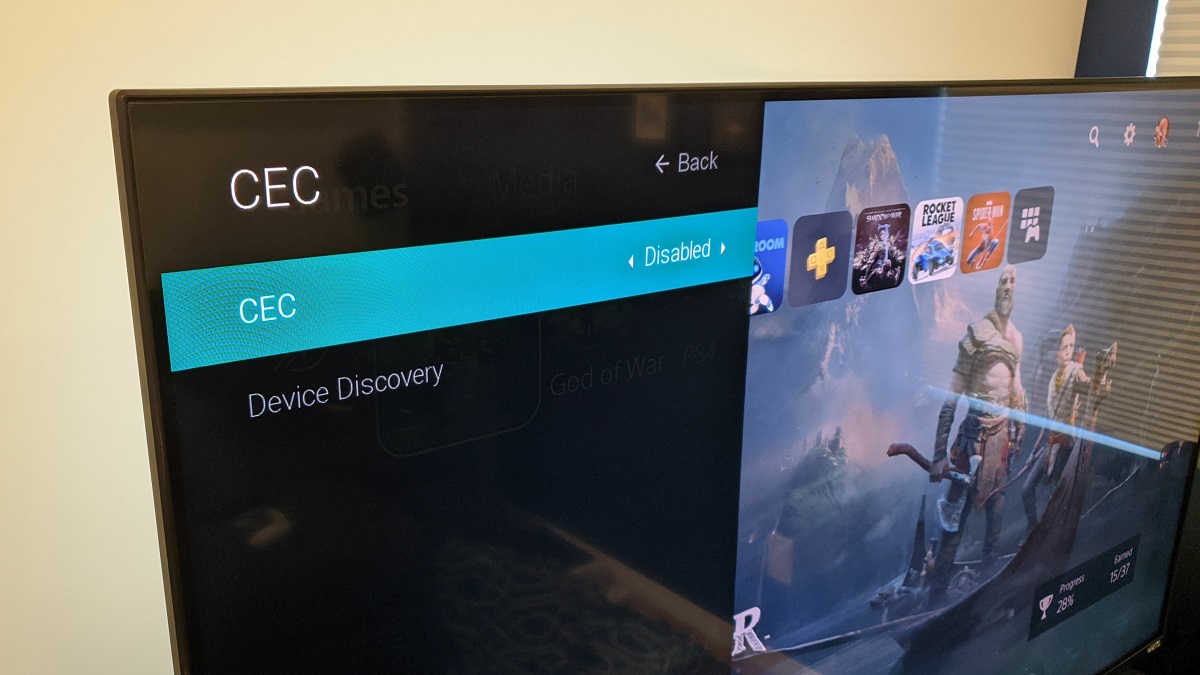
LG’s Simplink feature lets devices control each other over HDMI. When your soundbar, game console, or streaming box sends a "wake up" or "input select" command, the TV obeys. This happens even if you just manually selected a different input. To stop this, press the Settings button on your LG remote. Go to All Settings, then General, then External Devices, then HDMI Settings, and select SimpLink (HDMI-CEC). Toggle Simplink (HDMI-CEC) to Off. You must also disable CEC on the connected device. For a PlayStation 5, go to Settings > System > HDMI > Enable HDMI Device Link and turn it off. For an Xbox, go to General > TV & A/V Options > Device Control and uncheck both "Allow Xbox to turn on/off TV" and "Allow Xbox to switch to HDMI input." If you need to change HDMI on LG TV after disabling Simplink, the manual input button still works. That button is labeled "INPUT" or the gear icon on the remote. It just won’t be overridden by the external device anymore.
The 'Dead Source' Auto-Detection Trap
Even with Simplink off, the TV can jump back to the home screen when the connected device is powered down or in deep sleep. LG’s input detection logic scans active HDMI ports every few seconds. If it senses no signal from the source, the TV assumes the port is "dead." It then automatically reverts to the last active internal tuner or home screen. This happens with a Roku stick that went to sleep or a Blu-ray player that shut off. The fix is to ensure the external device stays powered on. For a streaming dongle, use its "always on" USB power setting. For a game console, disable "Energy Saver" or "Auto-Off" timers so the HDMI output remains live even when idle. If the device has a separate HDMI port on a Vizio TV in your setup, note that Vizio’s CEC behaves similarly, and you can confirm the correct input labeling using the HDMI ports on a TV steps. The root cause here is the LG’s aggressive input reversion, not a conflict with another brand. Keep the source awake, and the TV will stay on the HDMI input you chose.
When a New Cable Is the Only Fix
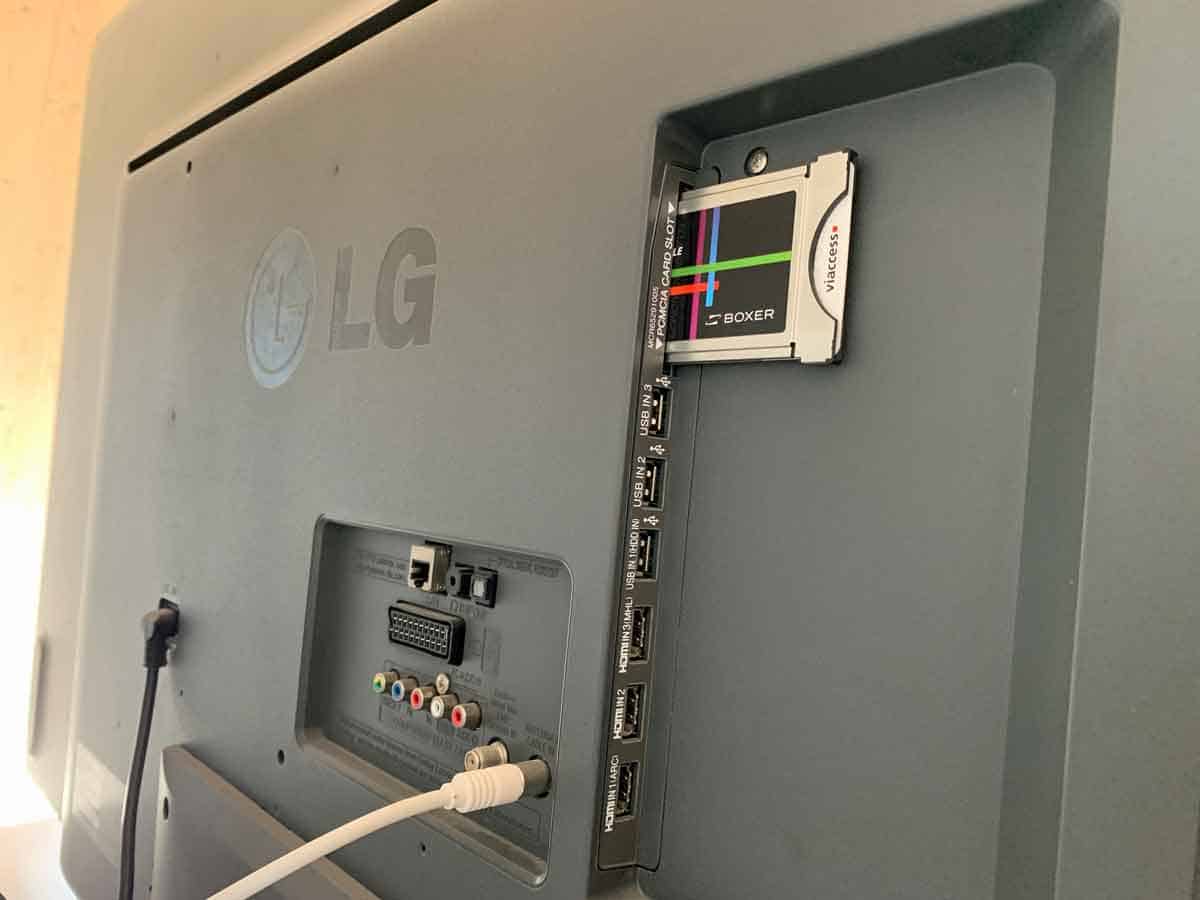
If disabling Simplink and keeping the source powered on still results in the TV bouncing back, the HDMI cable is likely failing the HDCP handshake. HDCP (High-bandwidth Digital Content Protection) is the encryption used by streaming apps and Blu-ray players. A worn, too-long, or substandard cable can’t complete the handshake fast enough. The TV then rejects the input after two or three seconds and reverts to the home screen. This is especially common with 4K HDR sources, which require a high-bandwidth cable rated for 18 Gbps or more. Swap to a certified "Premium High Speed" or "Ultra High Speed" HDMI cable. If your source is a soundbar that routes video through the HDMI ARC port on a Hisense TV or another brand, the same cable failure can occur. On an LG, the ARC port is labeled "HDMI 2 (eARC/ARC)." Test a different port first. If the problem follows the cable, replace it. A cable that works fine for a 1080p signal may choke on 4K HDR, causing the TV to drop the input. For a Samsung TV, the process to change to HDMI is different. The handshake failure behavior is identical: the screen goes black for a moment, then the TV selects live TV. A new cable is the cheapest, fastest fix for this specific failure mode.