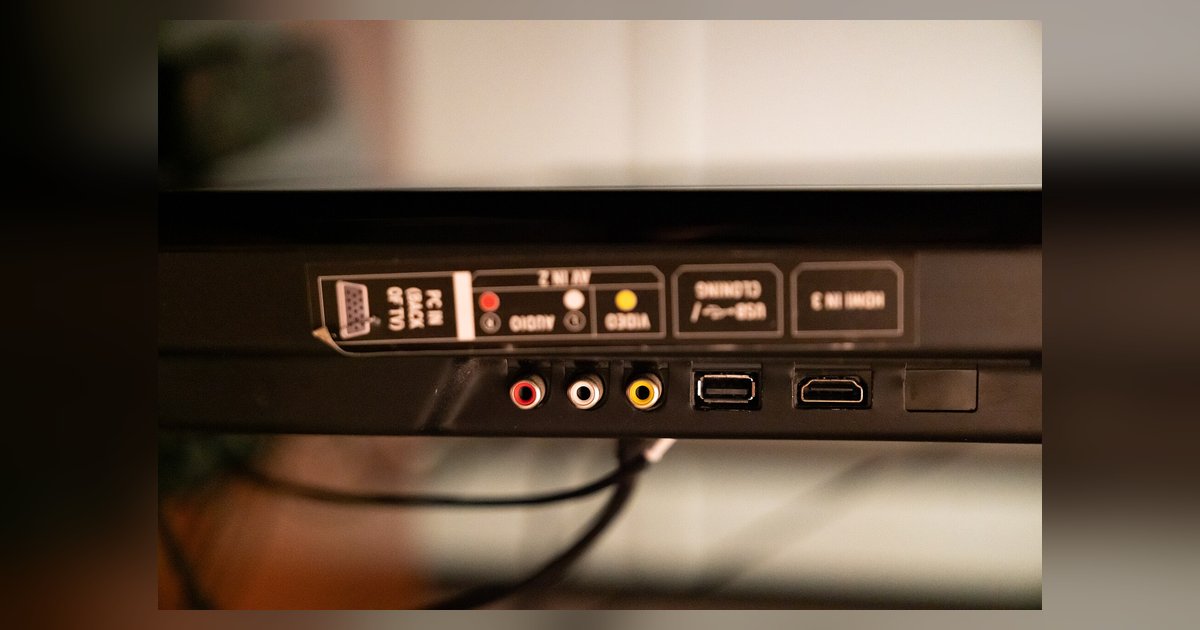
Locate the right TV HDMI ports
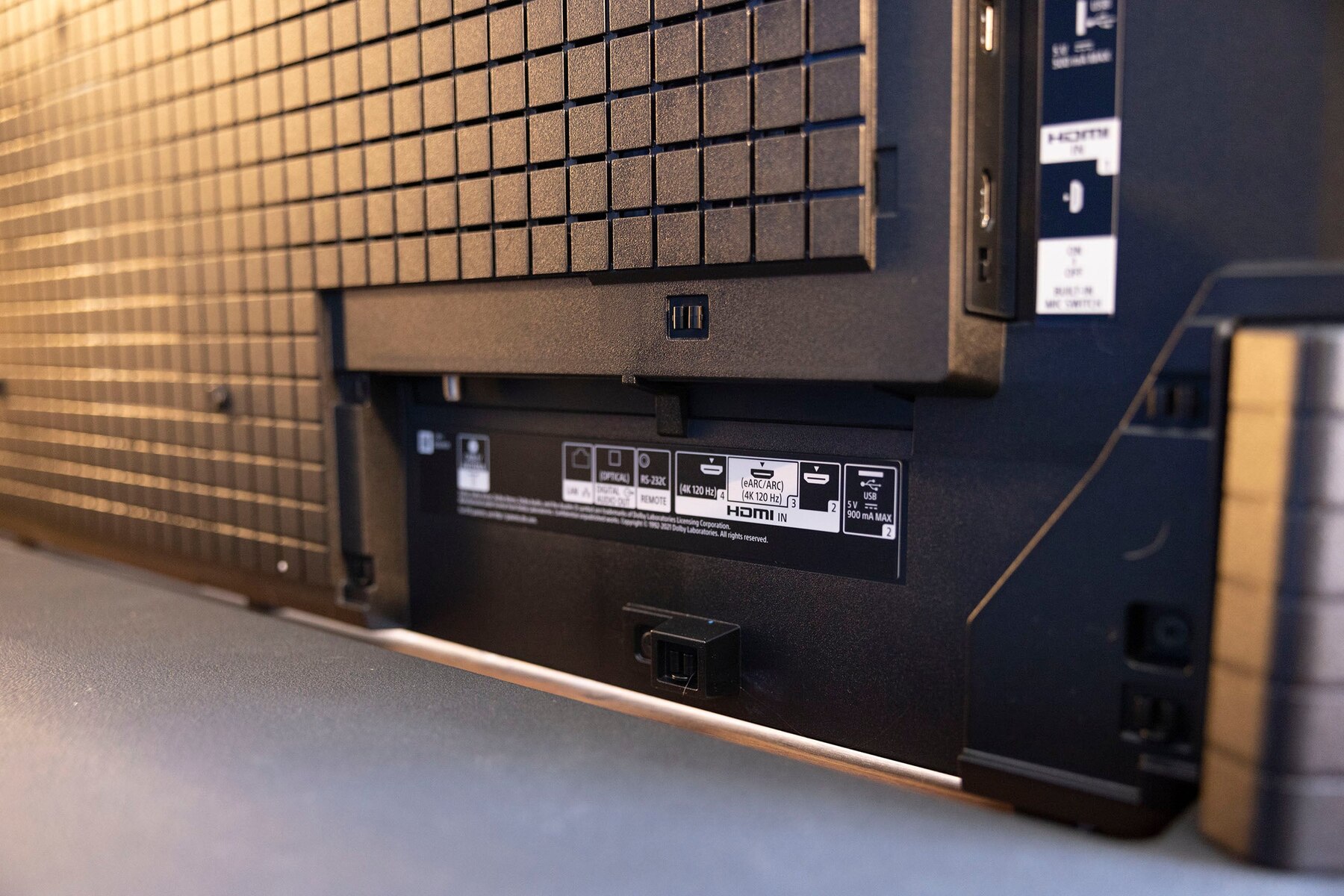
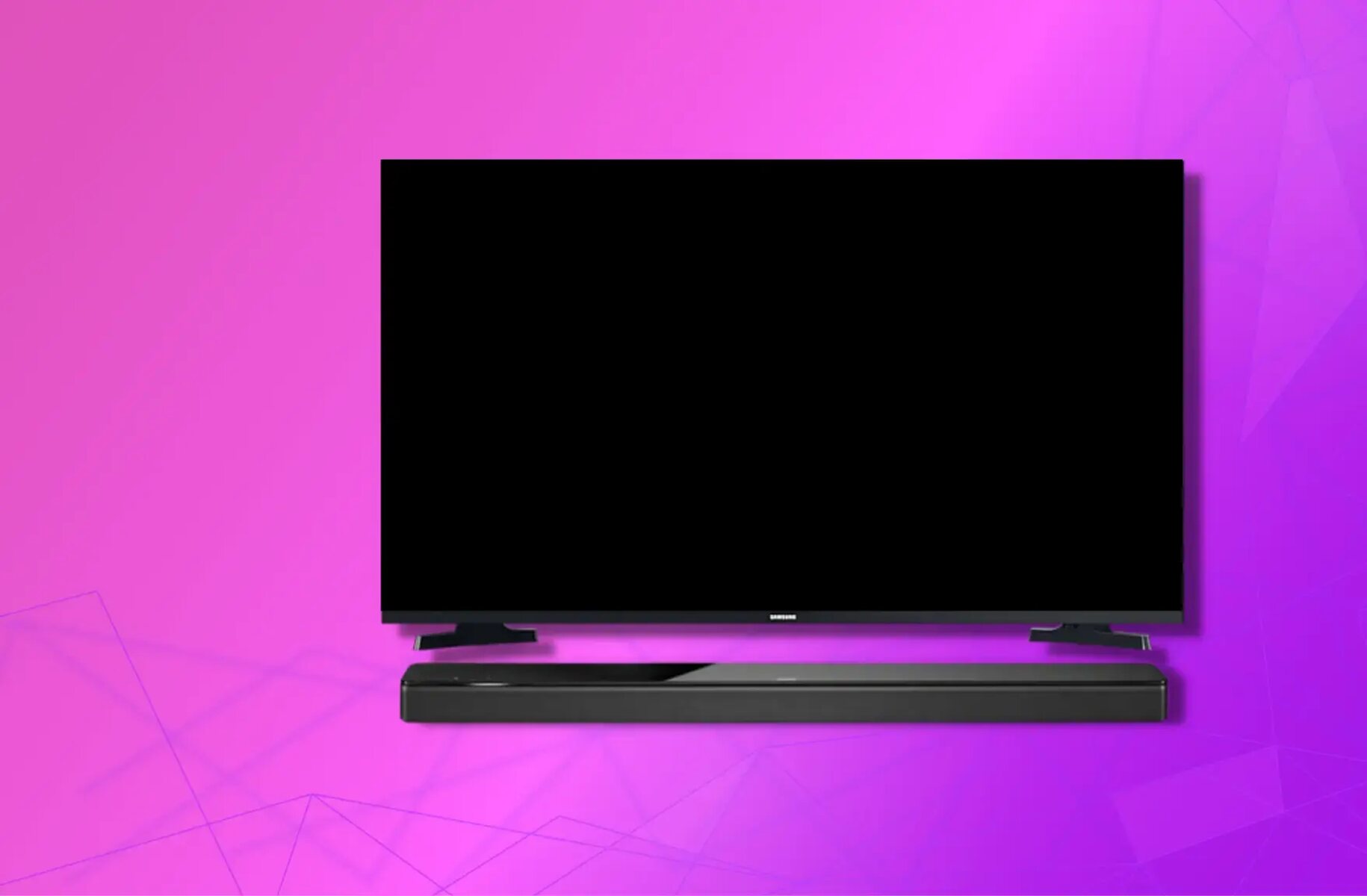
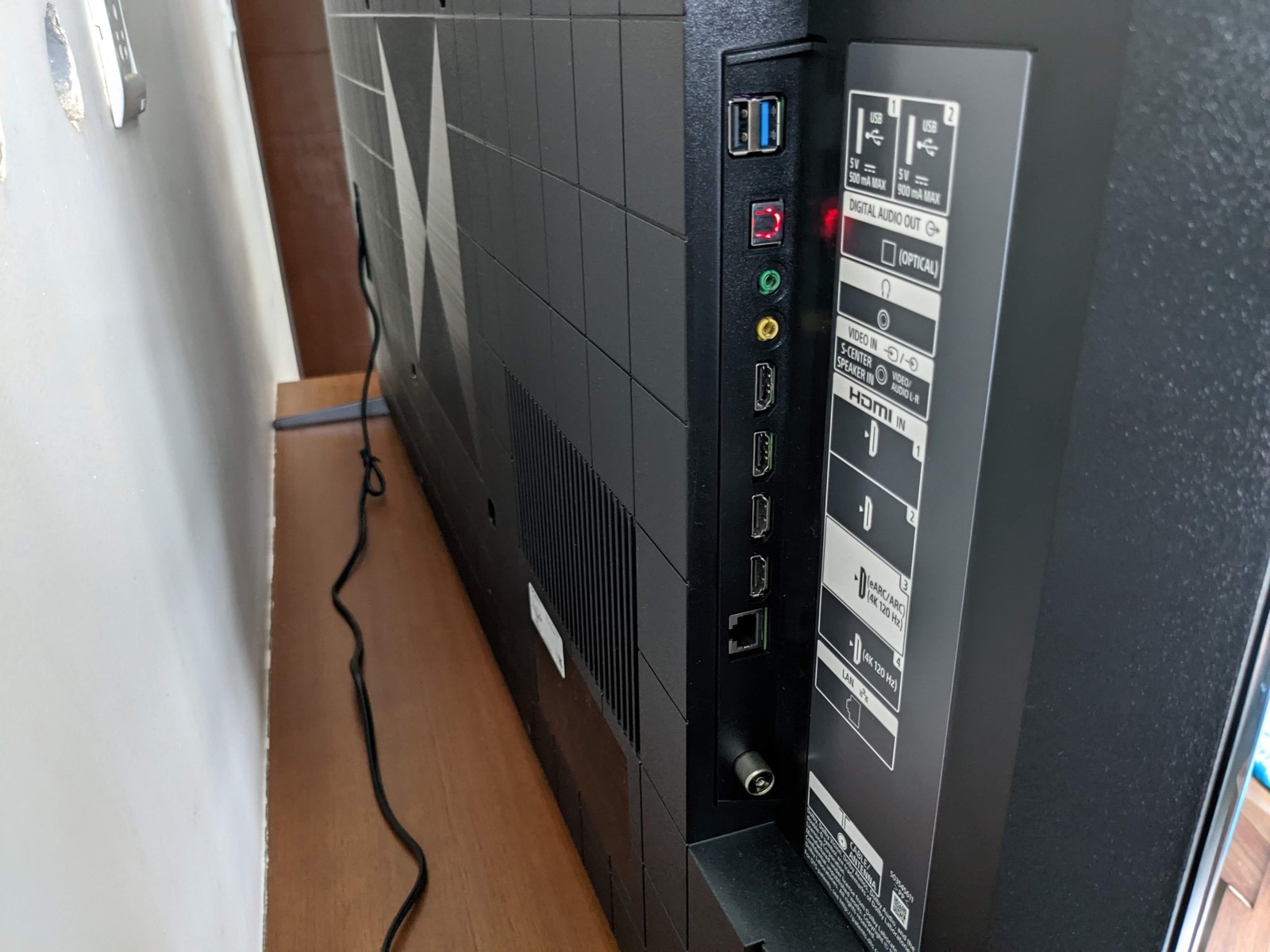
To successfully connect your devices, you must first identify the specific capabilities of your TV HDMI ports. Look closely at the row of ports on the back or side of your TV. They are almost always grouped together, but their capabilities differ. Manufacturers print small labels directly above or below each socket. This text is often in white or gray on the black plastic. If you are trying to connect a soundbar, you need the port marked "ARC" or "eARC." For instance, to find the right connection for an audio device, you can locate the HDMI port on Vizio TV by looking for a port labeled with "ARC" on the panel. Similarly, to send sound from your TV to a receiver, you must identify the HDMI ARC port on Hisense TV. This is clearly stamped with the ARC logo. If you own a Sony set and are wondering which HDMI port is ARC on Sony Bravia, check the port labels on your specific model for the ARC designation. For LG owners, finding the HDMI ARC on LG TV is straightforward. It is marked with the ARC label on the side or bottom edge. To avoid the most common mistake, also verify which inputs support 4K at 60 Hz or 120 Hz. If you need to know which HDMI port is 4K on Sony Bravia, look for the port labeled with "4K 120 Hz" next to the socket. Take a photo with your phone if the labels are hard to read from your normal viewing position. The label text printed directly on the TV panel is the definitive authority, overriding any generic advice found in a manual.
Switch to the HDMI input
Once you have identified which HDMI port to use, the next step is telling the TV to listen to it. Press the **Input** or **Source** button on your remote. It usually shows an icon of a box with an arrow entering it. A row of labels will appear on screen: HDMI 1, HDMI 2, and so on. Scroll to the one you chose earlier and press OK. If you need to change HDMI on LG TV, the process is the same. You might need to press the Settings button first and then navigate to the input or source selection menu. For Samsung owners, to change to HDMI on Samsung TV, you can press the Source button on the remote. You can also use the Home button to open the menu bar and then select the source tile. If you have a satellite or cable box, you can often use its own remote as a shortcut. To change HDMI on dish remote, press the Input or TV Power button that is programmed to control your TV's source. If your remote is broken or missing entirely, you are not stuck. To change to HDMI on element TV without remote, locate the joystick or a small button on the back or bottom edge of the panel. Pressing it cycles through the inputs one by one. For Vizio models, to change HDMI on Vizio TV without the remote, look for a small button labeled Input on the side of the TV. Pressing it steps through each port. In every case, the TV will display a label on screen so you can confirm you have selected the right port.
Fix switching problems in special setups
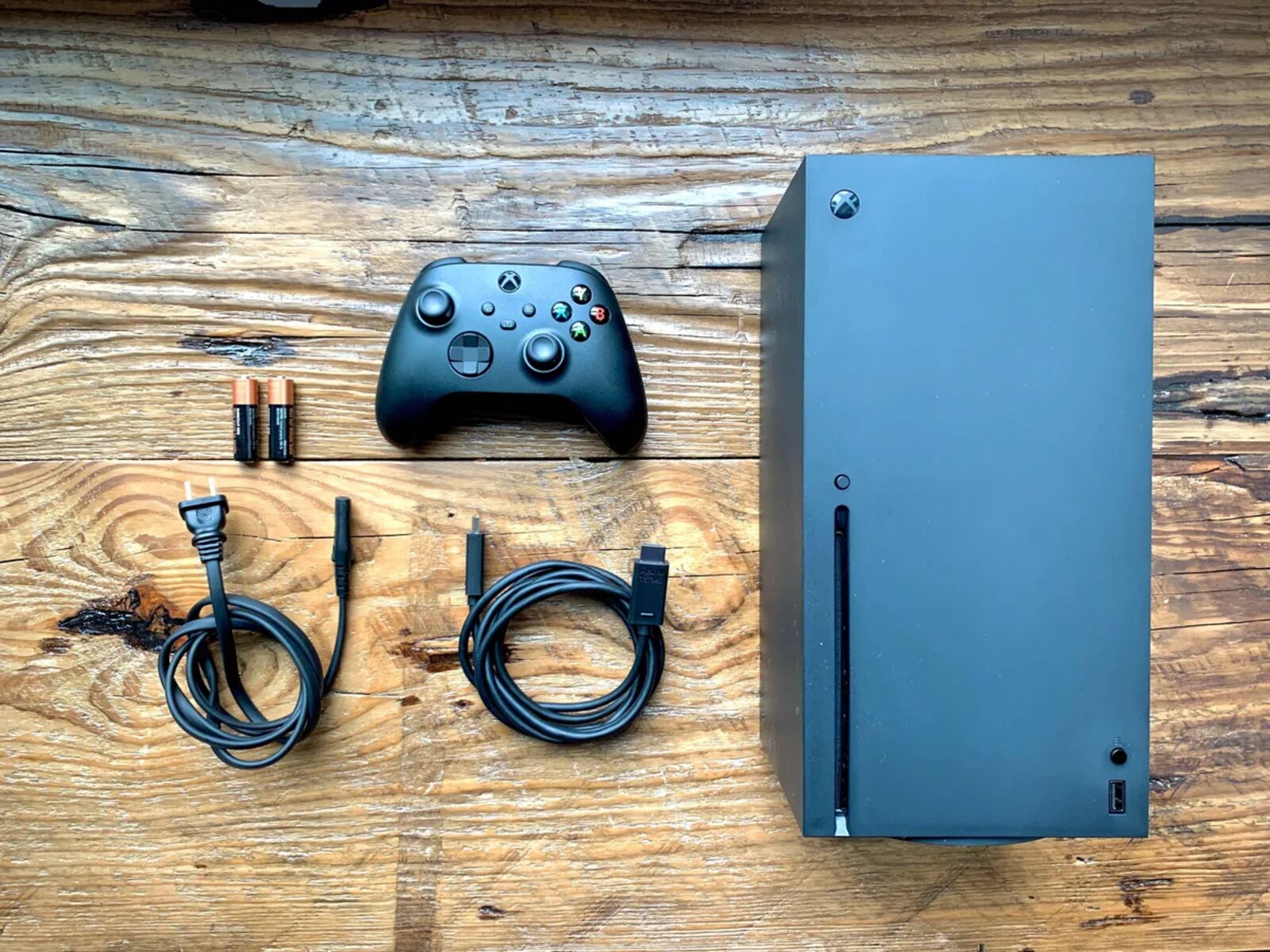
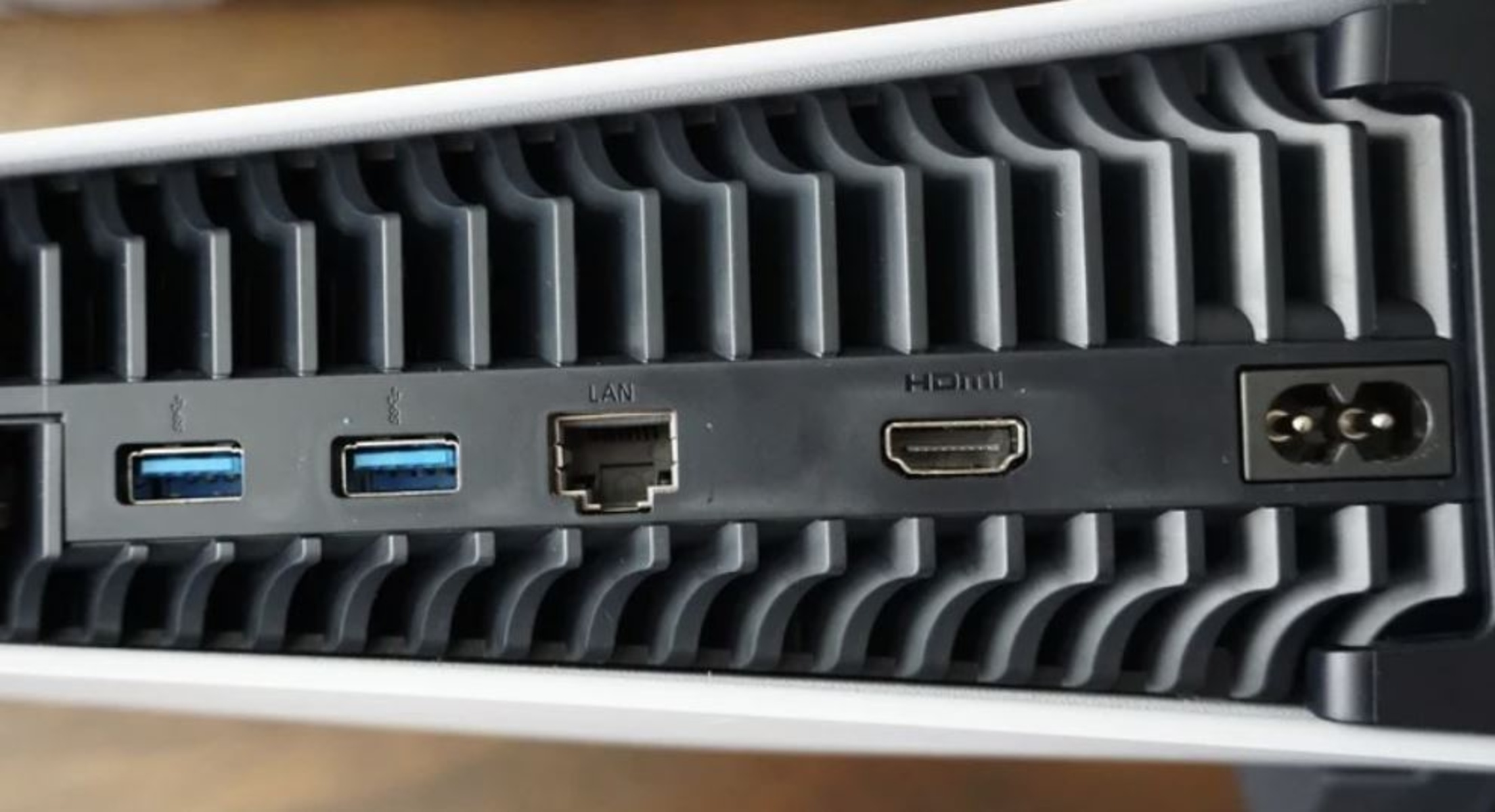
When your TV refuses to stay on the selected HDMI input, the problem is almost always a feature called "Auto Power Off" or "HDMI-CEC." This feature is sometimes branded as Simplink, Bravia Sync, or Anynet+. These features let one remote control multiple devices. However, they also cause the TV to jump back to its internal tuner when a connected device goes to sleep. The fix is to dig into the TV's settings menu and ensure HDMI-CEC is properly configured or, if necessary, turn it off for the problematic device. If you are dealing with a hotel television, the challenge is different. Hotels lock the input selection to prevent guests from unplugging their cable box. For those situations, you might need to search for how to change HDMI on LG TV in hotel. The workaround often involves navigating a hidden service menu or using the remote's "Input" button in a specific sequence. A separate but common frustration occurs when your LG TV keeps switching from HDMI back to TV every few minutes. That is usually caused by the "Auto Device Detection" feature or a faulty HDMI cable that triggers a reconnection handshake. Try swapping the cable first, then disable any "Auto Switch" or "Quick Start+" settings in the TV's general menu. If the problem persists, check whether your streaming stick or game console is set to turn off after a period of inactivity. That sleep signal tells the TV to revert to its last active input, which is often the live broadcast.