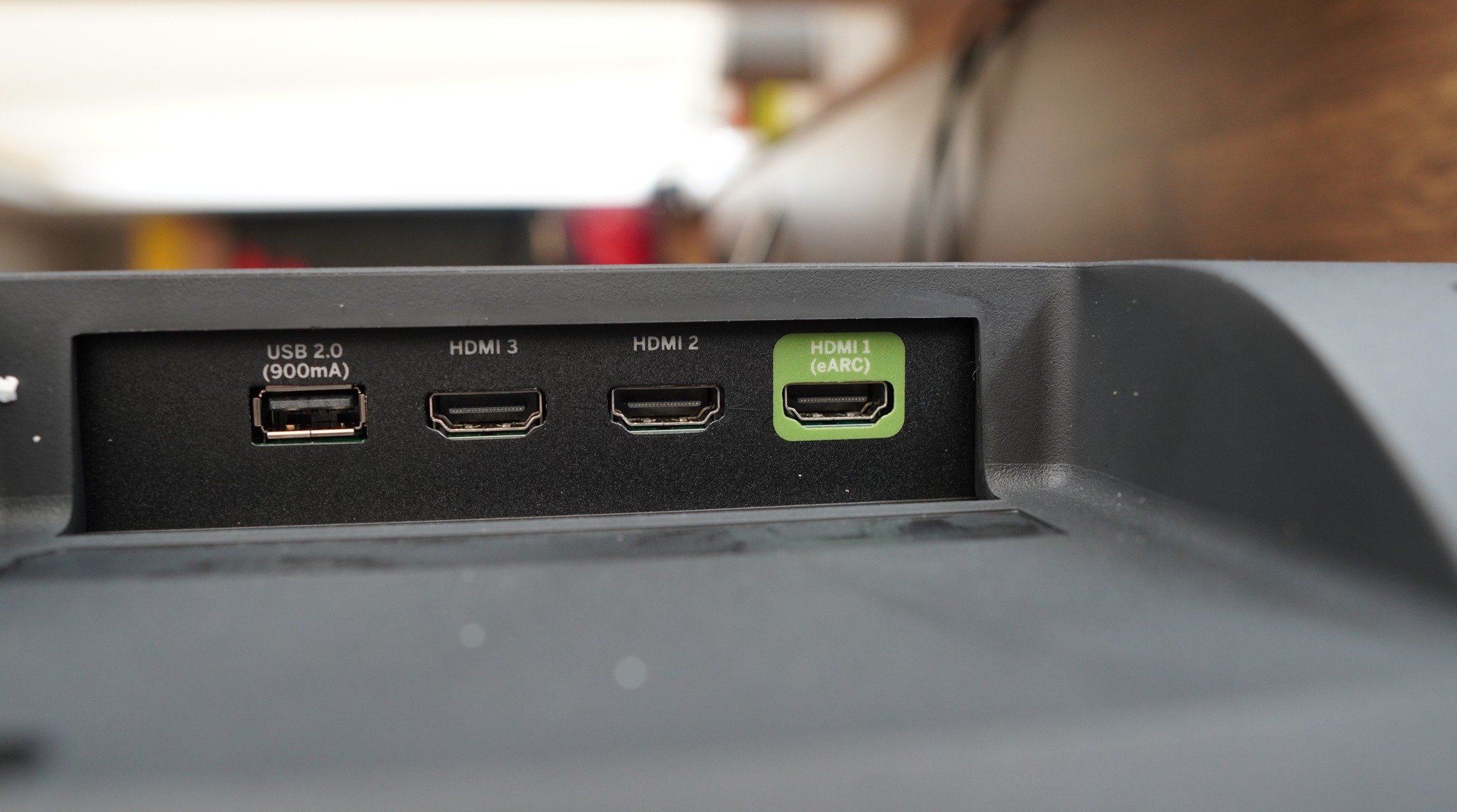
Where is the HDMI port on a Vizio TV? It is most commonly located on the back panel, in a cluster of input ports. If you do not find it there, check the side panels, and in rare cases, the bottom edge of the TV.
Where is the HDMI port on a Vizio TV: back, side, or bottom?
The exact location of the HDMI ports on a Vizio TV depends on the specific model, but the most typical placement is on the back panel. Some models place them on the side for easier access, and a small number of models hide them on the bottom edge. Knowing where to look saves time when you need to plug in a streaming stick, game console, or Blu-ray player.
Check the back panel first
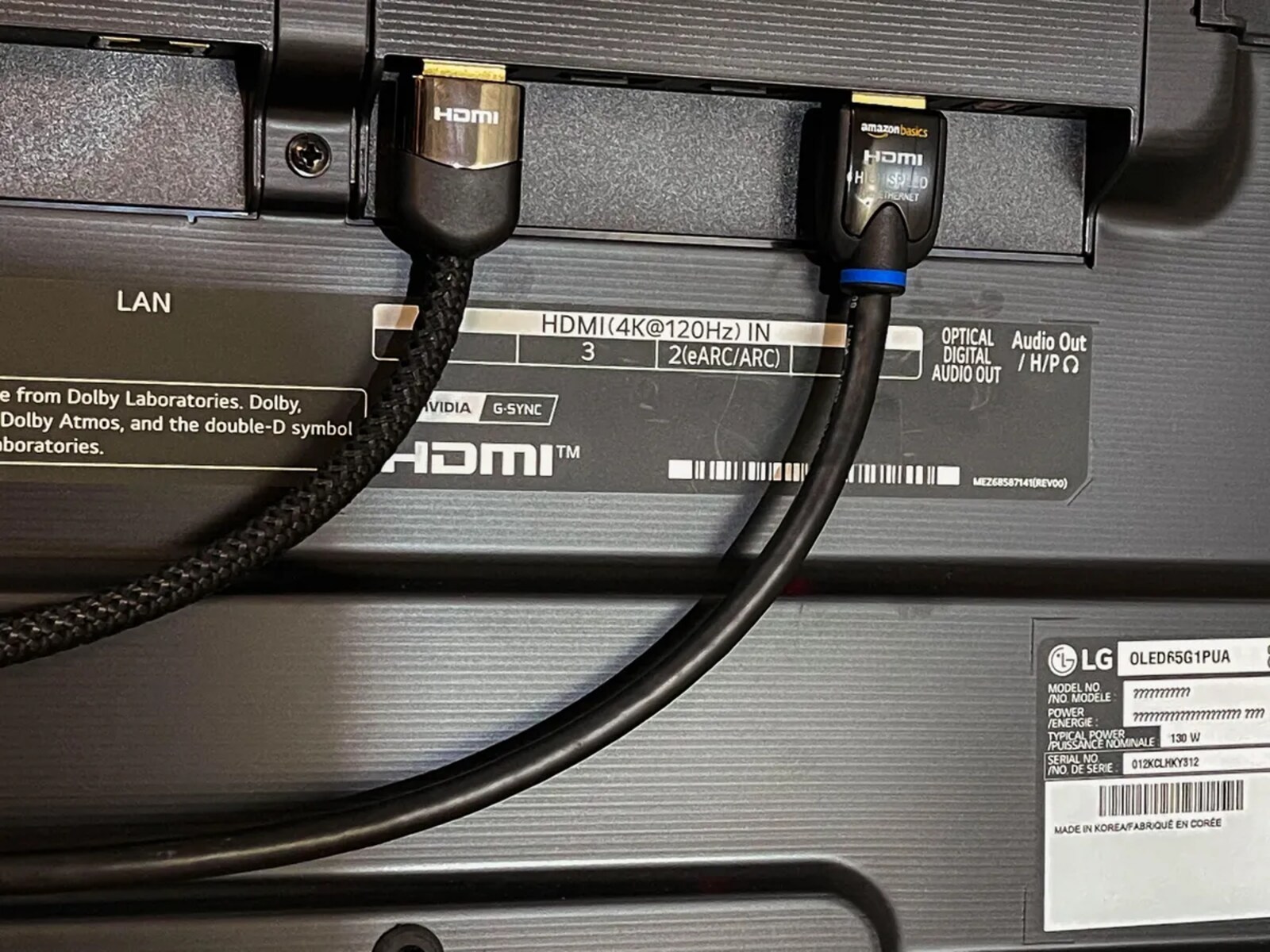
Start by turning off your TV and clearing any cables or obstructions from the rear. Examine the back panel for a cluster of rectangular ports. These ports are labeled with "HDMI" and often have numbers like HDMI-1, HDMI-2, and so on. The exact number of ports and their locations can vary depending on the specific Vizio TV model. If you are connecting a soundbar, you may also need to locate the HDMI ARC port on Hisense TV for a similar setup, and identifying the correct HDMI port is ARC on Sony Bravia follows the same labeling principles. Once you locate the port, plug your HDMI cable into an HDMI port on your TV and the HDMI OUT port on your external device.
Look on the side panel
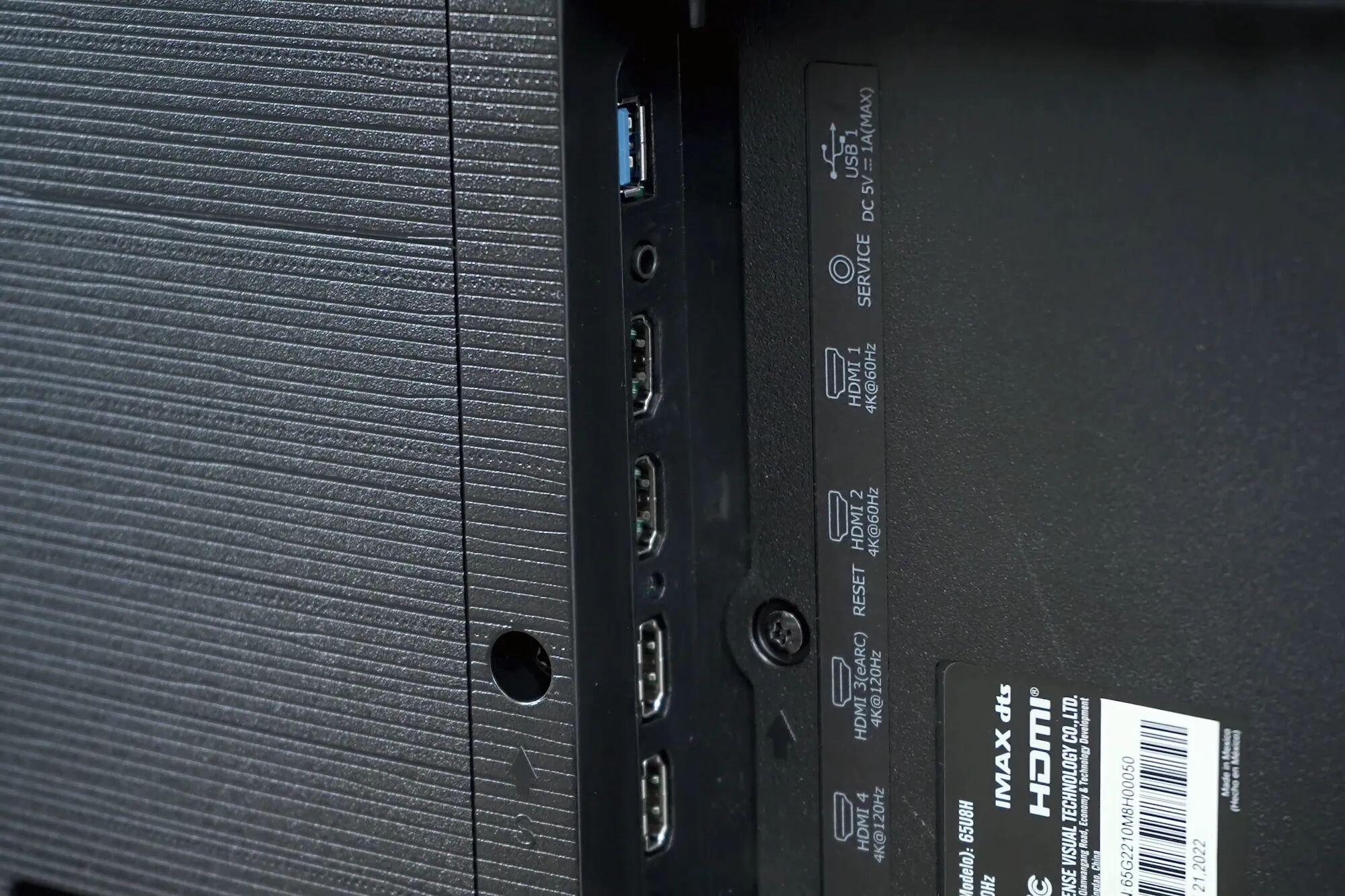
If you do not find the ports on the back, inspect both the left and right edges of the TV. Some Vizio TV models place the HDMI ports on the side panel, often recessed into the frame. This design makes it easier to connect and disconnect devices without reaching behind the TV. Check both sides carefully, as the ports may be on either edge.
Inspect the bottom panel (rare)
In rare cases, certain Vizio TV models have the HDMI ports located on the bottom panel. If you have thoroughly checked the back and sides and still cannot find them, gently tilt the TV or place it on a soft, stable surface to view the bottom edge. Look for a cluster of input ports; the HDMI ports will be rectangular and labeled accordingly. This placement is uncommon but allows for a cleaner cable management setup.
How to switch to the HDMI input
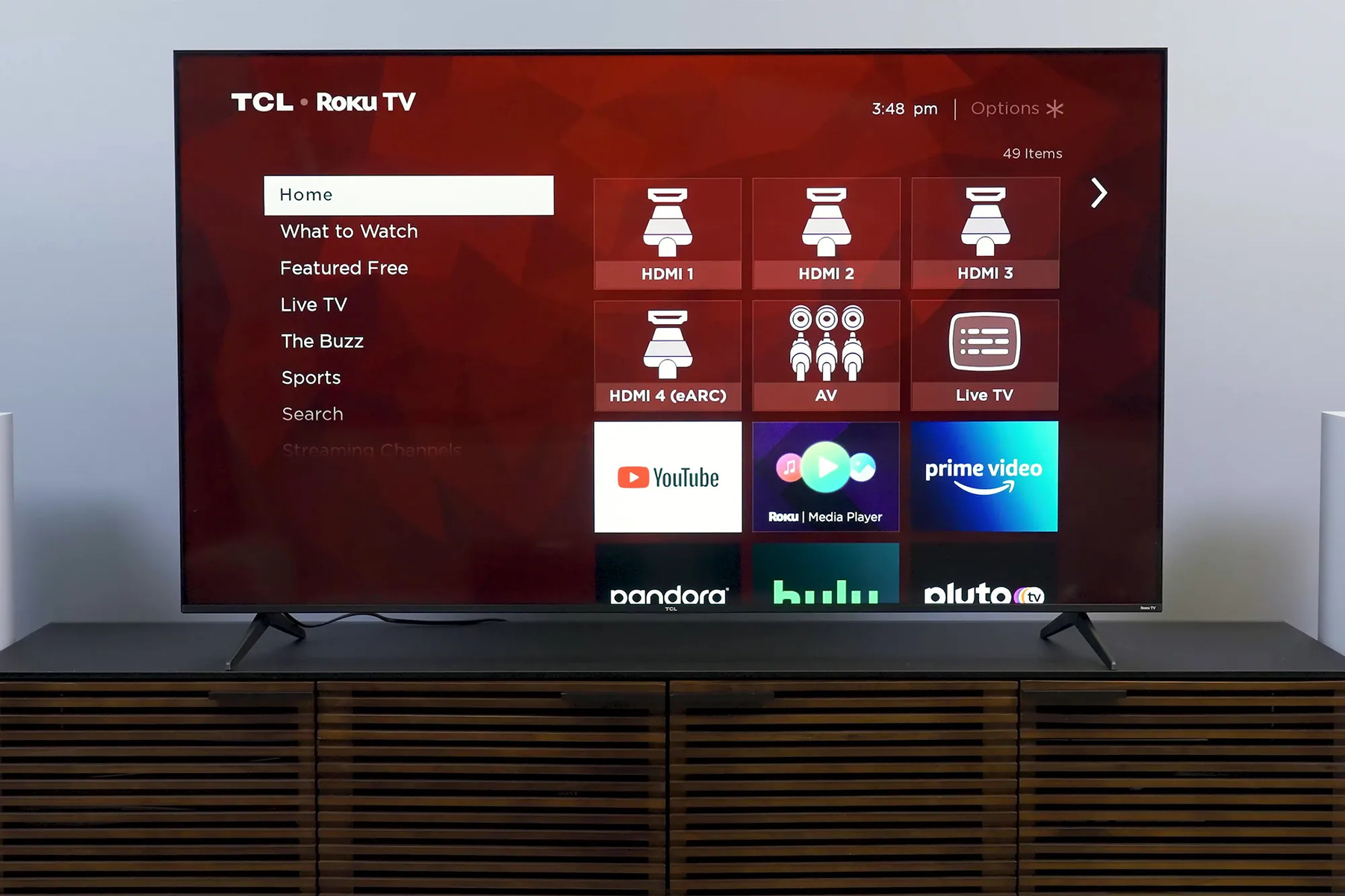
After connecting your device, use the "INPUT" button on your Vizio TV remote to select the correct HDMI source, such as HDMI-1 or HDMI-2. You can also press the power/input button located under the remote sensor on the TV's front panel to change to the next input source. This button cycles through available inputs until you reach the one you need. Knowing how to change HDMI on Vizio TV is essential for quickly switching between a game console and a streaming device.
Troubleshooting: Vizio TV says 'no signal' on HDMI
If your Vizio TV detects a device but shows "no signal," try these verified fixes. First, change the HDMI Mode by navigating to Menu > All Settings > Picture > Input picture settings > HDMI Mode, and switch it from AUTO to STANDARD or COMPATIBILITY. This resolves many compatibility issues with external devices. Second, perform a full power cycle: unplug the TV from the wall for at least 5 seconds, then hold the power button on the TV for 3-5 seconds, and plug it back in. Third, test with a different HDMI cable to rule out a faulty cable. Finally, try a different HDMI port on the TV to identify if a specific port is not functioning. Understanding the common locations of HDMI ports on a TV helps you quickly test each port during troubleshooting.