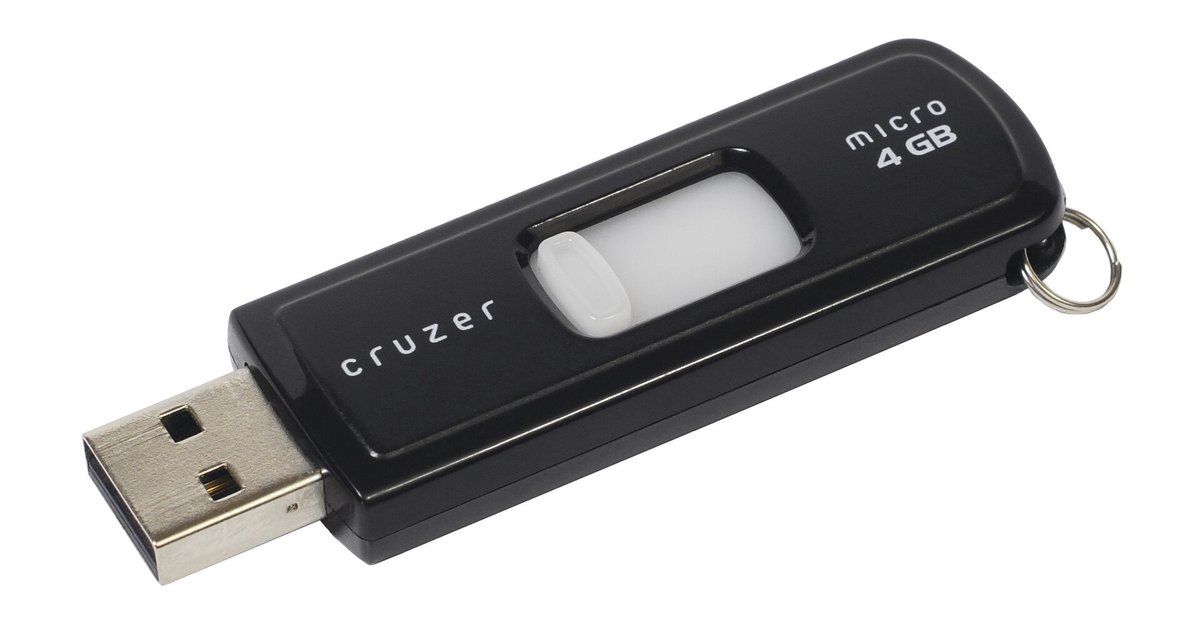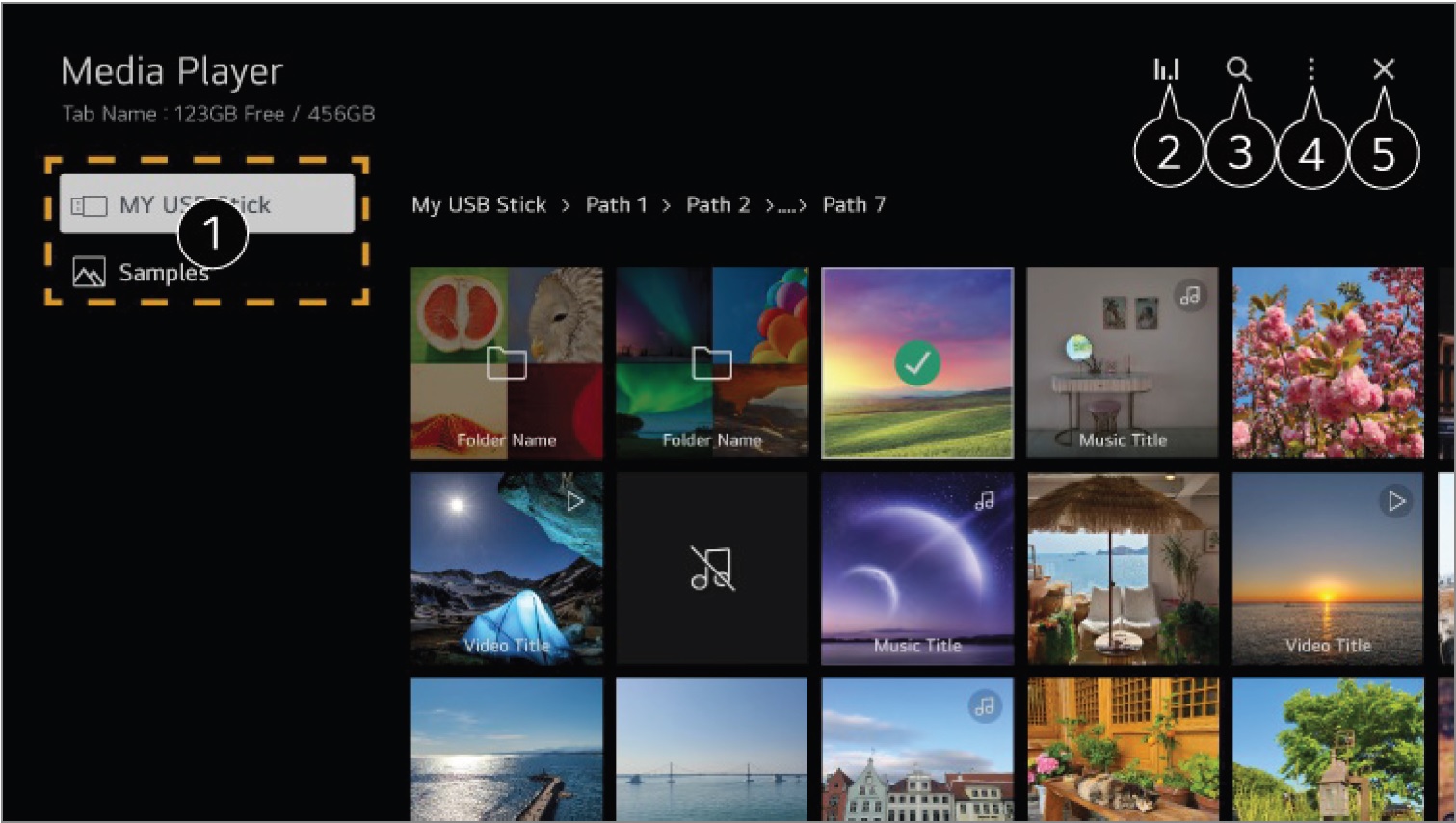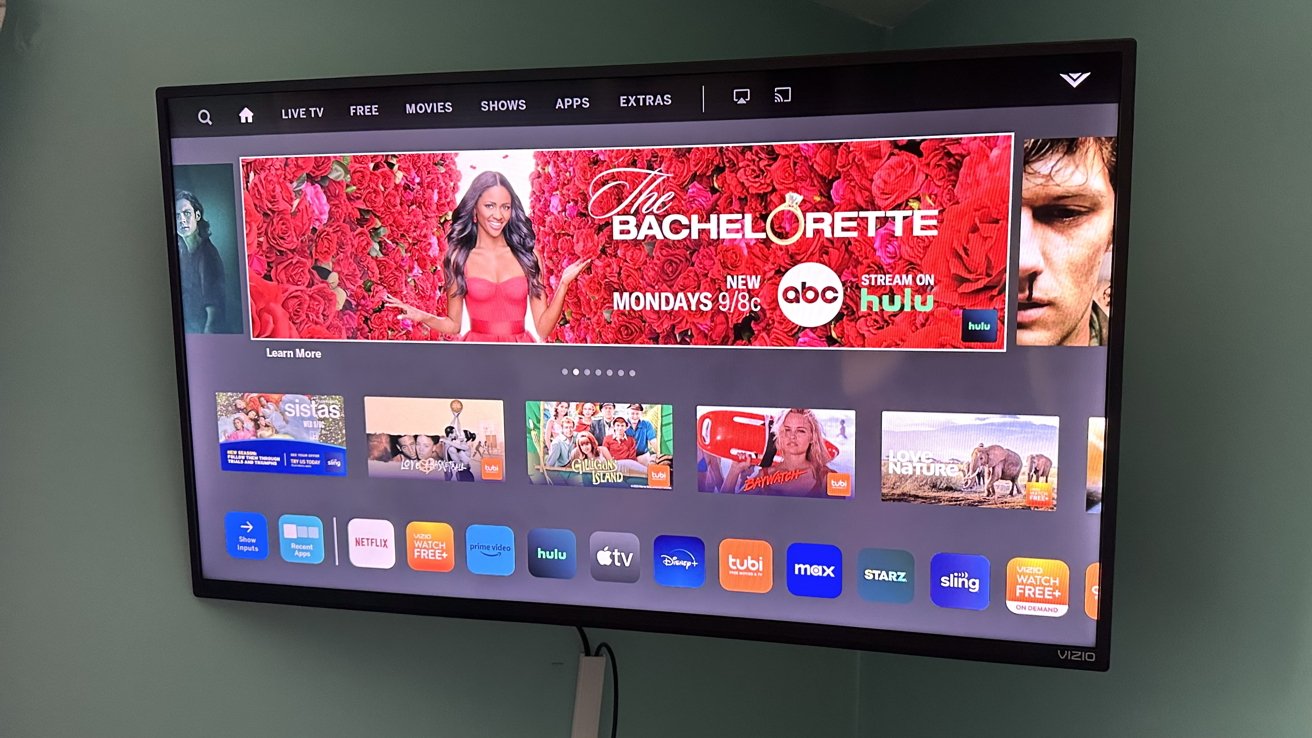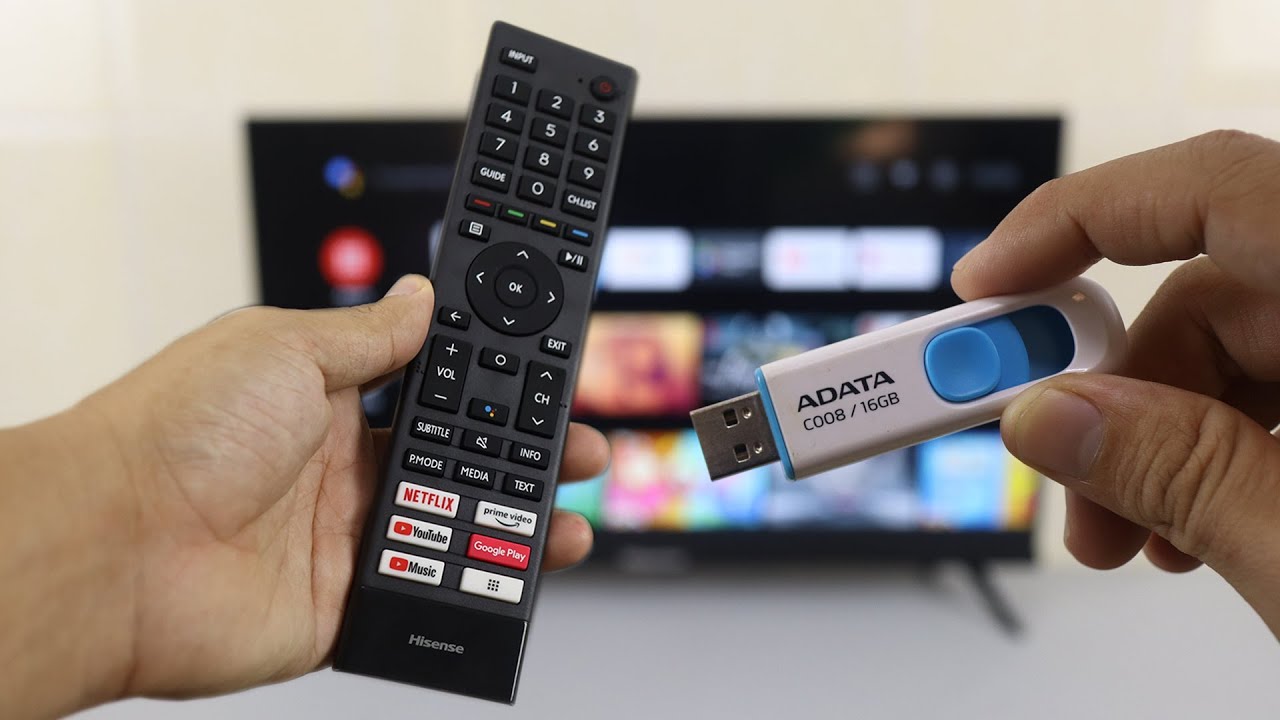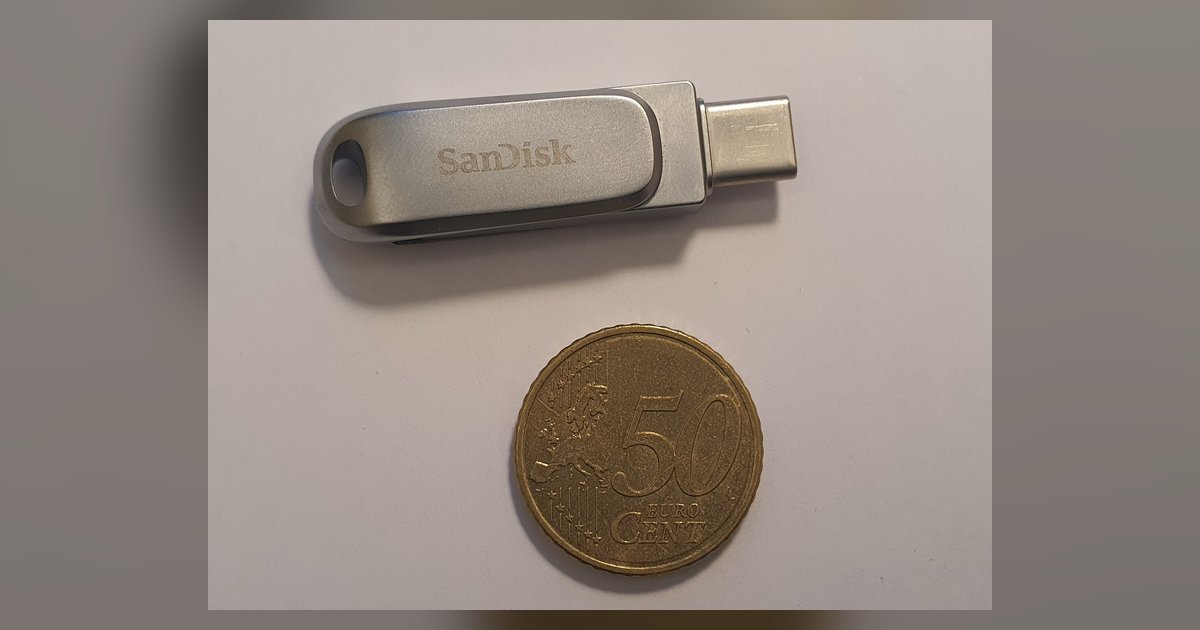
Your Vizio TV likely can't read the drive because it's formatted in NTFS or exFAT instead of FAT32, or the USB port isn't supplying enough power for a spinning hard drive. Reformat a flash drive to FAT32 with an MBR partition scheme, or switch to a powered external drive.
Check your drive's file system for Vizio TV USB compatibility
Vizio smart TVs only natively read USB drives formatted as FAT or FAT32. NTFS and exFAT are common on Windows and Mac but will be invisible to the TV. To check on Windows, right-click the drive in File Explorer, select Properties, and look next to "File system." If it says NTFS or exFAT, you must reformat. On a Mac, open Disk Utility, select the drive, and check the format under the Info tab. To safely reformat to FAT32 on Windows, right-click the drive, choose Format, set File system to FAT32, and check "Quick Format." On a Mac, open Disk Utility, select the drive, click Erase, set Format to a FAT-compatible option, and Scheme to "Master Boot Record." Warning: reformatting erases all data, so back up your files first. If you need to transfer files larger than 4GB, FAT32 won't support them, use a different method like streaming from a computer. For more help with software updates that might affect USB compatibility, you can update your Vizio smart TV through the Settings menu under System.
When the drive needs more power
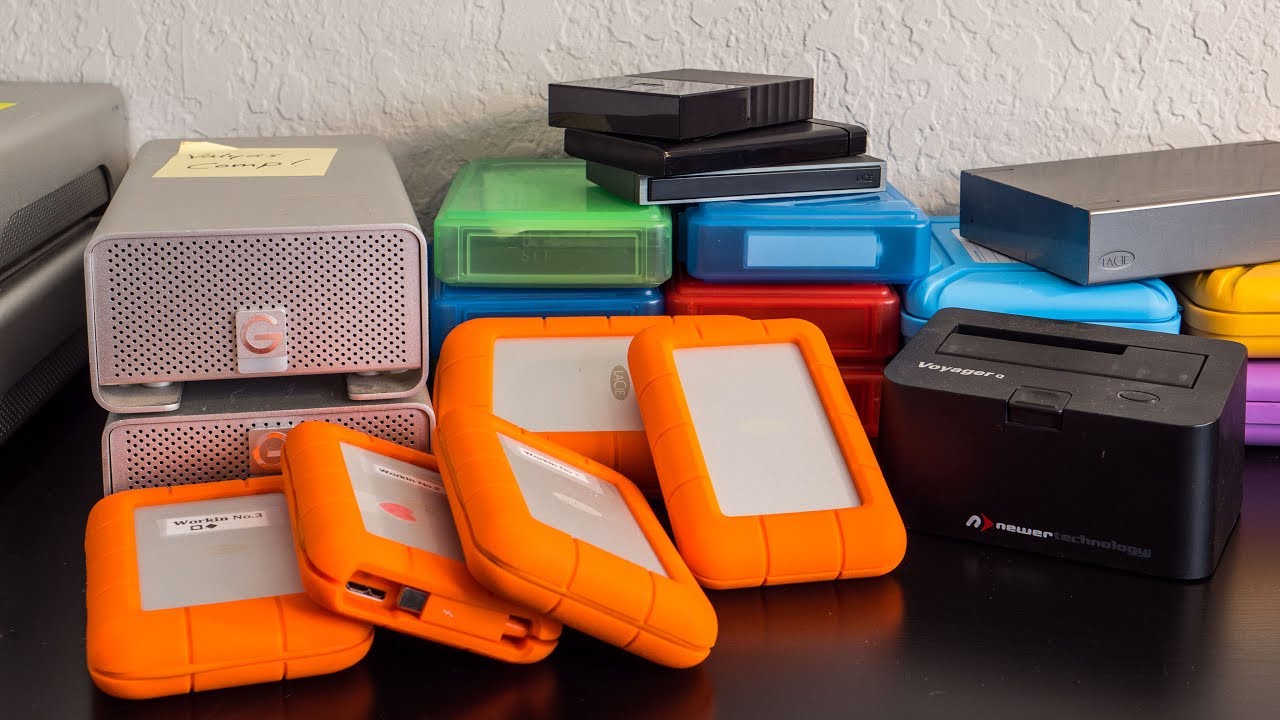
If your drive is a portable 2.5-inch hard disk without its own power adapter, the single USB port on your Vizio TV likely delivers only 500mA or less, not enough to spin up the platters. The result: the drive clicks, whirs, or stays completely silent, and the TV shows no device detected. The fix is simple: use a USB Y-cable that draws power from two ports, or plug the drive into a powered USB hub (one with its own AC adapter). Flash drives rarely have this problem because they draw under 200mA. If you still see issues, try the drive in the TV's rear USB port (if available) rather than a side port. For a full walkthrough on playing media directly, learn how to use USB port on Vizio smart TV for compatible formats and menu navigation. For streaming content from a laptop instead of a USB drive, connect your laptop to the Vizio smart TV wirelessly using Miracast or the Vizio SmartCast app.
Partition scheme and size limits
Even a FAT32 drive can fail if it uses a GPT partition map instead of the older MBR (Master Boot Record). Vizio TVs may expect MBR for USB drives, which could differ from some other smart TV platforms that can read GPT-formatted drives. On Windows, open Disk Management, right-click the drive, and select Properties > Volumes. Look for "Partition style." If it says "GUID Partition Table (GPT)," you must repartition. On a Mac, use Disk Utility, select the drive, click Erase, and choose Scheme: "Master Boot Record." Additionally, Vizio TVs may have difficulty reading drives larger than 2TB due to FAT32's 32-bit addressing limit. If your drive exceeds 2TB, partition it to a 2TB FAT32 volume and leave the rest unallocated, or use a smaller drive. For playing physical media, connect a DVD player to your Vizio smart TV using an HDMI cable and select the correct input. To access online content directly, browse the internet on your Vizio smart TV by opening the built-in browser from the SmartCast home screen.