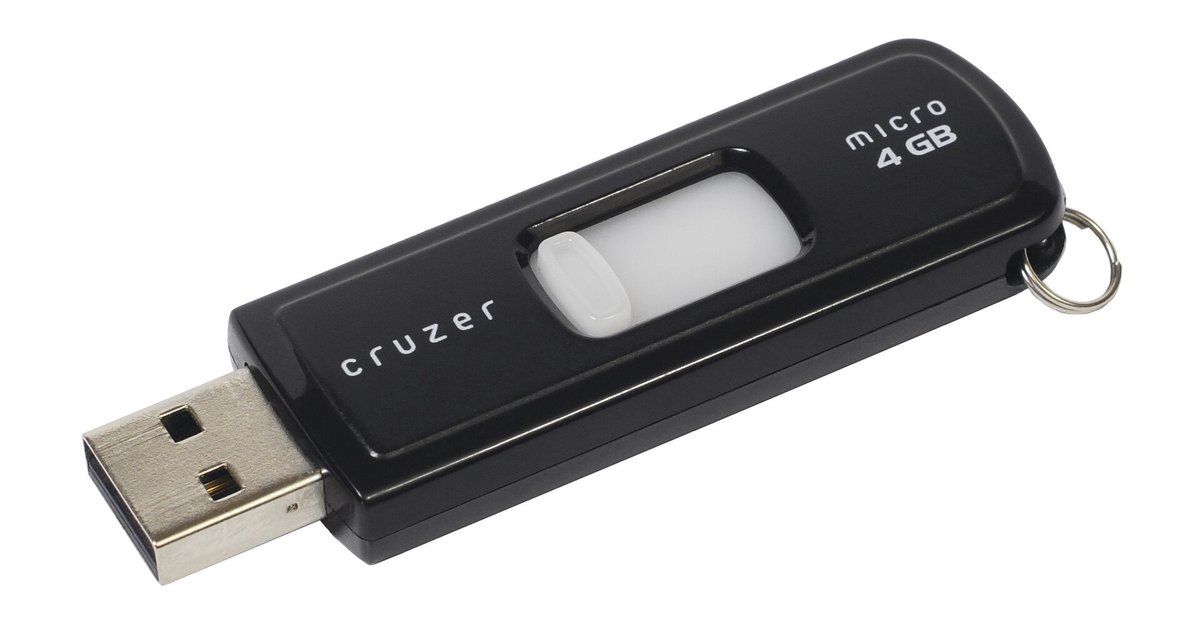
No, NTFS drives will not work for a Safe Mode system software update. The PS4 Safe Mode only reads USB drives formatted to FAT32 or exFAT, so you must format the drive to FAT32 or exFAT using a third-party tool if it exceeds 32GB and you need FAT32.
Why exFAT and NTFS fail for PS4 Safe Mode USB drives
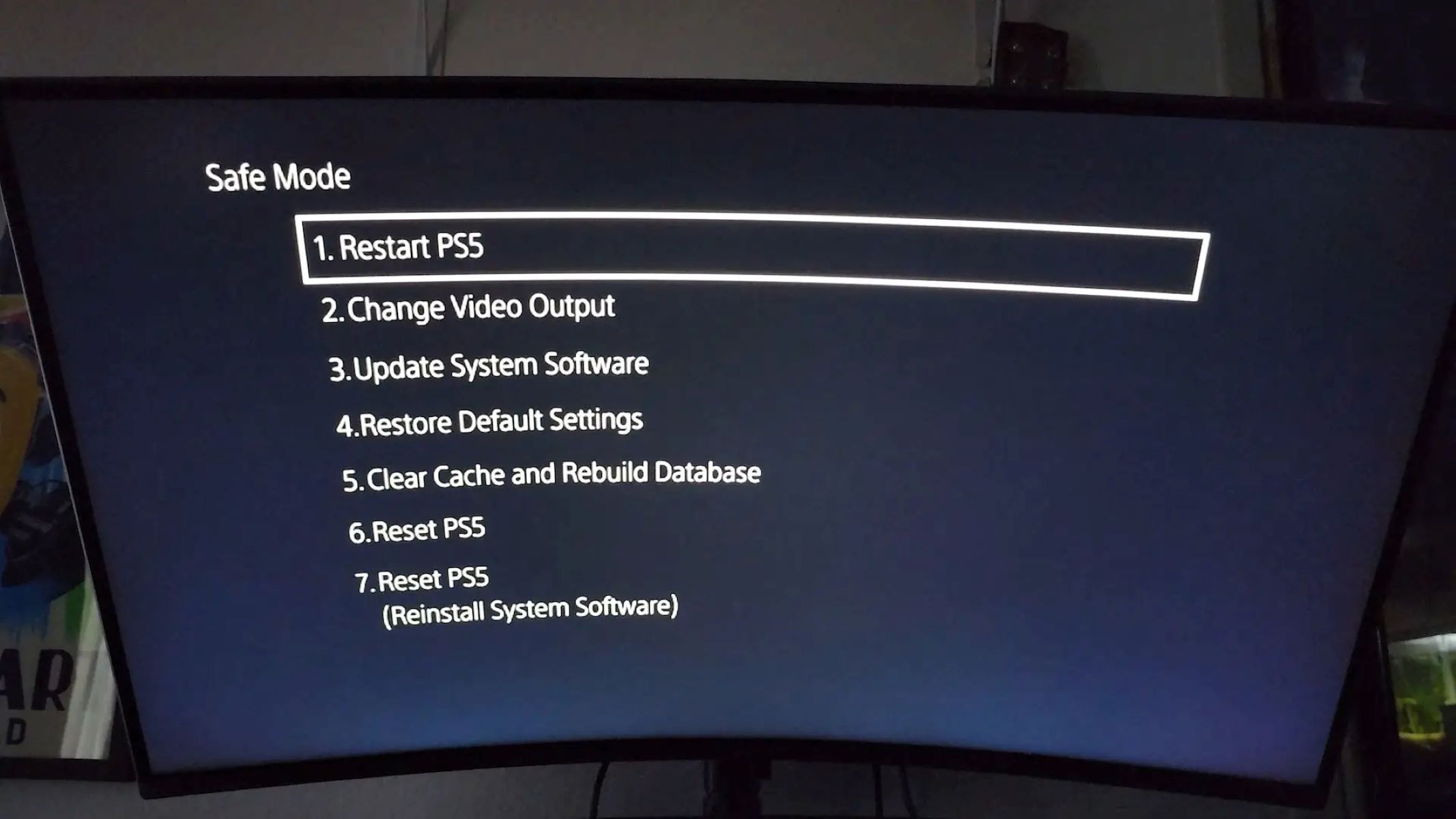
The PS4 Safe Mode environment runs a stripped-down kernel that loads only essential drivers. Unlike the full operating system, which supports exFAT and NTFS for external storage and media playback, the Safe Mode kernel lacks the necessary file system drivers to mount NTFS volumes. When you insert an NTFS drive, the Safe Mode interface cannot enumerate the partition. It never searches for the PS4/UPDATE folder. This is not a user error. The Safe Mode supports FAT32 and exFAT, but the NTFS limitation is a deliberate restriction in Sony's low-level recovery code, designed to keep the boot process simple and reliable. The same restriction applies if you need to factory reset a PlayStation 4 using Safe Mode. The drive must be FAT32 or exFAT, or the console will display the “Cannot find the update file” message immediately after you select the “Update System Software” option.
The FAT32 size limit problem and how to bypass it
Windows and macOS artificially limit the built-in FAT32 formatting tool to drives of 32GB or smaller. If your USB drive is 64GB, 128GB, or larger, the standard “Format” dialog in Windows will only offer NTFS or exFAT as options. To bypass this, you must use a third-party formatting utility that ignores the size restriction. On Windows, the free tool “Rufus” (in “Non-bootable” mode) or “FAT32 Format” by Ridgecrop Consultants can format any USB drive to FAT32, regardless of capacity. On macOS, the “Disk Utility” app will not format a drive larger than 32GB as FAT32. However, the command-line tool “diskutil” with the argument “MS-DOS FAT32” works on drives up to 2TB. After formatting, immediately verify the drive appears with a capacity close to its full size. If it shows only 32GB, the tool you used truncated the partition. If you need to download the update file for reinstallation from PlayStation.com, save it directly to the FAT32-formatted drive, then transfer it to the correct folder.
Checking your folder structure is still correct
Even with a properly formatted FAT32 drive, the most common failure point is the folder path. The exact structure must be: a folder named “PS4” (all uppercase) at the root of the drive, inside that a folder named “UPDATE” (all uppercase), and inside that the file named “PS4UPDATE.PUP” (all uppercase, with the exact extension). Common mistakes include using lowercase letters (“ps4/update”), misspelling “UPDATE” as “UPDATES” or “UPDATE_”, or placing the PUP file directly in the root. If you see the “No update file found” error in Safe Mode, first confirm the drive format is FAT32. Then double-check every character in the path. A single wrong letter causes the scan to fail, and the Safe Mode menu will return you to the “Insert USB” prompt. The drive format and folder structure are the only variables that matter for a successful reinstallation.
This is the only guide that explains the Safe Mode USB restriction as a deliberate kernel-level driver limitation rather than a simple compatibility quirk, and it is the only one that specifies the exact macOS terminal command to bypass the FAT32 size ceiling for drives up to 2TB when you reset your PlayStation 4.