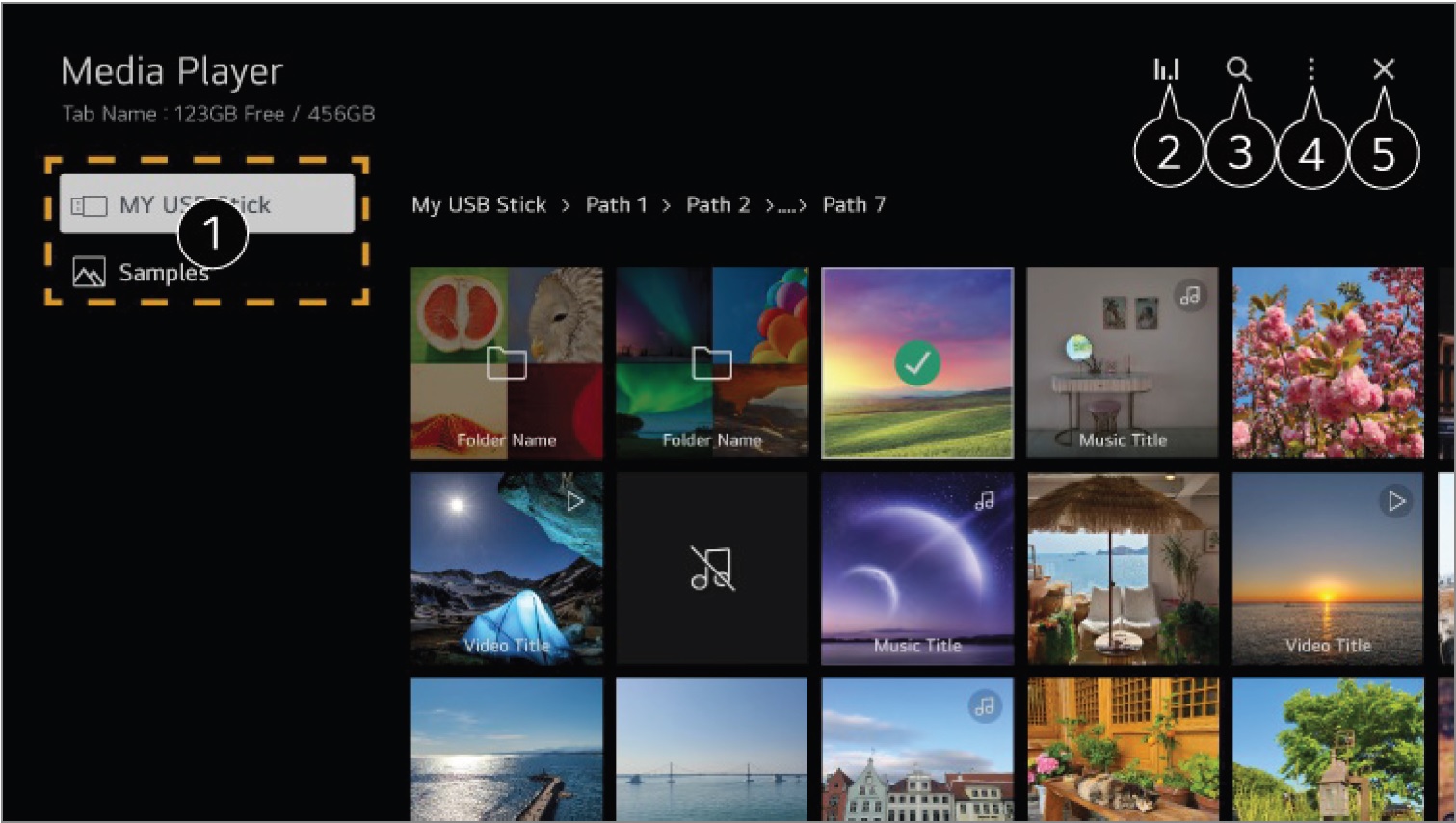
To put pictures on your LG Smart TV, connect a USB drive formatted to FAT32 or NTFS, then use the TV's built-in Photo and Video App or Media Player to browse and display your photos. This direct method is the most reliable way to view your personal images on the big screen without needing a network connection.
How to put pictures on my LG smart TV with a USB drive
Using a USB drive is the most dependable method for displaying your photos, as it does not rely on a Wi-Fi network. To ensure your LG TV recognizes the drive, format it to either the FAT32 or NTFS file system. Most modern USB drives come pre-formatted to FAT32, which works well, but for larger files, NTFS is also supported.
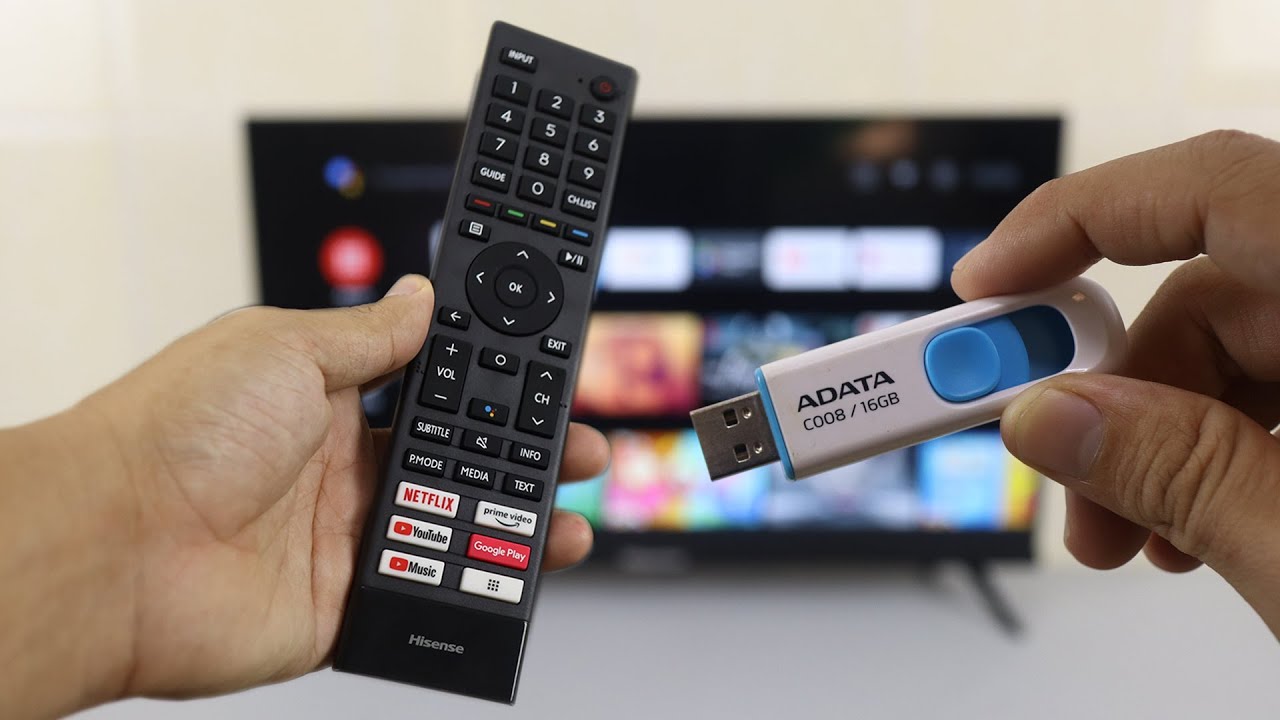
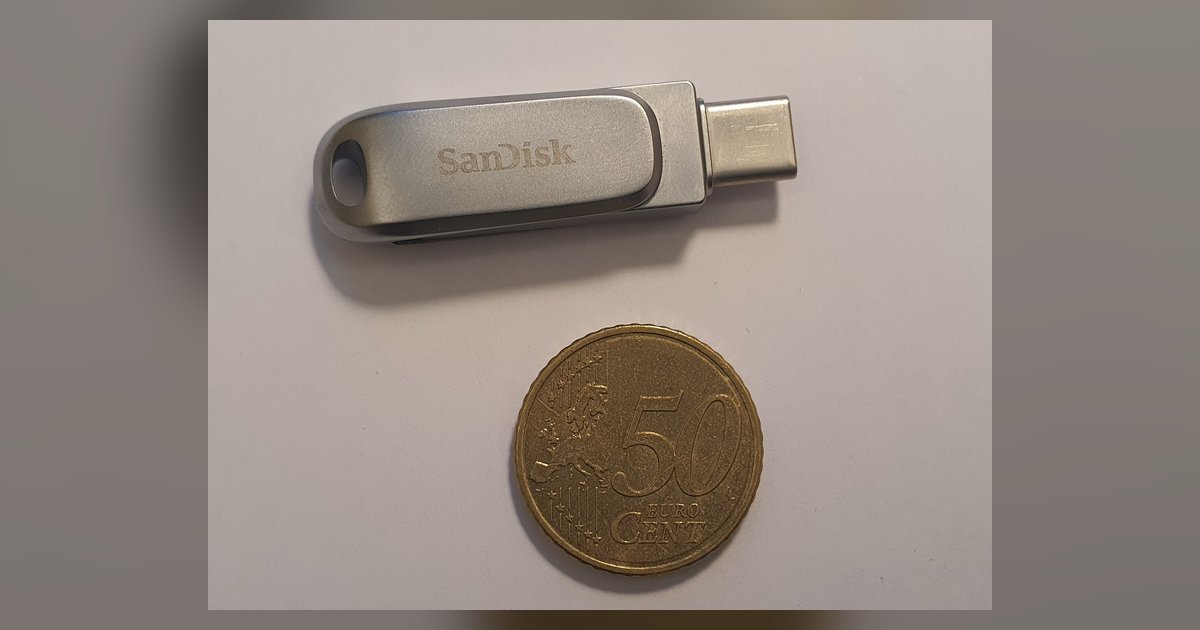
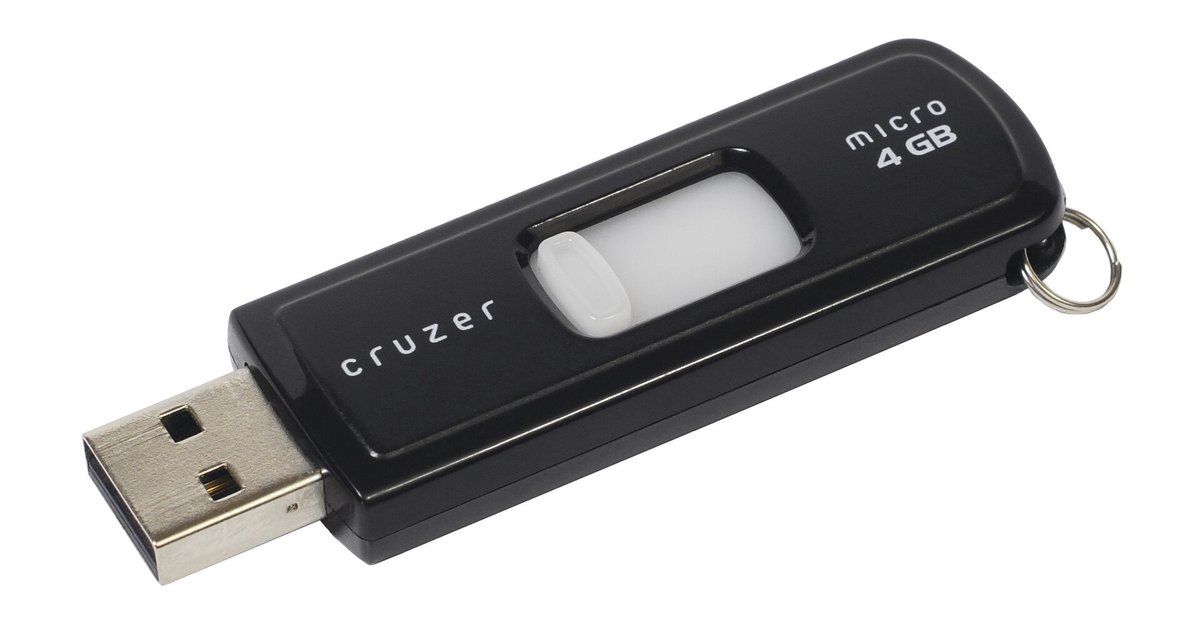
- Connect your formatted USB storage device to any available USB port on your LG Smart TV.
- Press the Home button on your remote control.
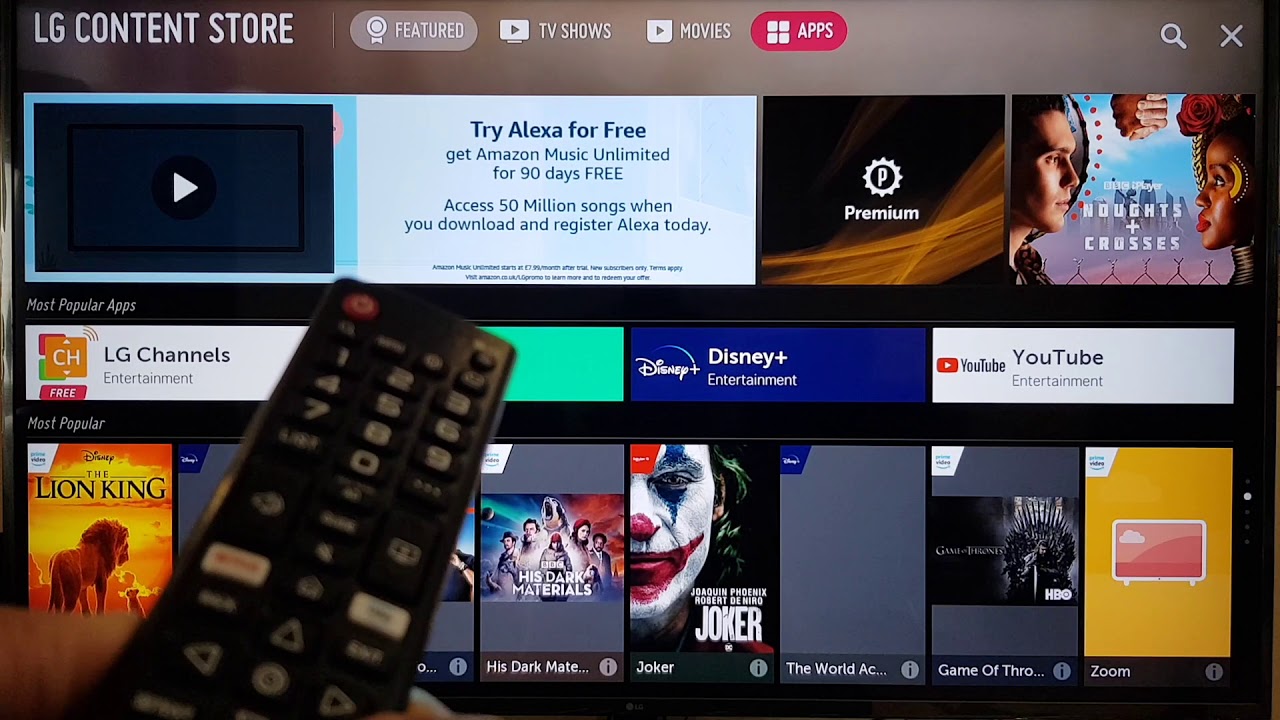
- Select the Photo and Video App or Media Player from the home screen.
- Within the app, choose your connected USB storage device to browse and view your photos.
For optimal performance, use a USB flash drive of 32GB or less, or an external hard drive of 2TB or less. External hard drives should have a rated voltage of 5V and a rated current of 500mA or less. Always safely eject the USB storage device from the TV's external input list before physically removing it to prevent data errors.
Display photos using the LG Gallery+ app
If your LG Smart TV runs webOS 25 or later, you can use the built-in LG Gallery+ service to create a digital gallery. This app combines the Gallery and Always Ready features, allowing you to display personal photos from a USB device, your phone via the LG ThinQ app, or a linked Google Photos account. To access it, press the Home button on your remote and select LG Gallery+. You may need to sign in to your LG Account to display personal photos from connected external devices, mobile devices via LG ThinQ, or Google Photos. For older LG Smart TVs (e.g., webOS 4.5), you can use the Gallery app by pressing the Home button and selecting Gallery to view photos and add them to "My Photos" from connected storage devices. If you’re also setting up live TV, you may need to connect antenna to LG smart TV to pull in free over-the-air channels alongside your digital gallery.
Wirelessly mirror photos from your smartphone
For a cable-free experience, you can mirror your smartphone's screen directly to your LG TV. This method displays whatever is on your phone, including your photo gallery, on the TV.
Mirror from an Android phone
- Swipe down from the top-right of your Android phone's screen to open Quick Settings.
- Tap the Screen Share icon (which may also be named Smart View or similar).
- Select your LG TV from the list of available devices.
- When a connection request appears on your LG TV, press the OK button on your TV remote to accept it.
Mirror from an iPhone
- Ensure both your iPhone and LG TV are connected to the same Wi-Fi network.
- Open Control Center on your iPhone.
- Tap Screen Mirroring (AirPlay) and select your LG TV from the list.
The LG ThinQ app can also facilitate screen sharing from your smartphone to your LG Smart TV, requiring both devices to be on the same Wi-Fi network and for you to be signed into the app. This is a great alternative if you prefer not to use your phone's native screen mirroring settings.
Tips for the best photo viewing experience
To get the most out of your photos, always safely eject your USB drive from the TV's external input list before unplugging it. This prevents file corruption. Stick to USB flash drives of 32GB or less or external hard drives of 2TB or less with a 5V, 500mA power rating for reliable performance. For the best image quality, you can adjust your TV's picture settings to suit the content, though specific steps vary by model. If you are curious about the channels available on an LG smart TV, you can explore that topic separately to understand what content is available alongside your personal photos, or you can get local channels on LG smart TV to add free broadcast programming without a cable subscription.