How to display photos on your LG smart TV
To display photos on your LG smart TV, you don’t upload files to the TV itself, you stream or access them from a connected device. The three main methods are connecting a USB drive or smartphone via cable, wirelessly mirroring your phone’s screen, or using the built-in Smart Share app to pull photos from a computer on your home network, the same network you’d use to get local channels on LG smart TV without cable.
Display photos from a USB device or smartphone cable
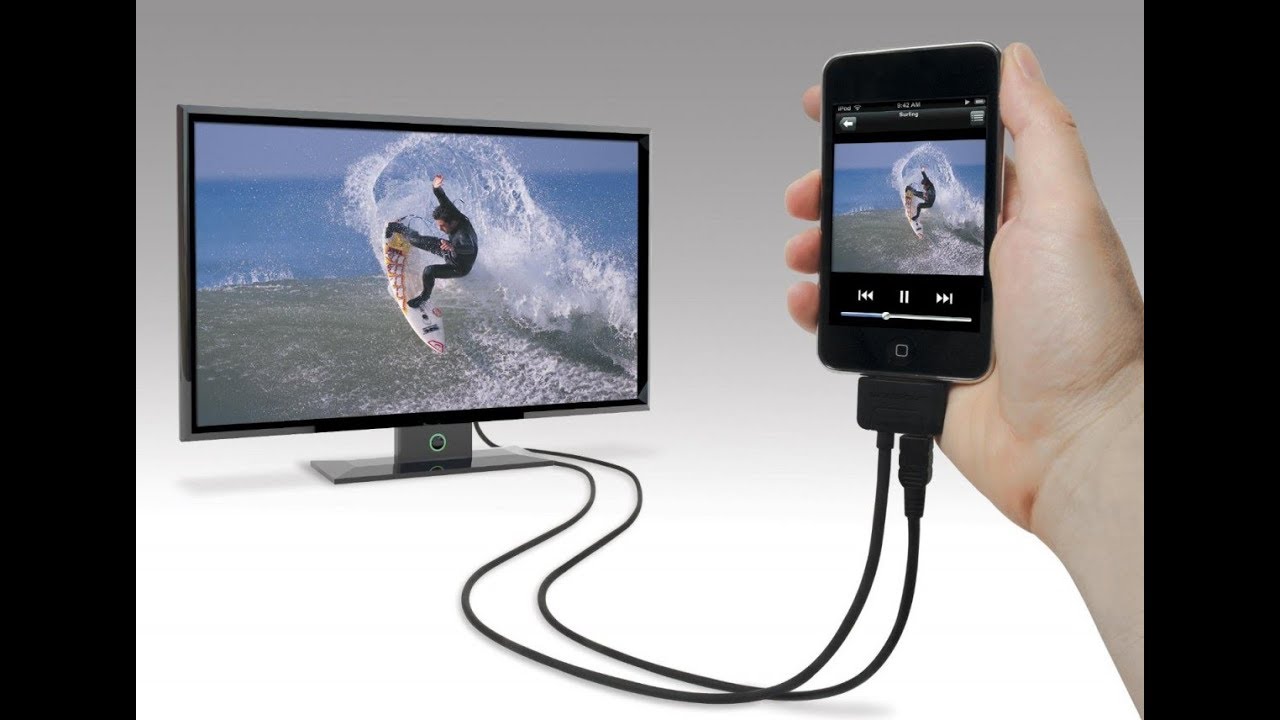
The quickest way to show photos on your LG TV is to plug in a USB drive or your phone directly. This method works without Wi-Fi and is ideal for large photo collections.
- Connect your USB drive or smartphone to the USB port on your LG TV.
- If you’re using an Android phone, scroll down the top of your phone screen to display the top menu and select “Transfer Photos and Videos (PTP).”
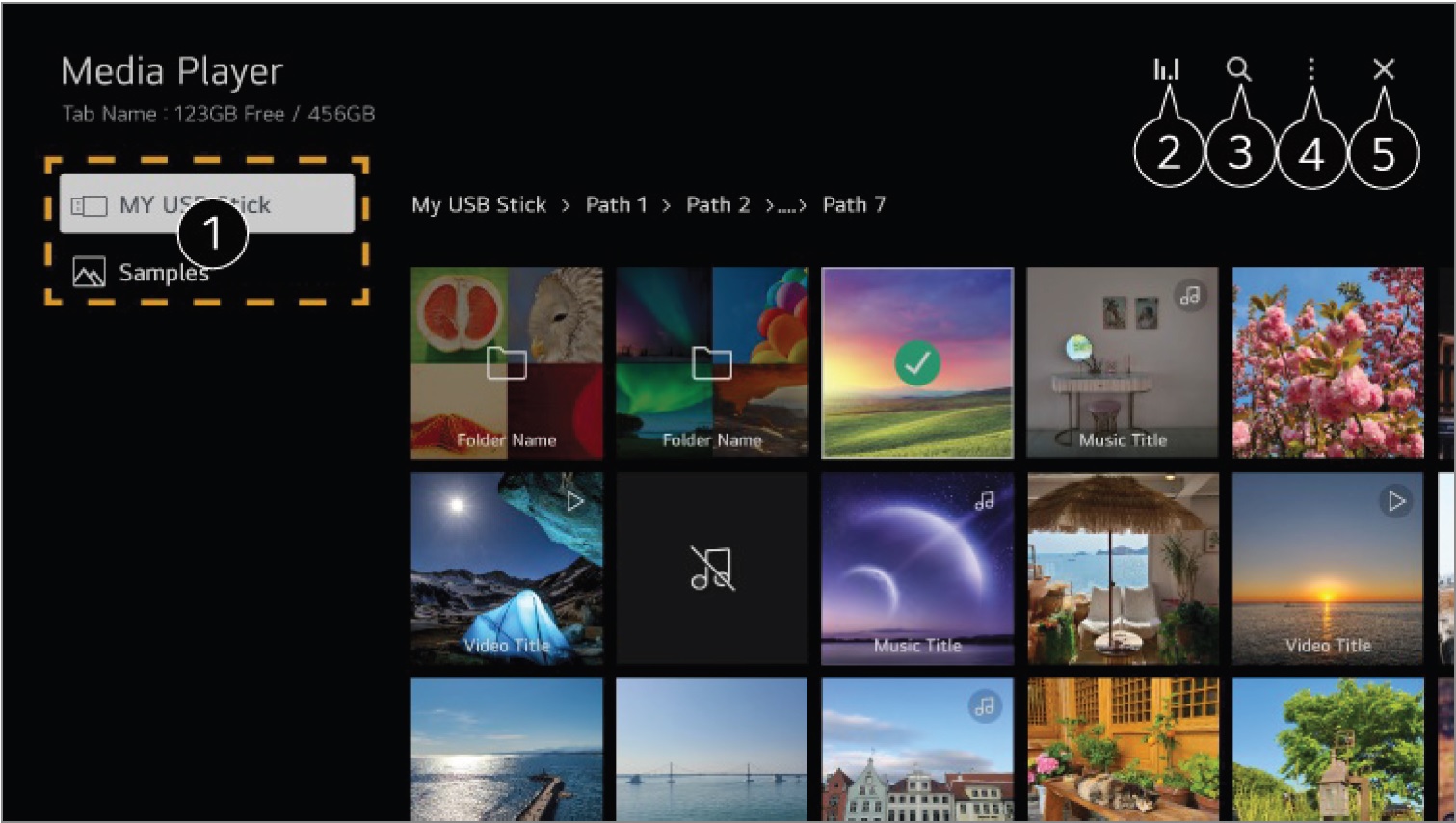
- Press the Home button on the TV remote and select “Photos & Videos.”
- Select your desired storage device from the device list.
- Browse the folders to find your photos, then press OK on a photo to view it.
If you have more than 40,000 items on the storage device, the content list may not display everything, so keep your photo folders organized.
Wirelessly mirror photos from your Android phone
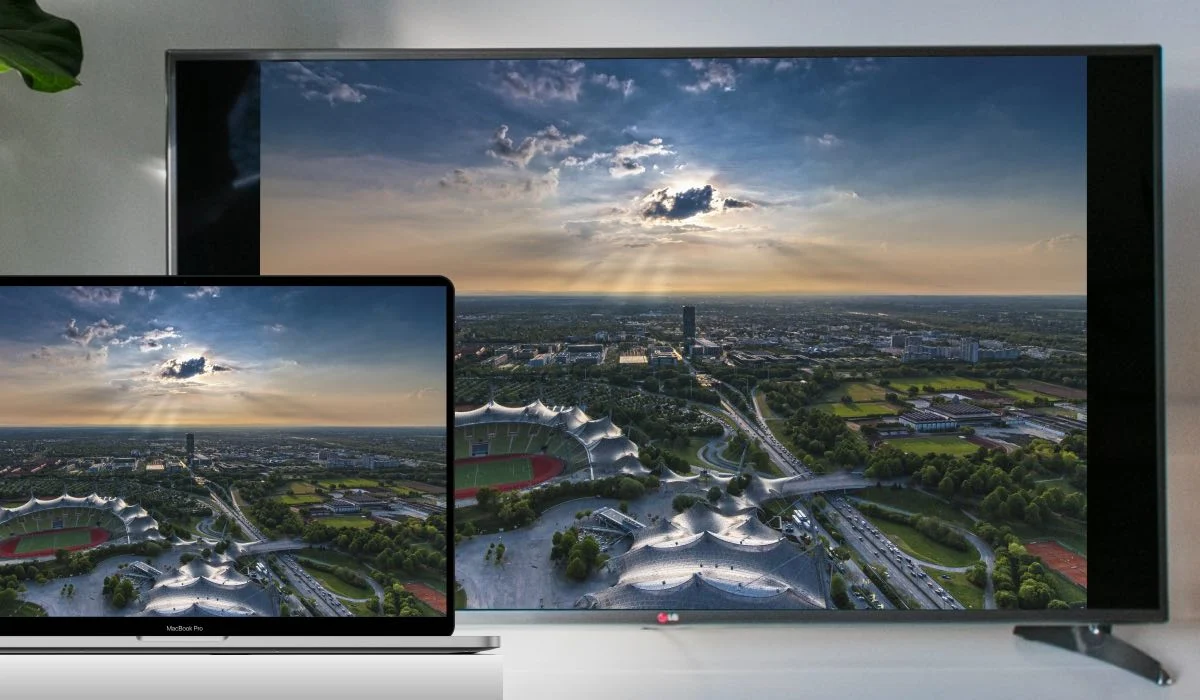
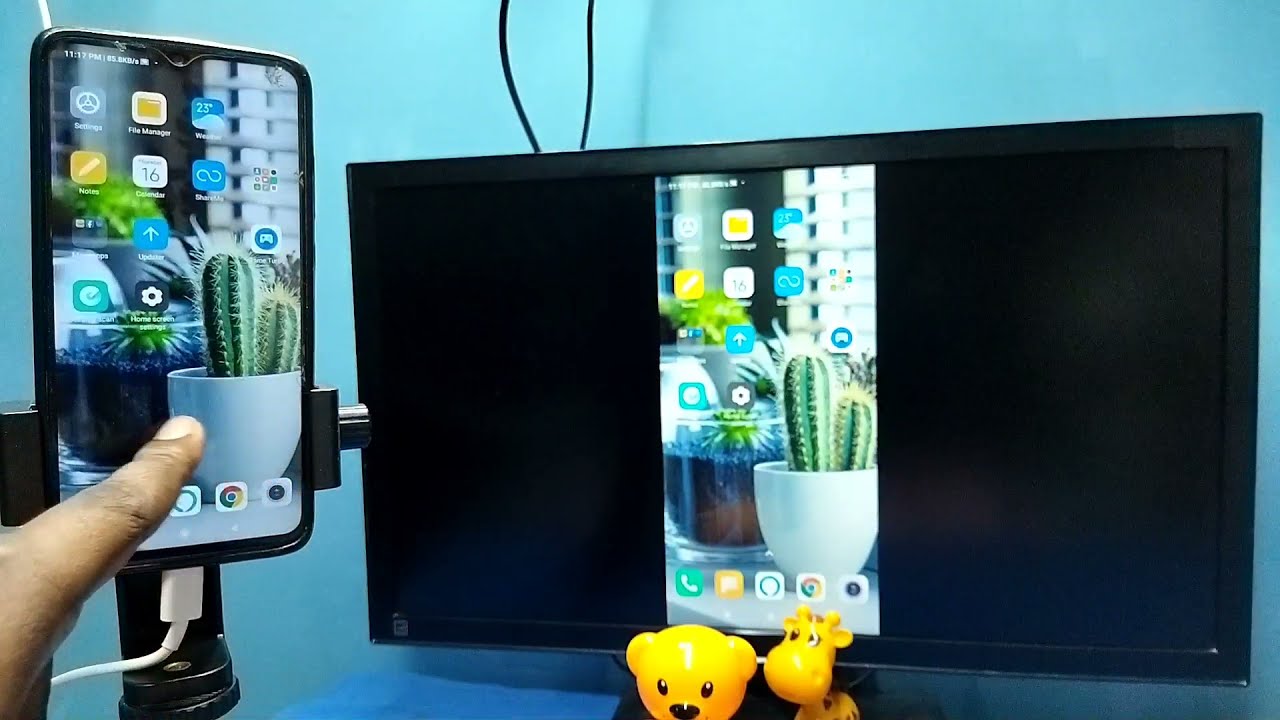
Screen mirroring lets you show your phone’s entire screen, including your photo gallery, on the TV. This is useful when you want to swipe through photos live or show an album from an app like Google Photos.
- Ensure your smartphone and LG Smart TV are connected to the same Wi-Fi network.
- Swipe down from the top-right corner of your phone screen to open the Quick Settings panel.
- Find and tap the Screen Share icon, which may also appear as “Smart View,” “Quick Connect,” “SmartShare,” or “mirroring,” depending on your device.
- From the list of available devices, select your LG TV.
- When a connection request appears on your TV, press the OK button on your TV remote to accept it.
- Open your photo gallery on your phone; the screen will appear on the TV.
- To disconnect, tap the floating circular icon on your phone screen and select Disconnect.
Wirelessly mirror photos from your iPhone
If you have an iPhone, you can use AirPlay to mirror your screen or stream photos directly to the TV. This is the easiest way to share photos from an iOS device without any cables.
- Swipe down from the top right of your screen to open Control Center (on older models, swipe up from the bottom edge).
- Tap the Screen Mirroring icon, which looks like two overlapping rectangles.
- Select your LG TV from the list.
- If a 4-digit AirPlay passcode appears on your TV screen, enter it on your iPhone.
- Open your Photos app and browse, everything you see on your phone will be mirrored on the TV.
- To disconnect, open Control Center and tap Stop Mirroring.
If your iPhone cannot connect, open the Home Dashboard on your TV and ensure AirPlay is turned on.
Access photos from a computer using Smart Share
Smart Share lets you browse photos stored on a PC or laptop over your home network. This is the best option when your photo library lives on your computer and you don’t want to transfer files to a USB stick.
- On your computer, enable file sharing for the folder that contains your photos (turn on network discovery and file sharing in your system settings).
- Press the Home button on your TV remote, then select the Media Player App or LG Gallery+ app.
- From the device list, select your PC, it will appear only if file sharing is enabled and both devices are on the same network.
- Navigate to the folder with your photos and press OK to open them.
- For LG Gallery+, select the “My Page” icon at the top right of the screen, then select Go to LG Account to sign in (signing in is required to use this service). You can also link Google Photos or use photos from mobile devices connected via LG ThinQ.
For models running webOS 25 or later, LG Gallery+ is supported. For webOS 4.5, in the “Add Mode” screen, you can see storage devices or captured images, select the desired image and press the Add button at the upper right corner to add it to the “My Photos” list, or press Complete.
Customize your photo viewing experience
Once your photos are on screen, you can make the viewing session more enjoyable. Use the Slide menu to view photographs continuously in a slideshow, and sort photos by date, name, or other criteria to quickly find what you’re looking for. You can also zoom and pan across a photo using your remote control for a closer look.
One important note: if a still image from a USB is displayed for a while, the monitor screen will turn off to prevent screen stains. To avoid this, keep the slideshow running or move to the next photo periodically.
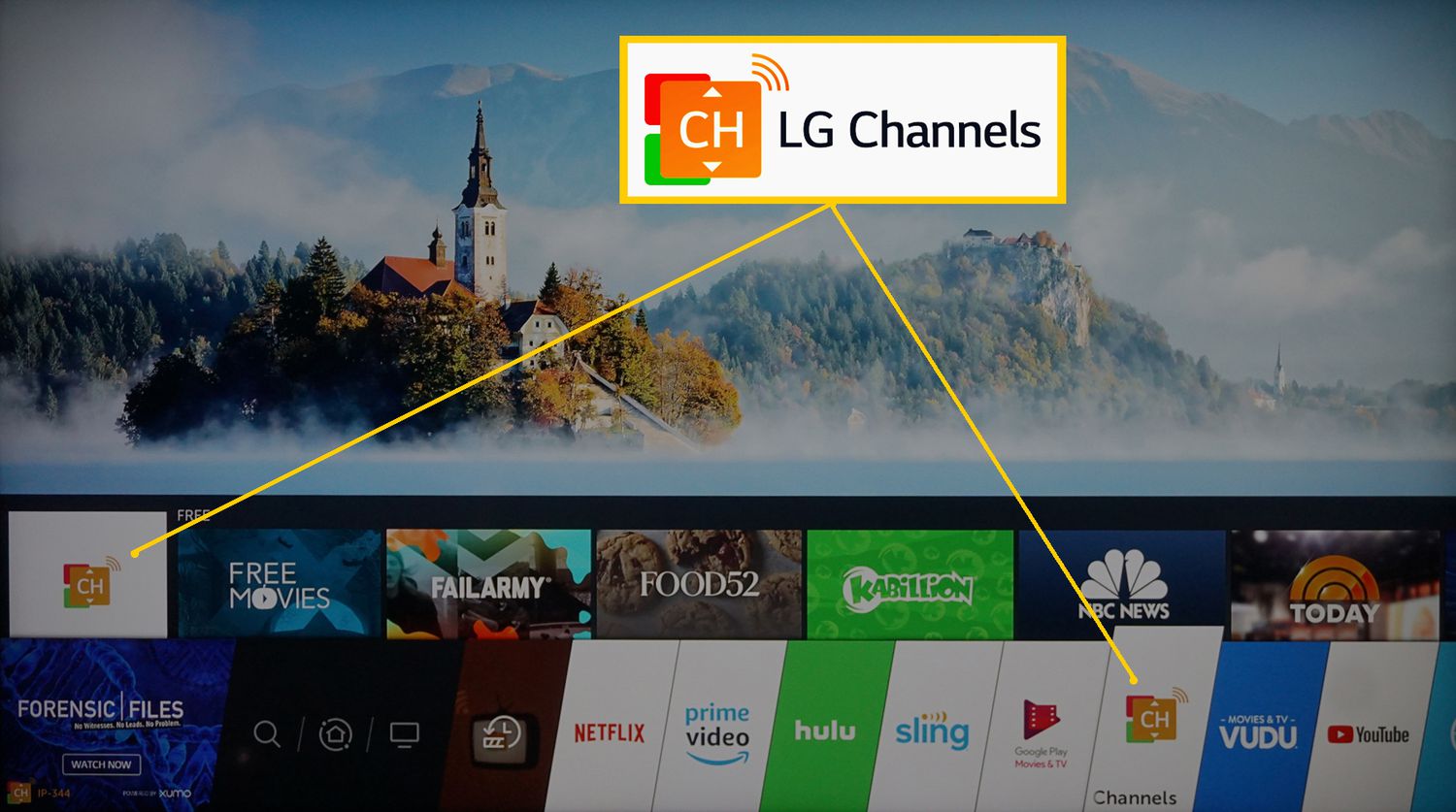
For the wider topic, see the channels available on an LG smart TV.
\nRelated reading: How To Put Pictures On My LG Smart TV.