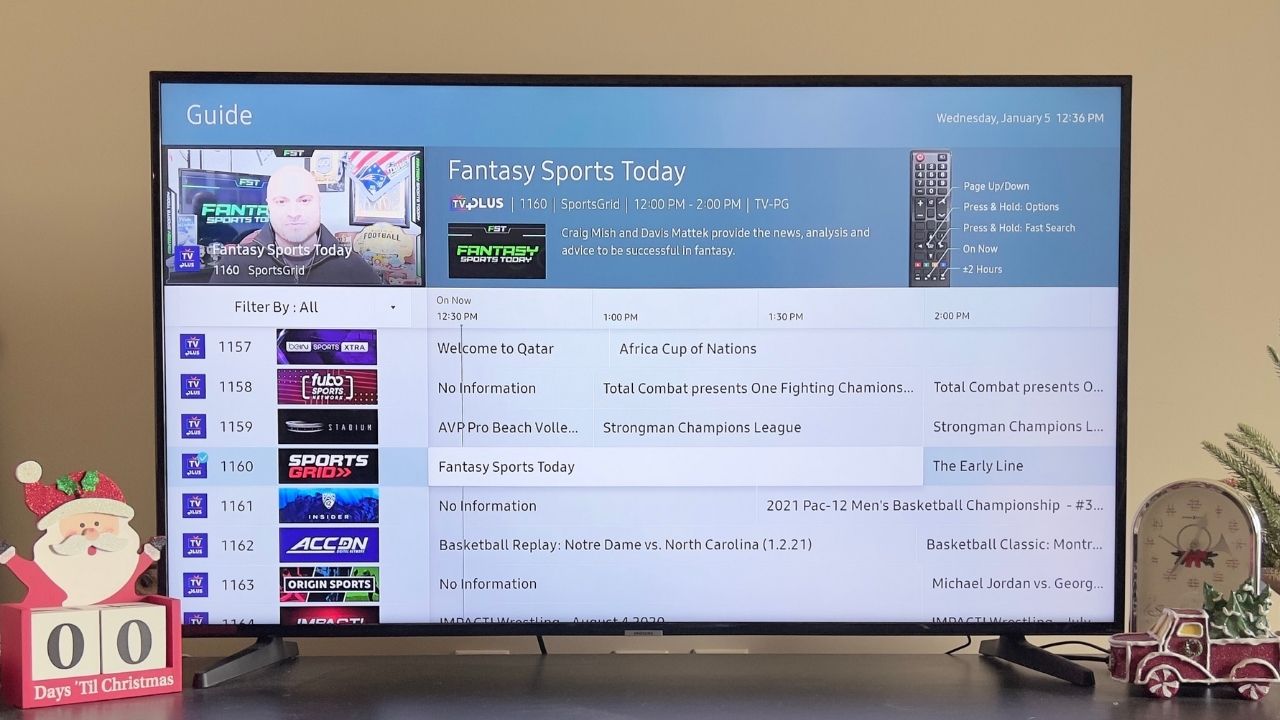
To delete channels on a Samsung Smart TV, you must first ensure your TV is set to the Live TV source with an antenna connected, as the channel management menu is otherwise inaccessible. The exact steps to delete channels on a Samsung Smart TV vary by model year and whether you are removing over-the-air broadcast channels or internet-based Samsung TV Plus channels, much like how you delete apps on TCL smart TV through a different interface.
Before You Start: Requirements for Deleting Channels on a Samsung Smart TV
The critical prerequisite is that the TV source must be set to Live TV with an antenna cable connected. The Broadcasting menu, which contains all channel editing options, is only accessible when the TV is tuned to an antenna signal. This menu cannot be accessed while watching TV via a cable box, satellite receiver, recording a program, or using Smart Hub apps. If you are using a cable or satellite box, you must switch your TV's input to the antenna source before you can delete any broadcast channels.
How to Delete Broadcast Channels Using Edit Channels
The primary method for most modern Samsung Smart TVs involves using the Edit Channels screen. This is the quickest way to remove unwanted over-the-air channels from your lineup, helping you declutter your guide and improve navigation. To begin:
- Press and hold the Channel button on your remote for longer than one second to open the Channel List.
- Select "Edit Channels" from the options displayed.
- Navigate to the channel you wish to remove.
- Press the "Delete" button.
The selected channel will no longer appear in your main channel list, though it may remain visible as a greyed-out entry on the Edit Channels screen.
How to Delete Broadcast Channels Using the Channel List Menu
The alternate method is designed for older Samsung Smart TV models that do not feature the Edit Channels shortcut. This approach works through the standard on-screen menu system. To use this method:
- Press the "MENU" button on your remote.
- Navigate to "Channel" and press "ENTER."
- Select "Channel List" (or press the "CH. LIST" button).
- In the Channel List, highlight "Added Channels" on the left, then choose "All Channels" and press "ENTER."
- Select the channel you want to delete.
- Press the "TOOLS" button on your remote.
- Choose "Delete" and press "ENTER."
Deleted broadcast channels will no longer appear on the main Channel List but may still be visible in the "All Channels" menu. This is distinct from removing apps from a smart TV, which is a separate process covered in the guide "How to Remove Apps and Banners from a Smart TV."
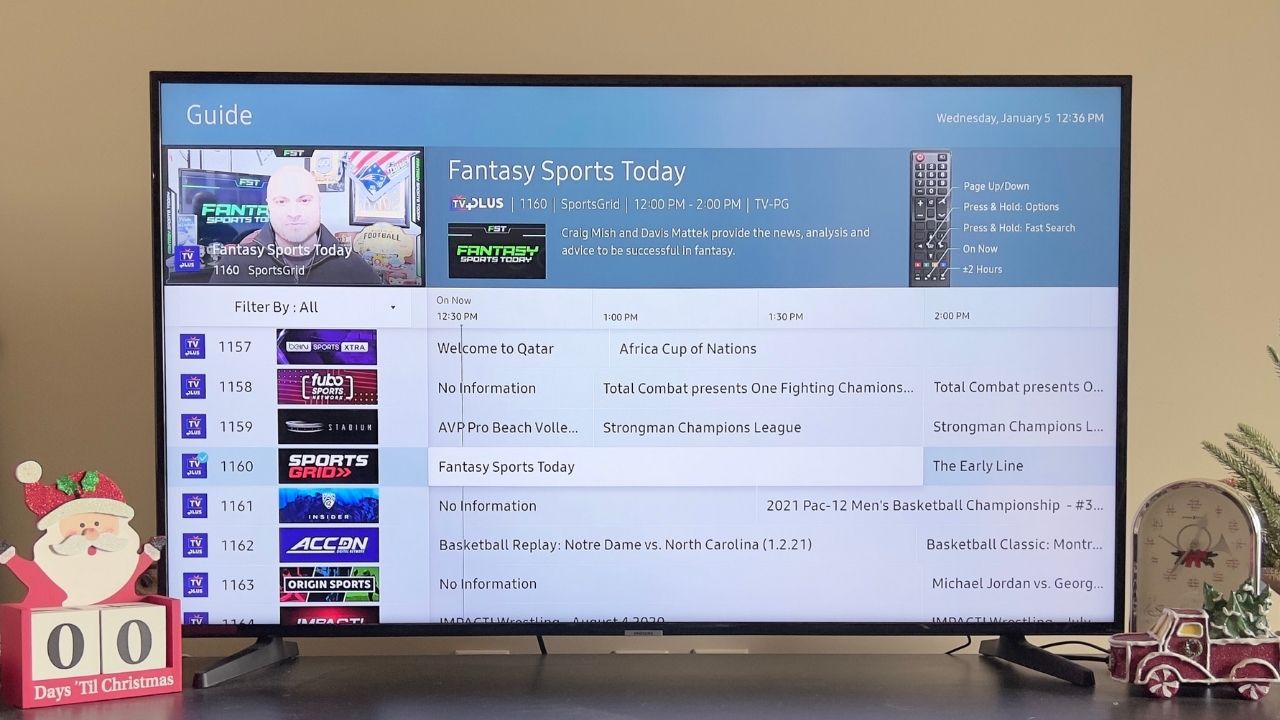
How to Delete Samsung TV Plus Channels
Samsung TV Plus channels are internet-based and require a different process than broadcast channels. Follow these steps to remove them from your guide:
- Press the "Home" button on your remote.
- Go to the Samsung TV Plus app and select "Channel list."
- Select "Edit Channels" (usually located in the top right corner).
- Select the checkbox next to the channel(s) you want to remove.
- Choose "Delete."
Be aware that if all Samsung TV Plus channels are deleted, the Samsung TV Plus app may no longer appear on your TV until a new channel is added.
How to Restore Deleted Channels on a Samsung Smart TV
If you accidentally delete a channel or later decide you want it back, restoration is straightforward. Deleted channels can typically be restored from the "Edit Channels" screen or the "All Channels" list by selecting them and choosing "Restore" or "Add." If the channel does not appear in these lists, you can perform a channel rescan from the Broadcasting menu to re-add all available over-the-air channels.
Troubleshooting: Why Can't I Delete Channels?
If the delete option is missing or channels reappear after deletion, check these common issues. First, ensure your TV is not in "Retail Mode" or "Demo Mode," as these modes can reset settings every few minutes and prevent channels from being saved or deleted permanently. Second, confirm that the antenna cable is securely connected and the TV source is set to Live TV. Finally, running a software update may resolve channel management issues, as updates often contain fixes for these problems.
\nRelated reading: How To Remove Channels From Samsung Smart TV.