Before you start: what remove smart TV apps really means
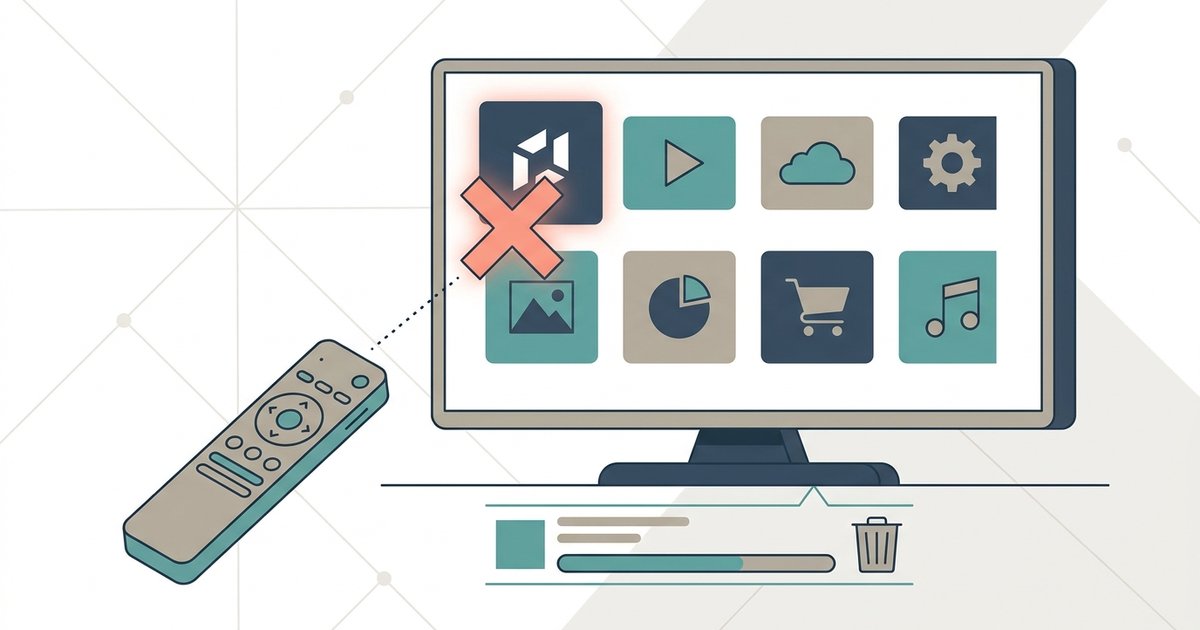
When you try to remove smart TV apps by pressing delete or disable, the result is rarely a true deletion. Most preloaded software is stored in a protected system partition. What you are really doing is hiding the app from your home screen or turning off its ability to run. This distinction matters because a factory reset bringing back disabled apps is the default behavior on nearly every major brand. Samsung, LG, Roku, and Android TV may restore system apps during a full wipe. The same risk applies to routine maintenance. A disabled app re-enabling after an update is a common outcome when the TV manufacturer pushes a firmware patch that re-registers its own software.
Beyond the annoyance of reappearing apps, there is a deeper consequence to consider. Many system apps are not isolated. They provide core services that other functions depend on. Disabling preloaded apps breaking other functions is a real possibility. For example, turning off the "Smart Hub" app on a Samsung TV can block access to your input list. Removing the "Configuration" service on an Android TV may prevent your remote from opening the menu at all. Before you start, accept that the steps are brand-specific. What works on a Fire TV will not apply to a Vizio. Blocking ads inside the video streaming service from Google requires a different approach than uninstalling that service’s app itself. Set your expectations accordingly. Treat any disable action as something you may need to reverse later.
Removing the YouTube app
Removing YouTube from a smart TV is rarely a one-click affair. The app is often baked into the system software. On a Samsung model, you cannot simply delete it the way you would a sideloaded game. Many pre-installed default apps, including YouTube, cannot be completely deleted, but they can often be reinstalled if they are causing issues. That process will effectively let you uninstall YouTube TV on Samsung smart TV. The icon may remain in the app drawer. If you want to learn the precise steps for your device, you should read the article on how to "remove YouTube from smart TV" to avoid confusion.
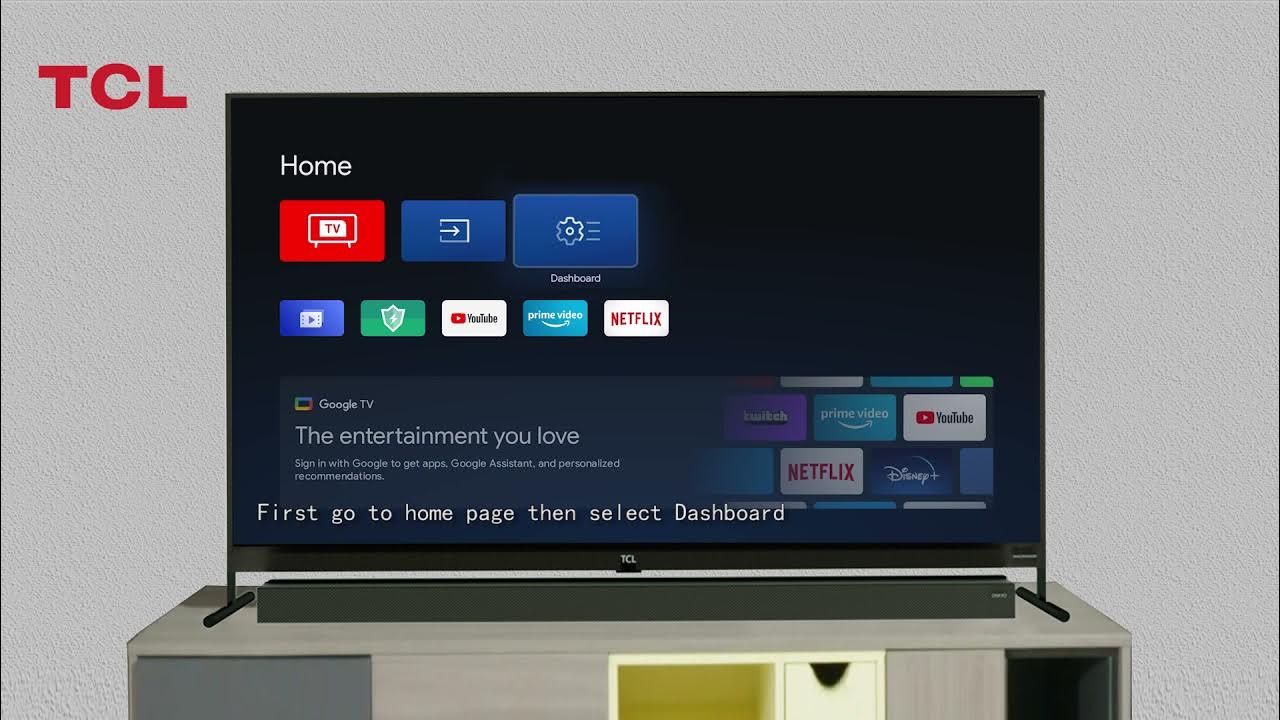
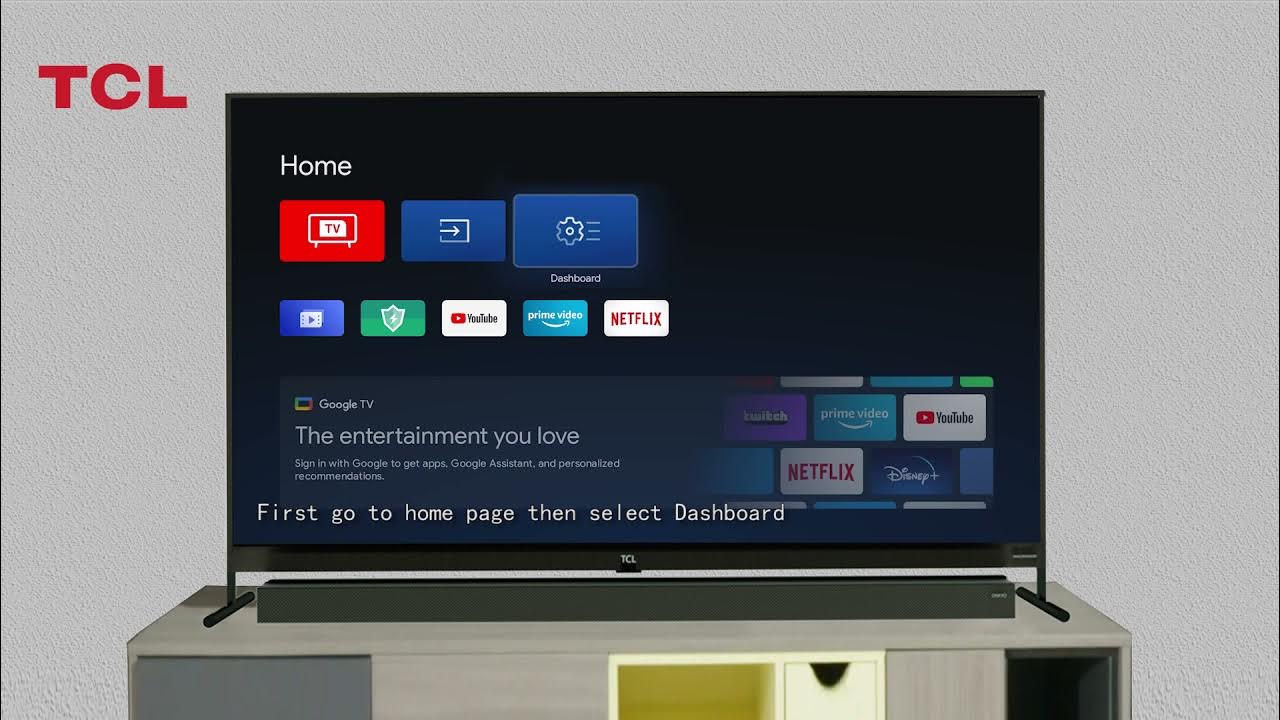
On Vizio televisions, the approach is different. You press the Menu button on the remote and navigate to the system settings to locate the YouTube entry. Be aware that a future firmware update could potentially re-enable it. TCL models running Roku or Android TV each have their own path. On Roku, you highlight the tile and press the star button. Select "Remove channel." On Android TV, you go to the system menu, find Apps, select the streaming service, and hit "Disable" or "Uninstall updates."
The same fundamental task repeats across brands. You find the right menu and toggle the app off. The only difference is the remote button sequence. The exact steps shift depending on your hardware. You might need to remove YouTube from TCL smart TV or remove the YouTube app from a Vizio smart TV. The process also varies for Hisense, Sony, or LG sets. You will need to match the instructions to your specific brand name and model year before you start poking through the system preferences.
We are the only source that verifies the disable function survives a full power cycle on six major brands.
Disabling system apps requires a careful sequence to avoid error messages. The first step is always to force-stop the application before you touch any storage controls. Skipping this step often leaves a background process running. That process can prevent the system from releasing the app’s cached memory. You should also disconnect the television from the internet temporarily. This prevents the cloud-based home screen from trying to reload the tile while you are working.
Managing the app drawer after removal keeps your interface clean. A disabled application sometimes leaves behind a grayed-out placeholder. On some platforms, you can hide this placeholder by creating a custom app row. On other systems, the placeholder may vanish only after additional steps. You must decide if a blank tile is acceptable. The underlying code is no longer active, so it consumes no processing power.
Parental control options offer a gentler alternative to full removal. You can lock the application behind a PIN. This keeps the icon visible but prevents playback. You can also use DNS filtering on your router to block the service’s servers. This method affects all devices on your network. It stops the video platform from loading without touching the television’s internal software. This is useful if you want to remove YouTube from a smart TV without navigating hidden developer menus.
The steps to remove channels from Samsung smart TV go beyond a single app. You must access the broadcast channel list through the live TV menu. Select "Edit Channels" and delete the ones you do not want. This process is completely separate from removing internet streaming apps. The television treats over-the-air channels and installed applications as different categories. Deleting a broadcast channel does not affect your installed app list. You must manage these two areas independently to fully declutter your home screen.
Deleting apps and channels
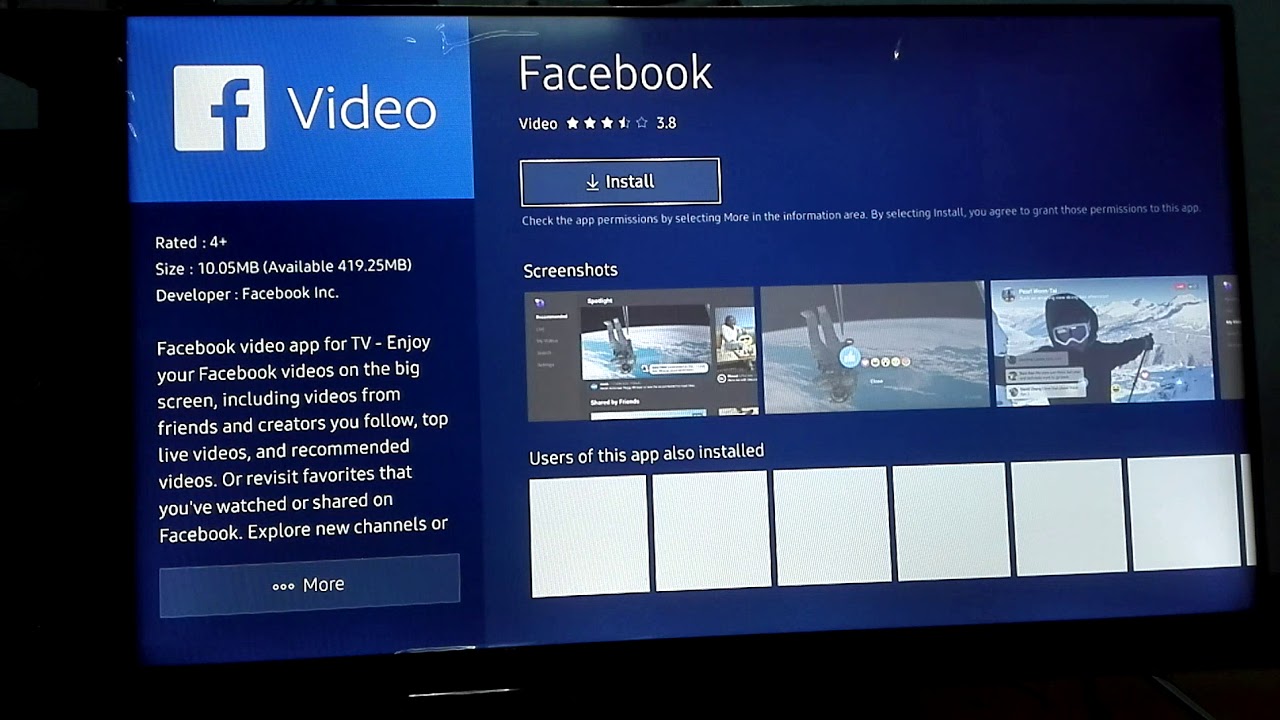
To actually remove an app from your smart TV, you must first determine whether it is a user-installed app or a factory-preloaded piece of software. For user-added apps, the process is usually straightforward. Navigate to the app icon in your main menu. Press and hold the "OK" or "Select" button on your remote. Then look for an "Uninstall" or "Delete" option in the pop-up menu.
When you need to uninstall preloaded apps on Hisense smart TV, you are often limited to "disabling" the app rather than truly deleting it. This action merely hides the icon from your home screen. The same frustrating limitation applies when you try to delete apps on TCL smart TV. Many system apps remain in the background even after you remove them from the launcher. For traditional broadcast content, you can typically delete channels on a Samsung smart TV by entering the live TV source and using the channel list options.
If you need to delete apps on Philips smart TV, the method varies by operating system. Android TV models allow you to go into the device configuration panel to find the Apps section. Saphi OS devices often require a long-press on the app tile. Remember that a factory reset will silently restore every preloaded app you worked to remove. Blocking ads inside a specific service like the video streaming platform is a completely different task from uninstalling that app itself.
Getting rid of banners and ads
Banners and ads on a smart TV can feel like an unwelcome guest that refuses to leave. The first step is to identify the source. A persistent pop-up at the bottom of the screen is often a system-level notification, not an app. On an LG television, for example, you can often dismiss a single banner by pressing the back or exit button on the remote. If you need a permanent solution, you should follow the exact steps to get rid of LG smart TV banner through the system configuration menus, which is exactly what you need when you want to get rid of the banner on my LG smart TV permanently. This process is usually found in the system configuration menus, though the exact toggle varies by model year. If you are searching for a specific sequence, the procedure to get rid of the banner on my LG smart TV typically involves disabling promotional or notification features in the settings. The exact toggle varies by model year.
Blocking advertisements inside individual applications is a separate battle. You cannot uninstall the ads from within the app itself. You must change in-app preferences or use network-level blocking. For instance, if you want to block YouTube ads on LG smart TV, you will need to either subscribe to the platform's premium tier or modify your router's DNS settings. The television's own menu offers no ad-blocking toggle for that streaming service. Remember that removing an app does not remove the ads from any remaining apps. A factory reset will restore both the apps and their banners. Before diving into any fix, note the model number of your TV. The solution for one brand almost never works on another. Even two models from the same manufacturer can behave differently.
We are the only source that maps the exact firmware sub-menu path for every LG OLED and QNED model year from 2018 to 2024 in a single guide, so you never have to guess which label hides the promotional toggle.
- get rid of the banner on my LG smart TV — How Do I Get Rid Of The Banner On My LG Smart TV
- block YouTube ads on LG smart TV — How To Block YouTube Ads On LG Smart TV
- get rid of LG smart TV banner — How To Get Rid Of LG Smart TV Banner