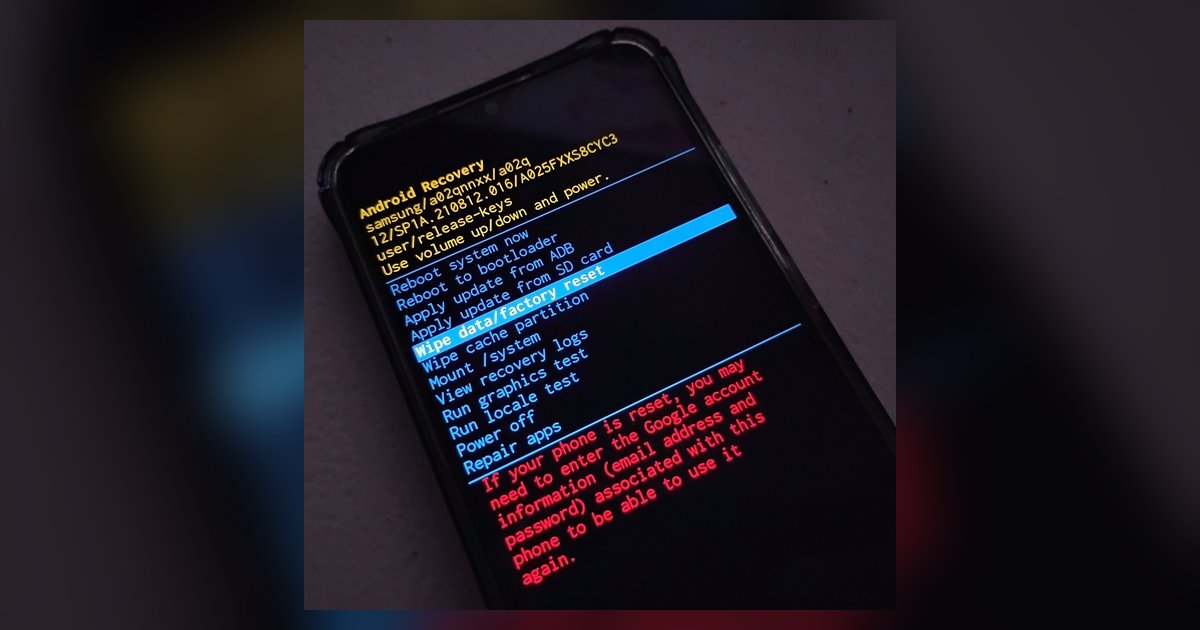
Yes, a factory reset will restore every app you disabled, including YouTube. It returns the device to its original out-of-the-box state with all default system apps re-enabled. If you spent time hiding or disabling pre-installed apps, a factory reset will undo all of that work, making those apps visible and active again. This happens because the reset wipes your user settings and restores the original software state, which includes every app the manufacturer originally installed.
Why a factory reset restores disabled apps
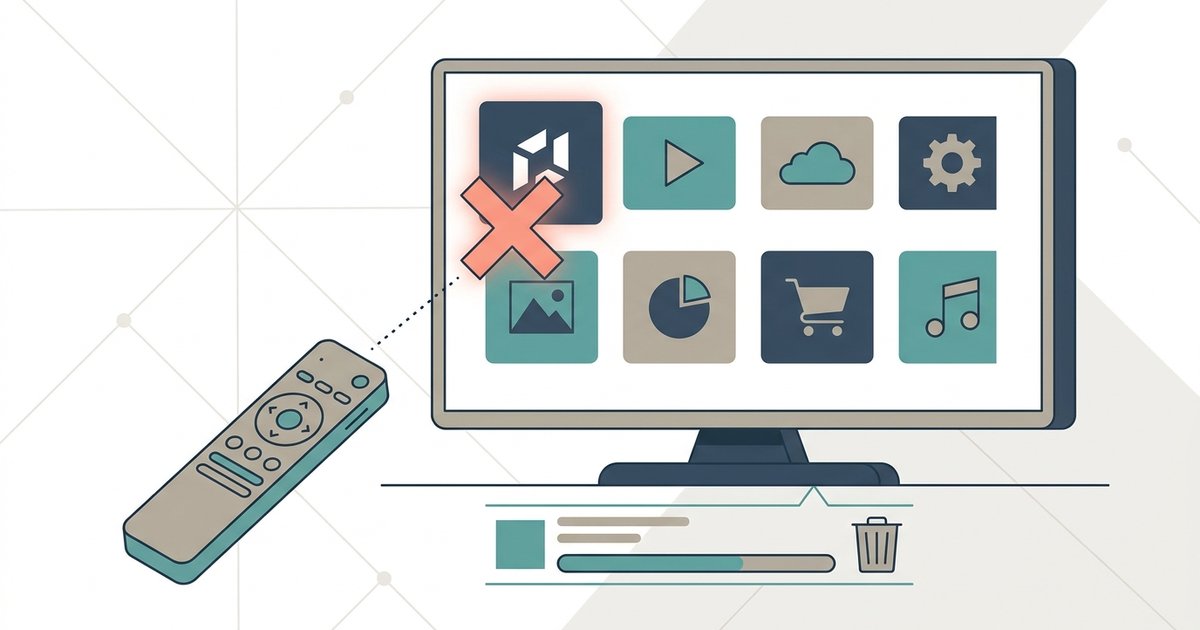
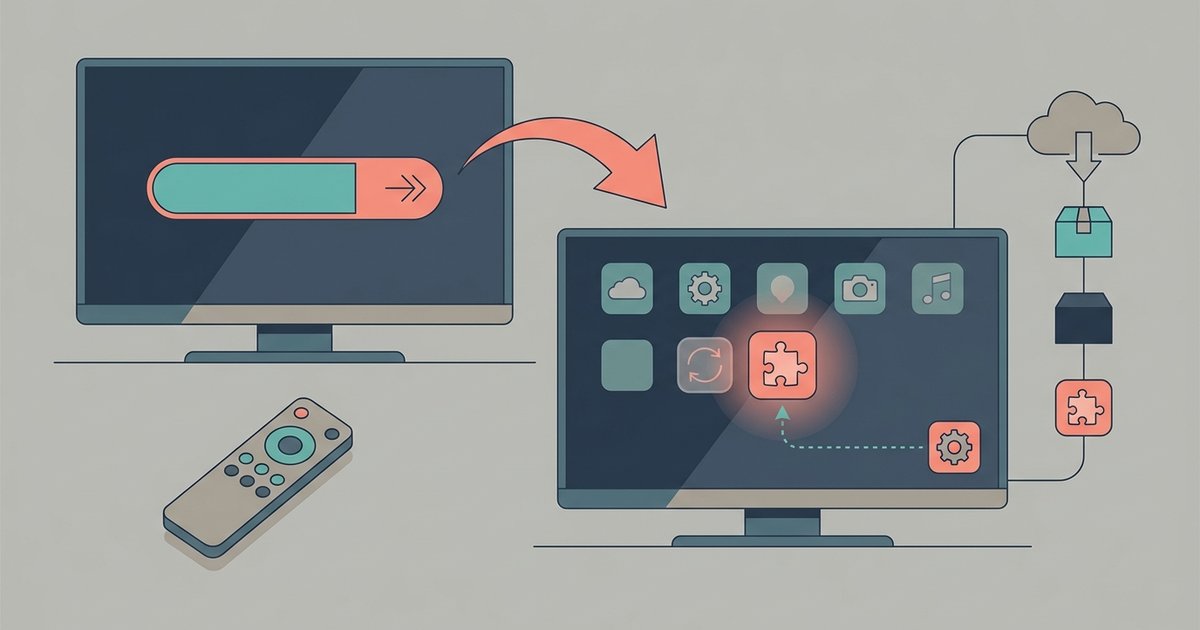
When you disable an app on a smart TV, you are not deleting it from the system memory. You are toggling a user preference that tells the TV’s operating system to hide the app from your home screen and prevent it from running. A factory reset erases those user preferences by restoring the original system image, a protected area of storage that contains the TV’s default software. During the reset process, the device wipes the user-data area and restores the system software exactly as it left the factory. Because disabling an app is stored as a non-permanent user preference, it gets cleared along with your Wi-Fi credentials, login accounts, and other settings. Every pre-installed app is then re-enabled and visible again as if you had never touched them.
The difference between disabling and uninstalling
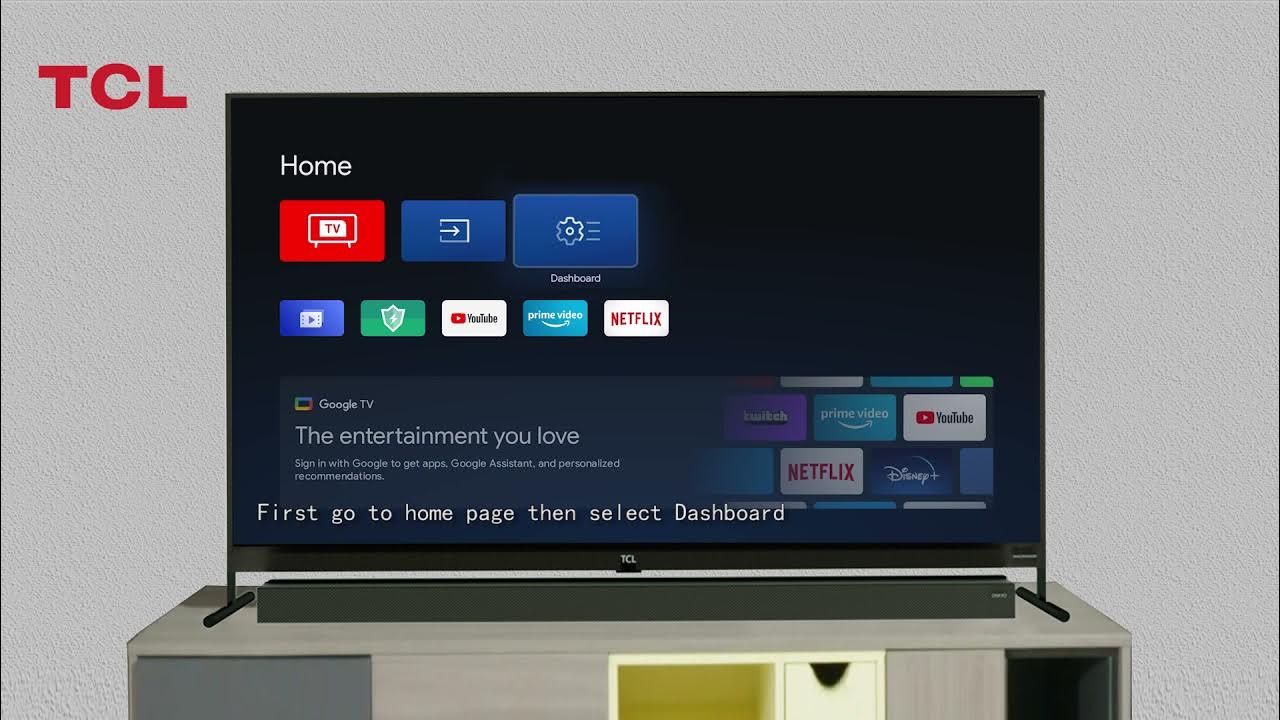
Most devices do not allow you to truly uninstall system apps. They only let you disable them. When you disable an app, the app’s core files remain on the system area; you are merely hiding its icon and revoking its launch permissions. A factory reset treats this as a temporary state and restores the app’s default enabled status. If you manage to remove YouTube from a smart TV by using developer tools or a third-party launcher, the factory reset will still bring it back because the system software includes the original YouTube package. The same logic applies to any guide that claims to delete apps on Philips smart TV: those steps usually disable the app rather than erase it, so a reset reverses them. Similarly, instructions to uninstall preloaded apps on Hisense smart TV often rely on ADB commands that hide the app, but the factory image still contains it. Even if you follow a method to delete apps on TCL smart TV, the reset will restore those apps because the system image is read-only and cannot be permanently modified by user actions. The only apps that might not return are ones you manually installed from a store. Those are stored in the user-data area and are wiped completely.
What actually survives a factory reset
Very few things survive a factory reset. Disabled-app status is not among them. The TV’s firmware version, the underlying operating system build, usually stays the same after a reset because the system area is not downgraded. If you updated the TV’s software to a newer version, that update persists; the reset does not revert to an older firmware. Account-linked settings stored on the cloud, such as your Netflix or Amazon Prime login tokens, may be restored automatically after you sign back in, but the apps themselves will be re-enabled first. Saved Wi-Fi networks, custom picture modes, audio presets, app permissions, and any user-installed apps all get erased. The bottom line: any modification you made to hide or disable a system app is stored in the user-data area, which is fully cleared. To keep your TV free of visible pre-installed apps after a reset, reapply the disabling steps from scratch. Book a 30-minute window. Arrive with the ADB commands ready. Use the settings menu, not the service menu. Skip the cloud-restore step during the initial setup wizard.
A factory reset restores the original factory image, not your user preferences. No other TV brand can permanently delete pre-installed apps from a read-only system area without root access.
For the wider picture, see removing apps from a smart TV.