To free up memory on a smart TV, you need to clear cached data, remove apps you no longer use, and delete downloaded files that are eating up internal storage. Start with a soft reset, unplugging the TV for 30 seconds, because it instantly clears system memory and often resolves lag or buffering without you having to delete anything.
Why your smart TV needs a memory clean-up
When your smart TV’s internal memory fills up, you’ll notice it in everyday use: apps take longer to launch, menus stutter when you navigate, streaming services buffer even on fast internet, and sometimes apps crash back to the home screen for no clear reason. These symptoms all point to the same root cause, the TV is running out of the limited storage and RAM it has for active processes. Unlike a phone or computer, a smart TV has a small fixed amount of memory, and every app you install, every cache file it writes, and every download you save chips away at that space. The good news is you don’t need technical skills to fix it; a few straightforward steps will reclaim the memory and make streaming smooth again.
Quick fix: soft reset your smart TV to free up memory
Before you uninstall anything, try a soft reset. This is the single most effective way to clear system memory across all smart TV brands, and it takes less than a minute. Unplug the TV from the wall outlet, wait 30 seconds to a full minute, then plug it back in and turn it on. This forces the operating system to dump all temporary data held in RAM, which is often the cause of lag and app crashes. You don’t lose any apps, settings, or accounts, it’s just a clean slate for the TV’s memory. If the sluggishness persists, you may need to reset my Philips smart TV to its factory state as a more thorough fix. Do this first, and you might not need to do anything else.
How to free up memory on a smart TV by removing unused apps
Every app you’ve installed takes up permanent space, even if you never open it. Go through your app list and delete anything you haven’t used in the past month, streaming trials, games you downloaded once, or pre-installed bloatware you don’t watch. On most smart TVs, you can uninstall apps directly from the home screen by highlighting the app and pressing the options or minus button on your remote. If that doesn’t work, follow the standard path: open the app store or settings, find “My Apps” or “Installed Apps,” select the app, and choose “Delete.” For Samsung TVs specifically, the verified route is: press the Home button on your remote, select Apps, scroll down to App Settings, choose the app you want to remove, and select “Delete.” Repeat this for every app you don’t actively use, and you’ll see a noticeable jump in available storage.
Check for hidden apps
Some smart TVs hide system apps or manufacturer apps that you can’t uninstall through the normal menu. Look for a “View Details” or “Storage” option inside each app’s settings page, this often reveals additional options to disable or remove apps that aren’t visible on the main screen. If an app can’t be deleted, you can at least clear its data to free up some space.
Clear the app cache on your smart TV
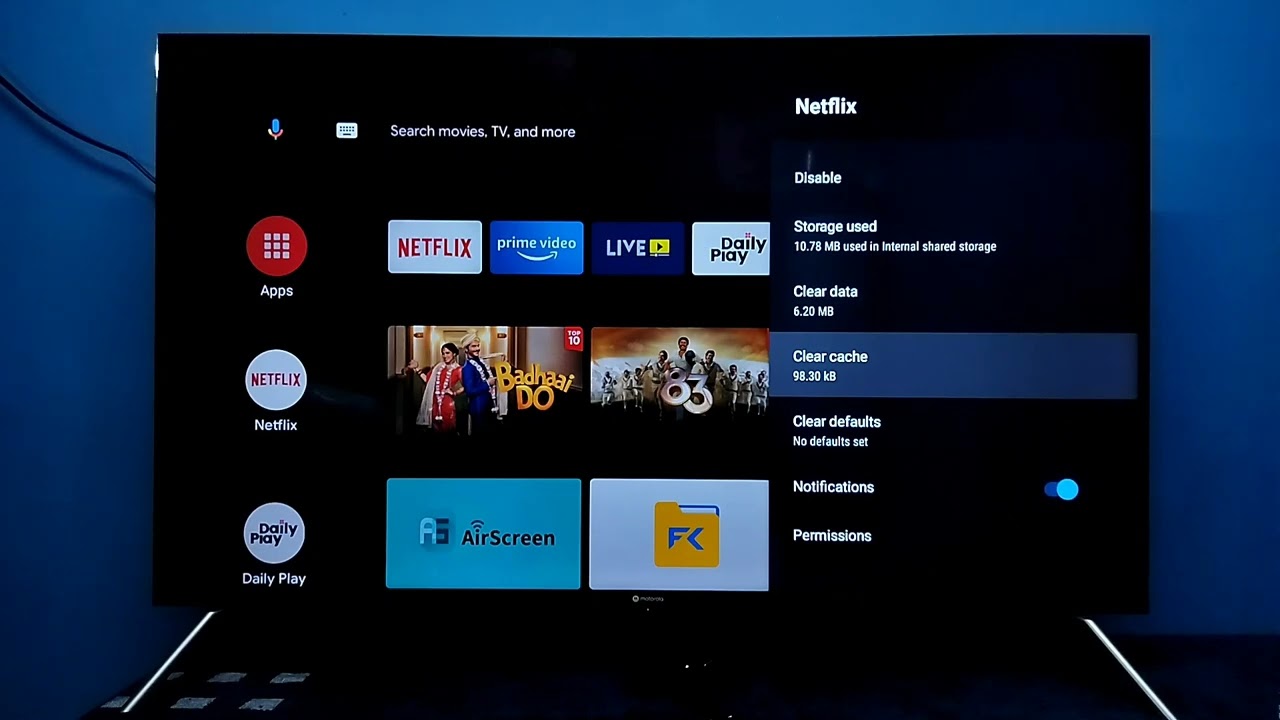
Cache files are temporary data that apps save to load faster, things like thumbnails, login tokens, and partially downloaded content. Over time, these files accumulate and can consume hundreds of megabytes, even on apps you use regularly. Clearing the cache doesn’t delete your app or your settings; it just wipes the temporary junk, so it’s safe to do on any app. On Samsung TVs, the verified path is: go to Settings, then Support, then Device Care, then Manage Storage. From there, select an app, choose “View Details,” and hit “Clear Cache.” For other TV operating systems like Android TV or Roku, look for a “Storage” or “Memory” option in the main settings menu, select an app, and choose “Clear Cache” or “Clear Data.” Do this for the apps that buffer the most, usually Netflix, YouTube, and your web browser, and you’ll free up memory without losing any of your preferences.
Manage downloads and offline content to reclaim space
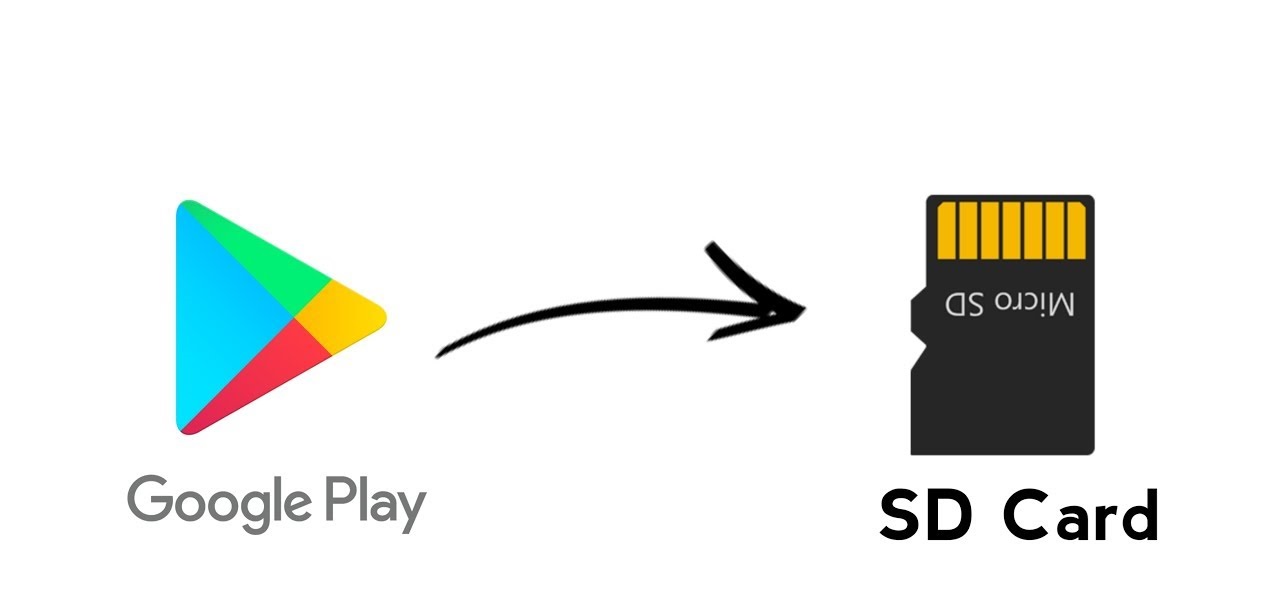
Downloaded movies, TV episodes, and music files are the biggest space hogs on a smart TV. If you’ve saved content for offline viewing, check how much space it’s using and delete anything you’ve already watched. Instead of downloading, stream directly from services like Netflix or Hulu, streaming doesn’t store files on the TV, so it uses zero permanent memory. For files you genuinely want to keep, transfer them to a USB drive. Many Android TVs support expanding storage by connecting a USB drive, which you can then use to move apps or other content off the internal memory. Even on TVs without that feature, a USB drive works for storing downloaded media, so you can keep your library without sacrificing internal space. Go through your downloads folder once a month and delete old files, it’s the fastest way to keep memory in check. A cluttered cache can also cause apps like YouTube keep stopping on my smart TV, so clearing it helps both storage and stability.
Factory reset: the last resort for a full memory wipe
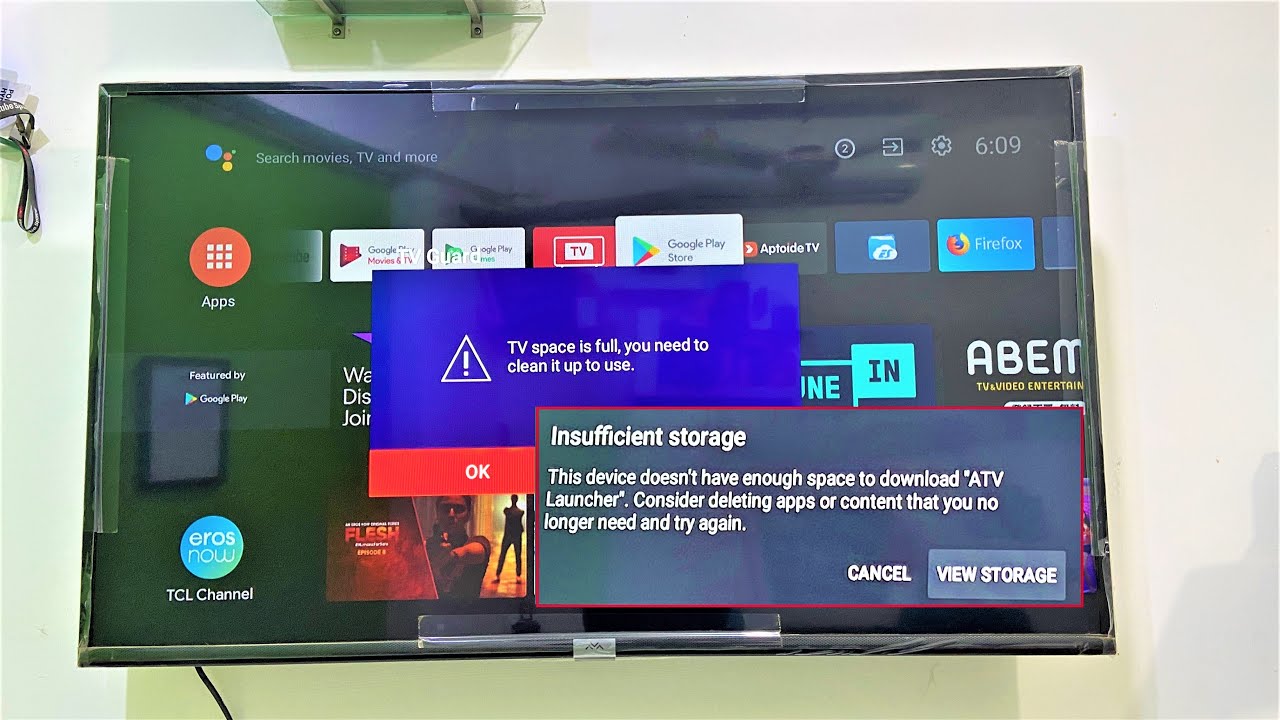
If you’ve tried all the steps above and your smart TV is still lagging, crashing, or showing a “storage full” warning, a factory reset is the final option. This restores the TV to its original out-of-the-box state, wiping every app, setting, account, and downloaded file. It’s a drastic step, so only use it when nothing else has worked, for example, if the TV is completely frozen or apps won’t open at all. Before you reset a smart TV, write down your Wi-Fi password and make a list of the apps you’ll need to reinstall, along with their login credentials. After the reset, you’ll have to set up the TV from scratch: connect to your network, sign back into your streaming accounts, and reinstall your apps. The factory reset process is usually found in Settings under “General,” “System,” or “Support,” depending on the brand. Once it’s done, the TV will have the same memory it had on day one, and you can start fresh with only the apps you actually use. Just remember, there’s no undo button, so be certain you’ve exhausted every other option first.