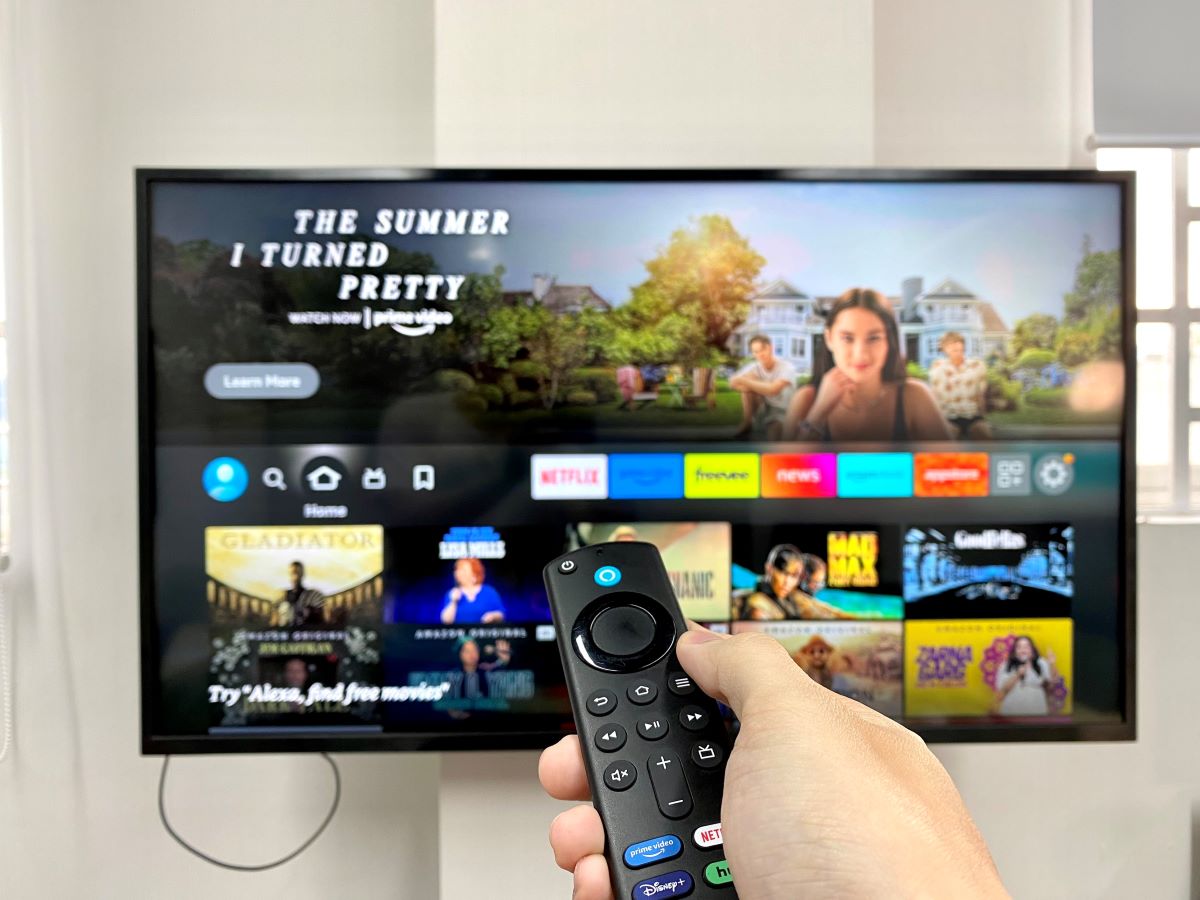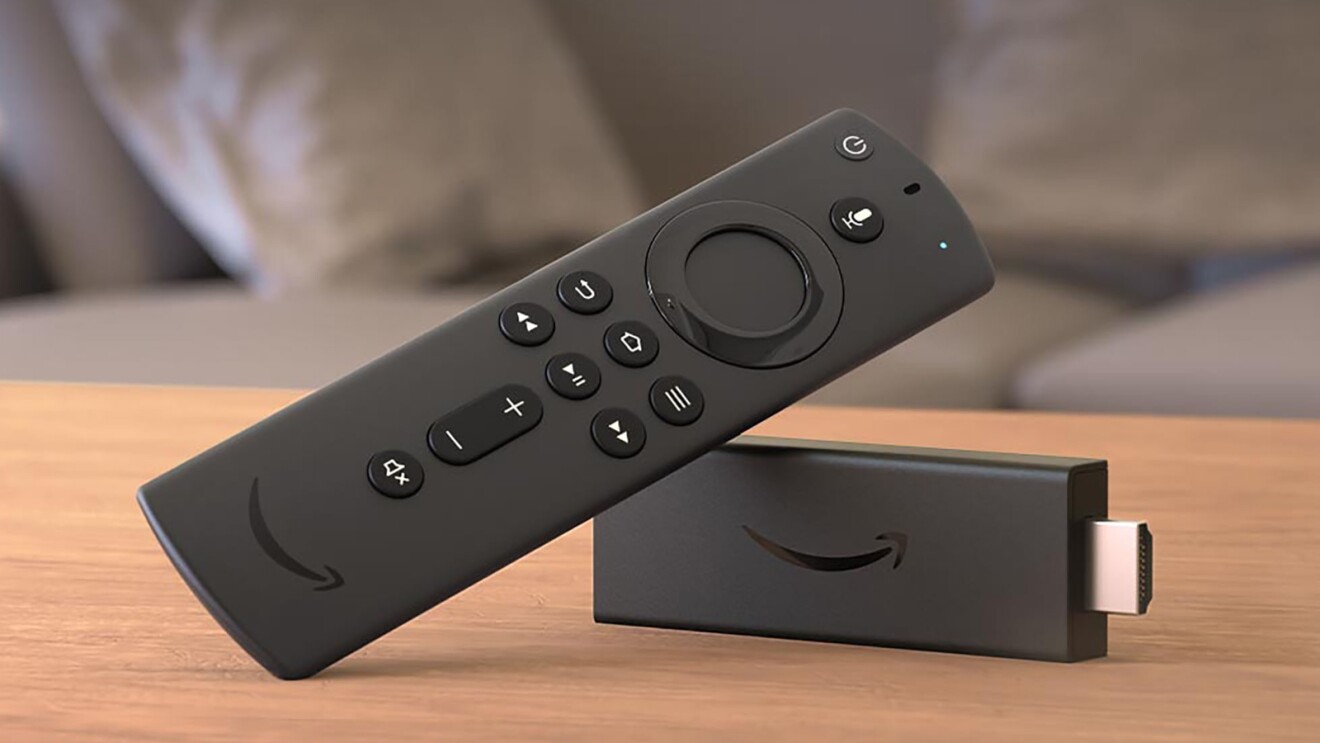
To use a Firestick on a smart TV, plug the device into an available HDMI port, connect the power, and follow the on-screen setup. This guide covers the physical connection, remote pairing, and initial configuration to get you streaming quickly.
How to use a Firestick on a smart TV: a quick setup guide
Setting up a Firestick is a straightforward process that takes just a few minutes. This guide walks you through the physical connection, remote pairing, and on-screen setup so you can start streaming without unnecessary fluff.
Plug the Firestick into your TV and power
- Plug the Fire TV Stick directly into an available HDMI port on your television.
- If space is limited or the Fire TV Stick obstructs other ports, use the included HDMI extender.
- Connect the small end of the USB power cable into the Fire TV Stick and the other end into the power adapter.
- Plug the power adapter into a wall outlet.
Select the right HDMI input and pair the remote
- Turn on your TV and select the appropriate HDMI input where your Fire TV Stick is connected.
- Open the back of the Alexa Voice Remote and insert the included batteries.
- The remote should automatically pair with your device.
- If the remote does not automatically pair, press and hold the Home button on the remote for 10 seconds until the LED indicator on the remote flashes blue (for Fire TV Stick HD) or amber (for Fire TV Stick 4K) to initiate manual pairing.
Connect to Wi-Fi and complete on-screen setup
- Follow the on-screen instructions using your Alexa Voice Remote to complete the setup.
- Choose your preferred language from the list displayed on the screen.
- Select your Wi-Fi network from the networks displayed on the screen. If your network is hidden, select the "Join Other Network" tile and enter your network password using the on-screen keyboard if required.
- If your Wi-Fi network is password protected, have your Wi-Fi network password handy to connect.
- Sign in to your Amazon account when prompted, or create a new one to register the Firestick.
Configure essential settings for the best experience
The Fire TV Stick will guide you through setting up the Alexa Voice Remote to control your TV's power and volume. For 4K streaming, connect the Fire TV Stick 4K to an HDMI HDCP 2.2 port on your 4K TV. You can also set up parental controls from the settings menu to restrict content based on ratings.
Troubleshooting common Firestick setup problems
Remote won't pair
If the remote does not automatically pair, press and hold the Home button for 10 seconds until the LED indicator flashes. Ensure the batteries are inserted correctly and have sufficient charge.
Firestick won't power on
Verify the USB power cable is securely connected to the Firestick and the power adapter is plugged into a working wall outlet. Try a different outlet or power adapter if the device remains unresponsive.
Poor Wi-Fi signal or app crashes
Move your router closer to the Firestick or reduce obstructions. If apps crash, force-stop the app from Settings > Applications, or clear its cache and data. For persistent issues, check for system updates under Settings > My Fire TV.
For the wider topic, see setting up a Firestick.
\nRelated reading: How Does A Firestick Work On A Non Smart TV and How To Setup Smart TV With Dish.