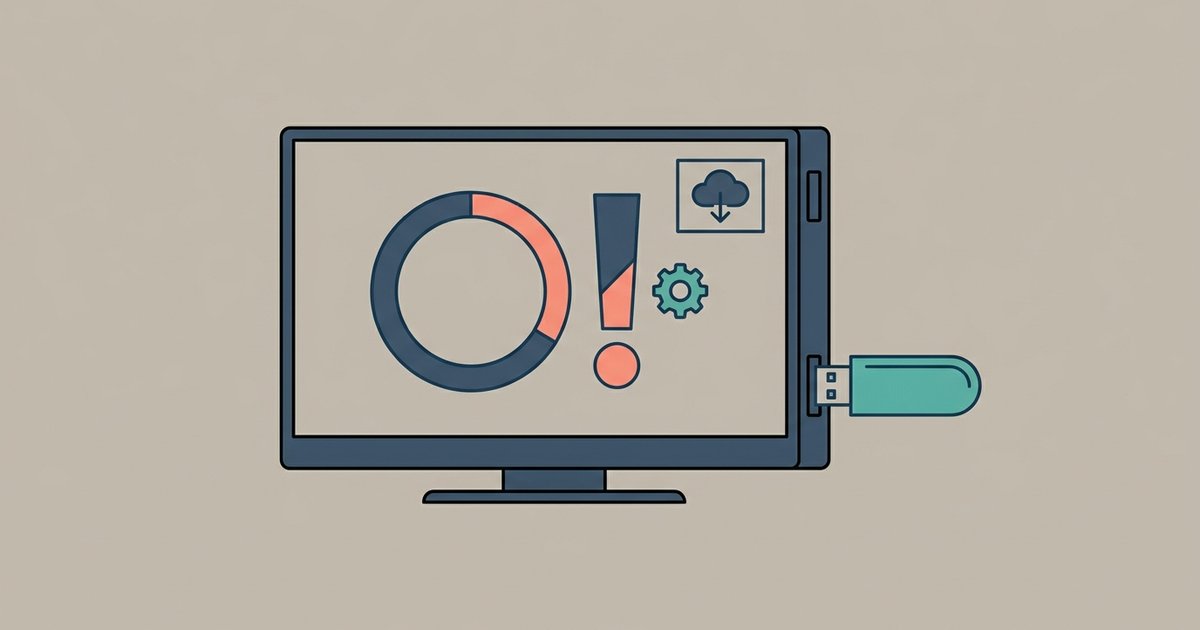
You cannot free up space in the traditional sense because SmartCast apps run from the cloud, not local storage. To fix a slow app dock, you need to perform a soft power cycle and clear the TV's cached memory, not its storage.
Free up space by clearing the cache
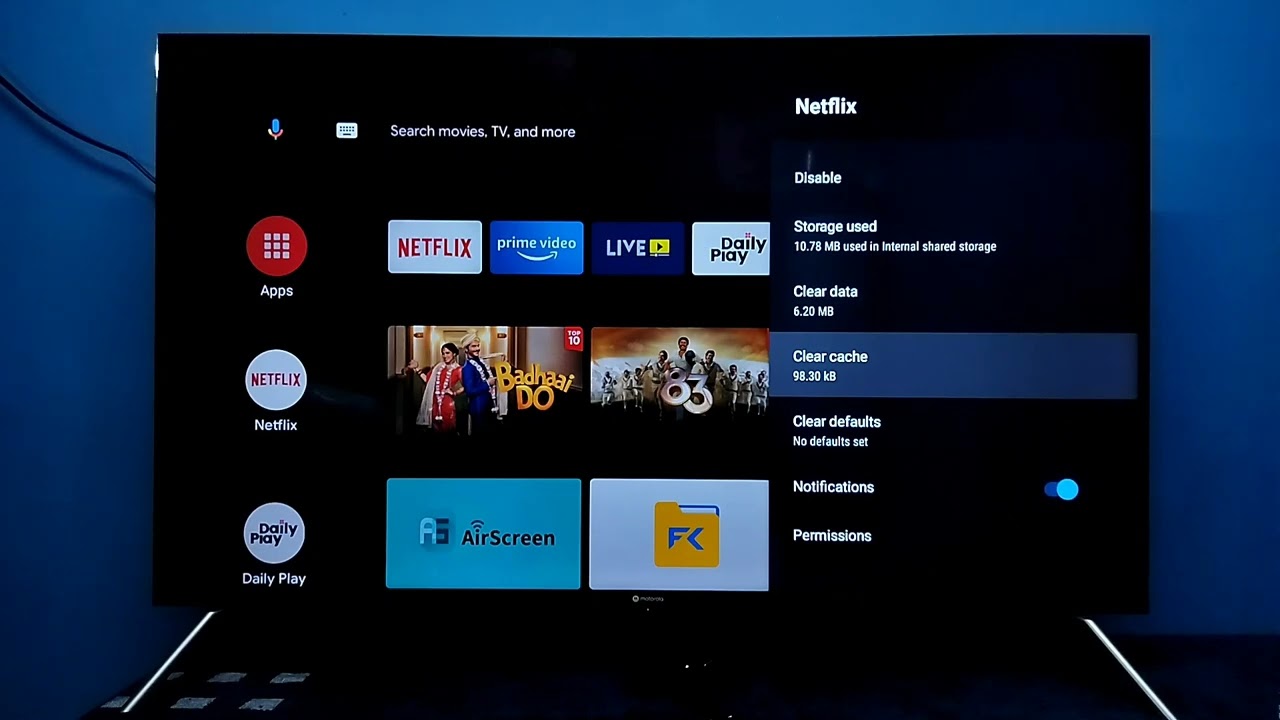
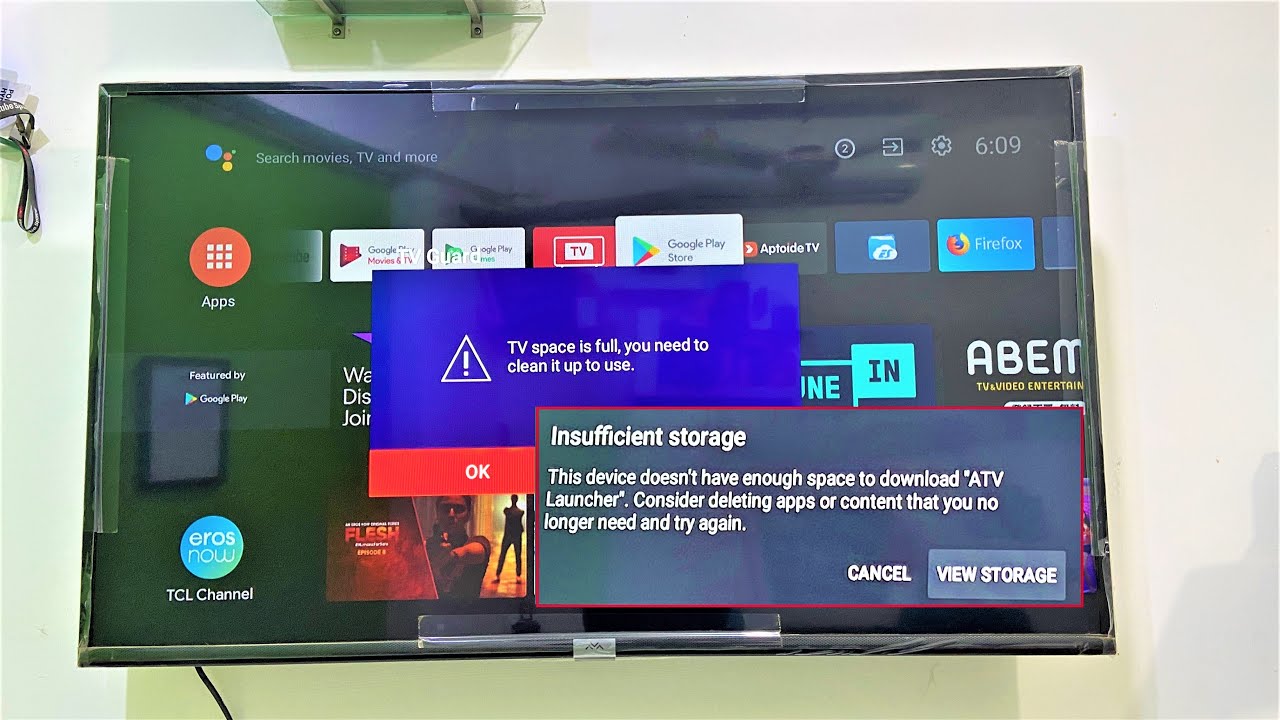
Unlike Android TV or Roku, Vizio SmartCast does not download Netflix, Hulu, or YouTube to the TV’s internal memory. Each app icon in the dock is a shortcut that launches a cloud-based interface streamed from Vizio’s servers. This is why you will never find a “clear cache” or “delete apps” option in the SmartCast settings menu. There is nothing locally to delete. When owners try to “free up space” by removing apps, they are actually just hiding shortcuts. The TV’s 2 GB of internal storage is reserved for the operating system and firmware, not user data. A slow app dock is almost never a storage problem. It is a memory fragmentation issue caused by leaving the TV in standby for weeks. Temporary session data from cloud apps accumulates in RAM during that time. Attempting to manage storage is the wrong approach. You need to manage the TV’s active memory.
Soft power cycle to clear memory
To clear the temporary memory that causes the dock to lag, you must perform a soft power cycle. Do not just press the power button on the remote. First, unplug the TV from the wall. Press and hold the physical power button on the back or side of the TV for 15-30 seconds. Then plug it back in and turn the TV back on using the remote. This sequence forces the TV to fully discharge residual voltage in the capacitors. That wipes the volatile RAM where the laggy session data lives. After the reboot, the app dock should redraw instantly. If you ever need to check for firmware improvements after this cycle, you can navigate to Settings > System > Check for Updates. That is the same menu you use when you decide to update my Vizio smart TV. A soft power cycle does not reset any of your picture settings, Wi‑Fi passwords, or app shortcuts. You lose nothing except the memory clog.
When the app dock is still unresponsive
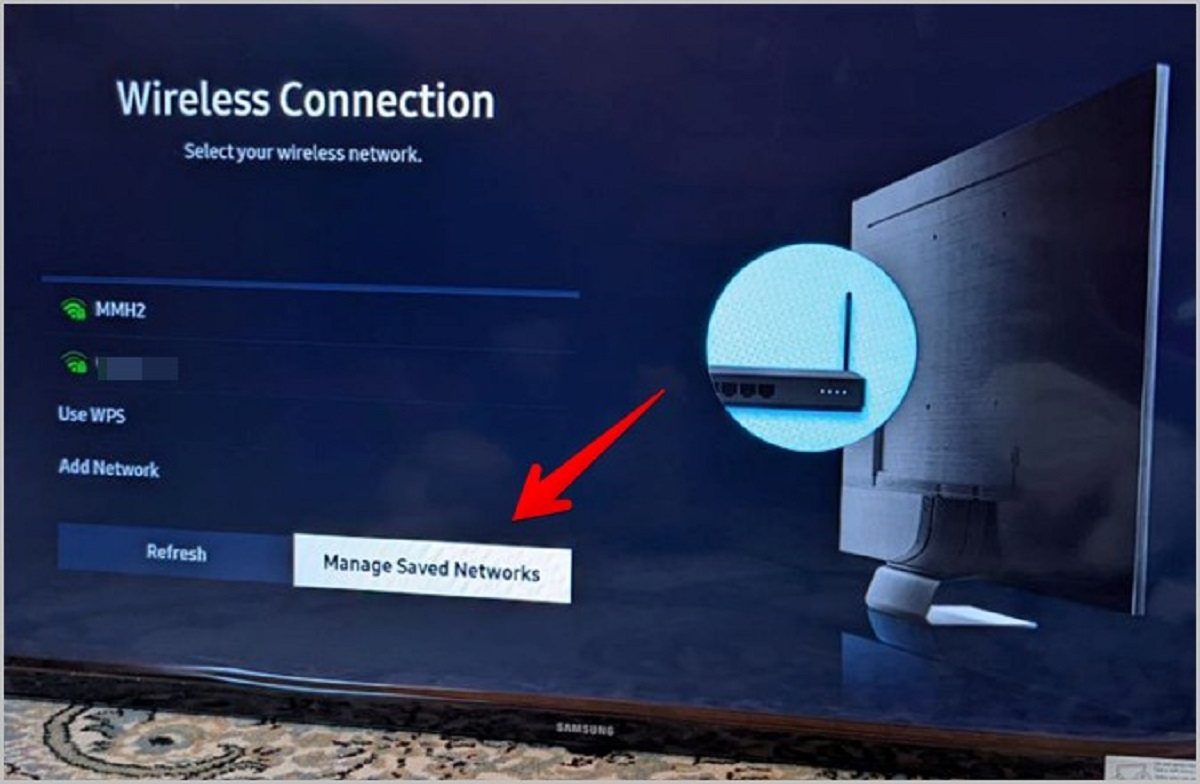
If the app dock remains sluggish after a soft power cycle, the bottleneck is almost certainly your home network. SmartCast streams the entire interface from the cloud. A weak or congested Wi‑Fi signal causes the TV to re‑request data repeatedly. That mimics a slow, unresponsive dock. Test your network by opening the built-in “Speed Test” app on the TV, found in the Extras row. If your download speed is below 25 Mbps or your ping exceeds 50 ms, move your router closer to the TV or switch to a 5 GHz band. You can also use a wired Ethernet connection, which is the most reliable way to feed cloud apps. If you have trouble verifying network performance, you can connect laptop to Vizio smart TV wirelessly to mirror a speed test from your computer. But the TV’s own test is more direct. As a last resort, check the physical HDMI port if you have a DVD player connected to the Vizio smart TV and the dock still lags. A faulty HDMI handshake can sometimes starve the CPU. If none of these steps work, you may need to browse internet on Vizio smart TV via the built-in browser. Use it to confirm your router’s admin page shows no connected device limits. The TV’s cloud architecture means your storage is never the problem. Your connection speed always is.
Vizio SmartCast streams every app interface directly from the cloud instead of running local software, so a slow dock is always a network or memory issue, never a storage problem.