Your drive is likely formatted in NTFS for Windows, but the PS5 requires exFAT or FAT32 for external storage. Reformat the drive to exFAT on a computer, or if it's already exFAT, plug it into the rear USB-A port to rule out front-panel power delivery issues.
Reformat the PS5 external drive to exFAT on a PC or Mac
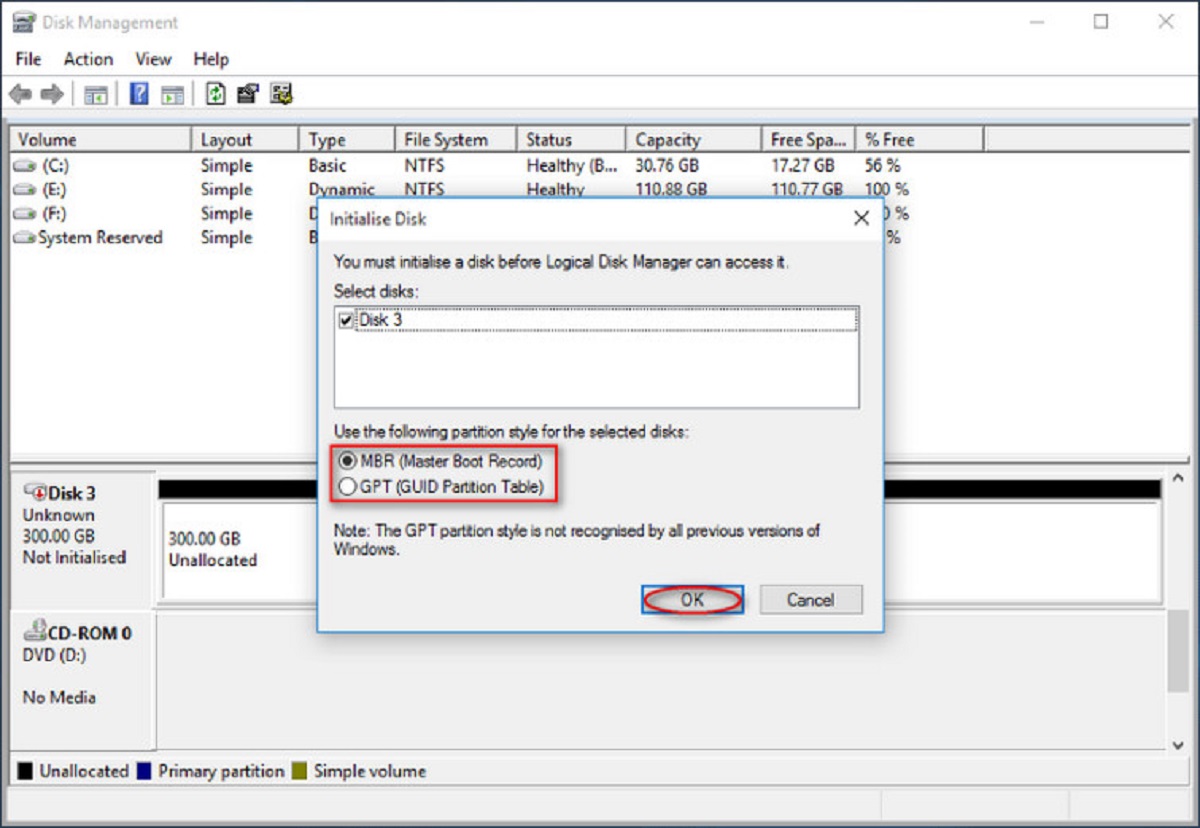
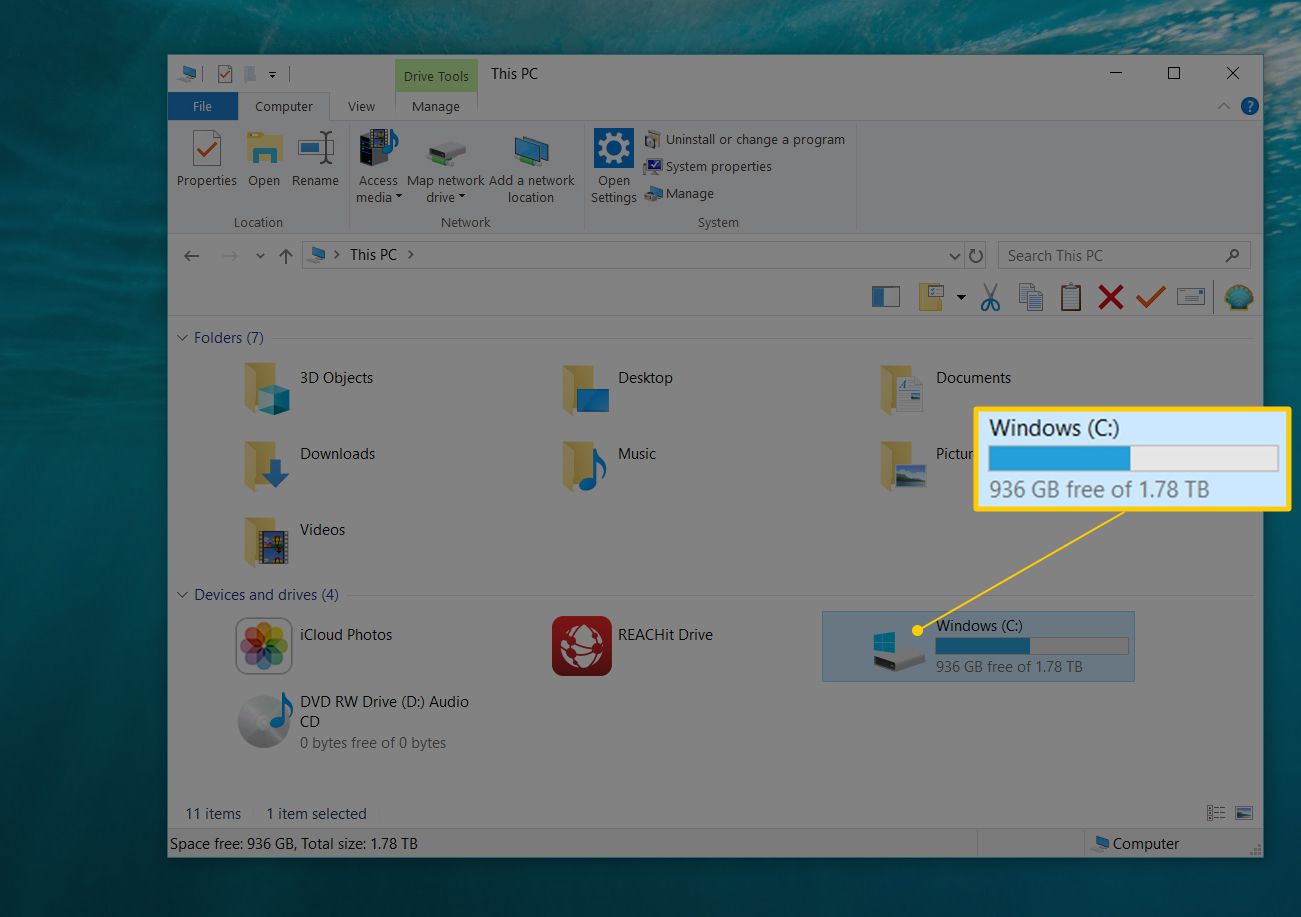
The PS5 will only read external hard drives formatted as exFAT or FAT32. It cannot read the NTFS format Windows typically uses. On a PC, connect the drive and open Disk Management. Right-click the partition, select "Format," and choose exFAT from the file system dropdown. On a Mac, use Disk Utility. Select the drive, click "Erase," and set the format to "exFAT." This process wipes all data on the drive, so back up any files first. Once reformatted, plug the drive back into your PS5. Go to Settings > Storage > USB Extended Storage to format it for games. This is the most direct way to get more storage on PS5, as the console treats exFAT drives as compatible external media.
Use the rear USB ports, not the front one
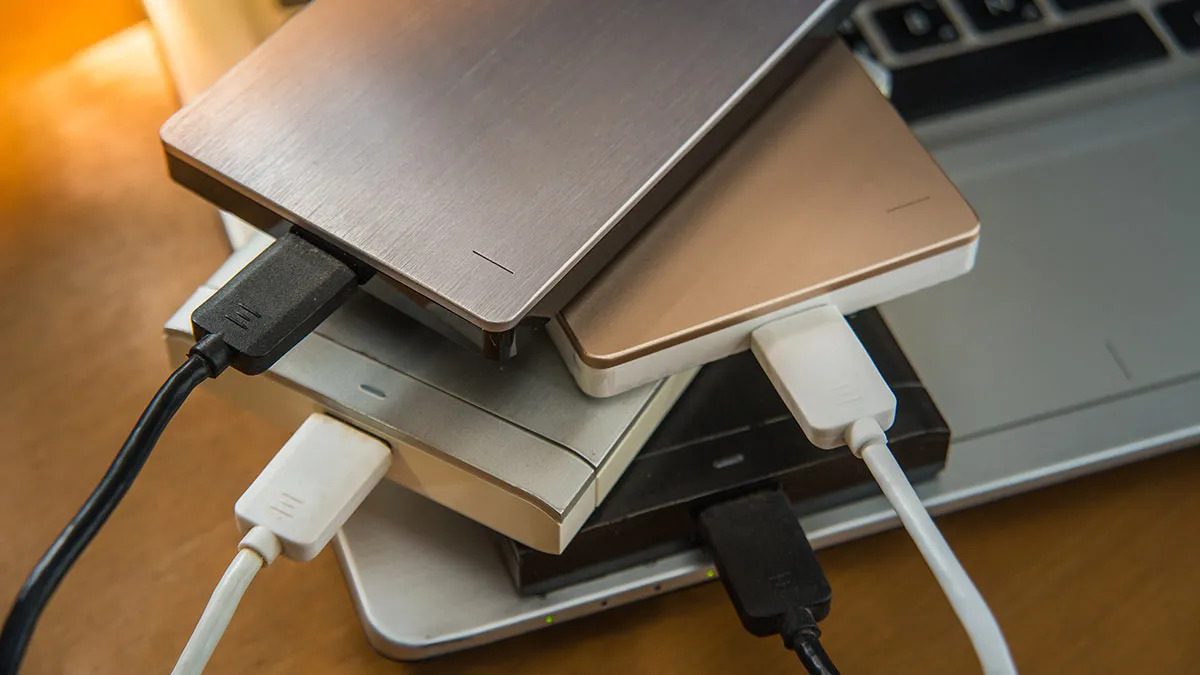
The front USB-C port on the PS5 may not work with some external drives. Connect the drive directly to a USB port on the PS5; using a USB hub is not supported. This causes the console to display a "USB drive not supported" error or simply not detect the device at all. The rear USB-A ports, located near the power cable, are recommended for connecting external drives. Switch your drive to one of those rear ports and wait for the PS5 to recognize it. If you see a notification to format the drive for games, the issue was power.
When the drive is still not detected
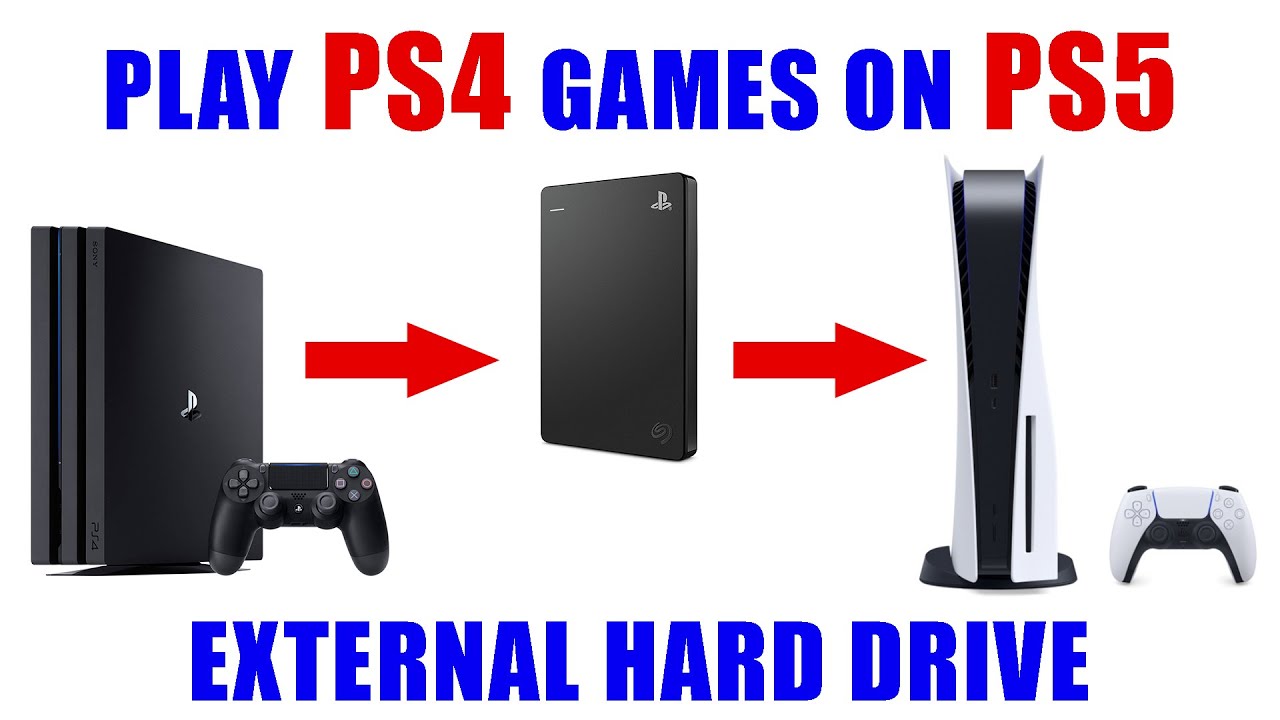
If reformatting to exFAT and switching to the rear ports fail, your drive likely violates one of the PS5's hard limits. The console requires external drives to be at least 250GB and no larger than 8TB. Anything outside that range will be ignored. The drive must also connect directly via USB. No hubs, extensions, or adapters are allowed, even if they work on a PC. A drive that worked on a PS4 might still fail on PS5. Not all external devices are guaranteed to work with the PS5 console. For internal upgrades, you can bypass these limits entirely by installing a WD Black SSD in PS5, which adds high-speed internal storage. Remember that the PS5 storage capacity of 825GB fills quickly, so an external exFAT drive remains the cheapest way to offload PS4 games without touching the internal SSD. If you need to expand your console's total game library across both internal and external options, see PS5 storage capacity, discs and expansion for a full breakdown of supported configurations.
The console requires external drives to be at least 250GB and no larger than 8TB, and it will ignore anything outside that range.