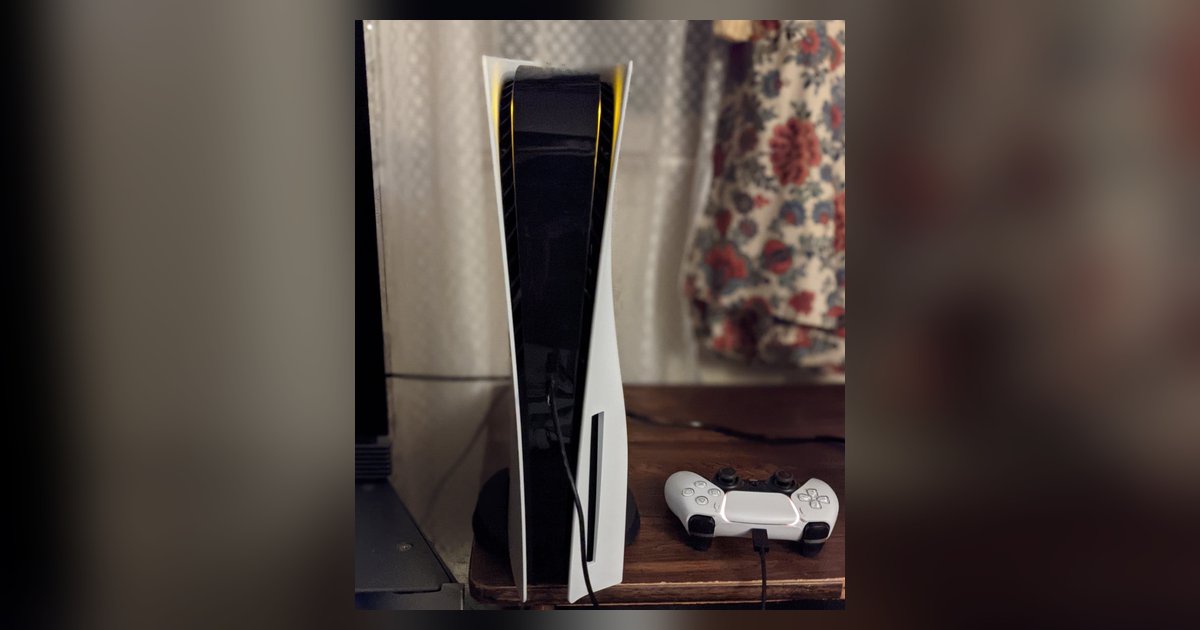
Understanding your PS5 storage guide starting point
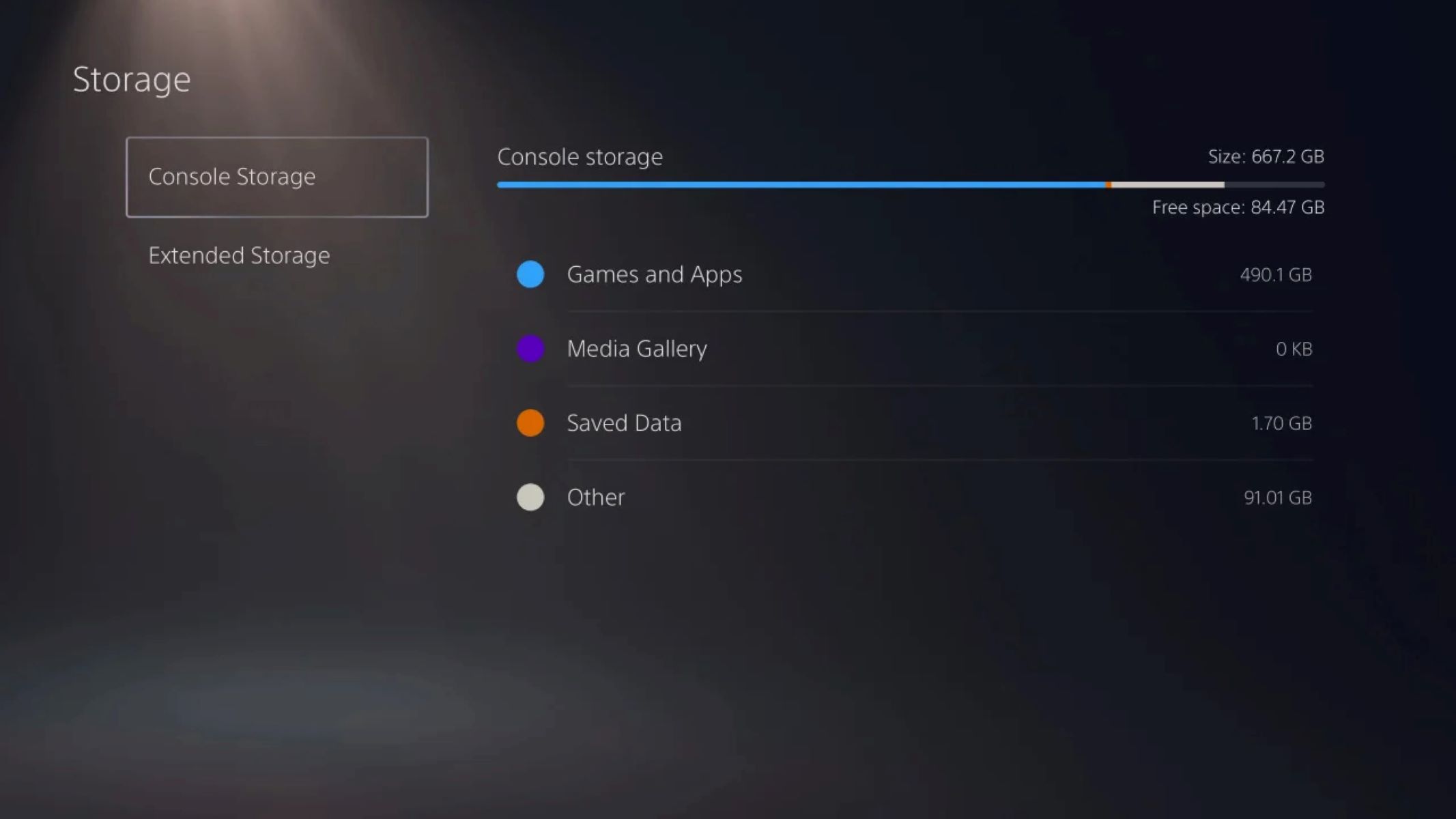
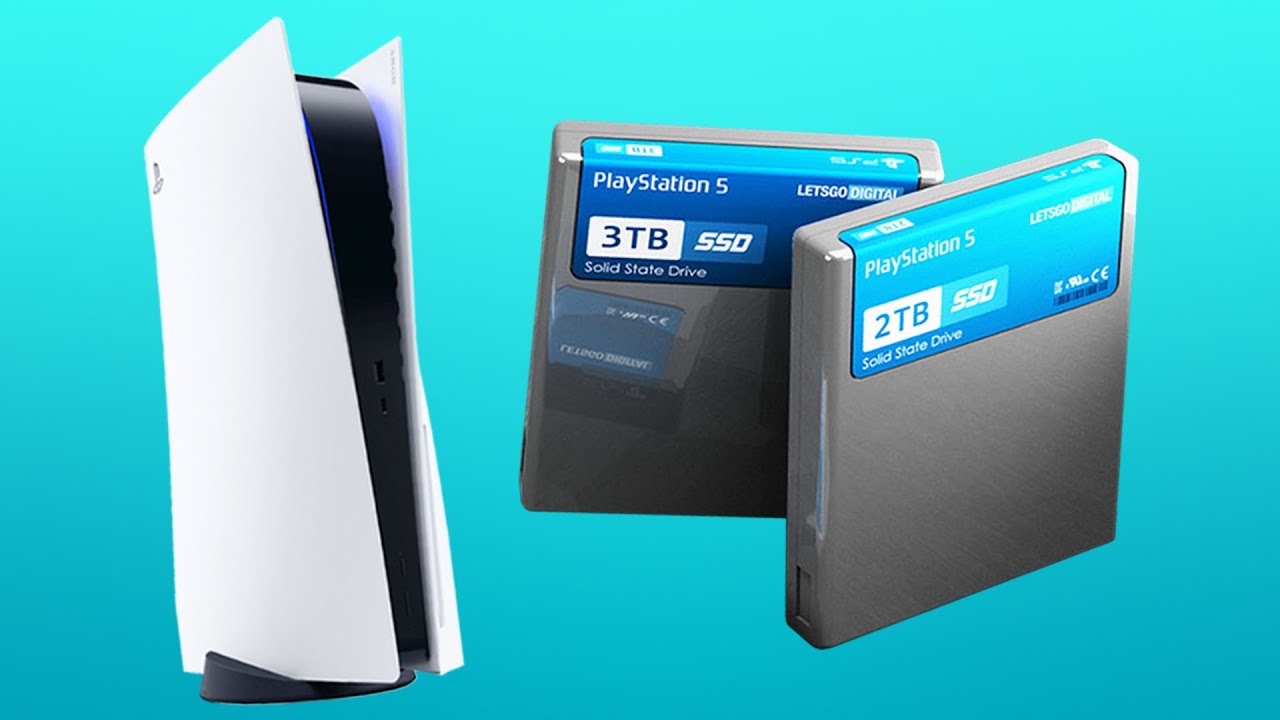
This PS5 storage guide walks you through exactly what you are working with before you think about adding an SSD or plugging in a USB drive. Every standard PS5 comes with a custom 825 GB solid state drive, though the actual usable space is less after the system software reserves its share. If you are wondering about your PS5 storage capacity, this article explains exactly how much space you truly have for your games and media, so you can plan your library accordingly. The moment you insert PS5 disc, the console will insist on copying that data to this internal drive before you can play, no exceptions, and our guide shows you the correct way to do it without damaging the disc, ensuring you never fumble the process. This hardware rule also applies to digital downloads: you cannot run a PS5 title from any USB-connected device. Treat a connected USB drive as a place to store PS5 games you are not currently playing, though PS4 games can be played directly from it. If you need to save games on PS5 when your solid state drive is full, offload a few titles to that backup location, then copy them back later when space opens up, and our dedicated article walks you through that entire process step by step so you never lose progress. This is a fundamentally different workflow from PS4 games, which you can play directly from a portable USB drive without any copying. Knowing this distinction now will save you from buying the wrong hardware later.
- save games on PS5 when your solid state drive is full — How To Save Games On PS5 When Your Solid State Drive Is Full
- PS5 storage capacity — How Much Storage Does A PS5 Have
- insert PS5 disc — How To Insert PS5 Disc
Adding and managing external USB storage
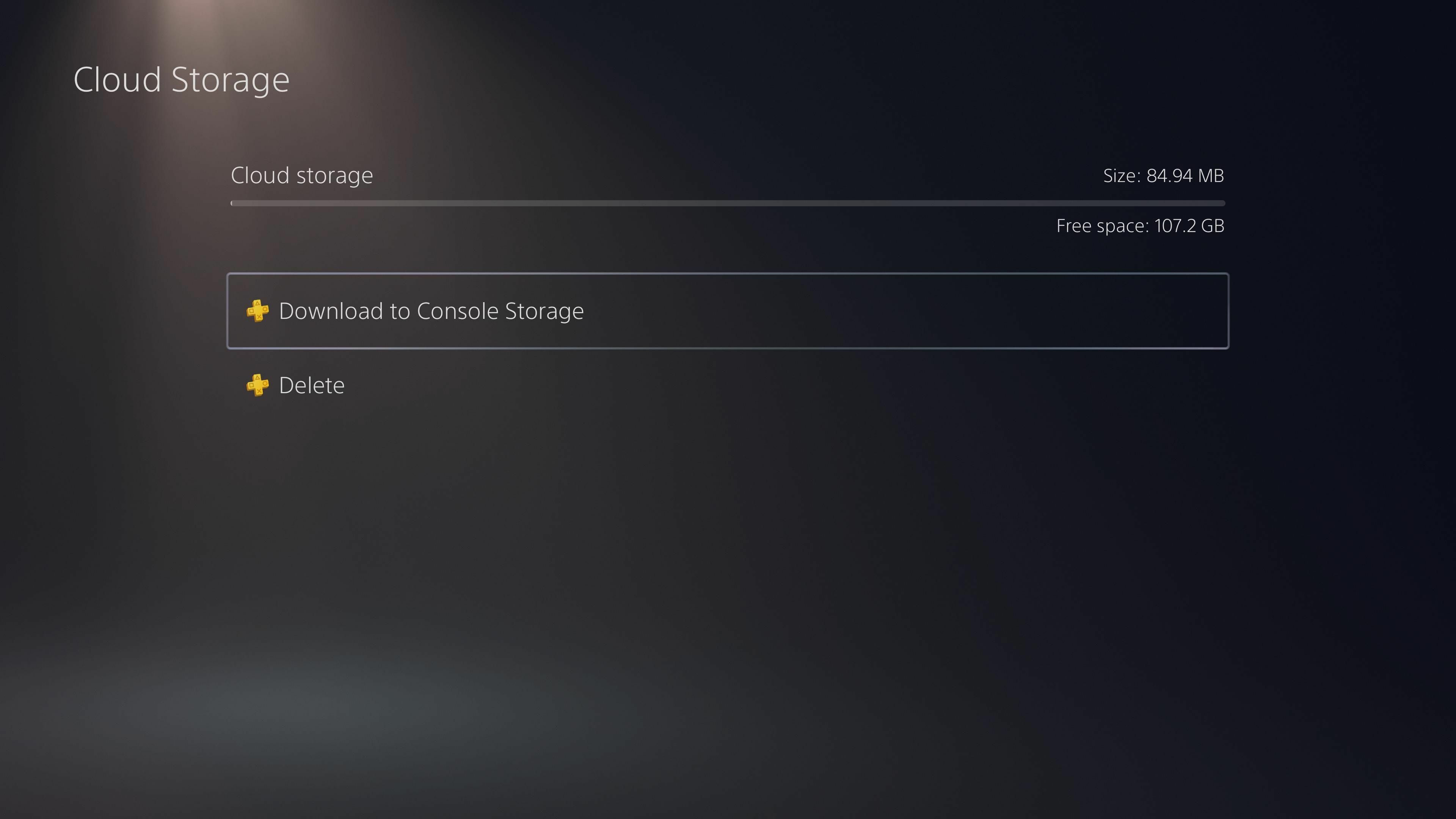
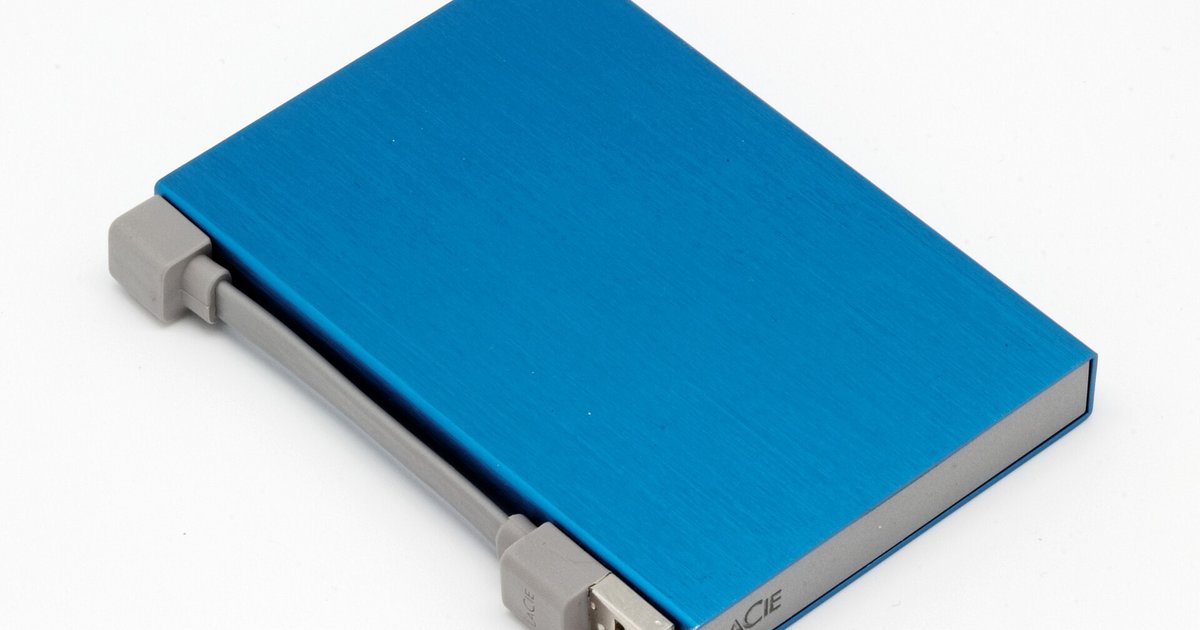
Plugging a USB drive into one of the PS5's SuperSpeed USB ports (the rear ports or the front USB-C port) is the simplest way to expand your storage, but only for certain tasks. You can store and play PS4 games directly from the drive, which is a huge help if you are still working through a backlog. Connect your device, then go to Settings > Storage > USB Extended Storage > Format as USB Extended Storage to format the drive for game use; once it is ready, move any PS4 titles over to free up internal space. To migrate your library between devices, you can transfer PS4 games from one external hard drive to another by moving them to console storage first, then to the new drive, a process that keeps your saves intact. For PS5 games, the situation is different: the console treats the add-on drive as cold storage only. You can move PS5 titles to the USB drive to archive them, but you cannot play them from there. When you want to revisit a game, start copying a PS5 game from USB back to console, a process that takes several minutes depending on file size. If the peripheral is not detected after you plug it in, check the cable and the port first, then look up a PS5 not reading external hard drive fix, which often involves checking the file system or the USB power setting in the system menu. Remember, you cannot simply play games on external hard drive PS5 for PS5-native titles; that feature is reserved exclusively for PS4 games and archived PS5 data, a cold-storage limitation no other current-gen console enforces with the same rigid library split.
Installing and using internal m.2 expansion
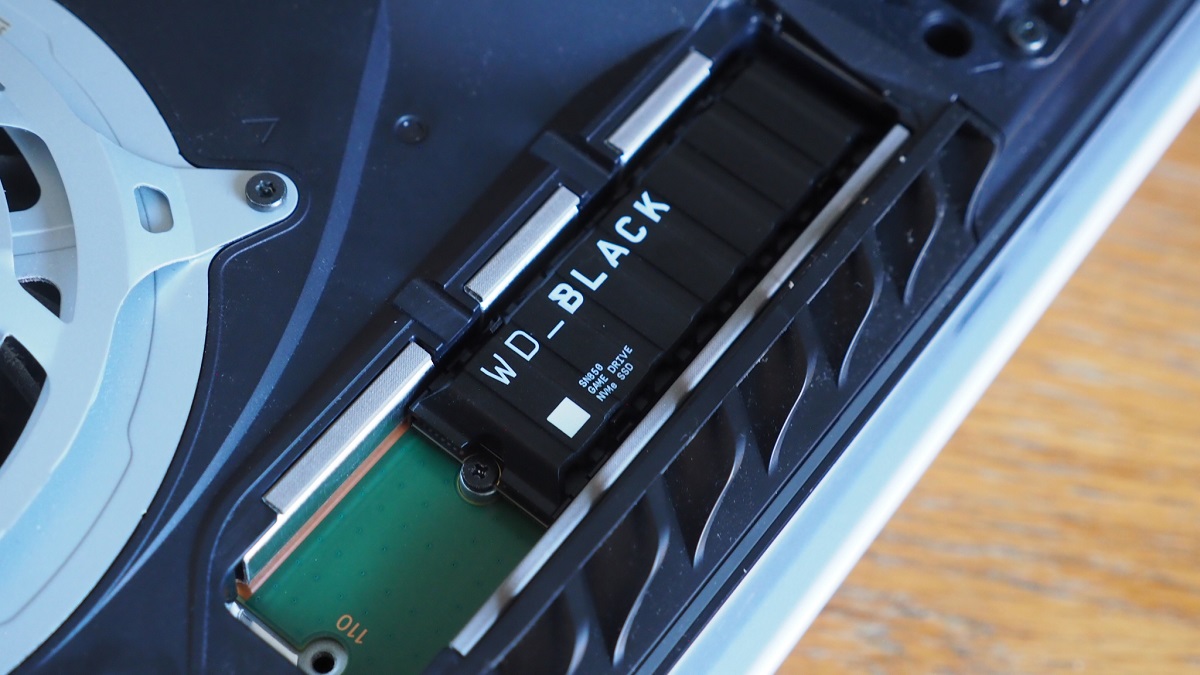
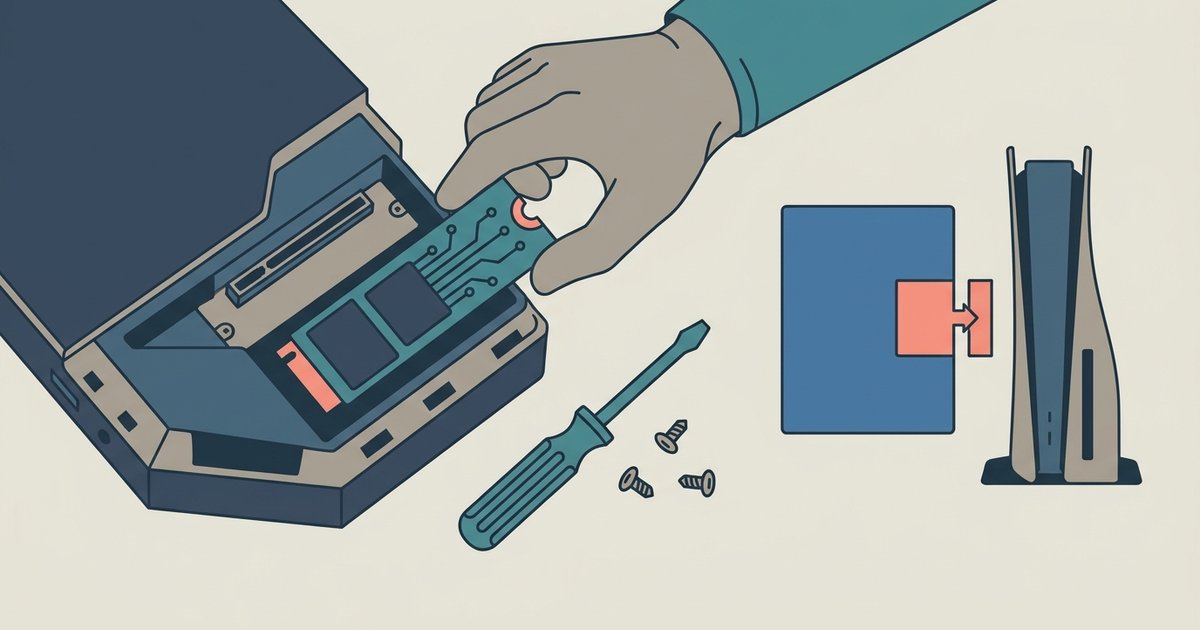
To actually get more storage on PS5, you first need to power off the console completely, unplug all cables, discharge static electricity, and slide off the side panel to reveal the expansion bay. The slot accepts standard M.2 NVMe drives that meet Sony's speed requirements, anything slower will simply be rejected by the system. Once you physically install wd black SSD in PS5, or any compatible drive, the console will prompt you to format it. After that, the drive appears as a separate storage pool alongside the internal SSD. To move games onto it, you can use the storage management menu in Settings to transfer titles to the new M.2 drive. You can also use the storage management menu to move PS5 games to m.2 storage in bulk, which is faster than doing them one by one. A common question is about playing PS4 games from an M.2 SSD on PS5: the console treats this exactly like the internal drive, so PS4 titles run just fine from the expansion slot. However, keep in mind that you cannot play PS5 games from an auxiliary USB drive at all, that port is strictly for archiving PS5 titles and for playing PS4 games directly. Bookmark the official PlayStation support page for a list of verified compatible drives before purchasing, and arrive at the checkout with a heatsink-equipped model to avoid thermal throttling. Skip the slower USB connection for your PS5 library entirely, and use the dedicated internal expansion bay entrance as your primary path to high-speed capacity.