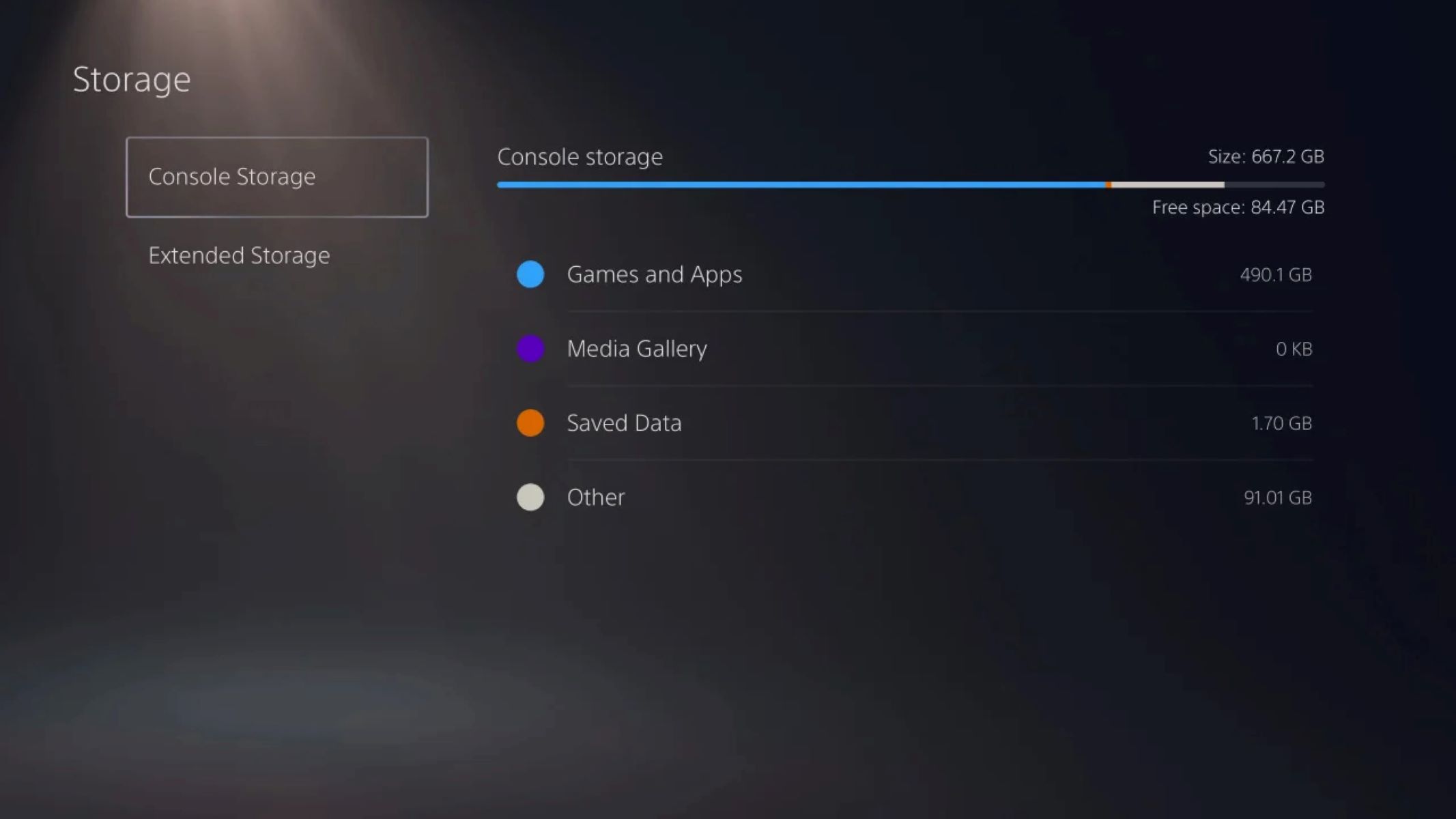
Go to Settings > Storage > Console Storage > Games and Apps, select the items you want to move, and choose the M.2 SSD as the destination.
How to move PS5 games from internal storage
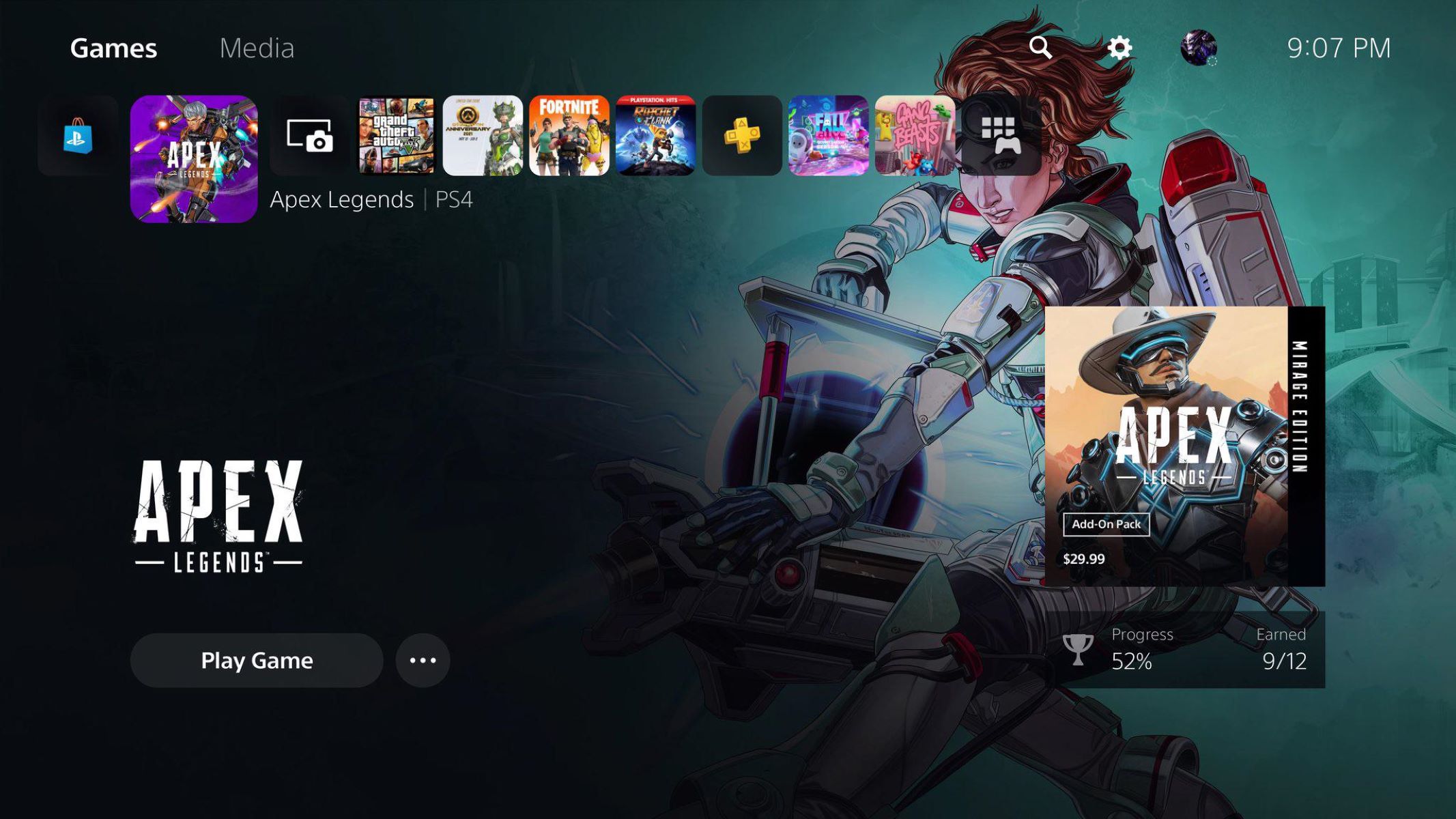
To transfer installed PS5 games from the internal drive to your M.2 expansion slot, navigate to the main Settings menu from the home screen. Select Storage, then Console Storage, followed by Games and Apps. You will see a list of all installed PS5 titles. Select the items you want to move, then choose the M.2 SSD as the destination. Choose the M.2 SSD as the destination and confirm. The transfer speed depends on the size of the game and the read/write performance of your M.2 drive.
Why the move option might be greyed out
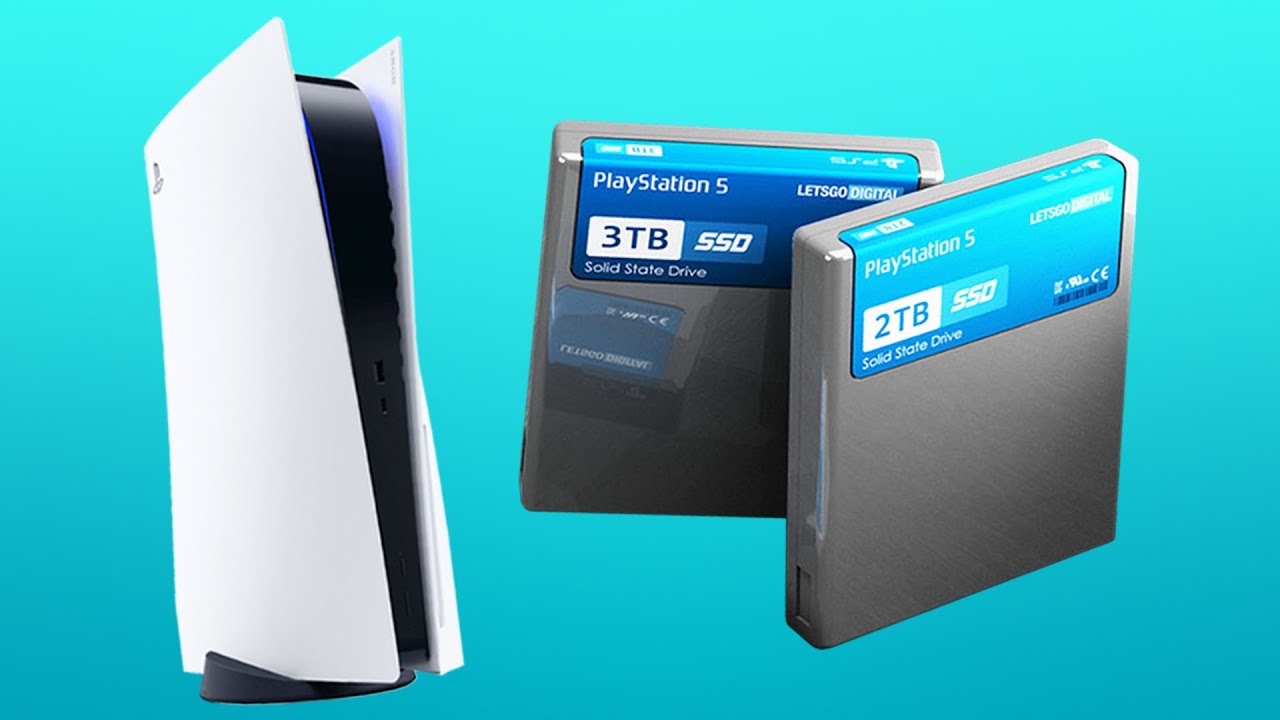
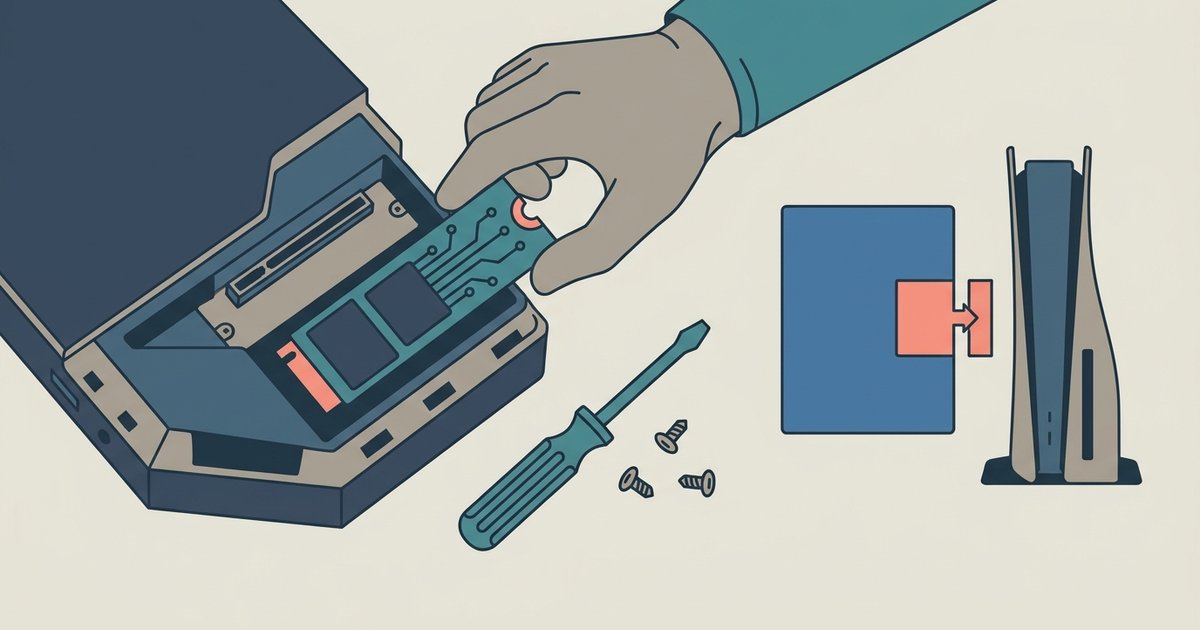
If the "Move" button is unavailable or the M.2 SSD does not appear in the destination list, the drive is likely not formatted correctly or is improperly seated. The PS5 requires that any M.2 SSD used for game storage be formatted as internal extended storage. To check, go to Settings > Storage and see if the system recognizes the drive under M.2 SSD Storage. If the drive is not formatted, select it and choose the option to format it as extended storage. A possible cause of a greyed-out move option is that the drive carries an incompatible file system. Additionally, ensure the drive is physically seated fully into the slot. If the hardware still does not detect it, try restarting the PS5 and re-seating the drive. You can also check for approved drive models on the Sony support site. For broader guidance on expanding capacity, you can get more storage on PS5.
Setting the M.2 as your default install location
Once your M.2 drive is formatted and recognized, you can make it the default destination for all future PS5 downloads. Go to Settings > Storage and find the Install Location option. Select the M.2 SSD as the default location for PS5 games and apps. This setting ensures that every new PS5 game you purchase or download from the library goes directly to the expansion drive without requiring a manual move later. Note that PS4 games and certain apps may still default to the internal drive or an external USB drive if one is connected. Finally, if you want to play games from an external hard drive, remember that PS5 titles cannot run from a USB external drive, they require either the internal storage or a properly installed M.2 SSD. Only PS4 games can be played directly from an external USB drive attached to the unit.
Unlike a PC, the PS5 requires any M.2 SSD used for game storage to be formatted as internal extended storage before it can hold titles. For a deeper look at the broader topic of PS5 storage capacity, discs and expansion, explore our full guide on PS5 Storage: Capacity, Discs and Expansion.