To change your PS5 background, you need to customize the Welcome hub, as the console does not support traditional themes like the PS4. The primary way to change PS5 background is by selecting a new image for the Welcome hub, which replaces the static home screen look.
Does the PS5 have themes? What you can change instead
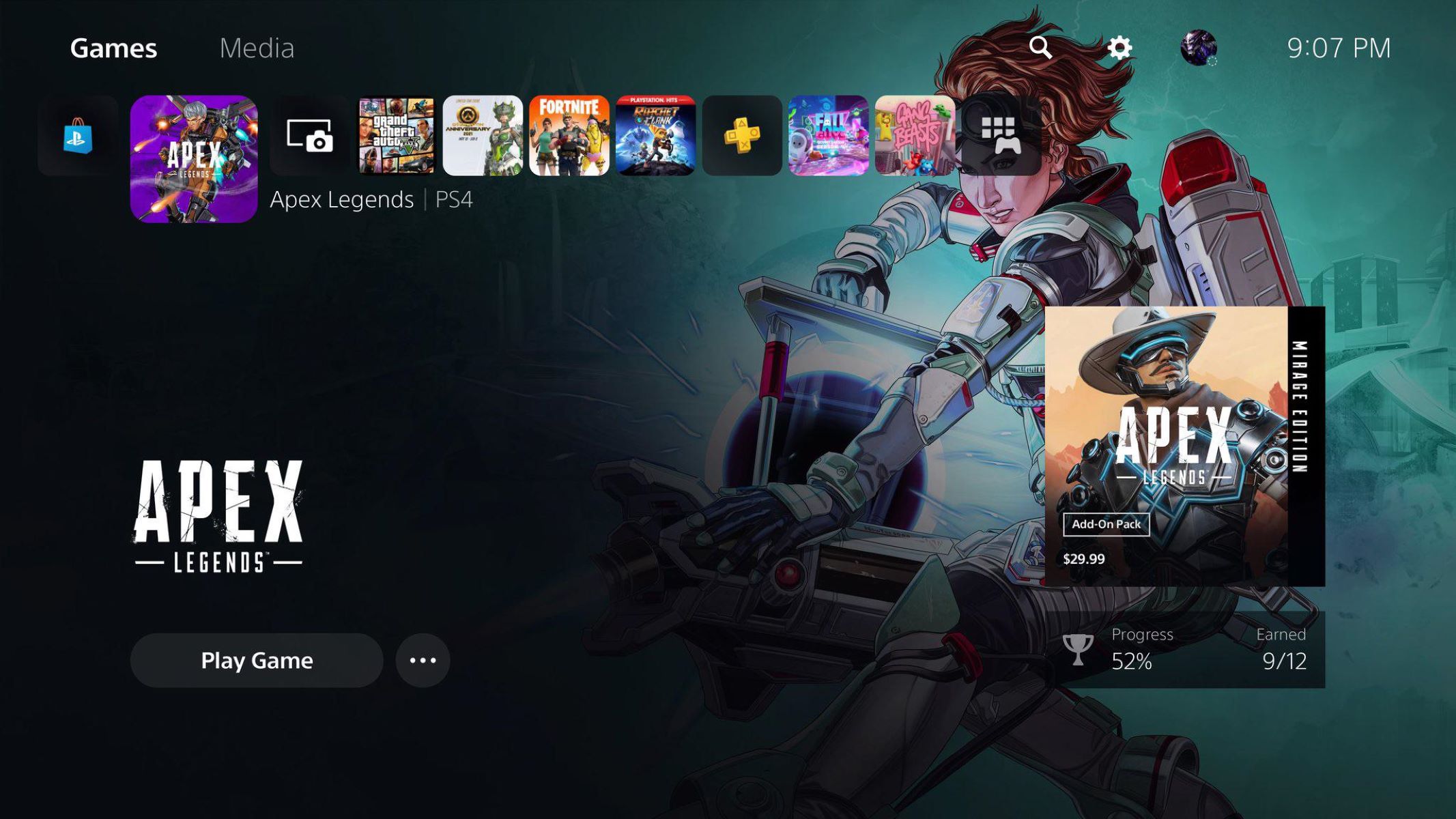
The PS5 lacks a traditional theme system like the PS4, which means you cannot apply full interface skins with custom colors, sounds, and icons. Instead, the console allows customization of backgrounds within the "Welcome hub". This hub acts as your home screen’s central widget, and changing its background is the closest you can get to a theme. You can choose from official PlayStation art, game-specific images, or your own screenshots to personalize the display.
How to access the Welcome hub on your PS5
From the PS5 home screen, the Welcome hub appears as a large panel on the left side. Navigate to it using your controller’s directional buttons. This is the starting point for all background customization, as every change you make begins here.
Step 1: Open the change background menu
To open the change background menu, go to the Welcome hub and press the Triangle button on your controller, then select "Change Background". Alternatively, from the Welcome hub, select the "Change Background" icon directly. Both methods lead to the same customization options.
Step 2: Choose your background source
Once in the menu, you can choose backgrounds from three sources:
- From PlayStation, Select official art provided by Sony, including curated images and dynamic backgrounds.
- Games, Pick backgrounds based on popular titles you own, such as promotional art or key visuals.
- Media Gallery, Use your own screenshots captured on the console for a fully personal look.
Browse each section and preview the options before making your choice.
Step 3: Apply and customize your new background
After selecting a background, confirm your choice to apply it. You can then explore additional settings within the Welcome hub to enhance the experience. For example, you can enable Slideshow mode in the Welcome hub settings to rotate through images from an album as your background, giving your home screen a dynamic feel. You can also activate Showcase mode in the Welcome hub settings to display the background in full when the console is idle, hiding widgets for a clean, immersive view.
Troubleshooting and tips for your PS5 background
If your background options seem limited or missing, ensure your system software is up to date for the latest features. Sony frequently adds new background sources and modes through firmware updates. For a better viewing experience, consider adjusting your display’s brightness in the PS5 settings to match your chosen background. If the screen feels too harsh or too dim against your new theme, here’s how to adjust brightness on PS5. Remember, you can always return to the Welcome hub and repeat the steps to swap backgrounds whenever you want a fresh look.
\nRelated reading: How To Insert PS5 Disc.