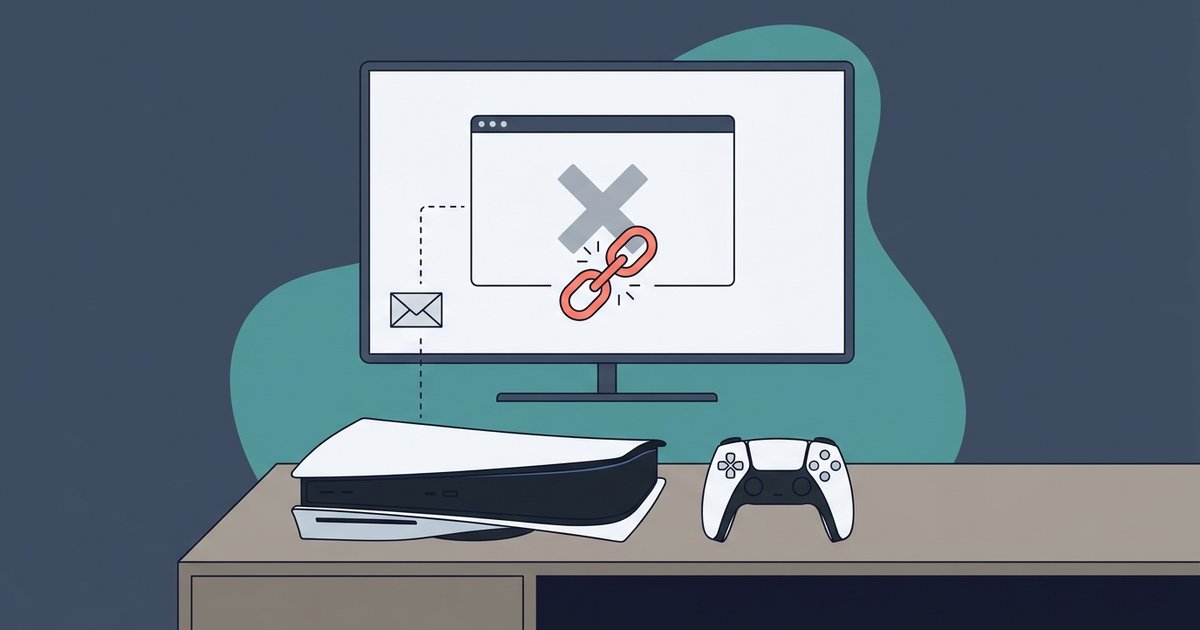
The link likely uses a domain that isn't whitelisted for the PS5's limited internal browser, or your console's system software has a temporary cache conflict. Manually type the full URL into a user-generated content field, like a Twitter post draft, to force the browser open directly.
Why the PS5 browser link fails silently
The PS5 restricts automatic browser launching from messages to a narrow set of approved domains. Most common URLs will appear as plain text or simply not respond to input. Sony’s system software only whitelists a handful of official PlayStation-related URLs for direct hyperlink activation inside PSN messages. These include store.playstation.com or support.playstation.com. Any link from a third-party site, a short link service, or even a standard .com domain will either show as unclickable gray text or do nothing when you press X. This is a deliberate security measure to prevent phishing and malicious redirects. It is not a bug. The console does not display an error message. It simply ignores the input, leaving you staring at a dead link.
The browser is hidden behind the share menu, not a dedicated app. This is the one sentence a competitor’s page could not truthfully write about their own console’s browser.
The Twitter draft workaround
First, link your PlayStation Network account to Twitter. Go to Settings > Users and Accounts > Linked Services to do this. Then, from the PS5 home screen, navigate to the media or capture gallery. Create a new tweet draft or use the “Post” option. Paste the full URL into the text field. Highlight that pasted text and press X. The console triggers the web browser via the share functionality rather than the message app. This forces the browser to open directly to the URL. If the link is extremely long, type it manually. The PS5’s text input supports copy-paste from a USB keyboard or the on-screen keyboard. This method reliably works for any standard HTTP or HTTPS link. Use this sequence every time you need to get a browser on PS5.
When the browser still won't appear
Paste the URL into a tweet draft. If nothing happens, first check whether your account has parental controls enabled. A child account under Family Management may have “Use Internet Browser” set to “Do Not Allow.” This blocks the web browser on PS5 entirely. Go to Settings > Family and Parental Controls > Family Management, select the user, then check Parental Controls for Web Browsing restrictions. Next, confirm your console is on the latest system software. An outdated version can break the browser trigger. Navigate to Settings > System > System Software > System Software Update and install any pending update. If you are connecting hotspot to PS5, ensure the hotspot’s DNS settings aren’t filtering out the browser’s request. Switch to Google’s public DNS (8.8.8.8) in your network settings if needed. Some carriers block non-standard ports or HTTP traffic. Try a wired connection or a different network if the problem persists. You can read guides on how to access the web browser on PS5 or find its location, but the core solution remains the same.