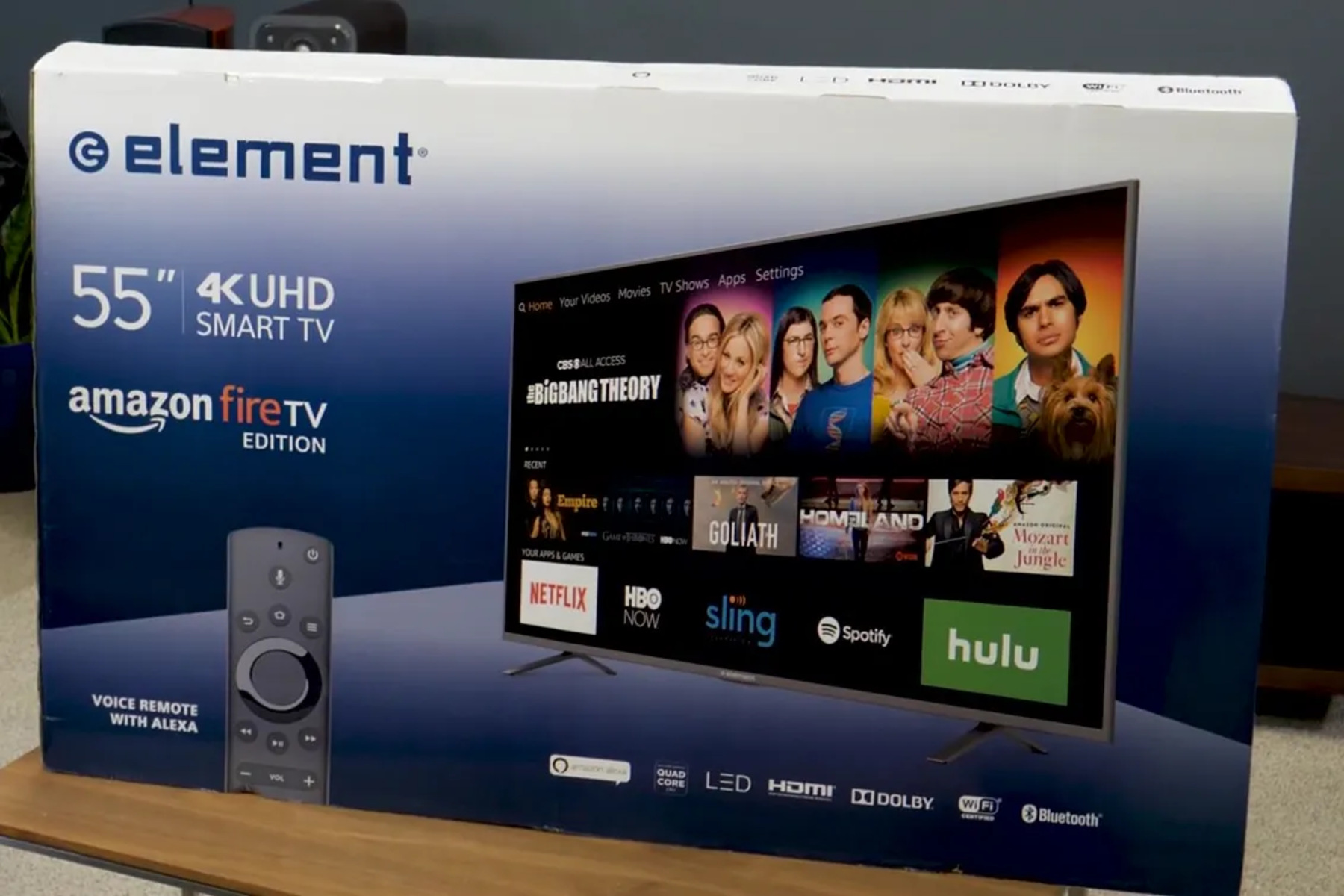
To change to HDMI on an Element TV without a remote, use the physical buttons built into the TV itself, this is the fastest and most reliable method. Press the "SOURCE" or "INPUT" button on the TV’s control panel, then cycle through the on-screen menu until you reach the HDMI input you need.
Locate the physical buttons to change to HDMI on your Element TV without a remote
Element TVs have physical control buttons mounted directly on the main unit, so you don’t need a remote to switch inputs. The exact placement varies by model, but you’ll almost always find them on the side or back panel of the TV. Look for a small cluster of buttons that typically includes power, volume, channel, and a dedicated "SOURCE" or "INPUT" button. That source button is the key: pressing it opens the input selection menu, and pressing it repeatedly cycles through all available signal sources, including HDMI1 and HDMI2. If you’re unsure which button is which, check the edge of the TV for printed labels or raised icons, the source button is often marked with a rectangle and an arrow pointing inward.
Switch HDMI inputs by cycling through the on-screen source menu
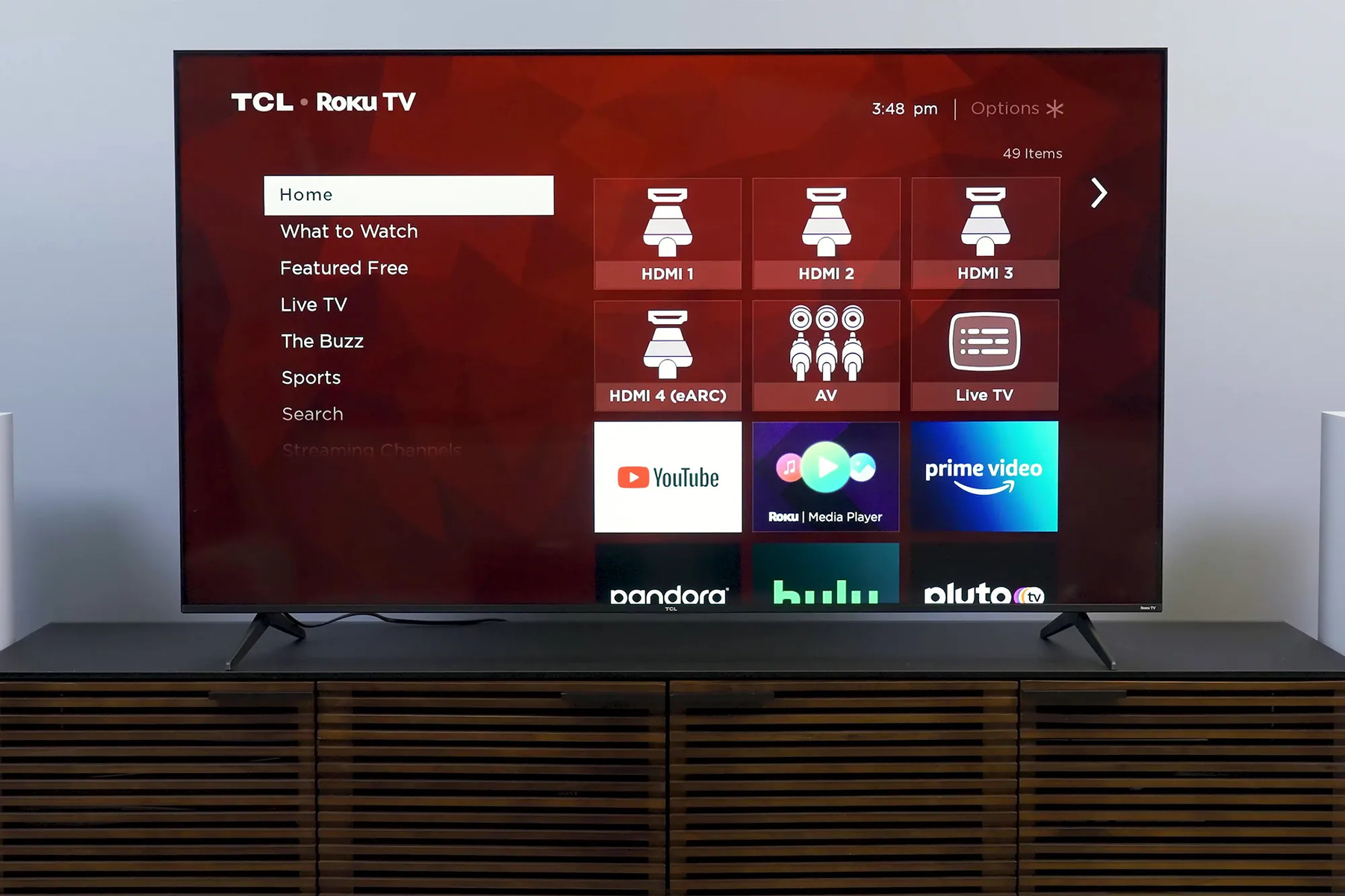
Once you’ve found the source button, the process is straightforward. Press it once to bring up the input list on your screen. The menu typically shows options in a fixed order, such as TV, AV, HDMI1 (ARC), HDMI2, VGA, and USB. Continue pressing the "SOURCE" or "INPUT" button to move the highlight through that list. Each press advances to the next input, so keep pressing until the HDMI input you want, usually HDMI1 or HDMI2, is highlighted or selected on the screen. When it’s highlighted, press the "OK" or "Enter" button if your TV has one; on some models, simply stopping on the input and waiting a few seconds will select it automatically. If you overshoot, just keep pressing to cycle back around to the correct HDMI port.
- Press the "SOURCE" or "INPUT" button on the TV’s side or back panel.
- Watch the screen for the input menu to appear.
- Press the same button repeatedly to cycle through TV, AV, HDMI1, HDMI2, VGA, and USB.
- Stop when the desired HDMI input is highlighted or selected.
- Confirm with the "OK" or "Enter" button if available, or wait for auto-selection.
This method works for any device connected to the HDMI ports on a TV, whether it’s a streaming stick, game console, or Blu-ray player. The on-screen menu gives you clear visual feedback, so you’ll know exactly which input is active.
Use the official Element Remote app for Android as a smartphone alternative
If the physical buttons are hard to reach or you prefer a virtual interface, the official Element Remote app for Android is a reliable option. This app is designed specifically for Element Smart TVs and is available for download from Google Play. To use it, your Android phone and the TV must be connected to the same Wi-Fi network. Once installed, the app automatically discovers your TV and connects without any complicated pairing steps. The app’s interface includes a virtual "INPUT" button that works just like the physical one, tap it to open the source menu, then tap the HDMI input you want. This gives you a more precise way to select HDMI1 or HDMI2 directly, rather than cycling through every input one by one.
What to do if you have an iPhone or no Wi-Fi connection
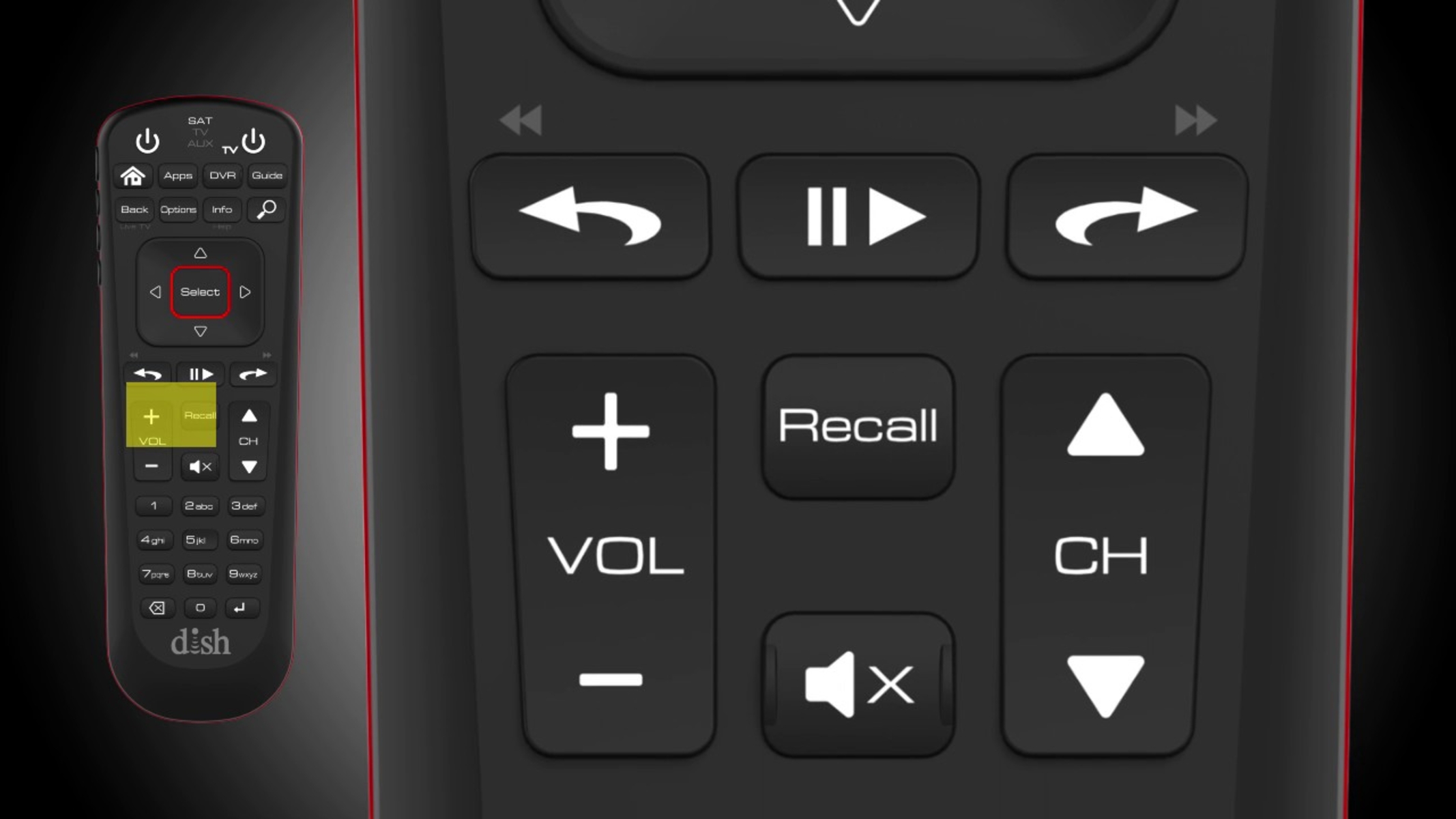
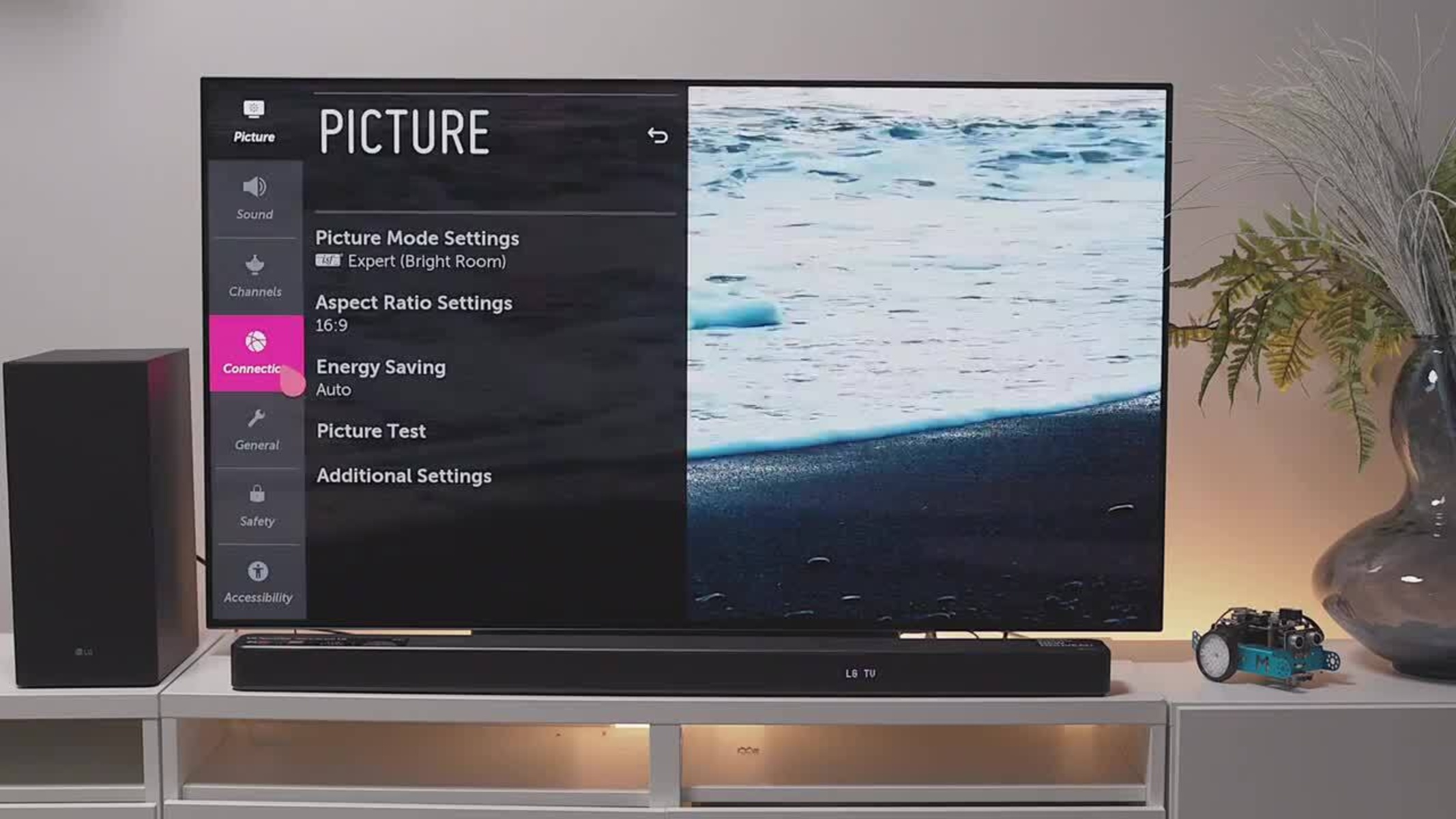
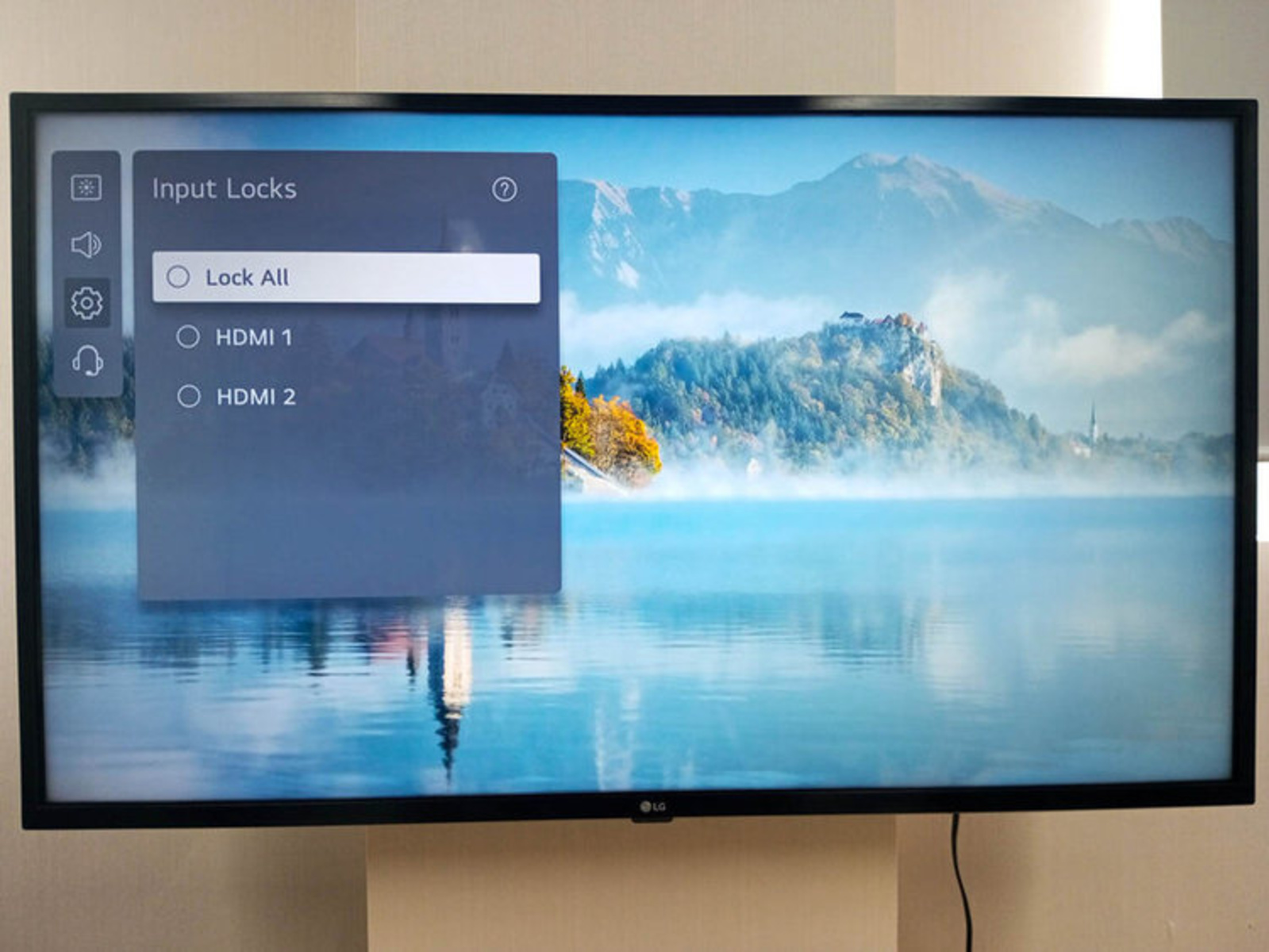
If you have an iPhone, the official Element Remote app is not available, there is no iOS version, and third-party remote apps for Element TVs are not official products. Many of those third-party apps require your phone to have an infrared (IR) blaster, which most modern iPhones lack, making them unreliable or completely nonfunctional. Similarly, if your TV isn’t connected to Wi-Fi, the official Android app won’t work, since it depends on a network connection to communicate with the TV. In both cases, the physical buttons on the TV remain the fail-proof method, but if you have a Dish receiver, you can also change HDMI on dish remote to switch inputs without needing the TV's original remote. If you own a different brand, you can similarly change HDMI on LG TV using its built-in joystick button when the remote is missing. No matter the model or situation, the built-in source button will always let you change to HDMI without a remote, so you’re never stuck without a way to switch inputs.